Clear Unused Images
 ozntel154k downloads
Clear the images that you are not using anymore in your Markdown notes to save space.
- Overview
- Scorecard
- Updates16
This plugin helps you to keep your vault clean by deleting the images you are not referencing in your markdown notes anymore.
The plugin simply gets all of your image links from all the markdown documents and compares these images with all image files you have available in your vault.
In case any of these image files are not referenced in any document of the vault, they will be automatically deleted.
Settings
Deleted Image Destination
Please make sure that you select the destination for the deleted images under "Clear Unused Images Settings" tab. You have 3 options:

Move to Obsidian Trash - Files are going to be moved to the
.trashunder the Obsidian Vault.Move to System Trash - Files are going to be moved to the Operating System trash.
Permanently Delete - Files are going to be destroyed permanently. You won't beable to revert back.
Excluded Folders
You can exclude folders, from which you don't want images to be removed during the scan. In case there are multiple folders to be excluded, you can divide them by comma. Please ensure you provide the full path in Vault:

You can now exclude all subfolders under the folder paths provided above:

How to use
Activate the plugin from Community Plugins
You can either:
- Activate the Ribbon Icon from plugin settings and click Icon from Left Ribbon for running the clean up:

- Or use Ribbon Icon or Open Command Palette (Using
Ctrl/Cmd + Por from Ribbon) Run "Clear Unused Images".

If you have turned on "Delete Logs" option in plugin settings, you will see a modal popping up with an information which images are deleted from your vault:
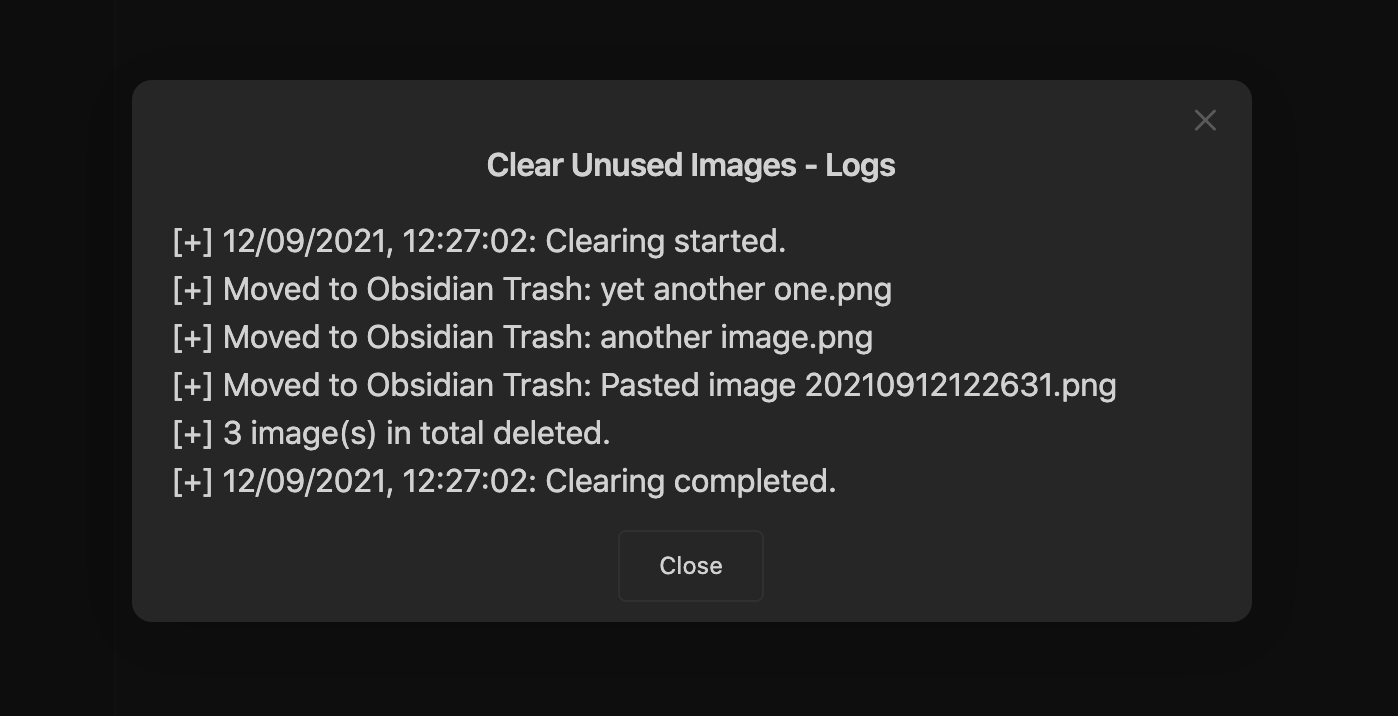
In case all images are used, you will see communication as below:

Scanned Image Formats : jpg, jpeg, png, gif, svg, bmp, webp
Planned Features
- Creating settings for users to select the destination of the deleted files
- Excluded folders settings for the scan
- Images to be cleaned during load of the vault if users chooses.
- Images to be cleaned every X minutes depending on user's choice
Support
If you are enjoying the plugin then you can support my work and enthusiasm by buying me a coffee: