Org Todo Planner
 esenonfossiio34 downloads
Manage TODOs in Org files: calendar and week view, due dates, repeating tasks, lists and sub-items, with drag and drop. Requires the Org Reader plugin.
- Overview
- Scorecard
- Updates2
Obsidian plugin to manage your TODOs day by day. Everything lives in plain Org
files (one, or several such as home.org and work.org), so it stays readable
(and editable) in Emacs or any text editor. You get a calendar with a month and a
week view, a due date for every TODO, and a Google Tasks-style pane with lists and
tick-box sub-items. It works on desktop and mobile.
Requires Org Reader. Obsidian can't declare plugin dependencies, so install and enable it yourself (Settings → Community plugins → search "Org Reader"). It provides the
.orgeditor that opens when you click a TODO title. Without it you can still add, tick and reschedule TODOs from the panes, but not open the file. Org Reader replaces Orgmode (cm6), so disable that one: only one plugin can handle.orgfiles.
Quick start
- Install and enable Org Reader and Org Todo Planner (Settings → Community plugins), and disable Orgmode (cm6) if you have it.
- Click the list-checks icon in the ribbon (or run Open tasks), then Add a task. The first
task creates
todo.orgin your vault; it opens as a tasks tab from then on. - Give a task a due date and it shows up in the calendar (the calendar ribbon icon, or Open planner).
- Make lists and more files with + New list and + New file; drag tasks to reorder them.
Everything else is below.
Screenshots
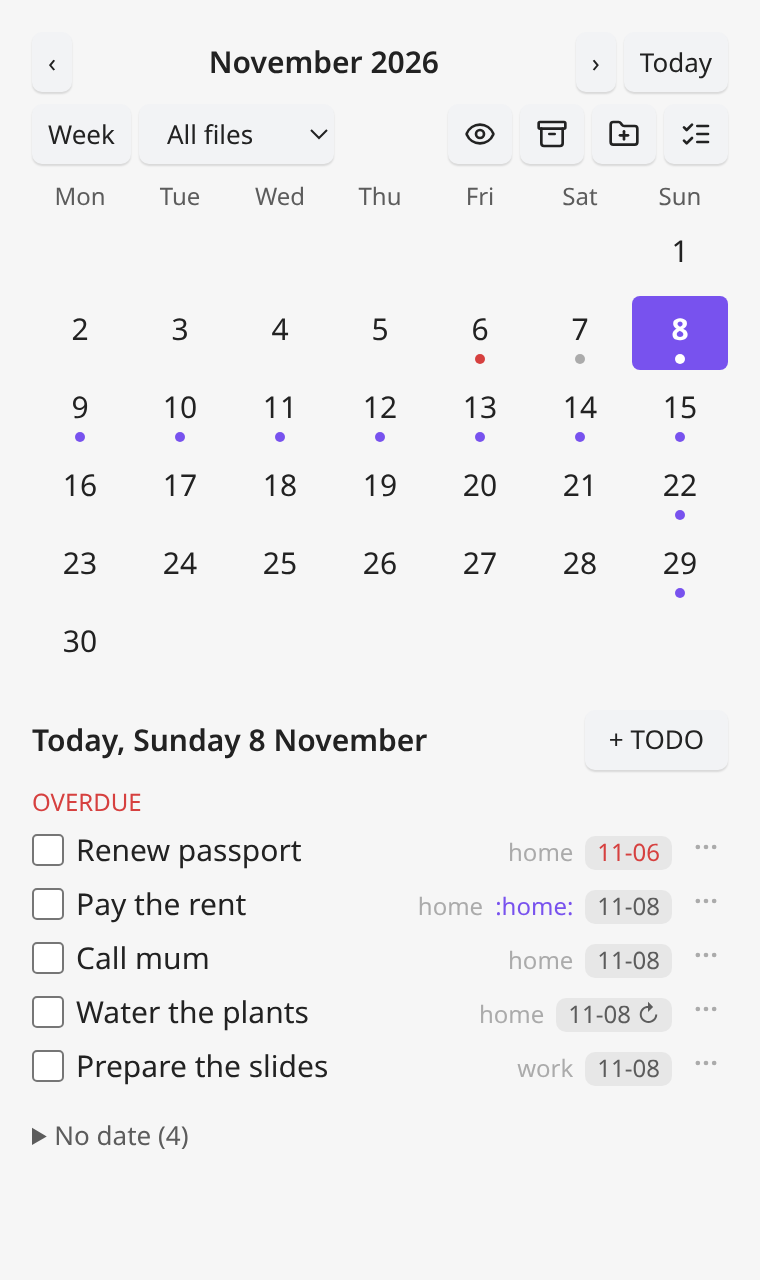
Month view with today's list and the overdue TODOs:
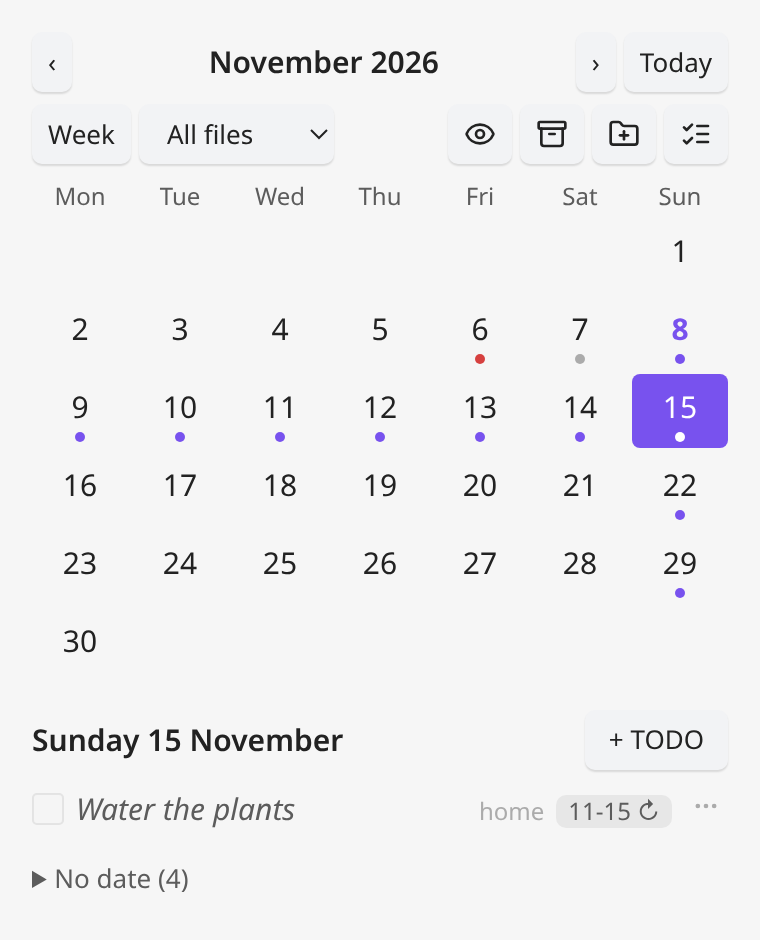
A repeating TODO ("Water the plants", weekly) also shows on its later occurrences, in italics:
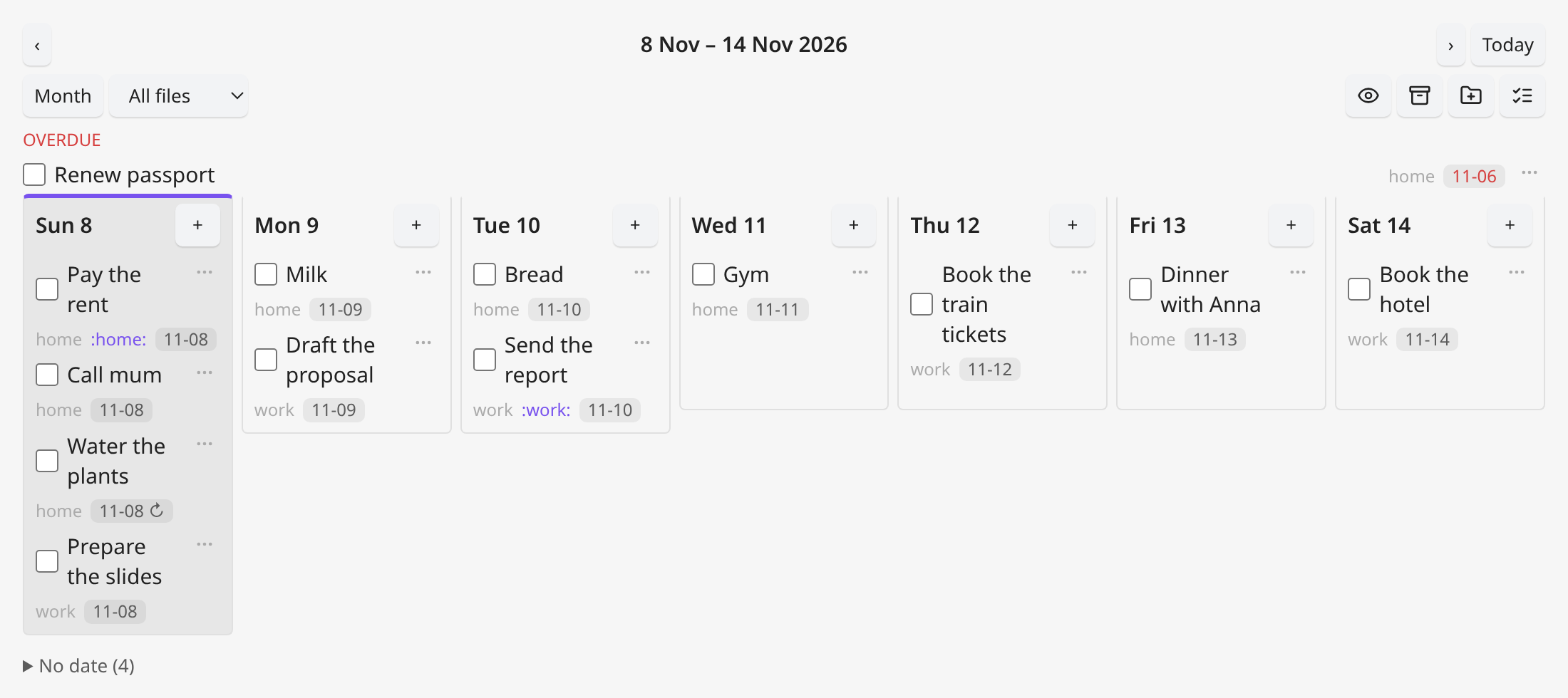
Week view, as seven columns when the pane is wide (stacked in a narrow one):
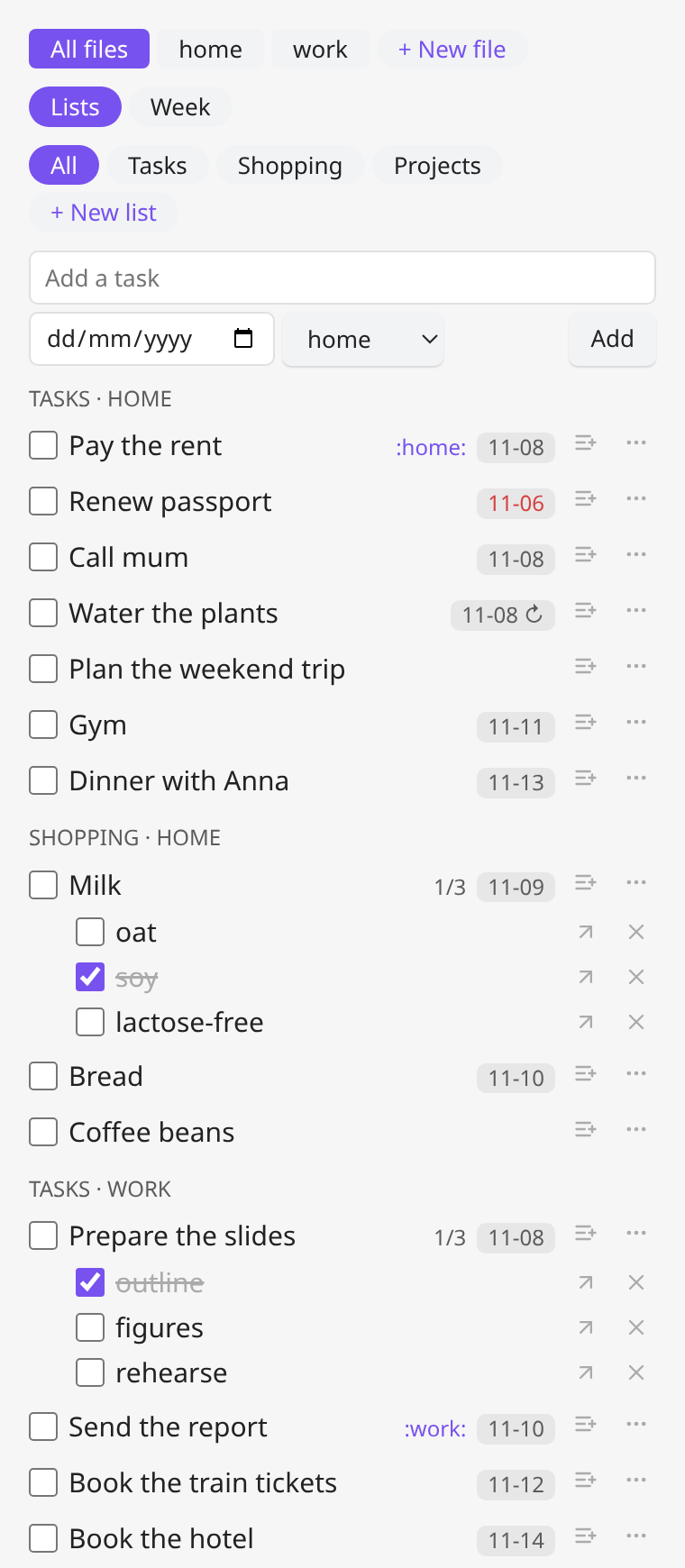
Tasks pane with file chips, lists, sub-items and the Completed section (shown here with two files, home and work):
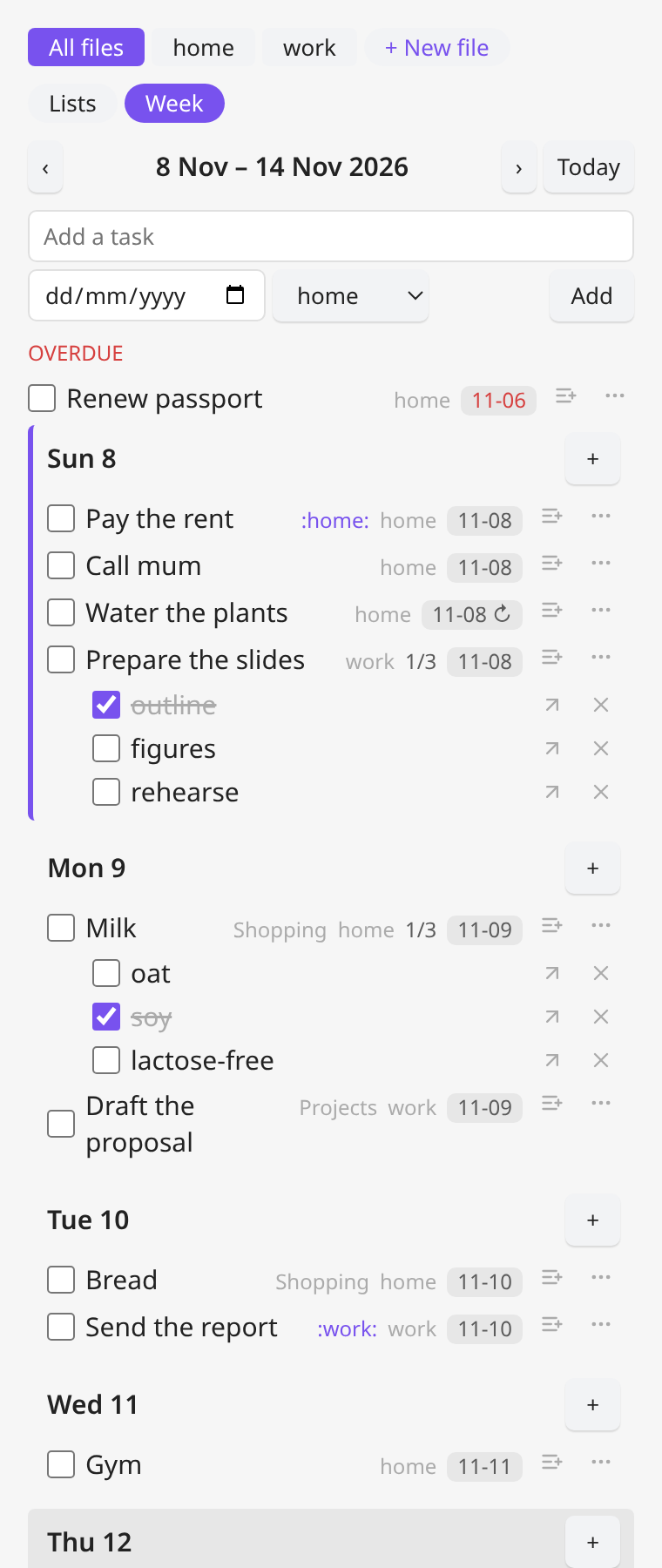
Tasks pane in week mode, grouped by day:
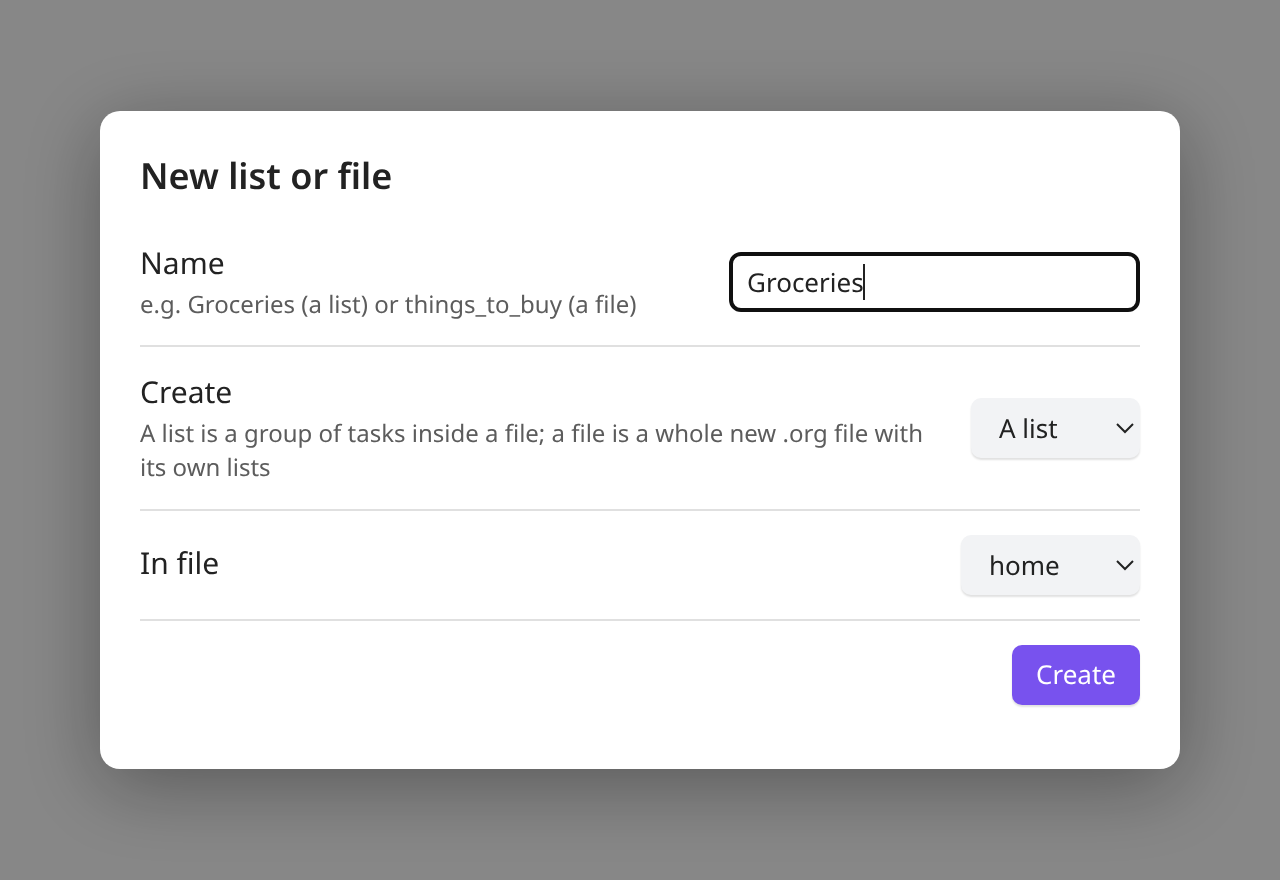
Creating a list or a file, with the same kind of dialog as a new TODO:
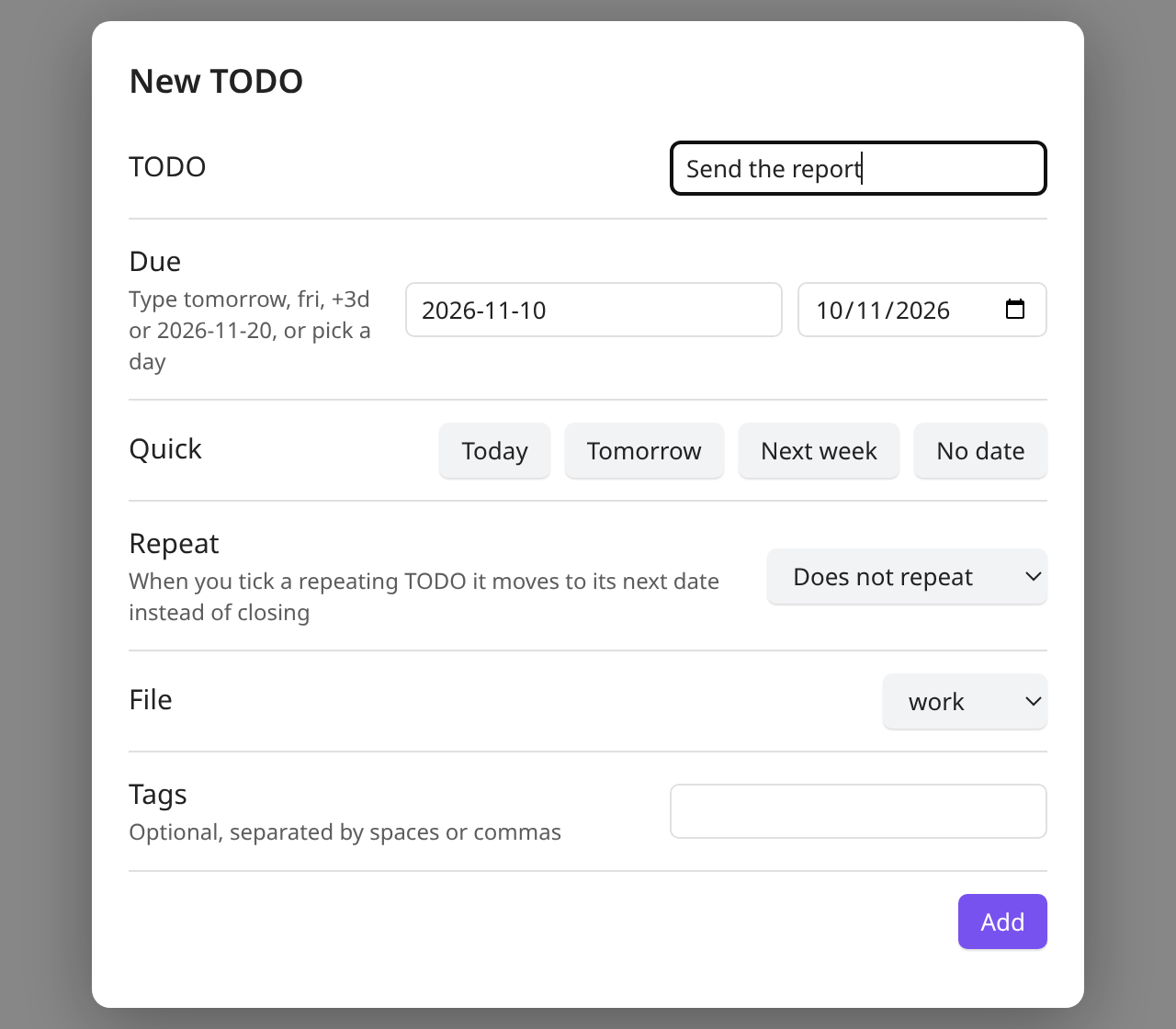
Adding a TODO with a due date:
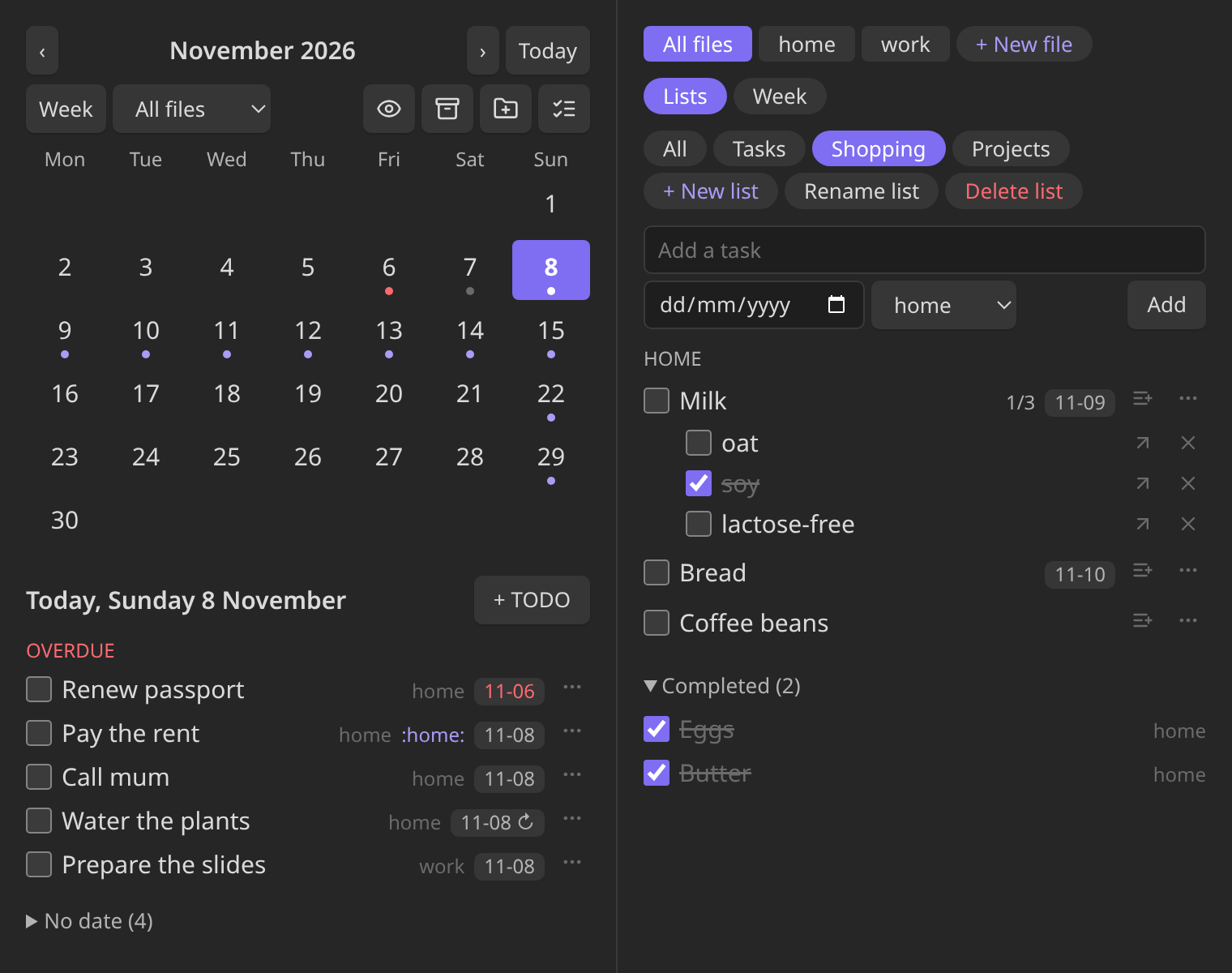
Dark mode, planner and tasks side by side (colours come from your Obsidian theme, so both light and dark work):
The TODO files
By default one file, todo.org in your vault. You can have as many as you like, for example
things_to_buy.org or work.org, each with its own lists:
- Click + New file at the top of the Tasks pane (or run the New TODO file command) and
type a name such as
things_to_buy. The plugin adds.org, creates the file (in your first task folder if you set one, else next to your first TODO file; typefolder/nameto choose another folder, which is created if needed) with a header that makes it open as tasks, adds it to your files and switches the panes to it. Typing the name of a file that is already in the list just selects it. - Or put the files in a task folder (see Opening a file as tasks):
every
.orgfile in it is a TODO file, nothing to register. - Or edit TODO files in the settings (one path per line). That is also where you remove a file from the list; the file itself is never deleted.
This is what a file looks like:
* TODO Pay the rent                                          :home:
  DEADLINE: <2026-11-10 Tue>
* TODO Call mum
* Shopping
** TODO Milk
   DEADLINE: <2026-11-09 Mon>
   - [ ] oat
   - [X] soy
** DONE Eggs
   CLOSED: [2026-11-07 Sat 18:02]
- A TODO is a heading starting with
TODOorDONE, with optional:tags:. - Its due date is a
DEADLINE:line right under it. ASCHEDULED:date in an existing file is read too. When you complete a TODO the plugin addsCLOSED: [now]. - A list is a top-level heading without a TODO keyword (
* Shopping). Its tasks are the** TODOheadings under it. TODOs that are not under a list are in the default list, Tasks. - Sub-items are Org checkboxes (
- [ ],- [X]) under a TODO. - A repeating TODO has an Org repeater in its date:
DEADLINE: <2026-11-09 Mon ++1w>.
Opening a file as tasks
Besides the panes, a TODO file can open as a tasks tab: the same lists, week mode, sub-items and actions as the Tasks pane, filling a tab, for just that file.
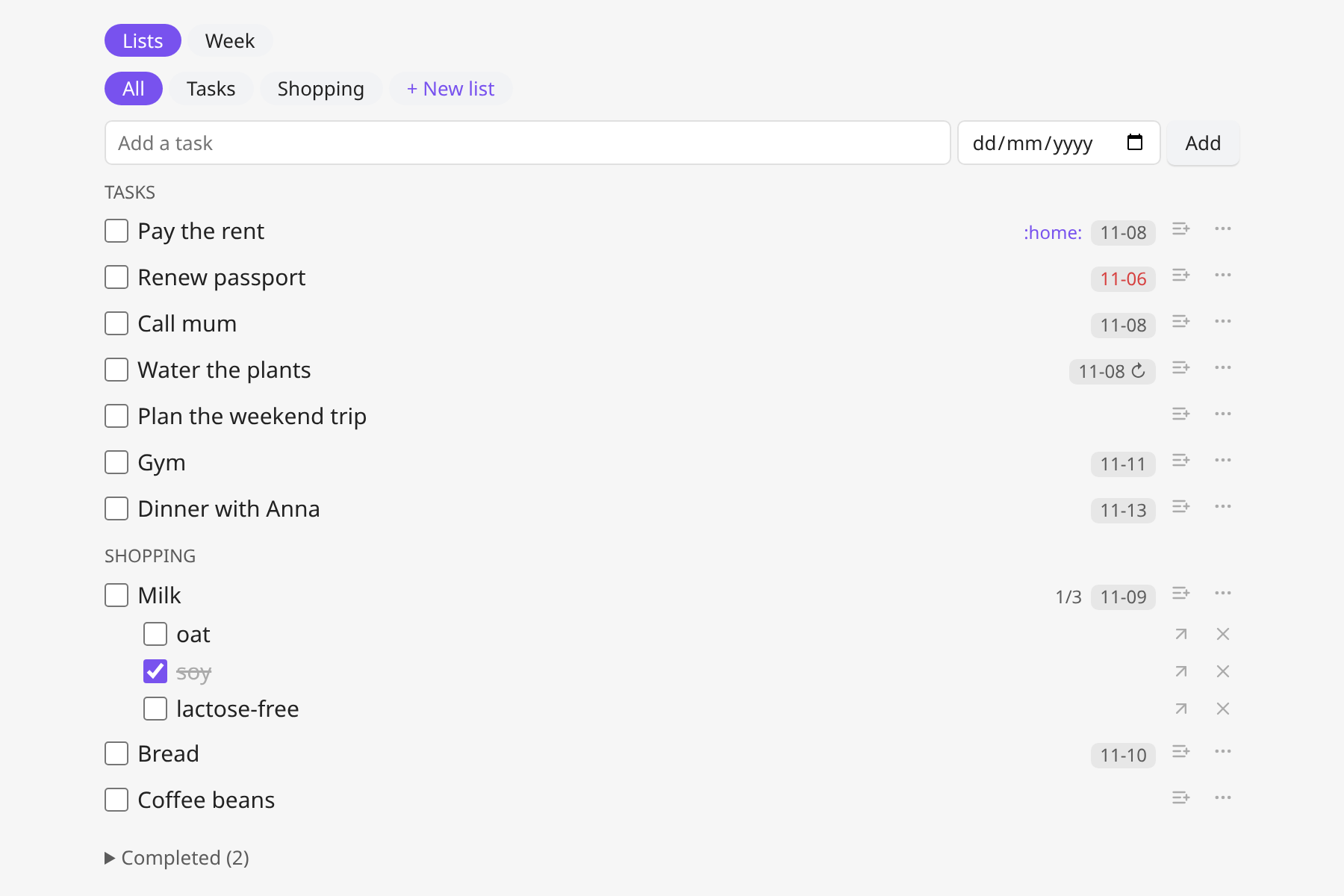
This is the default for your TODO files: a file opens as tasks (instead of as text in the Org editor) when it is
- one of your TODO files, listed under TODO files in the settings (so
todo.orgopens as tasks with no extra setup); or - in a task folder: a vault folder you list under Task folders in the settings (for example
Tasks). Every.orgfile in it or below is a TODO file, and anything you drop into the folder shows up in the planner and the Tasks pane too. Archive files (<name>-archive.org) are skipped; or - any other
.orgfile whose header has a marker line,#+PLANNER: tasks. The header is everything before the first heading, so put it next to#+TITLE:.
#+PLANNER: off in a header keeps a file a normal text file, even if it is one of your TODO files.
Any other .org file opens as text as usual.
#+TITLE: Groceries
#+PLANNER: tasks

* TODO Milk
- To see the raw file, use Edit as text in the tab's header (the tab then stays a text editor until you close it). From a text tab, Open as tasks in the file explorer's right-click menu, or the Open TODO file as tasks command, goes back.
- Make this file open as tasks (command, on the open
.orgfile) adds the marker line for you. - A marked file that is not in your TODO files shows a notice with an Add to TODO files button; its tasks are not in the planner until you add it (files in a task folder are always included).
- Files made with + New file also get the marker, so they stay tasks if you later take them out of the TODO files.
- The switch happens for tabs that are already open too (when the plugin loads, or when you change the TODO files or the setting), not only when you open a file. Your "Edit as text" choice lasts until the tab is closed or Obsidian restarts.
- If a file opens as text and you don't know why, run Why does this file open as text? (diagnose): it shows whether the file is a TODO file, what its header says, whether the setting is on and which view the tab uses.
- Turn the whole behaviour off with Open TODO files as tasks in the settings. Opening a file from a task's title or Open in file always shows the text editor.
Several files
With more than one file, each is labelled by its name (home.org → home). The planner and the
Tasks pane show all files together, with the file name next to each TODO, or one file at a time:
use the All files / home / work dropdown in the planner, or the file chips at the top of the
Tasks pane (the choice is shared by both panes and is not remembered after a restart). New TODOs
go to the file you are looking at, or you pick one in the New TODO dialog and the Add a task
row. Lists belong to a file, so home.org and work.org can each have their own Shopping.
Moving a TODO to another file: open the TODO's menu (the ⋯ button on its row, or right-click / long-press) and choose Move to another file, or click the file name shown next to it. The TODO moves with its notes, sub-items and child headings. A task inside a list goes into the list of the same name in the other file (created if it is missing); any other TODO goes to the end of the file. In an open TODO file you can use the Move TODO under cursor to another file command. The TODO is written to the new file before it is removed from the old one, so a failure can't lose it.
You can edit the file by hand at any time; the panes redraw when it is saved.
Using it
Planner (calendar)
Open it from the calendar icon in the ribbon (or the Open planner command).
- Month view: a dot on every day that has TODOs, including future occurrences of repeating ones (red if something there is overdue). Click a day to see its TODOs below the calendar. Today's list also shows everything that is overdue. TODOs without a date are in a No date section.
- Week view: the Week button switches to the selected day's week, one block per day with a + to add a TODO for that day. When the pane is at least 640 px wide the days become seven columns. Month switches back.
- ‹ › move by a month or a week, Today jumps back.
- Tick the checkbox to complete a TODO, untick it to reopen it. Click a title to jump to it in the file. Click a date chip to change the due date.
- The second toolbar row has the Month / Week switch, the file dropdown (with several files) and, on the right, four buttons: the eye shows or hides completed TODOs, the archive button (visible when there are completed TODOs) moves them out of the way (see Archiving), the folder + button creates a new list or file (see New list or file), and the list button jumps to the Tasks pane.
- Double-click a day to add a TODO for it (on touch screens use the + TODO button).
Tasks
Open it from the list icon in the ribbon (or Open tasks). It is meant for working through lists, like Google Tasks:
- With several files, chips at the top pick All files or one file; + New file adds another file.
- Tabs for All, the default Tasks list and each of your lists. The + New list button (or the New list command) creates a list such as Groceries; with several files it asks which file to create it in.
- Add a task at the top (with an optional due date, and the file if there are several). It goes into the selected list.
- Each task has a tick box, its tags and a due-date chip. Sub-items appear under it with
their own tick boxes and an
n/mcount. The list-plus button on a task adds a sub-item (Enter adds it, Escape closes the box). - Completed tasks are folded at the bottom of the list.
- Drag a task to reorder it (near the top or bottom edge of another task, or onto a list or, in week mode, a day), see Reordering tasks; drag it onto the middle of another task (of the same file) to make it a sub-item of that task, drag a list tab onto another to reorder the lists (Reordering lists), and drag a sub-item out onto a list (or, in week mode, a day) to make it a task, see Making a task a sub-item and Making a sub-item a task.
- Week mode: the Lists / Week switch at the top shows the same tasks grouped by day instead of by list, for the week of the selected day (‹ › move by a week, Today jumps back). Overdue tasks come first, then one block per day with a + that starts a new task for that day (the due date is pre-filled), then a folded No date section. Sub-items can be ticked and added here too, each task shows its list (and file), and later occurrences of repeating tasks are shown read-only like in the planner. The choice is remembered.
Due dates
Every dialog that asks for a date (New TODO, or the date chip on a task) accepts:
| Type | Meaning |
|---|---|
2026-11-20 |
that day |
today, tomorrow |
|
+3d, +2w |
in 3 days, in 2 weeks |
fri, friday |
the next Friday (never today) |
| (empty) | no date |
You can also pick the day with the date picker, or use the Today / Tomorrow / Next week / No date buttons.
Repeating TODOs
Choose a Repeat interval (every day, week, 2 weeks, month or year) in the New TODO dialog or when you change a due date. A repeating TODO shows a ↻ next to its date. When you tick it the TODO is not closed: its date moves to the next occurrence, its tick-box sub-items are cleared and it stays open, so it comes back on that day.
The repeater is the standard Org one, so Emacs understands it too, and you can write
the other kinds by hand: +1w moves the date by exactly one interval, ++1w (what the dialog
uses) keeps moving it until it is in the future, which suits a weekly task you completed
late, and .+1w counts from the day you complete it. Month and year steps clamp to the end of
short months (31 January + 1 month = 28 February).
The planner also shows the future occurrences of a repeating TODO: in the month and week
views it appears, in italics with a disabled tick box, on each later day that is on screen,
and those days get a dot. They are only a preview: tick the next real occurrence (the first one,
with a normal tick box) to move the TODO on. Hover a projected row to see which date that is. An
overdue repeating TODO is not repeated into the past, and a .+ repeater, which depends on the
day you complete it, is only approximated. Completed occurrences are not kept as history.
New list or file
Like New TODO, but for a new category: one dialog (the folder + icon in the ribbon, the folder +
button in the planner toolbar, or the New list or file command) asks for a name and whether to
create a list (a group of tasks inside a file, such as Groceries; with several files you also
choose which file) or a file (a whole new .org file such as things_to_buy, with its own lists).
It then shows the result in the Tasks pane. The Tasks pane's + New list and + New file buttons
and the New list and New TODO file commands do the same one thing each.
Reordering tasks
Drag a task in the Tasks pane (or the tasks tab of a file) to change its place in the file:
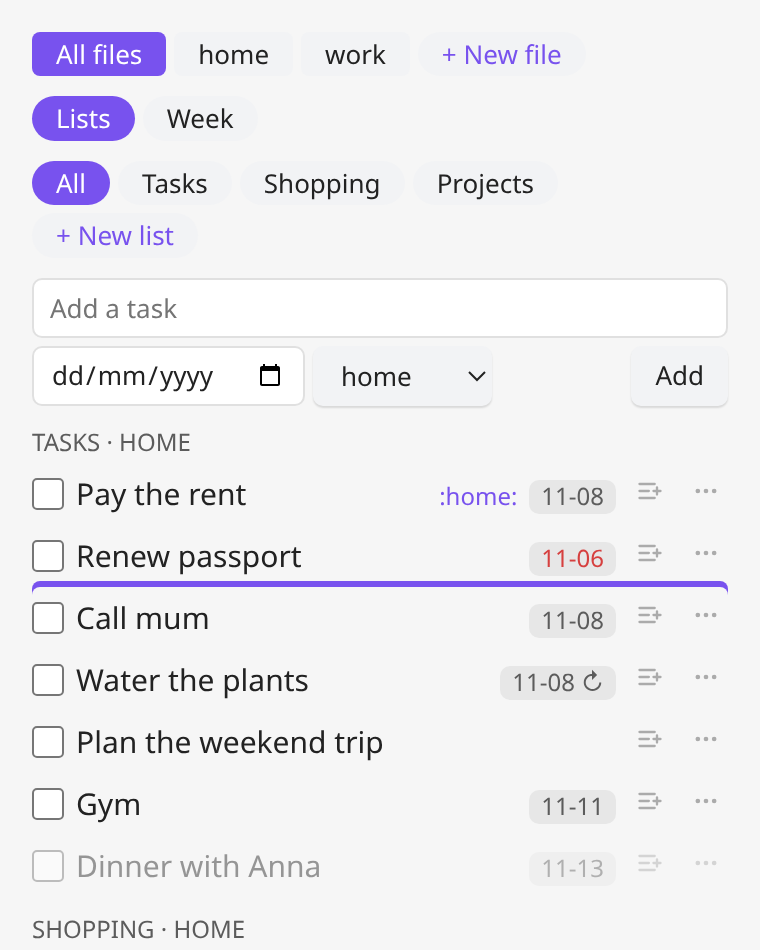
- Onto another task, near its top or bottom edge: it goes just before or after that task, and a line shows where. It takes that task's place in the list, so dragging into another list's tasks moves it to that list. (The middle of a task means "make it a sub-item", see below.)
- Onto a list: a list tab (Tasks for the default list) or the list's section in the pane. It moves to the end of that list.
- In week mode, onto a day block: it keeps its place in the file but gets that day as its due date (a repeat on its date is kept). Week mode has no before/after zones, because the file's order isn't visible there.
Everything under the task moves with it (notes, sub-items, sub-TODOs). Only tasks of the same file can be dropped on each other and on that file's lists; use Move to another file to change files. A task can't be dropped on itself or its own sub-tasks.
Without dragging (touch screens): the task's menu (⋯, right-click or long-press) has Move up and Move down, which swap it with the previous or next open task of its list.
Reordering lists
The order of the lists is the order of their headings in the file. To change it, drag a list tab in the Tasks pane onto another list's tab: drop it on the left half to put it before that list, on the right half to put it after, and a bar shows where it will go.
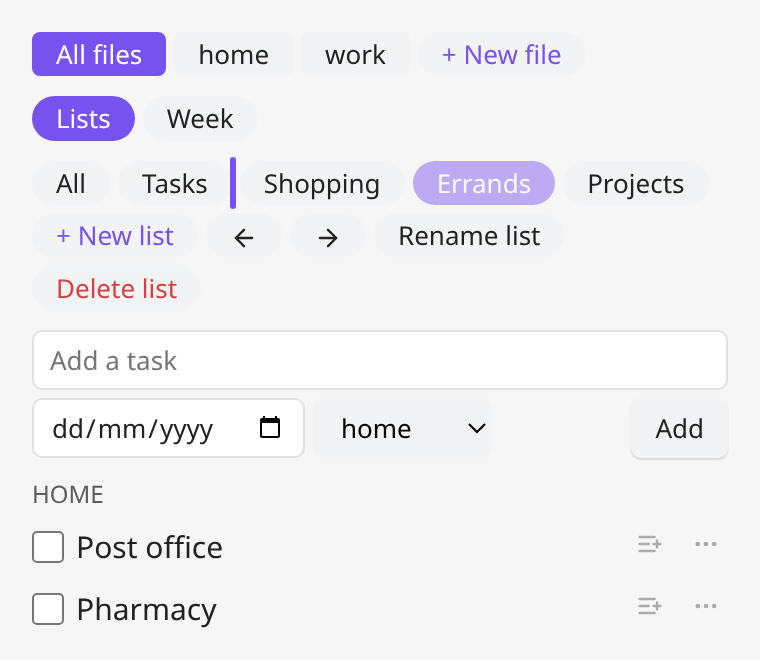
- A list moves with everything under its heading: its tasks, their notes and sub-items, and any other text there.
- With several files, dropping on a tab moves the list in every file that has both lists; a file that lacks one of them is left alone (a notice appears if no file has both). To reorder in one file only, select that file's chip first, or drag the list's section header (the small heading above its tasks in the All tab) onto another header of the same file: the top half puts it before, the bottom half after.
- Tasks (the default list, whose tasks sit outside any list) and All are not lists and can't be dragged or dropped on. Top-level tasks that sit between lists in the file stay where they are.
Without dragging (touch screens): select the list's tab and use the ← and → buttons next to Rename list to move it one place left or right (a notice says when it is already first or last).
Making a task a sub-item
Drag a task in the Tasks pane (or the tasks tab of a file) onto the middle of another open task of the same file:
it becomes a tick-box sub-item of that task (- [ ] title, ticked if it was done) and is removed from
where it was. The target is highlighted while you drag over it. Its own notes, tick-box sub-items and
sub-TODOs come along as nested tick boxes under it.
A sub-item is only a tick box, so a due date, repeat and tags are not kept. When there is any, a confirmation says which first; a task without them converts straight away. A task can't be dropped onto itself or onto one of its own sub-tasks, or onto a task of another file.
Dragging doesn't work on touch screens, so the task's menu (the ⋯ button, right-click or long-press) also has Make a sub-item of..., which asks for the target from the open tasks of the file. Like deleting, it edits the file directly and can't be undone from the plugin.
Making a sub-item a task
The reverse also works. Drag a sub-item (a tick box under a task) out of its task and drop it on:
- a list: a list tab (Tasks for the default list), or the list's section in the pane. It becomes a task at the end of that list, in the sub-item's own file (sections of another file don't accept it);
- in week mode, a day block: it becomes a task due that day.
Without dragging (touch screens): the ↗ button on the sub-item's row, or right-click / long-press and Make it a task, turns it into a task in the same list as the task it belonged to. A ticked sub-item becomes a done task. Tick boxes and notes nested under the sub-item (for example after you made a task a sub-item) come along as the new task's own sub-items and notes.
Renaming a task or a list
- Task: open its menu (the ⋯ button on its row, or right-click / long-press) and choose Rename, or run Rename TODO under cursor in an open TODO file. Only the title changes: its state, tags, due date, repeat, notes and sub-items stay as they are.
- List: select the list's tab in the Tasks pane and click Rename list. Its tasks stay in it and the tab stays selected. If the list exists in several files (and All files is selected) it is renamed in all of them.
A name is refused (with a notice) if it is empty, or for a list if a file already has a list with
that name, or if it starts with TODO or DONE or ends in :tags:, since the file would then read
those lines as a task or as tags. The same rule applies when you create a list.
Deleting a TODO
Open the TODO's menu with the ⋯ button at the end of its row (or right-click, or long-press on mobile) and choose Delete. After a confirmation the TODO is removed from its file together with its notes, tick-box sub-items and any child headings; the dialog says how many sub-TODOs go with it, and that a repeating TODO takes all its future occurrences with it. In an open TODO file the Delete TODO under cursor command does the same. The menu also has Rename, Set due date, Move to another file (with several files) and Open in file.
Deleting changes the file directly, so it can't be undone from the plugin. If the file is open
in Org Reader you can undo it there with Ctrl+Z; otherwise restore it from your sync or
backup history. To keep a finished TODO around instead, use Archiving.
Deleting a sub-item or a list
- Sub-item: click the ✕ at the end of its row in the Tasks pane (the ↗ next to it makes it a task instead). Only that one tick-box line is removed, with no confirmation.
- List: select the list's tab in the Tasks pane and click Delete list. After a confirmation that says how many tasks go, the list's heading is removed together with everything under it: its tasks, their notes and sub-items, and any other text there. If the list exists in several files (and All files is selected) it is deleted from all of them. The default Tasks list has no heading, so it can't be deleted; delete its tasks one by one.
Like deleting a task, both edit the file directly and can't be undone from the plugin (use
Ctrl+Z if the file is open in Org Reader, or your sync/backup history). Use
Archiving first if you want to keep the finished tasks of a list.
Archiving
Archive completed TODOs (command, or the archive button in the planner) asks for confirmation
and then moves every DONE TODO, with its notes and sub-items, to the end of the file's
archive, named after it: todo.org → todo-archive.org, work/home.org →
work/home-archive.org. With several files it archives the ones you are looking at.
Nothing is deleted: the archive is written first, and a DONE TODO that
still has an open sub-TODO stays where it is.
Commands
Run from the command palette (Ctrl+P, prefix "Org Todo Planner: "). Assign hotkeys in Settings → Hotkeys.
| Command | What it does | Ribbon |
|---|---|---|
| Open planner | Calendar pane (month / week) in the right sidebar. | calendar-check |
| Open tasks | Lists pane in the right sidebar. | list-checks |
| New TODO file | Asks for a name, creates the file (e.g. things_to_buy.org), adds it to the TODO files and selects it. |
|
| New list or file | One dialog to create a list (in a chosen file) or a whole new file. | folder-plus |
| New list | Asks for a name (and the file, with several files) and creates the list, then shows it in the Tasks pane. | |
| New TODO | Asks for a title, due date, tags and (with several files) the file, and adds it to the end of that file. | plus-circle |
| Open TODO file as tasks | Opens a TODO file (asks which one if there are several) as a tasks tab. | |
| Make this file open as tasks | Adds #+PLANNER: tasks to the header of the open .org file and opens it as tasks. |
|
| Why does this file open as text? (diagnose) | Shows what decides how the active file opens (TODO file or not, header, setting, tab view). | |
| Open TODO file | Opens the TODO file in Org Reader (asks which one if there are several). | |
| Archive completed TODOs | Moves done TODOs to their file's archive file. | |
| Toggle TODO under cursor | In an open TODO file, completes or reopens the TODO at the cursor. | |
| Rename TODO under cursor | In an open TODO file, asks for a new title for the TODO at the cursor. | |
| Delete TODO under cursor | In an open TODO file, deletes the TODO at the cursor (after a confirmation), with its notes and sub-items. | |
| Move TODO under cursor to another file | In an open TODO file, asks for the destination file and moves the TODO there (only with several files). | |
| Set due date of TODO under cursor | In an open TODO file, asks for a new due date. |
Settings
- TODO files: paths inside the vault, one per line (default
todo.org). - Task folders: optional vault folders, one per line. Every
.orgfile in them is a TODO file and opens as tasks; new files from + New file go into the first one. - Open TODO files as tasks: on by default; opens your TODO files (and any file with
#+PLANNER: tasks) as tasks instead of text, see Opening a file as tasks. - Open panes in: Automatic (main area on mobile, right sidebar on desktop), Right sidebar or Main area.
- Default view: what the planner shows when it opens: Last used (default), Month or Week.
- Week starts on Monday: calendar layout (on by default).
- Show completed TODOs: also toggled by the eye button.
- Tags column: right edge for
:tags:on new TODOs (default 77, as in Emacs).
Mobile
It runs on Obsidian mobile and has larger touch targets there. On mobile the planner and tasks panes open as a normal tab in the main area (not in the swipe-in sidebar); change this with the Open panes in setting.
For one-tap access to the Tasks pane, set it as Obsidian's mobile Quick Action: Settings → Mobile → Configure mobile Quick Action (or the toolbar), then pick the command Org Todo Planner: Open tasks. The ribbon icons are also in the ribbon menu (the button in the bottom bar). If your vault is synced (for example with Syncthing), the plugin folder must be a real folder, not a symlink. Remember to install and enable Org Reader on the phone too.
Install
- Community plugins: Settings → Community plugins → Browse → search "Org Todo Planner".
- BRAT (before it is listed, or to try a pre-release): add
ESeNonFossiIo/obsidian-org-todo-planner. - Manually: copy
main.js,manifest.jsonandstyles.cssfrom the latest release into<vault>/.obsidian/plugins/org-todo-planner/and enable the plugin in Settings → Community plugins.
The plugin makes no network requests. It reads and writes only the .org files you configure (and their
-archive.org files), and keeps its settings in data.json inside its plugin folder. It never lists your
vault: if you set Task folders it looks inside those folders only, and nothing otherwise.
License
MIT, see LICENSE.
Development
Source is in src/: core.js (pure Org/TODO/date logic, unit-tested), planner.js
(calendar pane), tasks.js (lists pane), modals.js, settings.js and main.js (the
plugin). main.js at the repo root is the esbuild bundle Obsidian loads; it is
generated and gitignored.
npm install
npm test         # unit tests for src/core.js
npm run build    # bundle src/ -> main.js
npm run dev      # rebuild on change
To try changes in Obsidian, put your vault's plugin folder in a gitignored
.deploy-target file (echo "~/vault/.obsidian/plugins/org-todo-planner" > .deploy-target);
npm run build then copies the three built files there. Obsidian only reloads plugin
code on startup or when the plugin is toggled off and on.
Put logic that doesn't need Obsidian in src/core.js and cover it in test/core.test.js.
Releasing
npm version X.Y.Z (from an up-to-date master with passing tests) updates
manifest.json and versions.json, tags X.Y.Z (no v prefix) and pushes; the GitHub
workflow then builds, tests and publishes a release with main.js, manifest.json and
styles.css.