Search...Search plugins and themes...
⌘K
Sign in
  • Get started
  • Download
  • Pricing
  • Enterprise
  • Account
  • Obsidian
  • Overview
  • Sync
  • Publish
  • Canvas
  • Mobile
  • Web Clipper
  • CLI
  • Learn
  • Help
  • Developers
  • Changelog
  • About
  • Roadmap
  • Blog
  • Resources
  • System status
  • License overview
  • Terms of service
  • Privacy policy
  • Security
  • Community
  • Plugins
  • Themes
  • Discord
  • Forum / 中文论坛
  • Merch store
  • Brand guidelines
Follow us
DiscordTwitterBlueskyThreadsMastodonYouTubeGitHub
© 2026 Obsidian

On-Demand

22-222-22k downloads

Lazy load plugins by caching their commands. Plugins are enabled on-demand when you trigger their commands (or open specific views), keeping startup fast.

Add to Obsidian
  • Overview
  • Scorecard
  • Updates33

Obsidian plugin that delays plugin activation and only loads plugins when needed, improving startup performance.


How to use

  1. Open Settings → On-Demand Plugins.
  2. Choose a loading mode for each plugin.
  3. Click Apply changes (Obsidian will restart automatically).

Loading modes

Mode Description
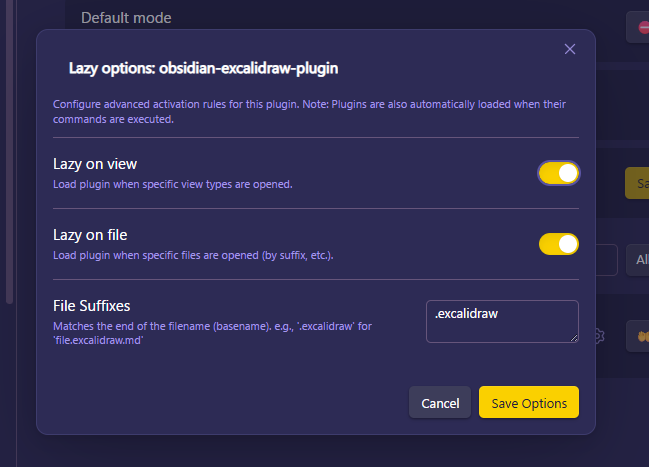
Lazy on demand Loads when a command is executed, a specified view type is opened, or when a specific file is opened. In the settings modal you can separately enable lazy on file and lazy on view. View types are automatically collected when you click Apply changes, so manual entry is not required.
Lazy on layout ready Loads after the workspace layout is ready.
Always enabled Loads at startup as normal.
Always disabled Keeps the plugin disabled.

When Lazy on demand is selected you can configure lazy on file and lazy on view individually in the modal. View types are auto-detected on Apply changes.


Notes

  • Plugins that use setInterval / setTimeout or register global hooks (for example, vault.on) should be set to Lazy on layout ready. If set to Lazy on demand, such plugins will not run their background tasks or hooks until they are loaded.
  • Inline/embedded views (for example, Dataview inline queries) are not supported.

Backups

When settings change, .obsidian/community-plugins.json is updated automatically. Up to three generations of backups are created; please keep your own backups as well.

How it works

Instead of loading the plugin code at startup, this project registers "dummy commands" that cache command metadata. The actual plugin is loaded only when its command or a configured view/file is used. Internally it monkey-patches parts of Obsidian's core, so updates to Obsidian may break behavior.


This project is based on the work by Alan Grainger: https://github.com/alangrainger/obsidian-lazy-plugins

Screenshots
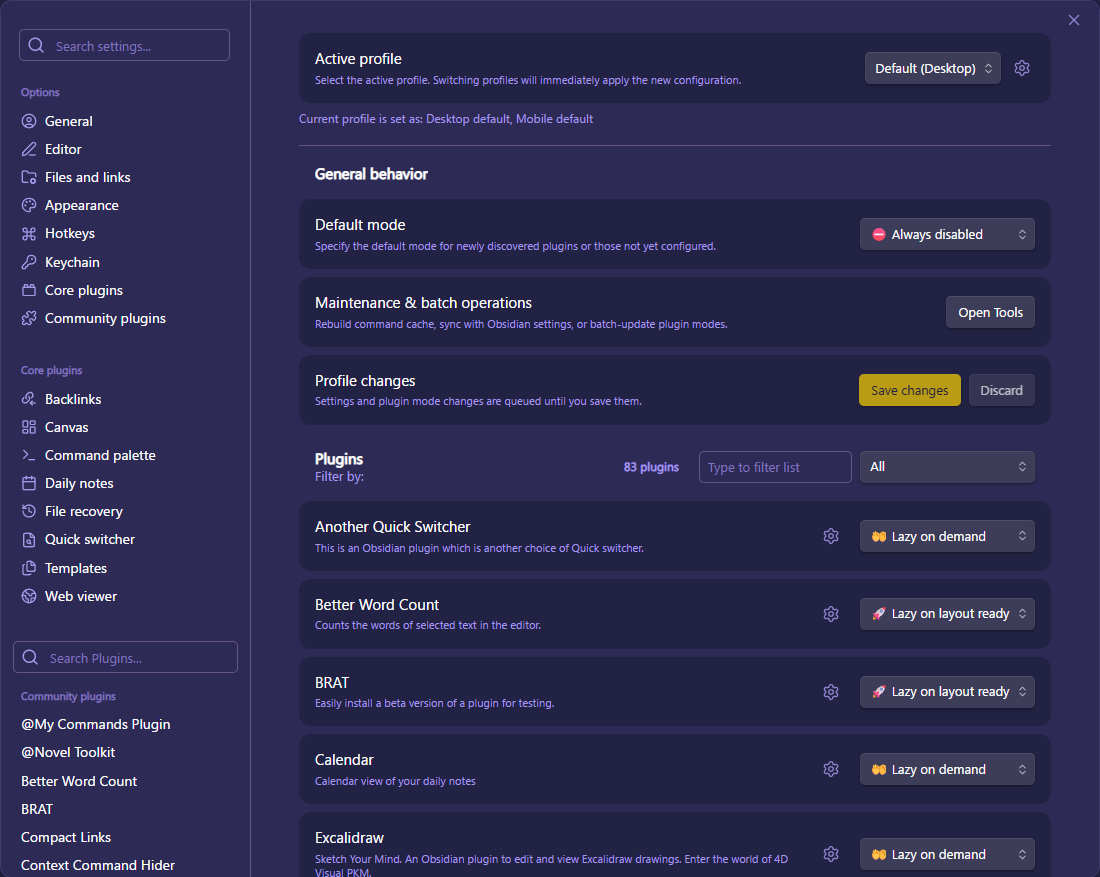
On‑Demand Plugins settings On‑Demand Plugins settings page.

On‑Demand Modal Settings modal.

HealthExcellent
ReviewPassed
About
Delay plugin activation and load plugins only when needed to reduce Obsidian startup time. Register lightweight placeholders (dummy commands) and load the real plugin when its command, a configured view, or a specific file is used; choose per-plugin modes like on-demand, layout-ready, always enabled, or disabled.
AutomationCommandsBackup
Details
Current version
3.5.0
Last updated
2 weeks ago
Created
8 months ago
Updates
33 releases
Downloads
2k
Compatible with
Obsidian 1.13.1+
Platforms
Desktop, Mobile
License
MIT
Report bugRequest featureReport plugin
Sponsor
Buy Me a Coffee
Author
22-222-2
github.com/22-2
GitHub22-2
  1. Community
  2. Plugins
  3. Automation
  4. On-Demand

Related plugins

Actions URI

Add additional `x-callback-url` endpoints to the app for common actions — it's a clean, super-charged addition to Obsidian URI.

Task Collector

Change task status and collect tasks within a document using hotkeys and context menus.

Persistent Graph

Save and restore the positions of nodes on your graph.

Attachment Management

Customize attachment path, auto-rename attachments, etc.

Shell commands

Define system commands that you want to execute via command palette, hotkeys, URI links or automated events. E.g. open external applications or perform automated file modifications.

Homepage

Open a note, base, or workspace on startup, or set it for quick access later.

Linter

Format and style your notes. Linter can be used to format YAML tags, aliases, arrays, and metadata; footnotes; headings; spacing; math blocks; regular Markdown contents like list, italics, and bold styles; and more with the use of custom rule options.

BRAT

Easily install a beta version of a plugin for testing.

Advanced URI

Control everything with URI.

Quick Switcher++

Enhanced Quick Switcher, search open panels, and symbols.