Theme Design Utilities
 Chris Grieser20k downloads
Some utilities and quality-of-life features for designers of Obsidian themes.
- Overview
- Scorecard
- Updates30
Some utilities and Quality-of-Life features for designers of Obsidian themes.
Table of contents
- Commands added
- Documentation and sample notes
- Other resources for Obsidian theme designers
- Installation
- About the developer
Commands added
Mobile emulation
Conveniently enable the mobile emulation of Obsidian, that is how Obsidian would look on mobile. This helps with styling your theme for mobile.
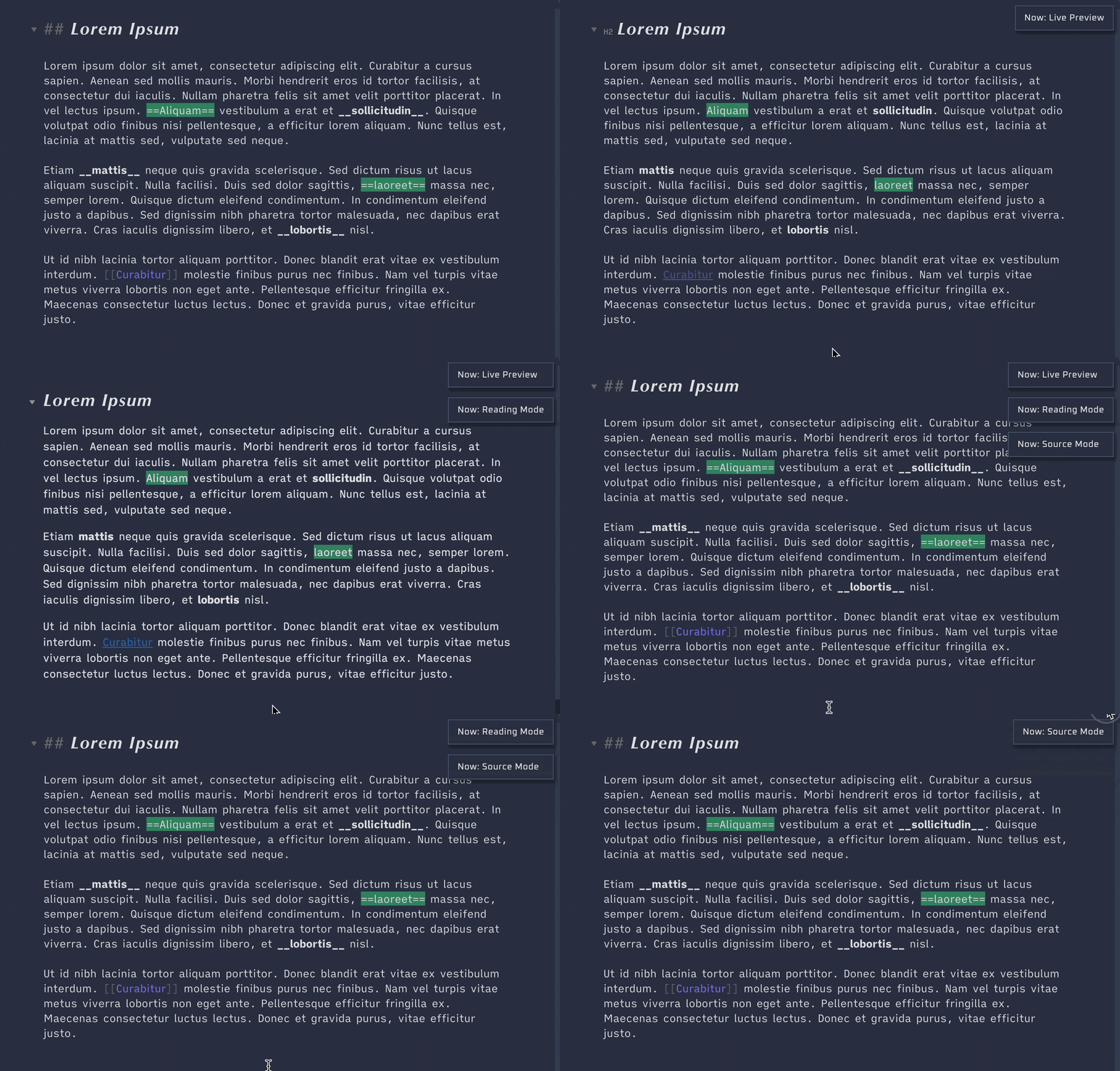
Cycle between all three modes
Cycles between Source Mode, Live Preview, and Reading Mode. Set a hotkey to quickly check how the theme looks in all three view modes.
Cycle through installed themes
Cycles between all installed themes. As opposed to the Theme Switcher Plugin, this does not open a modal, but rather directly switches to the next installed theme.
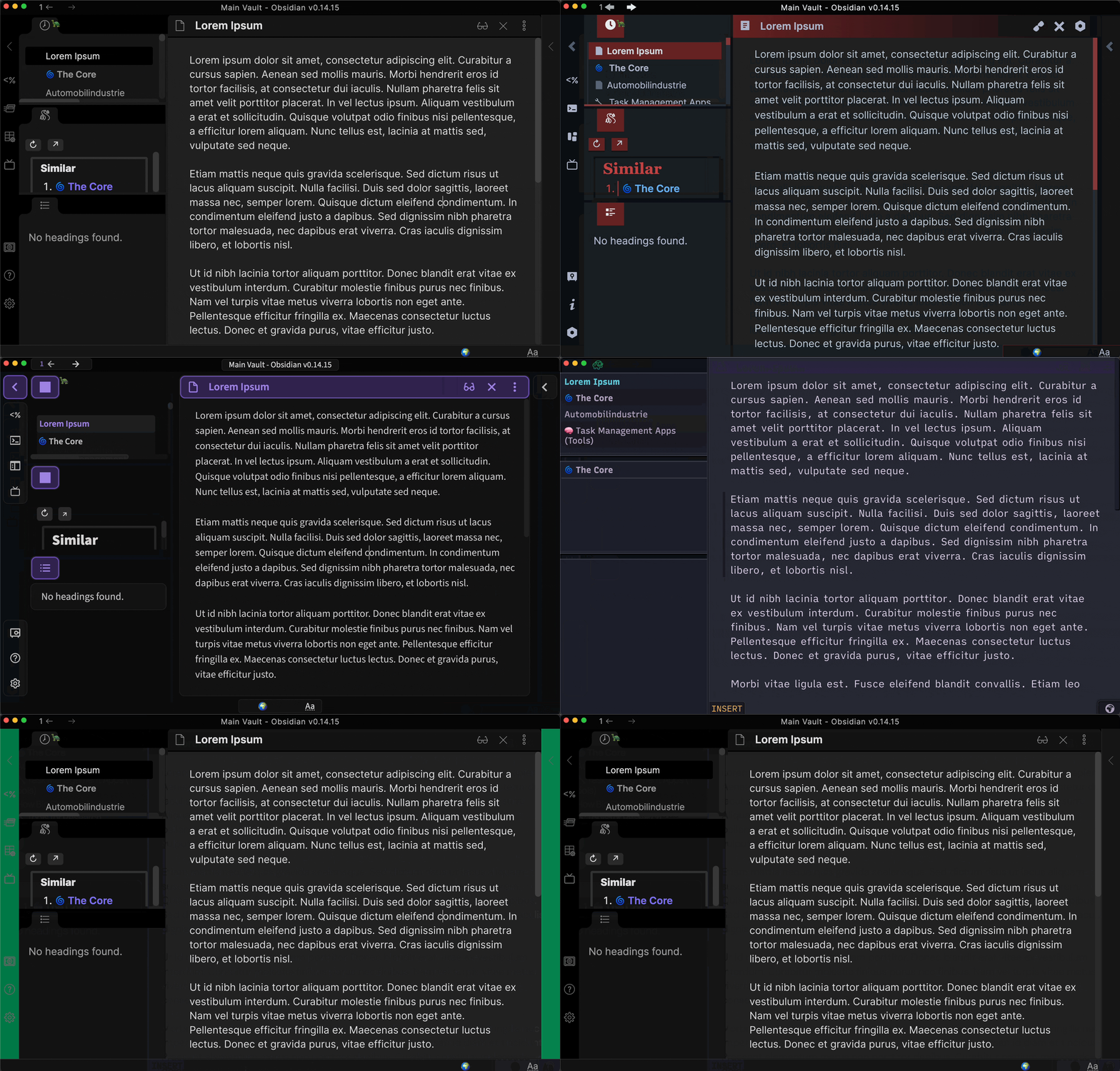
Light/dark mode toggle
A simple command to toggle between light and dark mode. Set a hotkey to quickly change the mode of the theme.
Freeze obsidian
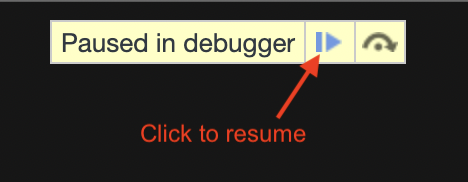
Opens the devtools and freeze interaction with Obsidian, after a small delay.
During that delay, you can create fleeting elements like context menus or
tooltips which stays on screen.
To unfreeze Obsidian, click the "play" button which appears at the top of Obsidian.
Toggle devtools
Opens/closes the devtools (developer console). Does the same thing as Obsidian's
built-in method of opening the devtools, but being available in the command
palette allows you to set a custom hotkey for it.
Garble text
Garbles all text in the whole app. "Ungarbles" elements that are hovered. This way you can share screenshots while maintaining privacy.
.foobar test class
This command adds/removes a test class .foobar to the DOM-element
.app-container. This way you can quickly toggle some CSS on-and-off for
debugging purposes, without having to enable/disable a snippet.
.app-container.foobar h1 {
    color: red;
}
Red outlines for debugging
Add red outlines to all elements. Run the command again to remove the outlines.
The outlines are useful for debugging purposes, essentially serving as the CSS
equivalent for console.log().
Permanent test notice
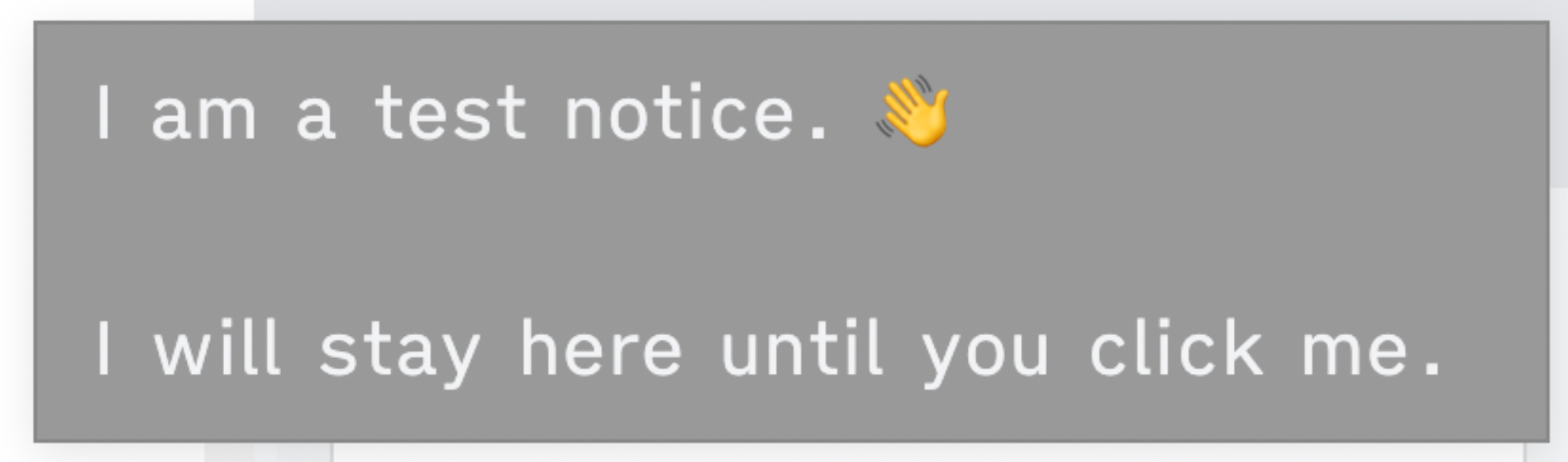
Post a notice (notification) that stays on screen until you click it. This is useful for styling notices, as they normally quickly fade away.
CSS feature compatibility (chrome version)
- Displays a notice with the current Chrome version utilized by Obsidian to render CSS. Sites like MDN or W3-Schools usually document the minimum Chrome version required for a certain CSS feature at the bottom of the feature's documentation page.
- On iOS, Obsidian uses the Safari engine, for which the version matches the iOS version the user is using. Prevalence of iOS versions – and therefore underlying Safari versions to target – are published by Apple itself.
If you are using stylelint, you can also simply use the
nifty stylelint-no-unsupported-browser-features
plugin,
and add this to your .stylelintrc.json:
{
    "extends": ["stylelint-config-recommended"],
    "plugins": ["stylelint-no-unsupported-browser-features"],
    "rules": [
        "plugin/no-unsupported-browser-features": [true, {
            "browsers": ["last 10 Chrome versions", "last 3 iOS versions"],
            "ignore": ["css-masks"],
            "ignorePartialSupport": true
        }],
    ]
}
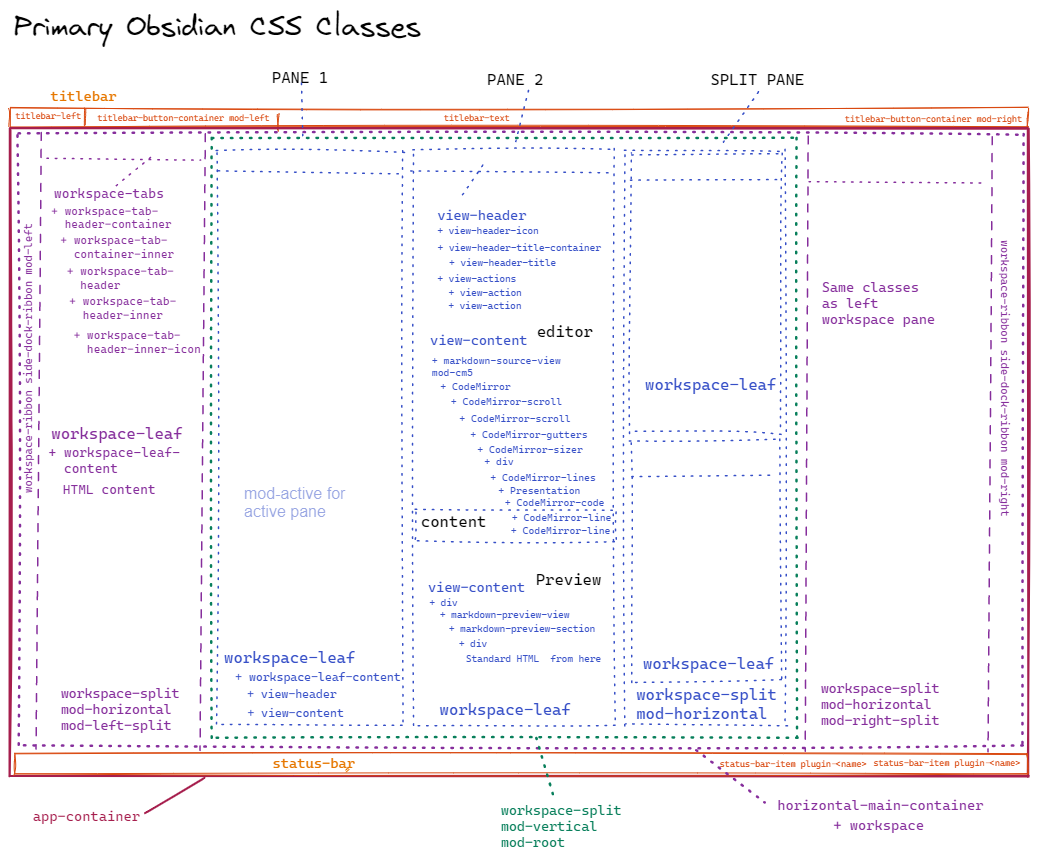
Show cheatsheet
Open a cheat sheet showing the Obsidian CSS classes.
Documentation and sample notes
You can access these resources without installing the plugin.
Cheatsheets
You can get various obsidian design cheatsheets from the cheatsheets folder.
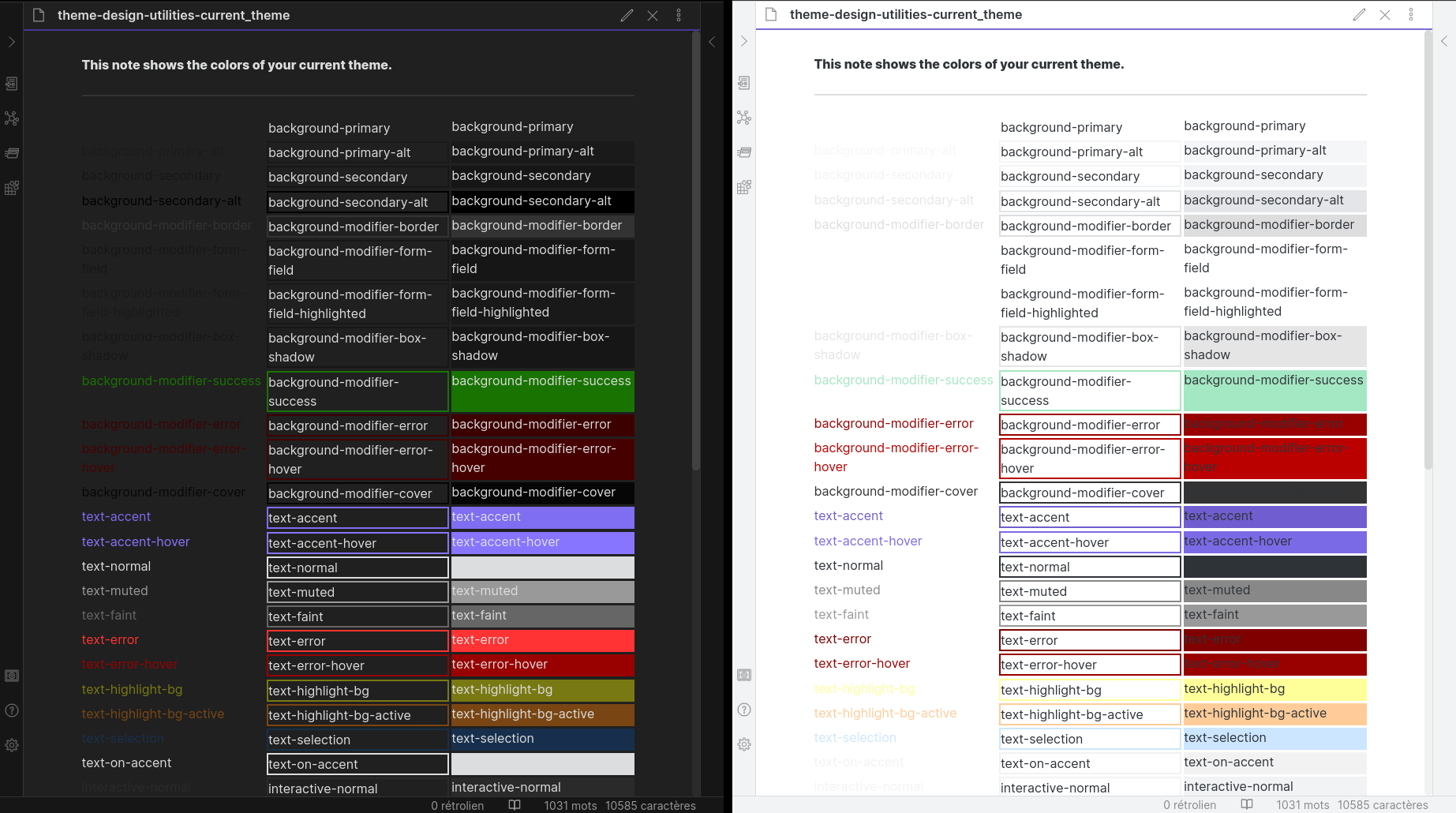
Markdown note: display your current theme colors
theme-design-utilities-current_theme.md is a markdown file that can be added to your vault to display your current theme colors.
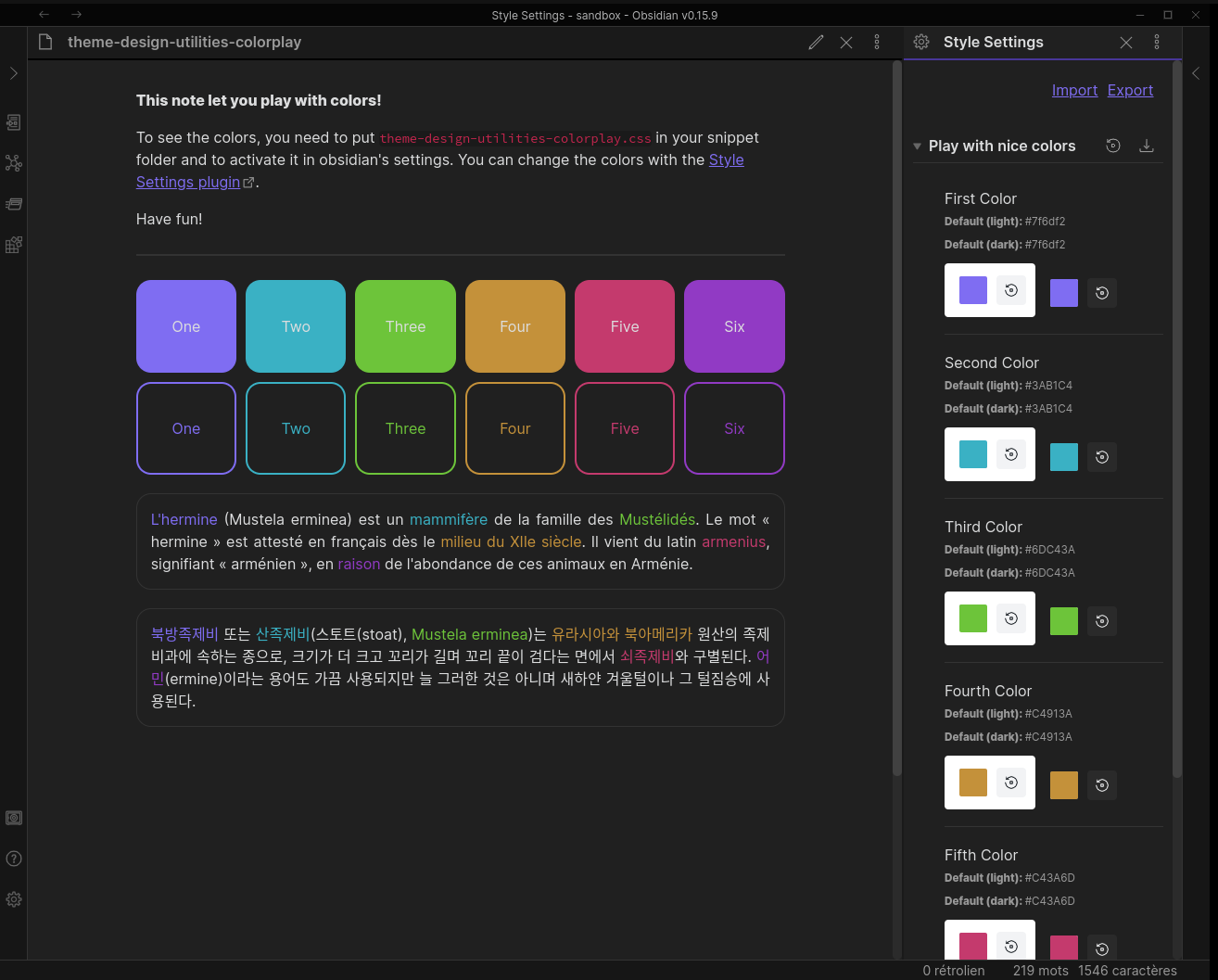
Markdown note and CSS snippet: play with colors
The theme-design-utilities-colorplay.md markdown note and its companion CSS snippet display colored boxes. The note should be added to your vault, and the CSS snippet to your snippet collection. You can change the colors by editing the CSS snippet, or using the Style Settings plugin.
Other resources for Obsidian theme designers
Obsidian plugins
- My Snippets
- Theme Picker
- Print Preview (unlisted)
- Theme Hot-Reload (unlisted)
Guides
- Overview of Resources and Guides for Theme Designers
- Why and How to use Stylelint for your Obsidian Theme
- Want some Sass with your obsidian theme? Here's How and Why
- How to Use Obsidian 1.0 CSS Variables
Installation
This plugin is available in Obsidian's Community Plugin Browser: Settings →
Community Plugins → Browse → Search for "Theme Design Utilities"
Build
npm install
node .esbuild.mjs
About the developer
In my day job, I am a sociologist studying the social mechanisms underlying the digital economy. For my PhD project, I investigate the governance of the app economy and how software ecosystems manage the tension between innovation and compatibility. If you are interested in this subject, feel free to get in touch.