Obsidian OCR
 mohrjonas22k downloads
Use optical character recognition to search for text in you images and PDFs.
- Overview
- Scorecard
- Updates12
Obsidian OCR allows you to search for text in your images and PDFs
Installation
Dependencies
tesseractfor OCRimagemagickfor pdf to png conversion
Windows
Manual installation
❗Make sure the executables are in your path. If you don't know how look here: https://www.architectryan.com/2018/03/17/add-to-the-path-on-windows-10/❗
- Install tesseract
- Install imagemagick
- If you want to use another language that english, you have to install it manually. (It's really simple)
- Go to https://github.com/tesseract-ocr/tessdata_fast/
- Download the file for your language (i.e. for German download ger.traineddata)
- Move to file to
C:\Program Files\Tesseract-OCR\tessdata
Automatic installation
❗The automatic installation features is still in very early development. Expect bugs❗
ℹ️ Obsidian OCR uses chocolatey for automatic installation ℹ
- Install & enable the plugin
- Under
settings, press theautomatic installbutton
MacOS
- Install tesseract:
brew install tesseract - Install tesseract-lang :
brew install tesseract-lang - Install imagemagick :
brew install imagemagick
For the path: check where the binaries are located and add these to "/private/etc/paths" (I also added them to ~/.zshrc, not sure if that is needed)
brew list tesseractin my case:/opt/homebrew/Cellar/tesseract/5.2.0/bin/brew list tesseract-langin my case:/opt/homebrew/Cellar/tesseract/5.2.0/bin/brew list imagemagickin my case:/opt/homebrew/Cellar/imagemagick/7.1.0-43/bin/
Ubuntu
Manual installation
- Run
sudo apt install -y tesseract-ocr imagemagick - Install any languages you need by installing the appropriate package (usually named
tesseract-ocr-<lang>)
Automatic installation
❗The automatic installation features is still in very early development. Expect bugs❗
- Install & enable the plugin
- Under
settings, press theautomatic installbutton
Arch / Manjaro
Manual installation
- Run
sudo pacman -S tesseract imagemagick - Install any languages you need by installing the appropriate package (usually named
tesseract-data-<lang>)
Automatic installation
❗The automatic installation features is still in very early development. Expect bugs❗
- Install & enable the plugin
- Under
settings, press theautomatic installbutton
Flatpak
If Obsidian is running via the Flatpak installation (such as provided by default in Pop!_OS) then this plugin will not operate. Flatpak sandboxing will change the filepaths so even providing host access will still be problematic. If you have a Flatpak installation you will need to reinstall via a different method to successfully use this plugin.
Plugin installation
- Simply install the plugin from the community plugins
Usage
- Upon enabling the plugin, you will see a progress bar in the bottom right, indicating that your vault is currently
being processed.

- Upon completion, you can either use the
Search OCRcommand or themagnifying-glass iconin the ribbon to open the search menu.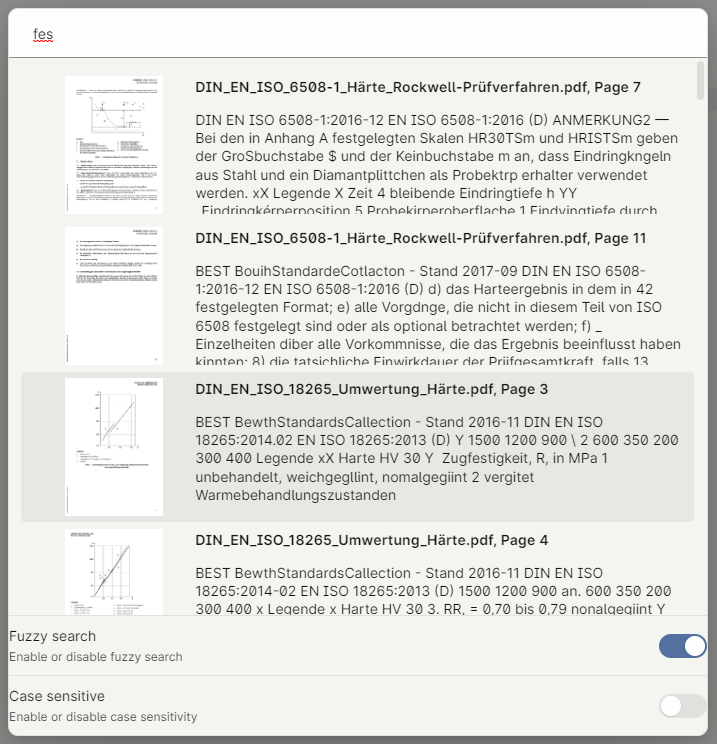
- When adding a new PDF / PNG to your vault, the file is automatically being searched for text.
- Upon starting Obsidian, you will now see another progress bar, indicating that all transcripts are being cached.

Settings
Obsidian OCR offers a variety of settings you can configure yourself.
| Name | Description | Default |
|---|---|---|
| Max OCR Processes | The maximum amount of ocr processes running at the same time. Increasing this speeds up indexing but also increases cpu usage | 1 |
| Max caching processes | The maximum amount of caching processes running at the same time. Increaing this speeds up caching but also increases cpu usage | 10 |
| OCR Image | Decides whether or not images (.png, .jpg, .jpeg) are OCRed | true |
| OCR PDF | Decides whether or not PDFs (.pdf) are OCRed | true |
| Image density | The density of generated PNGs, in dpi. Increasing this helps to OCR smaller text, but increases cpu usage | 300 |
| Image quality | The quality of generated PNGs. Increasing this helps to OCR smaller text, but increaes cpu usage | 98 |
| Additional imagemagick args | Additional commandline arguments passed to imagemagick when converting a PDF to PNG(s) | |
| Additional search paths | Additional paths that will be searched when looking for external dependencies. Useful when installing into custom directories | |
| OCR Provider | The OCR provider that will be used. See below for a description of providers | NoOp |
OCR Providers
List of OCR providers
| Name | Description |
|---|---|
| NoOp | The NoOp (no operation) provider does, as the name implies, nothing and is only a dummy provider. To get real OCR capability, you have to switch to another provider |
| Tesseract | OCR provider using tesseract to OCR documents locally on your computer |
Tesseract
By default, tesseract offers two languages to choose from: eng and osd.
- Osd isn't a language, but rather stands for
Orientation and script detectionand is therefore not useful for our use. - Eng stands for english and should be chosen if your documents are written in english.
ℹ After switching your language, only newly indexed documents use the new language. You can reindex your already added
documents by using the Delete all transcripts command ℹ
Lang vs Script
Tesseract supports langs and scripts for text recognition.
- Langs support a single language
- Scripts support multiple languages with similar characters. Latin, for example, supports all latin-based languages (English, German, Italian, France, ...) except for Vietnamese
Custom OCR providers
To add a custom OCR provider, create a new class that extends OCRProvider and register it
using OCRProviderManager.registerOCRProviders(new MyCustomProvider())