Search...Search plugins and themes...
⌘K
Sign in
  • Get started
  • Download
  • Pricing
  • Enterprise
  • Account
  • Obsidian
  • Overview
  • Sync
  • Publish
  • Canvas
  • Mobile
  • Web Clipper
  • CLI
  • Learn
  • Help
  • Developers
  • Changelog
  • About
  • Roadmap
  • Blog
  • Resources
  • System status
  • License overview
  • Terms of service
  • Privacy policy
  • Security
  • Community
  • Plugins
  • Join the community
  • Discord
  • Forum / 中文论坛
  • Merch store
  • Brand guidelines
Follow us
DiscordTwitterBlueskyThreadsMastodonYouTubeGitHub
© 2026 Obsidian

Mind Map

lynchjameslynchjames817k downloads

Display Markdown notes as mind maps using Markmap.

Add to Obsidian
  • Overview
  • Scorecard
  • Updates8

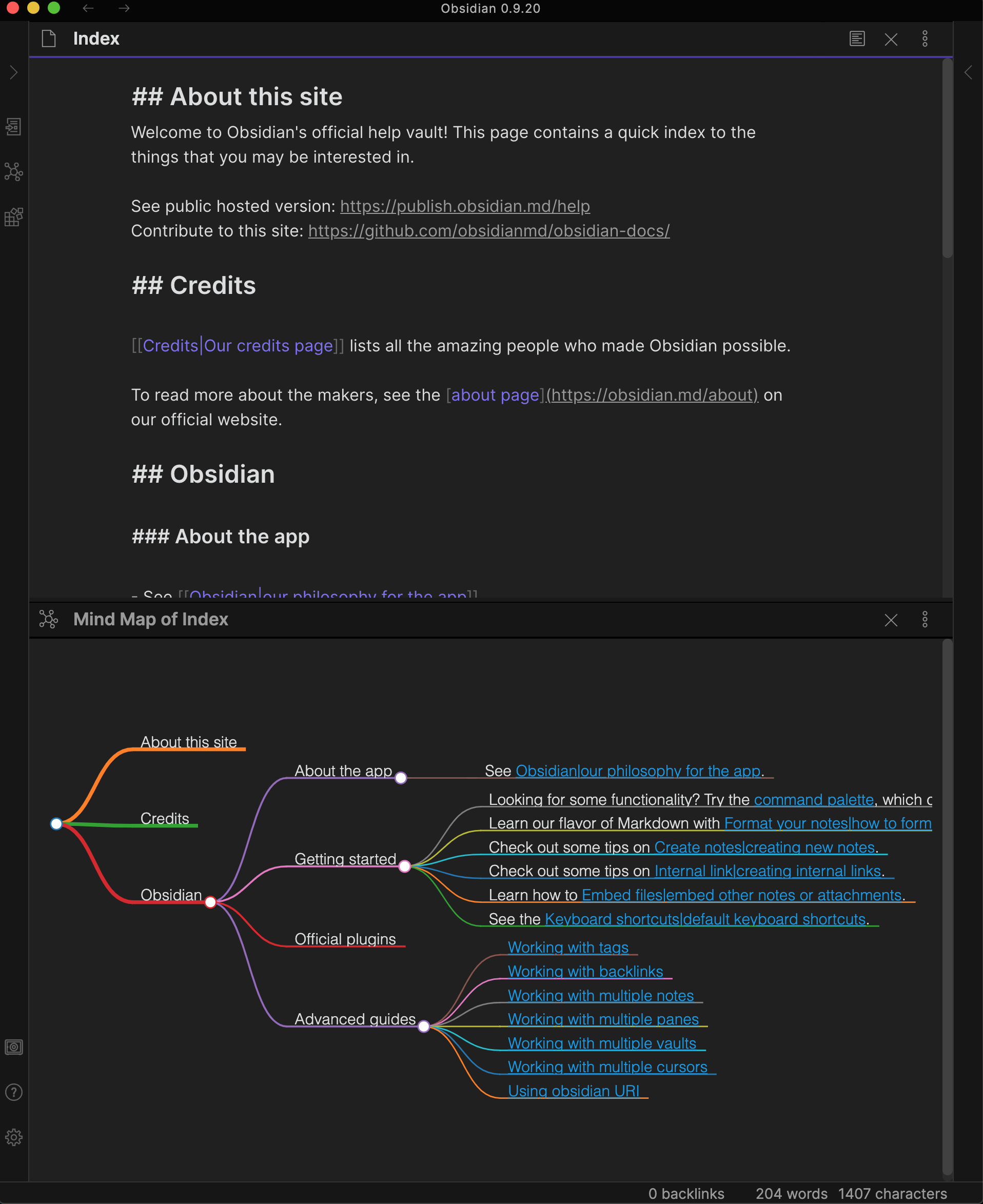
This repository contains a plugin for Obsidian for viewing Markdown notes as Mind Maps using Markmap.

A similar plugin is available for Visual Studio Code.

Features

  • Preview your current note as a Mind Map
  • Mind Map preview updates as you select other panes, similar to the Local Graph, Outline and Backlink panes
Mind Map Demo Image

Usage

You can open the Mind Map preview for the current note with a command.

Mind Map Preview Command

Preview More Options Menu

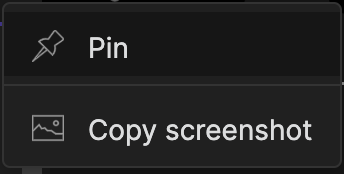
The Mind Map Preview view has 2 options from the "more options" menu:
Mind Map Preview More Options

Pin

Allows you to pin the Mind Map preview pane to the current note so that you can select other notes with the current Mind Map remaining in place. A pin icon will appear in the header of the Mind Map preview pane. Click the pin icon to unpin.

Copy screenshot

Places a copy of the Mind Map SVG on your clipboard allowing you to paste it into a note in Obsidian or into an image editor of your choice.

Compatibility

Custom plugins are only available for Obsidian v0.9.7+.

The current API of this repo targets Obsidian v0.9.20.

Installing

As of version 0.9.7 of Obsidian, this plugin is available to be installed directly from within the app. The plugin can be found in the Community Plugins directory which can be accessed from the Settings pane under Third Party Plugins.

Manual installation

  1. Download the latest release
  2. Extract the obsidian-day-planner folder from the zip to your vault's plugins folder: <vault>/.obsidian/plugins/
    Note: On some machines the .obsidian folder may be hidden. On MacOS you should be able to press Command+Shift+Dot to show the folder in Finder.
  3. Reload Obsidian
  4. If prompted about Safe Mode, you can disable safe mode and enable the plugin.

For developers

Pull requests are both welcome and appreciated. 😀

If you would like to contribute to the development of this plugin, please follow the guidelines provided in CONTRIBUTING.md.

Donating

This plugin is provided free of charge. If you would like to donate something to me, you can via PayPal. Thank you!

49%
HealthFair
ReviewRisks
About
View Markdown notes as interactive mind maps rendered with Markmap. Pin the mind map pane to keep a map in place while browsing other notes, and copy the map as an SVG screenshot to your clipboard.
VisualizationMarkdownSidebar
Details
Current version
1.1.0
Last updated
5 years ago
Created
5 years ago
Updates
8 releases
Downloads
817k
License
MIT
Report bugRequest featureReport plugin
Sponsor
Ko-fi
Author
lynchjameslynchjames
GitHublynchjames
  1. Community
  2. Plugins
  3. Visualization
  4. Mind Map

Related plugins

Markwhen

Create timelines, gantt charts, calendars, and more using markwhen.

Dirtreeist

Render a directory Structure Diagram from a Markdown lists in codeblock.

Importer

Import data from Notion, Evernote, Apple Notes, Microsoft OneNote, Google Keep, Bear, Roam, and HTML files.

Outliner

Work with your lists like in Workflowy or Roam Research.

Recent Files

Display a list of recently opened files.

Maps

Adds a map layout to bases so you can display notes as an interactive map view.

Various Complements

Complete words similar to auto-completion in an IDE.

Linter

Format and style your notes. Linter can be used to format YAML tags, aliases, arrays, and metadata; footnotes; headings; spacing; math blocks; regular Markdown contents like list, italics, and bold styles; and more with the use of custom rule options.

Fantasy Statblocks

Create, manage and view a Fantasy Bestiary with Dungeons and Dragons style statblocks.

Advanced Canvas

Supercharge your canvas experience. Create presentations, flowcharts and more.