Notes Merger
 niffka5k downloads
Merge notes into a single Markdown document based on index Markdown file.
- Overview
- Scorecard
- Updates9
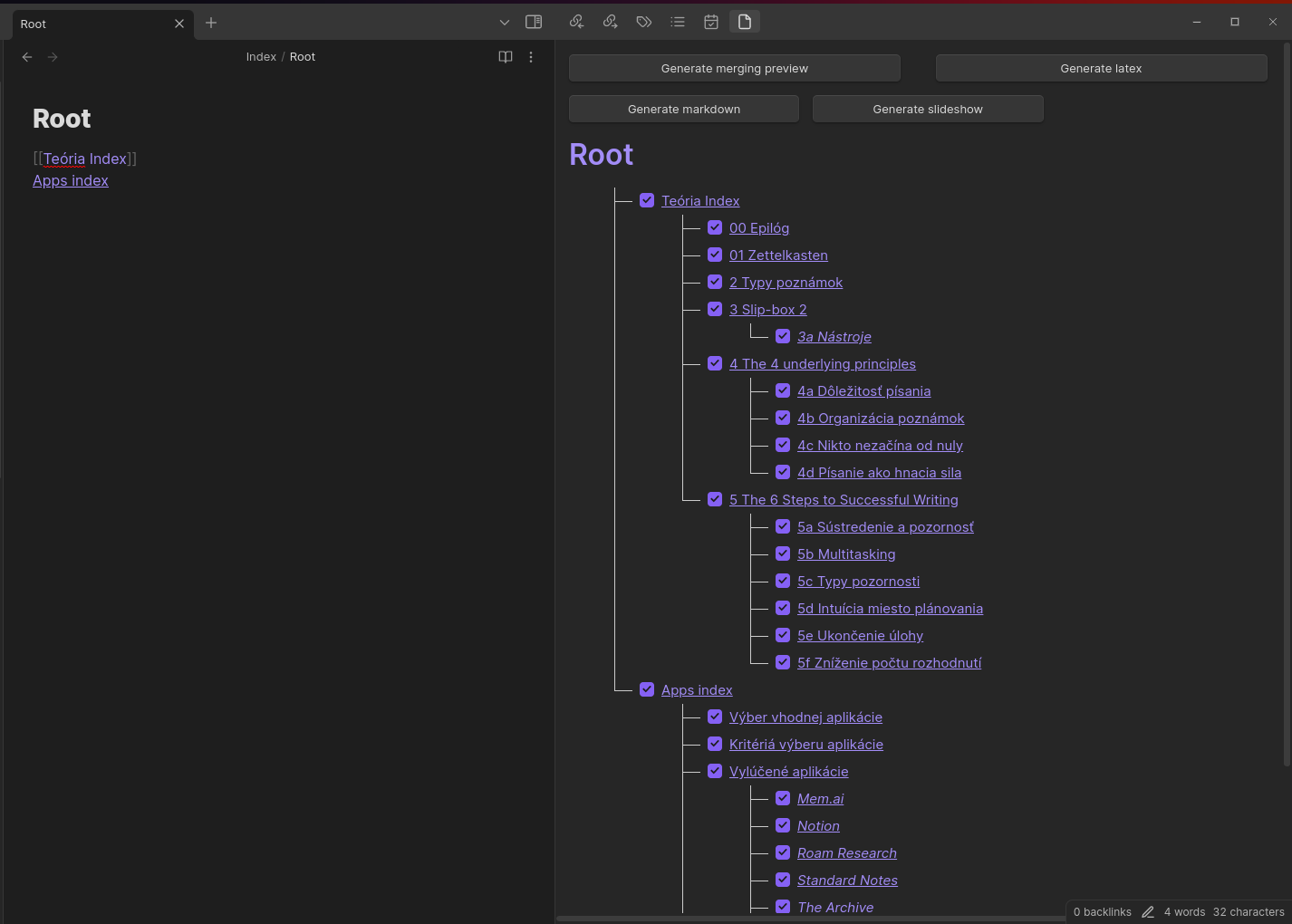
This plugin enables you to generate a content tree structure by traversing all links and nesting them within notes. Merge multiple Markdown files into a single, unified Markdown file based on the generated tree structure. Create a template for obsidian advanced slides plugin (https://mszturc.github.io/obsidian-advanced-slides/). Translate markdown file into XeLatex with usage of custom latex templates.
Generate merging preview
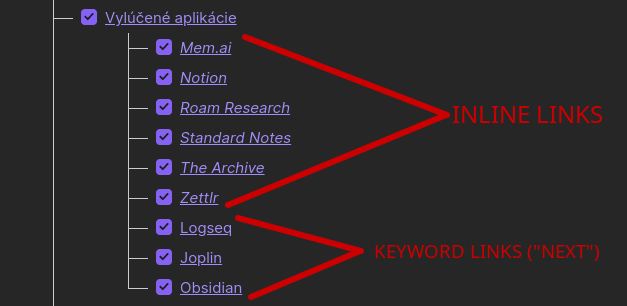
Generate a content tree structure by traversing all links and nesting them within notes. Generated structure can be updated in an interactive preview. Hierarchy structure visually represents the connections between notes and the links. There are two types of links:
Inline Links: These are links found within the note that expand the existing structure without creating nesting (notes expand without creating additional layers). They are replaced in the same location where they were initially found. If discovered in the subsequent text, the note will be positioned on the nearest new line.
Keyword Links: These links are associated with a specific keyword, which can be configured in the settings. This configuration allows for the creation of a nested structure, with links under the designated keyword forming a sublevel of the current note.
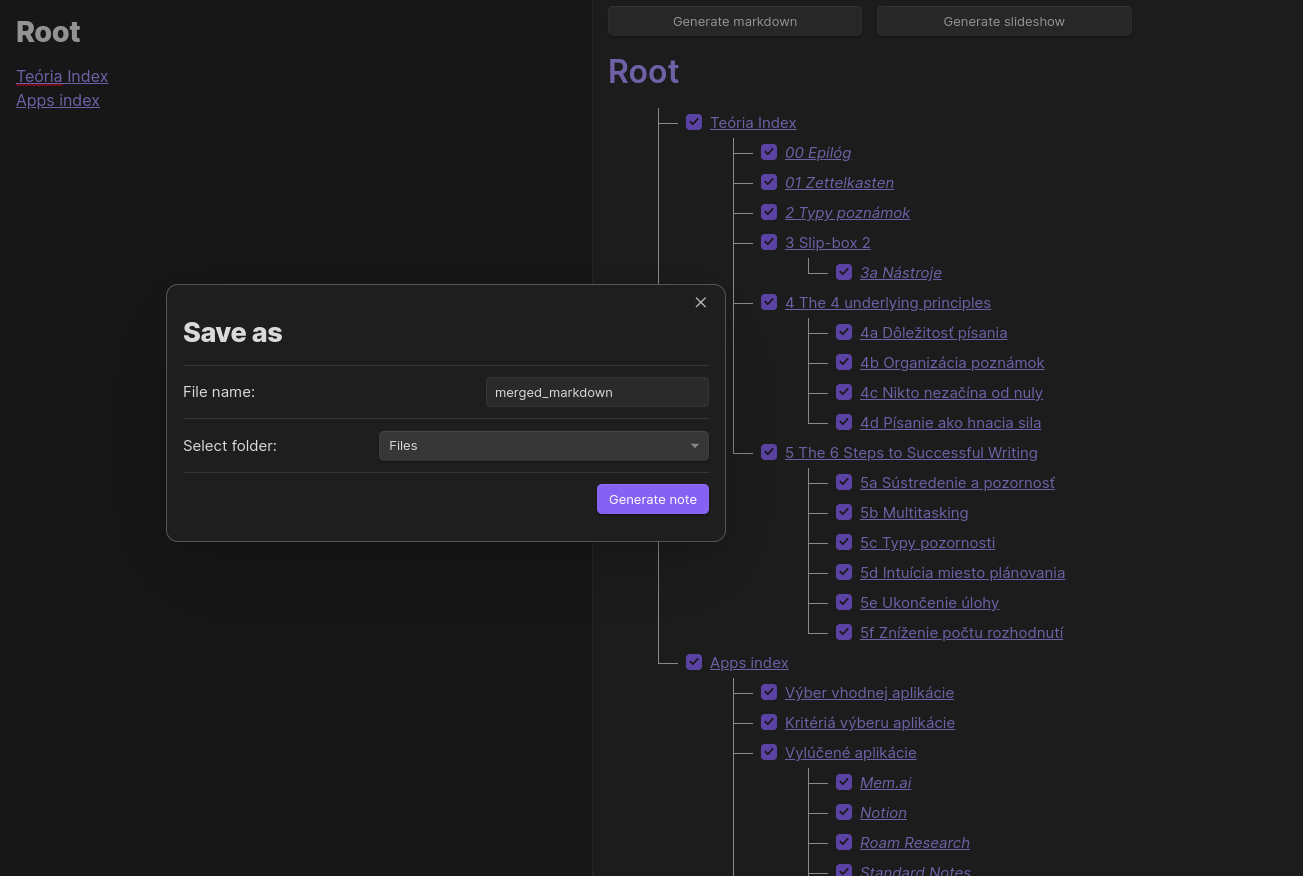
Generate markdown
Generating markdown file is driven by the structure created in previous step and by incorporating user's specified preferences and settings. After saving a file, user will be redirected to the note.
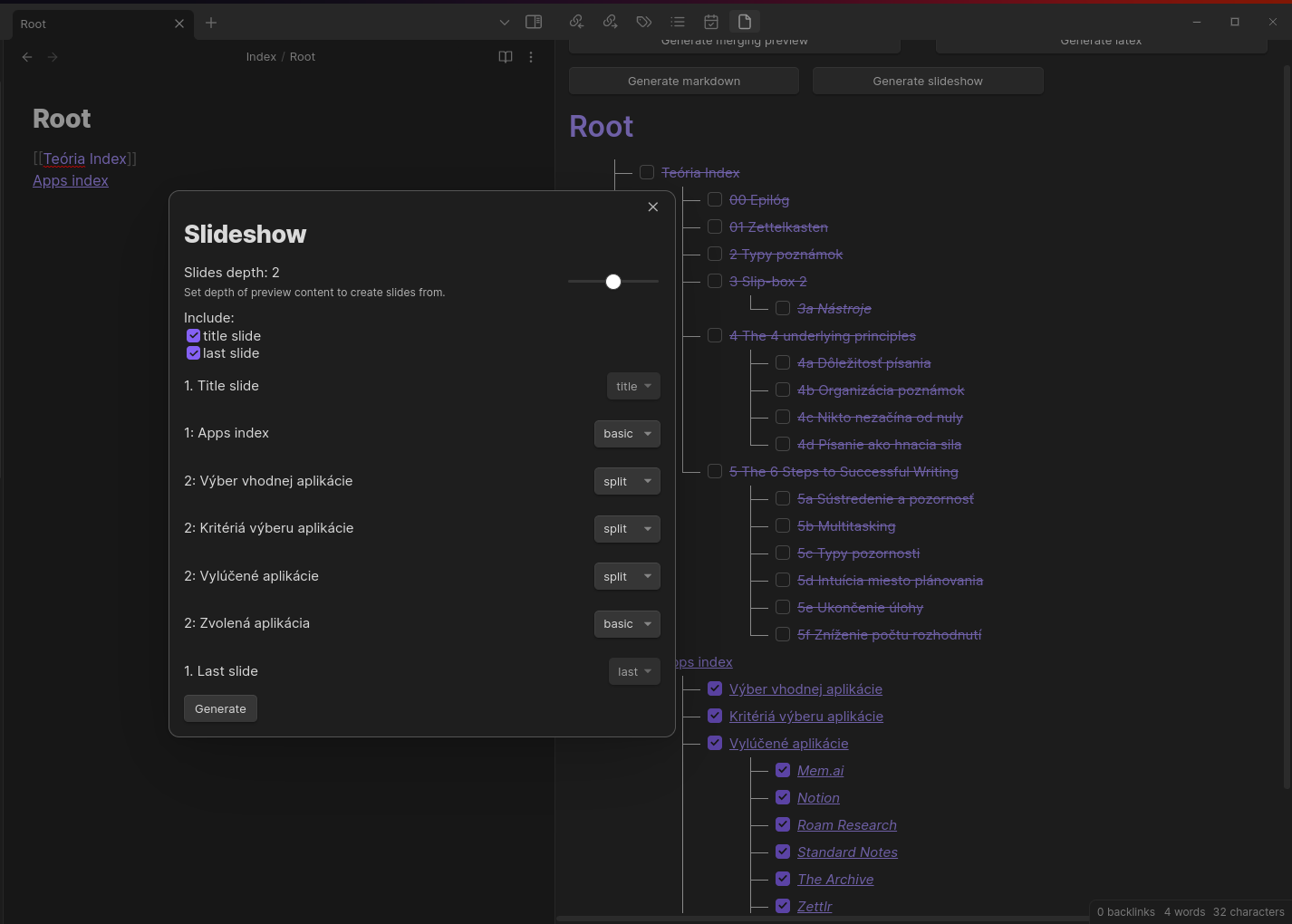
Generate slideshow
Generate slideshow template that is compatible with obsidian advanced slides plugin (https://mszturc.github.io/obsidian-advanced-slides/).
Generate latex
Translate markdown file into XeLatex file (.tex). Supported versions are 2018, 2019, 2022, 2023. User can specify image folder in the plugin settings. All images are copied in the translation process into the image folder. TBA
Generate plain latex
Basic translation of markdown commands and images into XeLatex file.
Generate Latex With Template
Include specified template in the generation process.
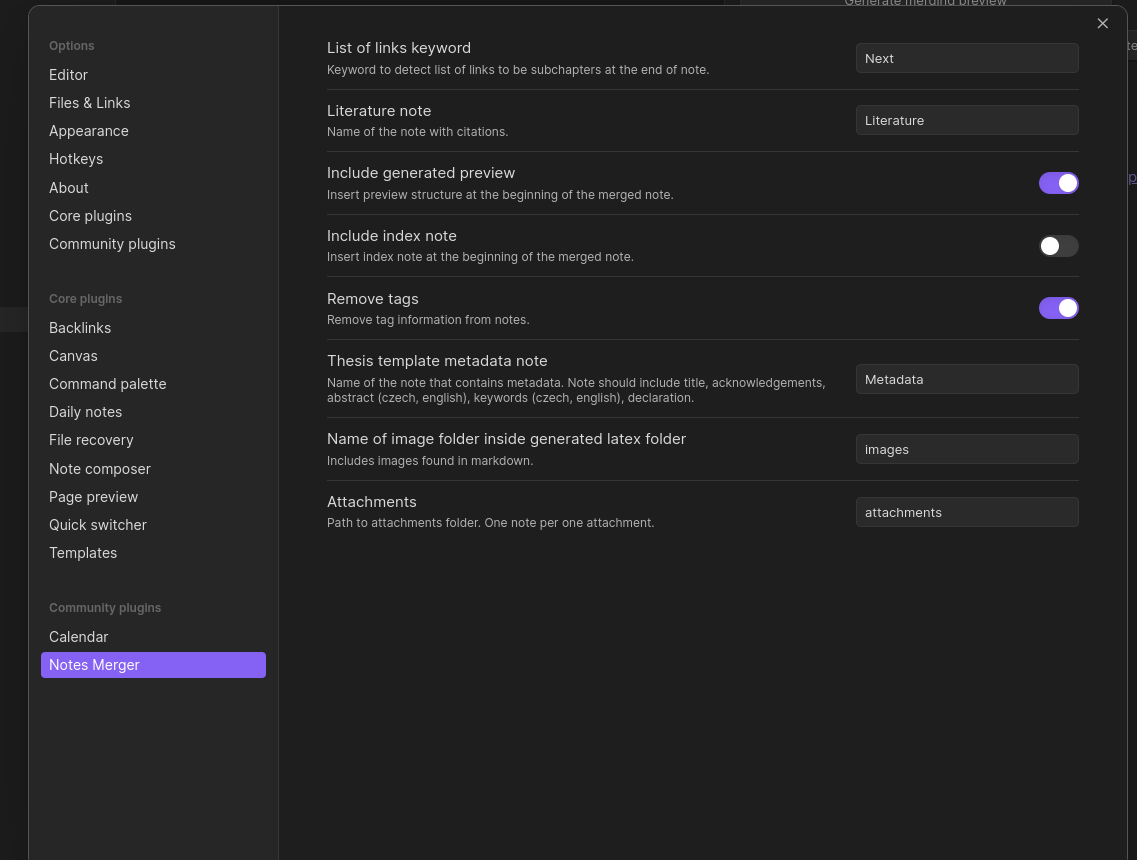
Settings
Default settings:
Generate Latex
Generate Latex With Template
Markdown translation to Custom Latex template (PEF Mendelu template)
Heading
# H1 -> \kapitola{H1}
## H2 -> \sekce{H2}
### H3 -> \podsekce{H3}
#### H4 -> \subsubsection*{H6}
##### H5 -> \subsubsection*{H5}
###### H6 -> \subsubsection*{H6}
Table
Markdown
| foo | bar | baz |
| ---- | ---- | ---- |
| row1 | col1 | col2 |
| row2 | col3 | col4 |
[label] [cite] [source]
optional metadata [label] [cite] [source]
examples:
- label: tableId1
- cite: This is example table
- source: https://example.com
Latex
\tabulka{cite}
\label{label}
\def\arraystretch{1.5}
\begin{tabular}{|l|c|c|} \hline
\textbf{foo} &
\textbf{bar} &
\textbf{baz} \\ \hline
row1 & col1 & col2 \\ \hline
row2 & col3 & col4 \\ \hline
\end{tabular}
\tabzdroj{source}
\endtab
Table: Reference table in text
Markdown
The table [tableWithRowsAndColumns] will be translated to Latex by Notes Merger plugin.

| foo | bar | baz |
| ---- | ---- | ---- |
| row1 | col1 | col2 |
| row2 | col3 | col4 |
[tableWithRowsAndColumns] [cite] [source]
Codeblock
Markdown
```json packageFile|This is package.json file
{

    "name": "notes-merger",
    ...
optional metadata: language label|caption
Latex
\begin{lstlisting}[language=json, caption=This is package.json file, label={packageFile}]
{
    "name": "notes-merger",
}
\end{lstlisting}
Inline Code
Markdown
`const foo = "bar"`
Latex
\[ const foo = "bar" \]
Image
image must be in format: 
Markdown


optional: description, source
Latex
\obrazek
\vlozobrbox{blackcat.jpg}{1\textwidth}{!}
\endobrl{black cat crossing street \obrzdroj{hhttps://kittenpictures.com/blackcat.jpg}}{blackcat.jpg}
Image: Reference image in text
Reference image in text.
Markdown
Black cat is crossing street on picture [blackcat.jpg].
Latex
Black cat is crossing street on picture \ref{blackcat.jpg}.
Citation: Literature file
Citation is created from special file specified in settings (default: Literature)
Markdown
Literature format must follow one of two specific formats: Book or Web
Book
# Akademické_písanie              # label (ID)
>book                             # type
>Foltýnek et al., 2013            # inline citation
- Tomáš Foltýnek                  # author 1
- Jiří Rybička                    # author 2
>Training of academic writing     # title
>online                           # format
>Brno                             # published place
>Mendelova univerzita             # publisher
> 2013                            # published year
> 2                               # edition
> ISBN X-XXX-XXX-X;               # ISBN
>27.11.2023                       # citation date
>https://example.com              # source
Web
# GTD                             # label
>web                              # type
>Allen, 2015                      # inline ctation
- David Allen                     # author 1
>Getting Things Done              # web title
>Penguins                         # web domain
>London                           # published place
>Penguin Web                      # publisher
>4.4.2014                         # published date
>1.3.2015                         # revision date
>26.11.2023                       # citation date
>https://penguins.com/gtd-book    # source
Latex
Book
\citace{Akademické_písanie}{Foltýnek et al., 2013}{
\autor{Tomáš Foltýnek, Jiří Rybička}
\nazev{Training of academic writing.} [online]. Brno: Mendelova univerzita, 2013. 2. ISBN X-XXX-XXX-X. [27.11.2023]. Dostupné z: https://example.com}
Web
\citace{GTD}{Allen, 2015}{
\autor{David Allen}
\nazev{Getting Things Done.Penguins} [online]. London: Penguin Web, 4.4.2014, 1.3.2015
[26.11.2023]. Dostupné z: https://penguins.com/gtd-book}
Citation: inline citation
Reference citation in text Required: Literature file
Markdown
literatureNote - specified note in settings
Lorem ipsum dolor sit amet, consectetur adipiscing elit [[literatureNote#label]].

Lorem ipsum dolor sit amet, consectetur adipiscing elit
[[Literature#GTD]].
Latex
Lorem ipsum dolor sit amet, consectetur adipiscing elit \cite{label}.

Lorem ipsum dolor sit amet, consectetur adipiscing elit \cite{GTD}.
Multiple citations
Merge multiple citations next to each other for same article.
Markdown
Lorem ipsum dolor sit amet, consectetur adipiscing elit [[literatureNote#label]][[literatureNote#GTD]]
Latex
Lorem ipsum dolor sit amet, consectetur adipiscing elit \cite{literatureNote#label,literatureNote#GTD}
List
Markdown
ordered
1. First item
2. Second item
3. Third item
4. Fourth item
bullet points
- First item
- Second item
- Third item
- Fourth item
Latex
ordered
\begin{enumerate}
    \item First item
    \item Second item
    \item Third item
    \item Fourth item
\end{enumerate}
bullet points
\begin{itemize}
    \item First item
    \item Second item
    \item Third item
    \item Fourth item
\end{itemize}
Bold
Markdown
**bold text**
Latex
\textbf{bold text}
Italic
Markdown
*italic*
Latex
\textit{italic}