Nested Vaults
 Real-Fruit-Snacks893 downloads
Scope your vault to a specific folder, effectively treating it as a nested sub-vault.
- Overview
- Scorecard
- Updates4
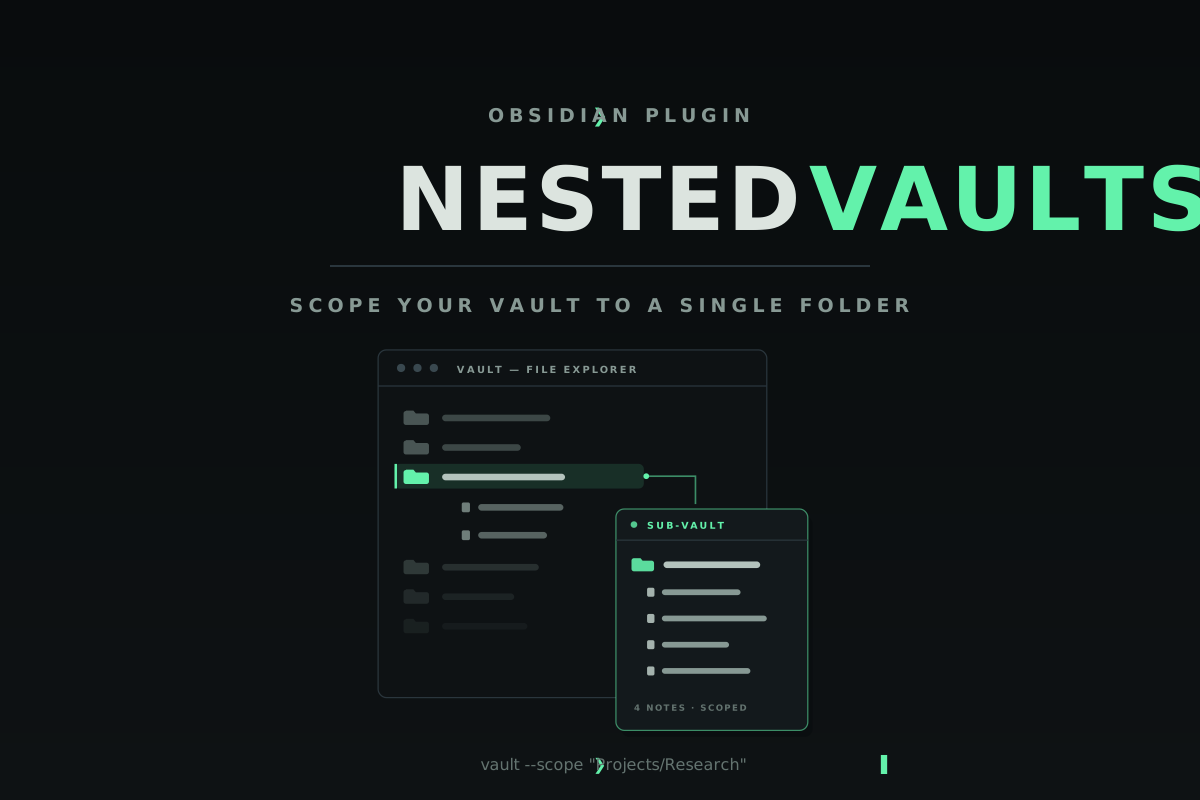
Scope your entire Obsidian vault down to a single folder — file explorer, search, graph, tags, and backlinks all respect the boundary.
Overview
A big master vault is great — until you need to spend the afternoon inside one project. Nested Vaults lets you pick any folder and treat it as a temporary vault of its own, without opening a second vault window or losing your plugins, themes, and settings.
While a Sub-Vault is active, the file explorer shows only that folder (plus anything you whitelist), core Search and the Graph views carry a path: filter for it, the tag pane shows only tags used inside it, backlinks from outside it are hidden, and opening an outside file is blocked with a notice. Leave the Sub-Vault from the status bar or ribbon and everything returns instantly — nothing about your files is ever changed to make the scoping happen.
Features
- File explorer scoping — folders and files outside the active Sub-Vault are hidden. Parents of the Sub-Vault and of allowed folders stay visible so everything remains reachable.
- Search and Graph scoping — a
path:"<sub-vault>"filter is added to core Search, Graph, and local graph queries, and cleanly removed when you leave. Your own query text is left untouched. Toggleable in settings. - Tag pane filtering — only tags used by notes inside the Sub-Vault are shown, with nested tags (
#project/idea) matched by their full path. - Backlink filtering — backlinks from notes outside the Sub-Vault are hidden, both in the backlinks pane and in the linked-mentions section at the bottom of notes.
- Open blocking — following a link to a file outside the Sub-Vault shows a notice and turns the tab into an empty tab instead of opening the file.
- Global allowed folders — whitelist folders like
AttachmentsorTemplatesthat stay visible and accessible in every Sub-Vault, so embeds and templates never break. - Scoped quick switcher — a quick switcher that searches only inside the active Sub-Vault, with paths shown relative to it.
- Auto-move new notes (opt-in) — notes created outside the Sub-Vault are moved into it automatically, with links to the moved note updated.
- Status bar and ribbon — the status bar shows the active Sub-Vault (click it to leave), and a ribbon action leaves it too. Renaming the scoped folder follows along; deleting it clears the scope.
Installation
Requires Obsidian 1.4.10 or newer.
Community plugins (recommended)
- Open Settings → Community plugins → Browse.
- Search for Nested Vaults, then Install and Enable.
BRAT (for the latest pre-release)
Install BRAT, then add Real-Fruit-Snacks/obsidian-nested-vaults as a beta plugin.
Manual
Download main.js, manifest.json, and styles.css from the latest release into <your-vault>/.obsidian/plugins/nested-vaults/, then enable Nested Vaults under Settings → Community plugins.
Getting started
- Enter a Sub-Vault — right-click any folder in the file explorer and choose Set as Active Sub-Vault, or run Set Active Sub-Vault from the command palette.
- Work — the explorer, search, graph, tags, and backlinks are now scoped to that folder.
- Leave — click the Sub-Vault name in the status bar, or the Leave Active Sub-Vault ribbon icon, and the whole vault comes back.
Commands
| Command | Description |
|---|---|
| Set Active Sub-Vault | Pick a folder to scope the vault to |
| Clear Active Sub-Vault | Return to the full vault |
| Open Scoped Quick Switcher | Quick switcher limited to the active Sub-Vault |
Settings
| Setting | Default | Description |
|---|---|---|
| Active Sub-Vault | (empty) | The folder currently scoped to; supports autocomplete |
| Auto-move new notes into the Sub-Vault | Off | Move notes created outside the Sub-Vault into it, updating links |
| Scope Search and Graph to the Sub-Vault | On | Add and maintain the path: filter in Search and Graph queries |
| Global allowed folders | Attachments, Templates |
Folders that stay visible and accessible in every Sub-Vault |
How the scoping works
Nested Vaults never moves, locks, or rewrites your files to create the boundary. The file explorer, tag pane, and backlinks are scoped by tagging out-of-scope items with a CSS class that hides them; Search and Graph are scoped by inserting a path: token into their query inputs; and out-of-scope files are kept out of view by intercepting file-open events. Disable the plugin (or leave the Sub-Vault) and your vault is exactly as it always was.
Because the boundary is a view-level convenience rather than a permission system, other plugins that read the vault directly can still see the whole vault.
Architecture
nested-vaults/
├── manifest.json    Plugin metadata
├── versions.json    Plugin version → minimum Obsidian version map
├── main.js          Plugin code (single-file CommonJS, no build step)
├── styles.css       One rule: hide elements marked out-of-scope
└── docs/            Documentation site and artwork
- No build step — a single hand-maintained CommonJS
main.js, with no framework or bundler. - Event-driven — scoping refreshes on vault, metadata, and layout events plus targeted pane observers, debounced so rapid changes coalesce into one pass.
- Safe writes — the only file operation the plugin can perform is the opt-in auto-move, which uses
fileManager.renameFileso links to the moved note are updated. - No network, no telemetry — the plugin never talks to the network.
License
Released under the MIT License.