N-brace
 nn-ninja415 downloads
Altered local graph's visual layout. Quick graph navigation.
- Overview
- Scorecard
- Updates7
N-brace Plugin Homepage
A slightly different Graph navigation and visualization for Obsidian.
See the demo: <not yet published!>
Donate if you appreciate my work! https://buymeacoffee.com/nbrace
Installation
Through community plugin store
Not yet available. Easiest option of installation is through BRAT plugin (below).
Using BRAT
- Install the Brat Plugin in Settings → Community plugins → Browse BRAT → push the Install button
- Enable BRAT in Settings → Community plugins
- Open BRAT settings and click "Add Beta plugin"
- Enter the repository URL:
nn-ninja/n-brace - Click "Add Plugin" and enable N-brace in your community plugins
BRAT will automatically check for updates and notify you when new versions are available.
Manual installation
- cd to
.obsidian/plugins - git clone this repo
cd obsidian-n-brace && bun install && bun run build- there you go 🎉
Usage
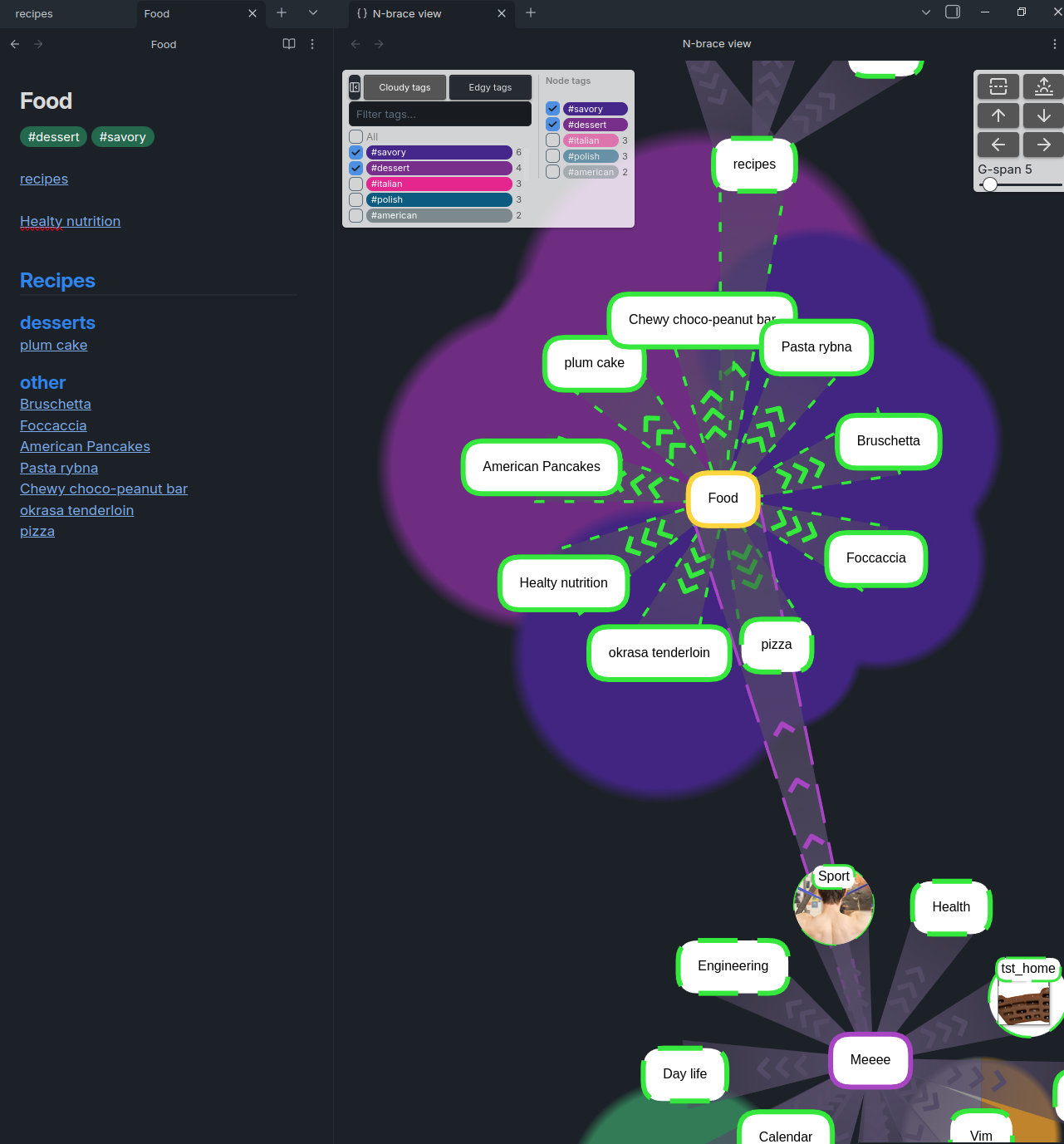
In a note tab context menu (right click), click on use N-brace to open a local graph of viewed note.

The graph appears in the right-hand view and is designed to be used alongside the note on the left. Its purpose is to help you quickly understand how the current note connects to others and to visualize its overall structure.
G-span defines how large a portion of the graph is displayed. When the number of visible nodes reaches this limit, the view automatically shrinks by hiding the most distant nodes.
Navigation
You can navigate using the keyboard arrow keys. Notes that haven’t been expanded yet in the local graph are shown with a dotted border.
If you need to explore the parent notes, hold Ctrl to reverse the navigation direction — the link directions will swap accordingly.
Notes
At present, the n-brace graph model is initialized during application startup, which may result in longer loading times.
I have in my plans to optimize this process.
Features
Local Graph
It is designed to rather operate on a local graph, not on huge and unclear global graph.
Tag List
The tag panel appears on the left side of the graph whenever any visible node carries a tag. Tags are sorted by frequency and color-coded consistently across the view.
Filtering: Uncheck tags to hide nodes that don't share at least one checked tag. The graph contracts to show only nodes reachable from the selected note through the filtered set. A search box lets you filter the tag list itself by name (comma-separated terms supported).
Color modes: Two coloring modes are available via the toggle buttons:
- Cloudy tags — each node is surrounded by a translucent color cloud showing its tags. Double-clicking a cloud segment isolates that tag.
- Edgy tags — links are colored by tags shared between their source and target nodes.
Node tags panel: When a note is selected, a secondary panel shows the tags of that note alongside tags present on its direct neighbors (dimmed). You can add or remove tags from the selected note directly by clicking the checkboxes — changes are written back to the file immediately.
Save Setting
You can update and save your general settings.
Before deploying new version
bun run typecheck # TS errors + circular deps bun run lint # ESLint bun run build # Production bundle