Mobile Suggestion Helper
 Aqua Cat215 downloads
Helps move the selected element in a suggester up or down on mobile.
- Overview
- Scorecard
- Updates2
This plugin is designed to help get a similar experience for selecting files from the wiki link suggester.
There are 3 commands that are added by the plugin that help with making sure you can navigate through the selection list and select the desired file name.
Why is this useful?
It may not for your use case. I have a setting enabled where all my links should be markdown links. This means that on mobile when I select the file from the dropdown, the typical behavior is to convert that link straight to a markdown link. This works pretty good if you do not plan on referencing a subset of the document.
In my case, I have multiple files with the same name, but they are in different folders. I often link to a subset of these documents via their headings. Well, if I want to do this like on the desktop, it is not possible when you need to reference a file that is not the first file in the list because selecting it concerts the link straight to a markdown link. So to get around this, I needed to add a couple of commands to allow me to modify which entry in the suggester is suggested (up and down options) and then select an option from the dropdown.
How to use
First install the plugin manually. Once that is done, I find it easiest to go ahead and add the new commands to the mobile toolbar. Once that is done, I use the up and down arrows in the mobile toolbar to help me. Then once it is on the file that I want to select, I use the checkmark inside the circle to select it. Once a file is selected, I can proceed with typing # or ^ and then use the suggester from there to select what I need to.
Example Usage
Here is a scenario where there are two files with the same name 20260515.md, but they are in different folders:
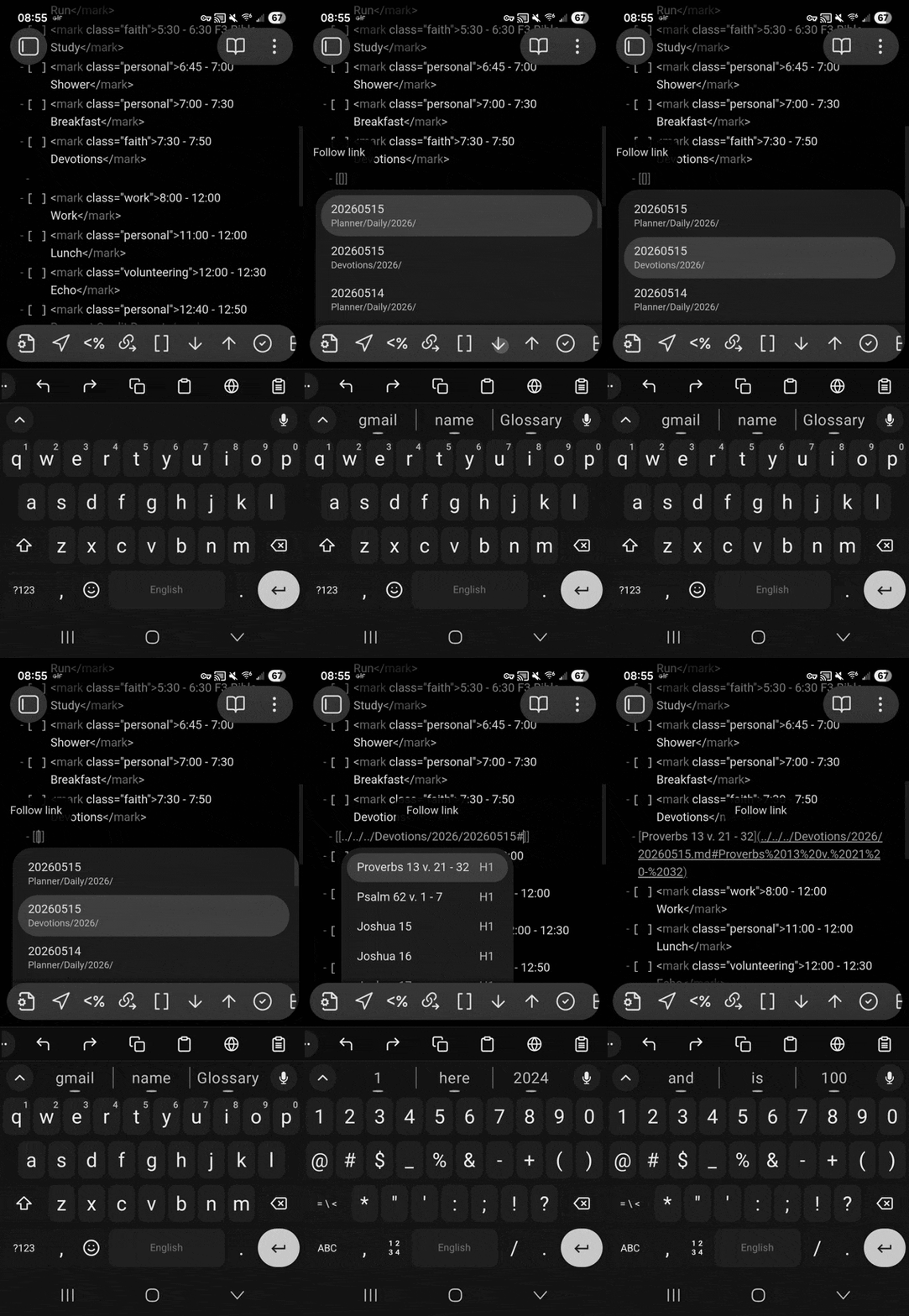
In the video, the plugin commands are present on the mobile toolbar. They are the up and down arrows and the circle with a check ox present.
Commands
| Name | Action |
|---|---|
mobile-suggester-helper-move-selector-down |
Move the selected item down one in the suggester. |
mobile-suggester-helper-move-selector-up |
Move the selected item up one in the suggester. |
mobile-suggester-helper-select-heading |
Select the highlighted item in the suggester. |
Contributing
- Clone this repo.
- Make sure your NodeJS is at least v16 (
node --version). npm ito install dependencies.npm run devto start compilation in watch mode.- Before committing make sure to run
npm run lint
Manually installing the plugin
- Copy over
main.jsandmanifest.jsonto your vaultVaultFolder/.obsidian/plugins/obsidian-mobile-suggester-helper/.