Media Viewer
 devon2211k downloads
Transform notes with beautiful interactive media galleries and seamless fullscreen viewer.
- Overview
- Scorecard
- Updates61
Introduction
Media Viewer is a plugin designed for Obsidian, aiming to provide an intuitive media browser that allows users to easily view media files (such as images and videos) within their notes.
Features
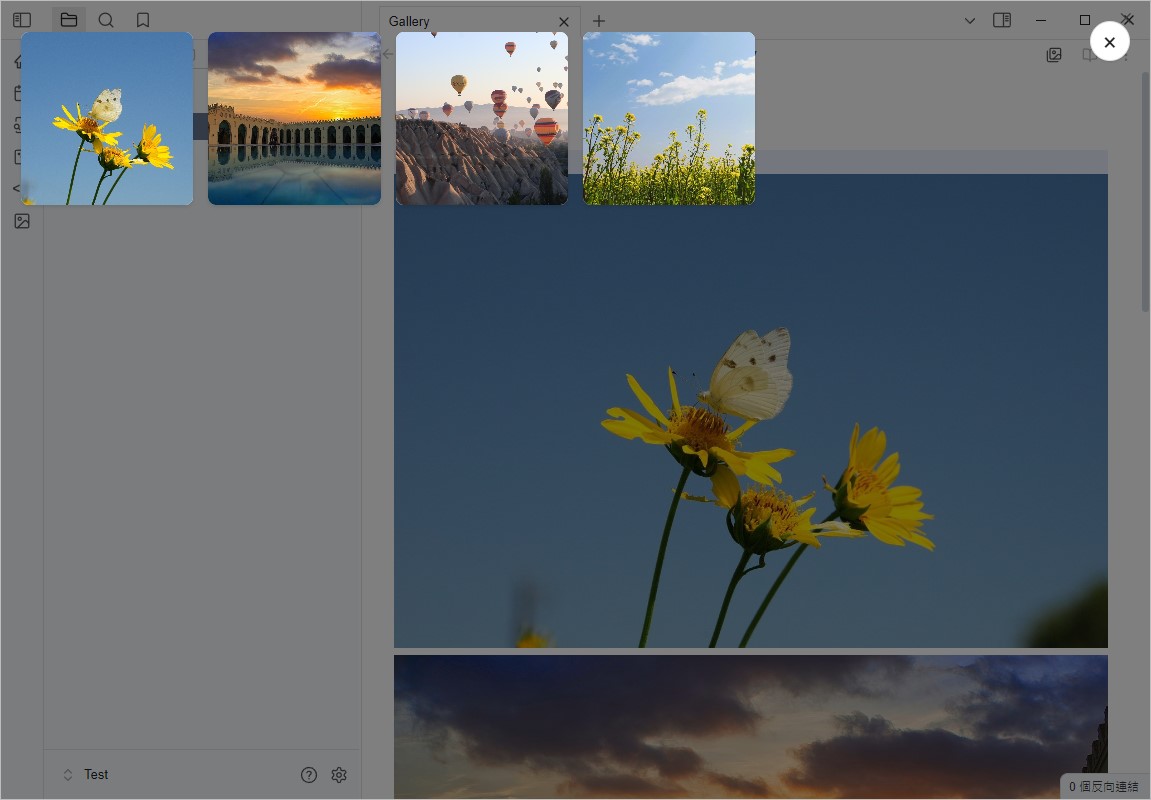
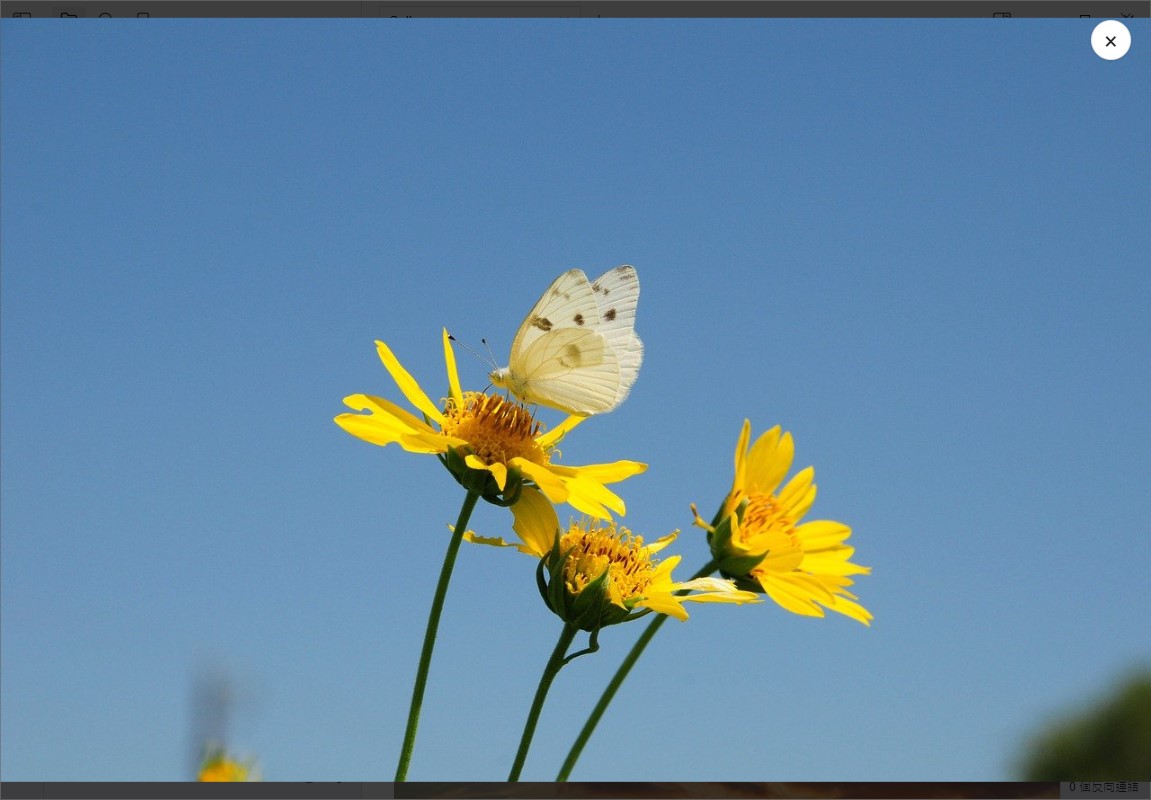
- Media Browser: View all media files in a note in full-screen mode.
- Click to Open Media: Open the media browser by clicking on an image.
- Create Gallery Block: Create a media gallery block to display multiple media files in a grid format within a note.
Installation
- Download the latest version of this plugin.
- Place the plugin folder in Obsidian's plugin directory.
- Enable this plugin in Obsidian.
Usage
- Open a note and use the command palette (
Ctrl + P) to select "Open Media Viewer" to view media files within the note. - Click on media thumbnails to view full-screen previews.
- Use keyboard arrow keys to switch between media files.
Gallery Block Usage
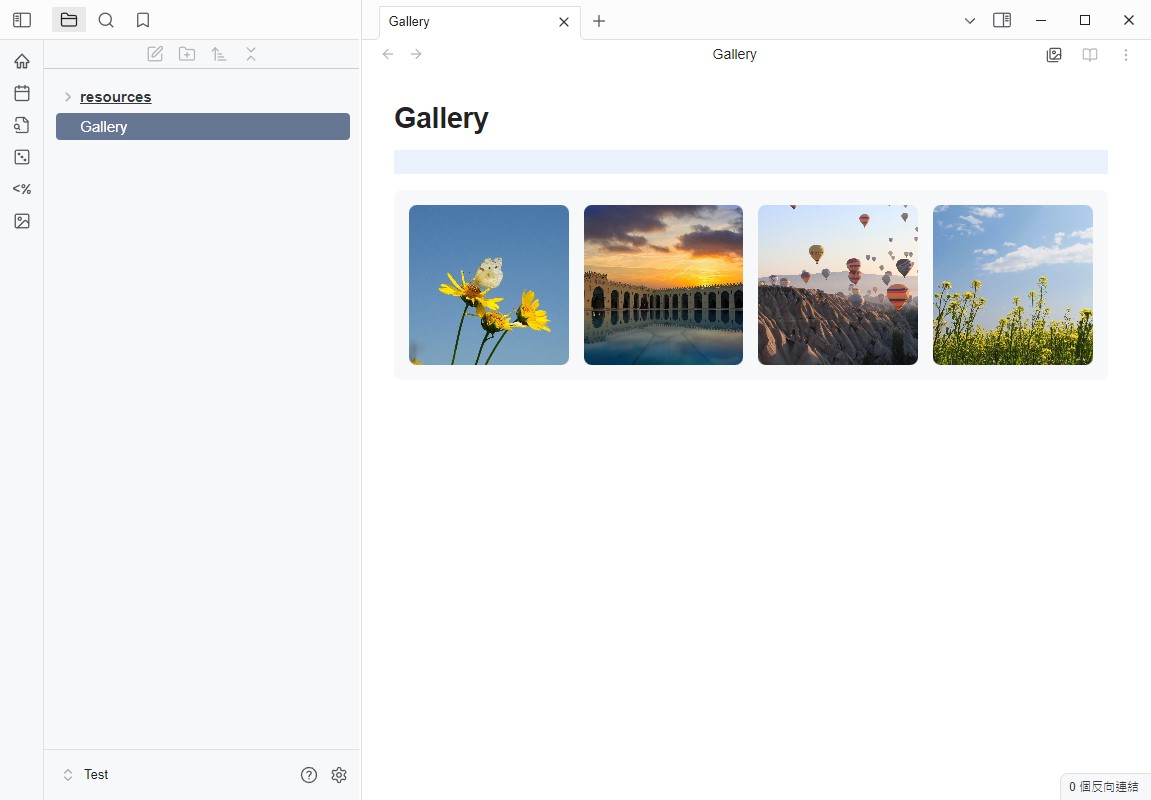
You can create a Gallery block in a note using the following format:
```gallery
![[image1.jpg]]
![[image2.jpg]]
![[image3.jpg]]
![[video.mp4]]
[[note]]
```
Create Gallery Block Using Commands
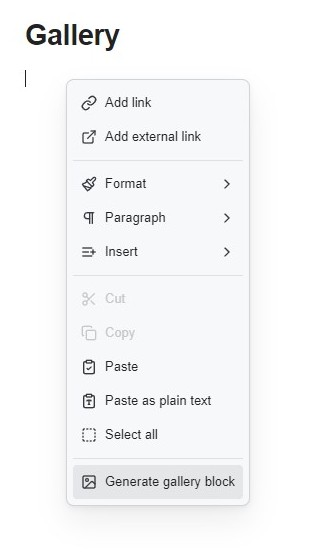
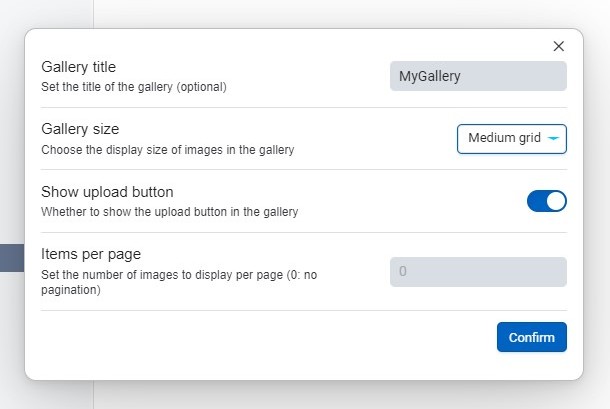
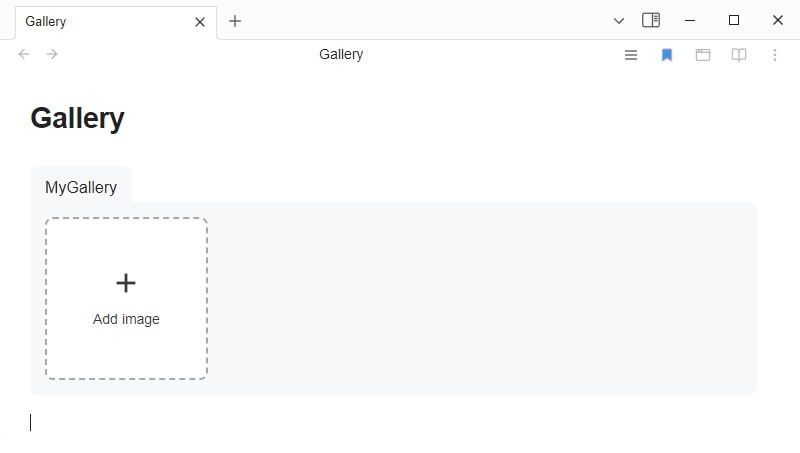
After creation, you can directly drag and drop images into the block to add them.
Gallery Additional Parameters
| Attribute | Description |
|---|---|
title: text or [[link]] |
Used to set the title of the Gallery |
size: small or medium or large |
Thumbnail size of the Gallery |
addButton: true or false |
Whether to display the add image button |
pagination: number |
Display pagination when the number of images in the Gallery exceeds this number |
alt: text or [[link]] |
Placed on the line above the image link, can serve as a description for the image |
img: image.jpg or ![[image.jpg]] |
Placed on the line above the note link, can be displayed as a thumbnail |
filter: text |
Used to filter Gallery content |
```gallery
size: small
addButton: true
title: gallery

alt: image1
![[image1.jpg]]

alt: image2
![[image2.jpg]]

alt: image3
![[image3.jpg]]

![[video.mp4]]

img: image4.jpg
[[note]]
```
Settings
In the plugin's settings page, you can customize the following options:
- Allow deletion of media files
- Auto-open the first image
- Open media browser when clicking on an image
- Adjust the Gallery Grid layout width
License
This plugin follows the MIT License.
HealthExcellent
ReviewSatisfactory
About
Easily browse, zoom, and manage images, videos, and audio files directly within your notes. This plugin provides a fullscreen media viewer with keyboard navigation and click-to-open previews, alongside customizable, responsive grid layouts supporting drag-and-drop, thumbnails, and pagination.Details
Current version
2.2.1
Last updated
3 months ago
Created
2 years ago
Updates
61 releases
Downloads
11k
Compatible with
Obsidian 1.8.7+
Platforms
Desktop, Mobile
License
MIT