MarkdownPoint
MarkdownPoint and its companion plugin for Obsidian are the best combination for modern presentations.
- Overview
- Scorecard
- Updates1
MarkdownPoint and its companion plugin for Obsidian are the best combination for modern presentations. Build the structure and write every word in Obsidian, then switch to the MarkdownPoint desktop app for design, 3D, animation, rendering and much more.
Your whole talk becomes one continuous draft: titles, text and presenter notes flow down the page like a note, with an outline of every slide beside it. Drag slides into a new order, add a slide in one keystroke, and copy slides between presentations. There’s nothing to import or export between the two: both apps edit the same files in your vault.
Continuous draft. Drag-and-drop outline. Presenter notes. Layout shortcuts. 21 languages.
1 Installation
- Install Obsidian 1.13 or newer on your desktop from obsidian.md.
- Turn on community plugins under Settings → Community plugins.
- Install MarkdownPoint: select Browse, search for MarkdownPoint, then select Install and Enable.
- Get the desktop app from markdownpoint.com to design, present and export your slides.
2 Your first presentation
Open the command palette and run MarkdownPoint: New presentation. Enter a name, choose a folder, and pick Basic or a theme from another presentation in your vault. Select Create, and the presentation opens with one empty slide and the cursor ready in its first text area.
Already have a presentation? Put its whole folder in your vault and open slides.md:
My presentation/
├── slides.md              your writing, notes and slide order
├── presentation.mdpoint   the presentation data
├── themes/
└── media/
Move and sync the folder as a whole, and both apps keep working on it.
3 Write the whole talk in one draft
Every slide starts with a numbered divider, followed by its text areas in writing order. Each area takes its name from the layout: Title, Body, Eyebrow or a name the theme gives it. An empty area shows its name as a faint placeholder. Start typing and the name moves up as a small label above your words. Placeholders and labels live only in the editor and are never saved.
Write in Live Preview to see the draft. It protects the slide dividers from stray edits, so you rearrange slides in the outline or from the right-click menu. Switch to Source mode whenever you want the plain Markdown, dividers included.
Blank lines are yours to use. The draft hides the single blank line that separates text areas, and any extra blank lines stay visible and carry over to MarkdownPoint.
Presenter notes
Click the Presenter notes row under a slide to open it, and write reminders, transitions or a full script. Notes travel with their slide when you move, copy or delete it, and each device remembers which notes you keep open.
Images beside the draft
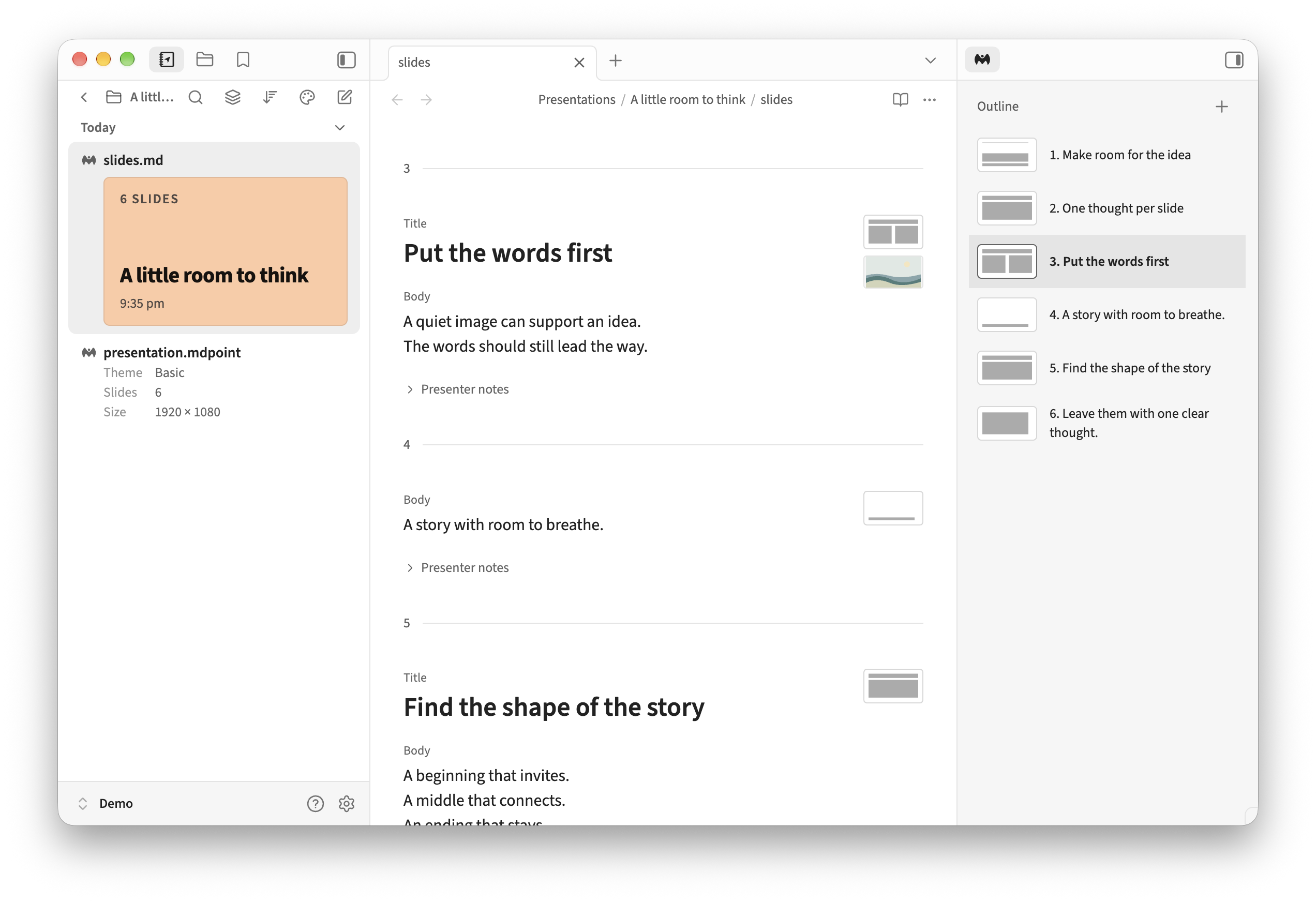
Up to five of a slide’s images appear under its thumbnail in the margin: the background first, then the layout’s image areas, then any other images on the slide. Add and change images in MarkdownPoint. To hide the previews, turn off Settings → MarkdownPoint → Show images.
4 Shape the story in the outline
The Outline has its own sidebar tab, marked with the MarkdownPoint icon, and opens in the right sidebar. Each row shows a slide’s title and a small map of its layout. Section headings divide the list without taking a slide number, and skipped slides show a dash instead of a number.
- Click a slide to select it and jump to it.
- Cmd-click on Mac or Ctrl-click on Windows and Linux to add or remove a slide.
- Shift-click to select a range, or Shift+Up/Down to extend it.
- Cmd/Ctrl+A selects every slide while the outline has focus.
Drag the selection anywhere in the list. A line shows where it lands, and dropping on a section heading puts the slides at the start of that section. Prefer the keyboard? While the outline has focus, Cmd+Up/Down on Mac or Ctrl+Up/Down on Windows and Linux moves the selection one row at a time.
Copy, cut and delete slides
Right-click a slide in the outline or the editor for Cut slide, Copy slide, Paste slides and Delete slide. A slide’s thumbnail in the editor margin opens the same menu. In the outline, the menu acts on every selected slide, and Cmd/Ctrl+C, X and V copy, cut and paste whole slides. In the editor they stay ordinary text shortcuts. Pasted slides land below the slide whose menu you opened.
A copied slide brings its text, notes and presentation data with it. Paste it into another presentation in the same vault that uses the same theme, and its media comes along too. Between different themes or vaults, copy and paste the slides in the MarkdownPoint desktop app.
Obsidian’s Undo and Redo cover slide actions too, also while the outline has focus.
5 Add a slide in one keystroke
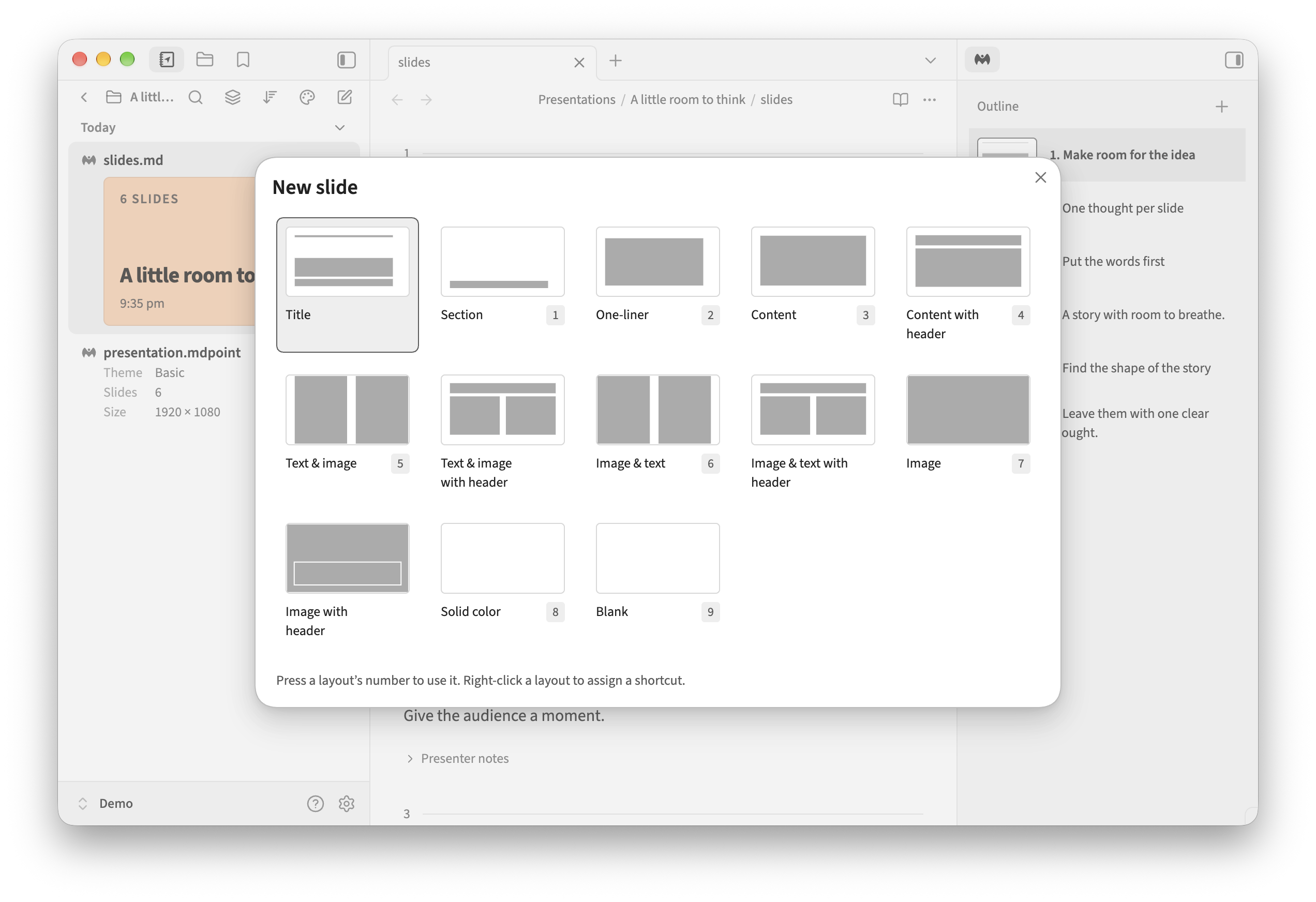
Click + above the outline or run MarkdownPoint: New slide, then choose a layout. The new slide goes below the current one.
Give your favorite layouts a number: right-click a layout in the picker and choose Shortcut, then a number from 1 to 9. Next time, open the picker and press that number. The number shows next to the layout’s name, and giving it to another layout moves it there. None removes it.
6 Design and present in MarkdownPoint
Run MarkdownPoint: Open in MarkdownPoint to save the presentation and open it in the desktop app. That’s where layout, images, 3D, animation and presenting happen. Come back to slides.md for another writing pass whenever you like, since both apps work on the same folder.
For the command to reach the app, your computer has to open .mdpoint files with MarkdownPoint.
7 Settings and hotkeys
Settings → MarkdownPoint → Sidebar puts the outline on the left or right. If you use Notebook Navigator, keep the outline on the right. Obsidian’s own controls show and hide the sidebar.
The plugin sets no hotkeys, so assign your own under Settings → Hotkeys:
| Command | What it does |
|---|---|
| New presentation | Create a presentation in the vault. |
| New slide | Open the layout picker. |
| Focus outline | Reveal and focus the slide outline. |
| Focus editor | Return to the writing area. |
| Move slides up | Move the outline selection up. |
| Move slides down | Move the outline selection down. |
| Open in MarkdownPoint | Save and open the presentation in the desktop app. |
The move commands work while the outline has focus.
After an update, MarkdownPoint shows its release notes once. Turn this off with Show release notes after updating, or read them any time with View recent updates. The banner at the top of the settings links to the MarkdownPoint desktop app.
Sidebar placement and open notes are stored on each device. Layout shortcuts, Show images and Show release notes after updating are plugin settings, and they sync when your vault syncs plugin settings.
8 Languages
MarkdownPoint follows Settings → General → Language in 21 languages, with a right-to-left layout for Arabic and Persian:
English · العربية · Deutsch · Español · فارسی · Français · Bahasa Indonesia · Italiano · 日本語 · 한국어 · Nederlands · Polski · Português · Português do Brasil · Русский · ไทย · Türkçe · Українська · Tiếng Việt · 简体中文 · 繁體中文
Any other language shows the plugin in English. The words in your presentation never change with the language setting.
9 Questions
Can I use Obsidian links and embeds? They stay in the Markdown as you wrote them, but wikilinks, note embeds and other plugins’ output don’t become slide content. Use standard Markdown links for links that work outside Obsidian, and add slide images in MarkdownPoint.
My presentation looks like an ordinary note. Open slides.md in Live Preview and check that its presentation.mdpoint sits in the same folder. An unrelated note named slides.md stays an ordinary note, and an extra .mdpoint file or a conflicted copy in the folder makes the plugin leave both files alone. If a notice says the presentation uses a newer MarkdownPoint format, update the plugin in Settings → Community plugins.
The outline shows another presentation. The outline keeps the last presentation you worked in, even while an ordinary note is open. Select the tab of the presentation you want.
Some images are missing. Keep the whole presentation folder together, media included. The editor shows up to five images per slide, and only files it can find.
A slide action asks me to try again. The presentation changed before the action finished. Wait for the latest changes to appear, then try again.
Couldn’t save the presentation data. Keep the vault open, fix the file or storage problem, then select Retry in the notice. Until then, a recovery copy is kept on this device.
Questions, or a problem you can reproduce? Open an issue.