Marco Polo
 Steve Crutchfield960 downloads
Type a local path inside backticks; Marco Polo validates, autocompletes, and produces a clickable link to open or reveal it in your file manager.
- Overview
- Scorecard
- Updates6
⛵ From Venice to Cathay to ~/notes
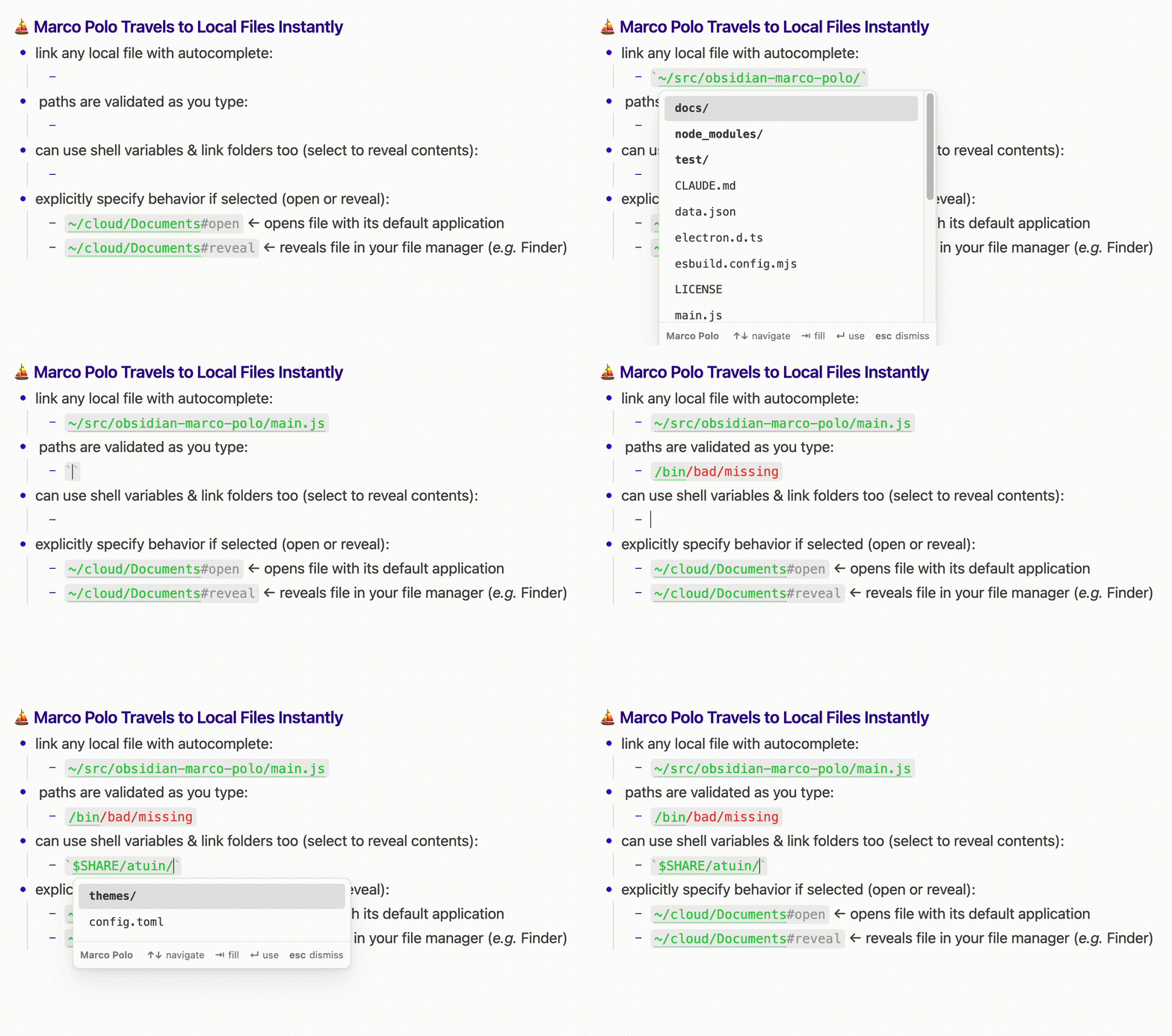
Type a filesystem path inside backticks. Marco Polo validates it live, autocompletes as it is typed, and turns valid paths into clickable links that reveal or open them in the file manager.
Desktop only (uses Node's fs/os and Electron's shell, which do not exist on
mobile). The defaults work on macOS, Windows, and Linux, and the open/reveal commands can be
overridden with anything.
Autocomplete local paths, show as clickable links
Easier to use than to describe. Just start typing:
- `/path/to/something`
and you'll get a clickable link with autocomplete as you type.
These also work:
- `~/something_in_your_home_dir`
- `$SOME_SHELL_VARIABLE/file.txt` (if optional shell variable expansion is on)
- `/path/to/some/directory/`
Configurable color for valid paths; bad paths show up in red until corrected.
Autocomplete dropdown: up/down to browse, Enter/Tab to accept, Esc to dismiss. Directories sort first.
Command "Marco Polo: Insert local path…" opens a drill-down picker and inserts it as a backtick span.
Per-link override: append #open or #reveal inside the backticks to override the default file action:
- `/click/to/open/this/file#open`
- `/click/to/show/containing/directory/of/file.txt#reveal`
- `/click/for/default/behavior/for/this/file`
Needs file system access to validate paths and identify subfolders, but Marco Polo will never read your files or write anything.
Features
- Resolves
~,$VAR, and${VAR}. Exported shell variables (like$SHARE) resolve when shell-env sourcing is on — see the environment section below. - Validates while typing, with a deliberately conservative coloring rule (next section).
- Configurable color for valid paths, with a reset to the theme green.
- Autocomplete dropdown: up/down to browse, Enter/Tab to accept, Esc to dismiss. Directories sort first and get a trailing slash so completion continues into them.
- Command
Marco Polo: Insert local path…opens a drill-down picker (Enter a folder to go in, or choose "Insert …" to drop the current path) and inserts it as a backtick span. - Click to act: in the editor, Cmd/Ctrl-click (configurable); in Reading mode a plain click always follows the link. Directories open in the file manager; files are revealed or opened per settings.
- Per-link override: append
#openor#revealinside the backticks to override the default file action for one link, e.g.`~/notes/today.md#open`. While the keyword is being typed it shows red; once it is a complete keyword it renders muted and is ignored for validation.
Valid local paths turn green
A span is decorated (green) only when it is unambiguous enough to treat as a path, so ordinary inline code and regexes rarely light up by accident. With the deepest existing prefix shown green and any remainder red:
/alone is not decorated./some-name(one component, no second slash) is decorated only if it exists. A non-existent single component stays plain./some-name/(trailing slash, nothing after) is decorated only if it exists — this could just as easily be a regex, so it stays conservative.- Anything with text after a second separator (
/x/y,/a/b/c) is treated as a path and decorated only if its first component exists: the existing prefix is green, the rest is red. Genuine paths light up, while a multi-segment regex like/\d+/gor a nonexistent root like/bad/xstays plain. ~and$VARwith no slash are decorated only if they resolve.
What Marco Polo accesses
Marco Polo only touches your filesystem, on a read-only basis, to (1) check whether a path exists and (2) to list subfolder names for autocomplete. It never reads the contents of your files, and never creates, changes, or deletes anything. It opens or reveals a path only when you select a link, handing the path to your system file manager (the same as double-clicking it in Finder/Explorer).
Shell access is used only if you opt in, to (1) read exported shell variables for expansion in a path (via printenv, so variables like $SHARE resolve) and (2) to run custom open/reveal commands if you chose to set them in settings.
Marco Polo will never read or access any of your files itself.
Security
The expansion of ~ and $VAR is done by pure string substitution in JavaScript against
an environment map. A shell is never invoked on the path, so user text can never be
executed. This matters because the conventional way to expand variables — handing the text
to a shell — turns any span into a command-injection hole (for example zsh's ${(e)...}
performs command substitution, so $(rm -rf ~) would run). Marco Polo avoids that security
issue entirely by not letting span text enter a shell-evaluation context.
Defenses, in order:
- Shape gate — only strings starting with
~,$, or/are considered at all. - Pure-JS expansion — only
$VAR,${VAR}, and a leading~/~/are substituted, from an environment map. Noeval, no shell, no command substitution is possible. - Existence gate — the result must resolve to a real file or directory (
fs.stat) before anything is clickable. Non-existent paths do nothing. - Safe invocation — the default open/reveal uses Electron's
shellAPI, which takes a path argument directly and does not parse a command line.
Two places do touch a shell, both by explicit opt-in and neither with span text:
- The optional custom open/reveal command is text you write in settings. The
{path}token is single-quote escaped before substitution, and is only ever filled with a path that already passed the existence gate. Only put commands you trust there. - Shell-env sourcing (below) runs
printenvin your login shell and parses the output as inertKEY=VALUEdata. Your path text is never passed to that shell. The shell does run your own dotfiles, which is your trusted code.
No home-directory lookups for other users
Only ~ and ~/... (the current user, via os.homedir()) expand. ~otheruser is left
untouched, so it fails the existence gate and never resolves. Resolving another account's
home would mean querying the system password database for an arbitrary username — extra
lookup surface for almost no benefit on a personal machine — so it is deliberately omitted.
Likewise an unknown $VAR is left as written rather than collapsing to empty, so $NOPE/x
never silently becomes /x (since that different, possibly-valid path was not intended).
Environment variables (resolving $SHARE)
A GUI app inherits the login environment, not an interactive shell's exported variables, so
a $FOO defined only in .zshrc is normally absent from process.env. With shell-env
sourcing enabled (the default, off on Windows), Marco Polo runs your login shell once at
startup — $SHELL -ilc printenv — and merges its exported variables over process.env, so
$SHARE and friends resolve. Notes:
- Only exported variables are visible (
export SHARE=...). A bareSHARE=...will not appear, becauseprintenvlists the environment, not shell-local variables. -ilcruns an interactive login shell, so exports in.zshrcas well as.zprofile/.zshenvare captured.- After editing your dotfiles, restart Obsidian, or run the command
Marco Polo: Refresh environment variablesto re-source without restarting. - The sourcing has a short timeout and falls back to
process.envif it fails.
Install for local development
# build, then symlink into the vault's plugin folder
npm install
npm run build            # one-off production build -> main.js
# or: npm run dev        # watch mode

# link the folder into a vault (adjust the vault path)
ln -s "$PWD" "/path/to/Vault/.obsidian/plugins/marco-polo"
Then enable Marco Polo under Settings -> Community plugins. Reload Obsidian (or use the Hot-Reload plugin) after each build.
Settings
- Valid path color, with reset to the theme default.
- File click action: reveal in the file manager, or open with the default app.
- Require Cmd/Ctrl-click in the editor (Reading mode always follows a plain click).
- Resolve shell variables — source the login shell's exported environment at startup.
- Custom open-directory command — blank uses the cross-platform default; override with
e.g. macOS
open -a "Path Finder" {path}, Linuxxdg-open {path}, Windowsexplorer {path}. (The blank default works on every OS. A custom command, by contrast, is specific to that operating system's tools — so if your vault syncs to a machine running a different OS, a custom command set on one won't run on the other. Leave the commands blank for portable behavior.) - Custom reveal-file command — blank uses the cross-platform default. (Same note as above.)