Embedded Mac Terminal
 nestedshell1 downloads
Open a real terminal next to your note, already in its folder. macOS only.
- Overview
- Scorecard
- Updates1
A real terminal inside Obsidian, next to your note and already in its folder.
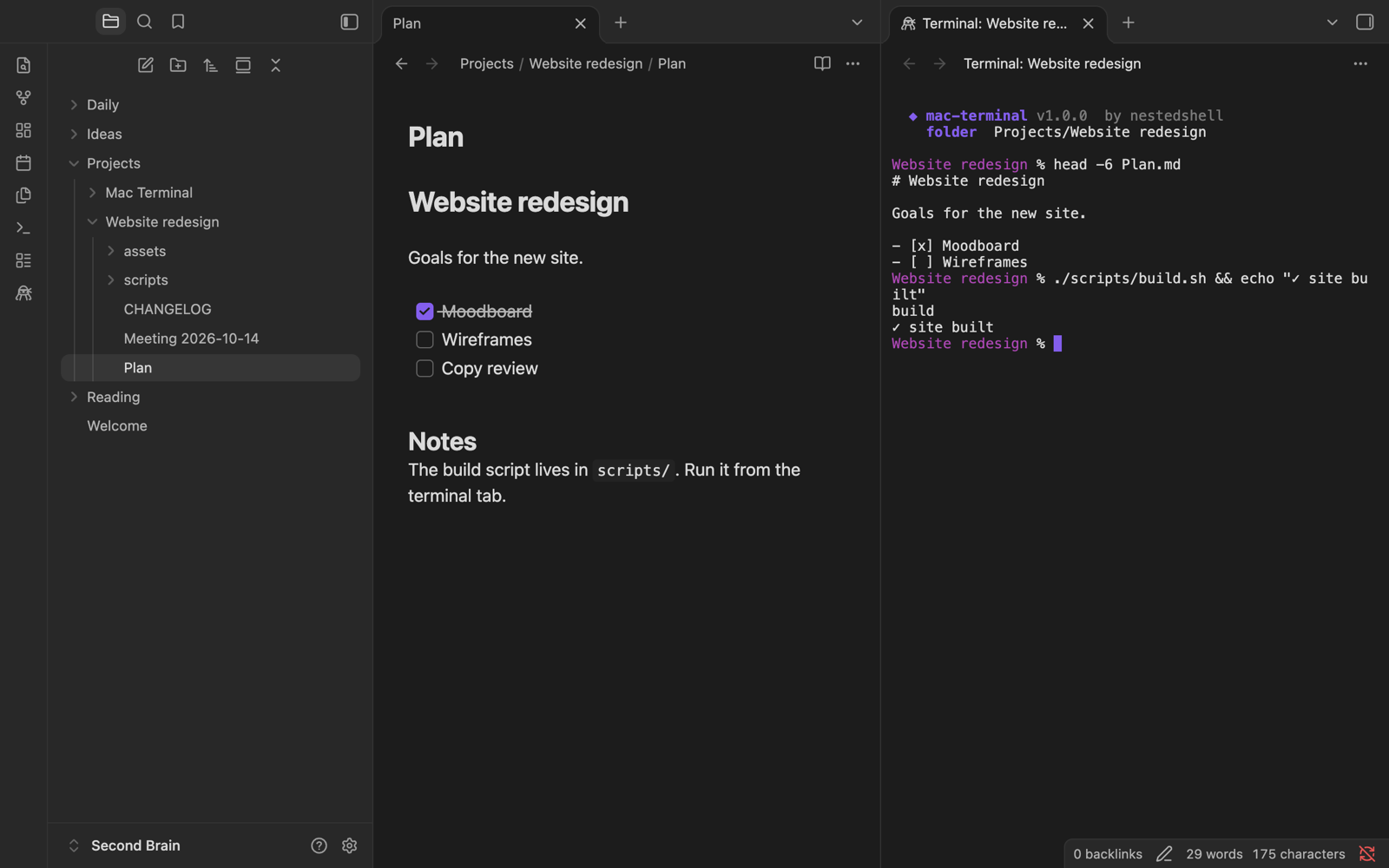
What it's for
Notes often live next to code, scripts and project files. When you need to run a build, use git, or start claude or vim there, Embedded Mac Terminal opens your own shell in a split beside the note, already in the note's folder. You don't switch apps and you don't cd.
- Opens where you work: the folder of the active note, the vault root, or any folder you right-click.
- Your real shell: zsh, bash or fish with your
PATHand profile, full colors, mouse support and full-screen apps such asvim,htoporclaude. - Feels like a Mac terminal: ⌘C, ⌘V, ⌘K and the usual shortcuts work, Option types
@ # [ ]as in any Mac app, and ⌘-click opens links. - Names and colors: give each terminal its project name and a colored dot.
- Looks like Obsidian: it follows your theme, or you pick black, white or a few calm backgrounds.
It needs macOS 11 or later (Apple silicon or Intel) and Obsidian 1.7.2 or later. It doesn't run on Windows, Linux or mobile.
How to use it
Open a terminal in one of three ways:
- click the ninja octopus in the left ribbon;
- run Open terminal in current folder from the command palette (⌘P);
- right-click a folder or a note and choose Open in terminal.
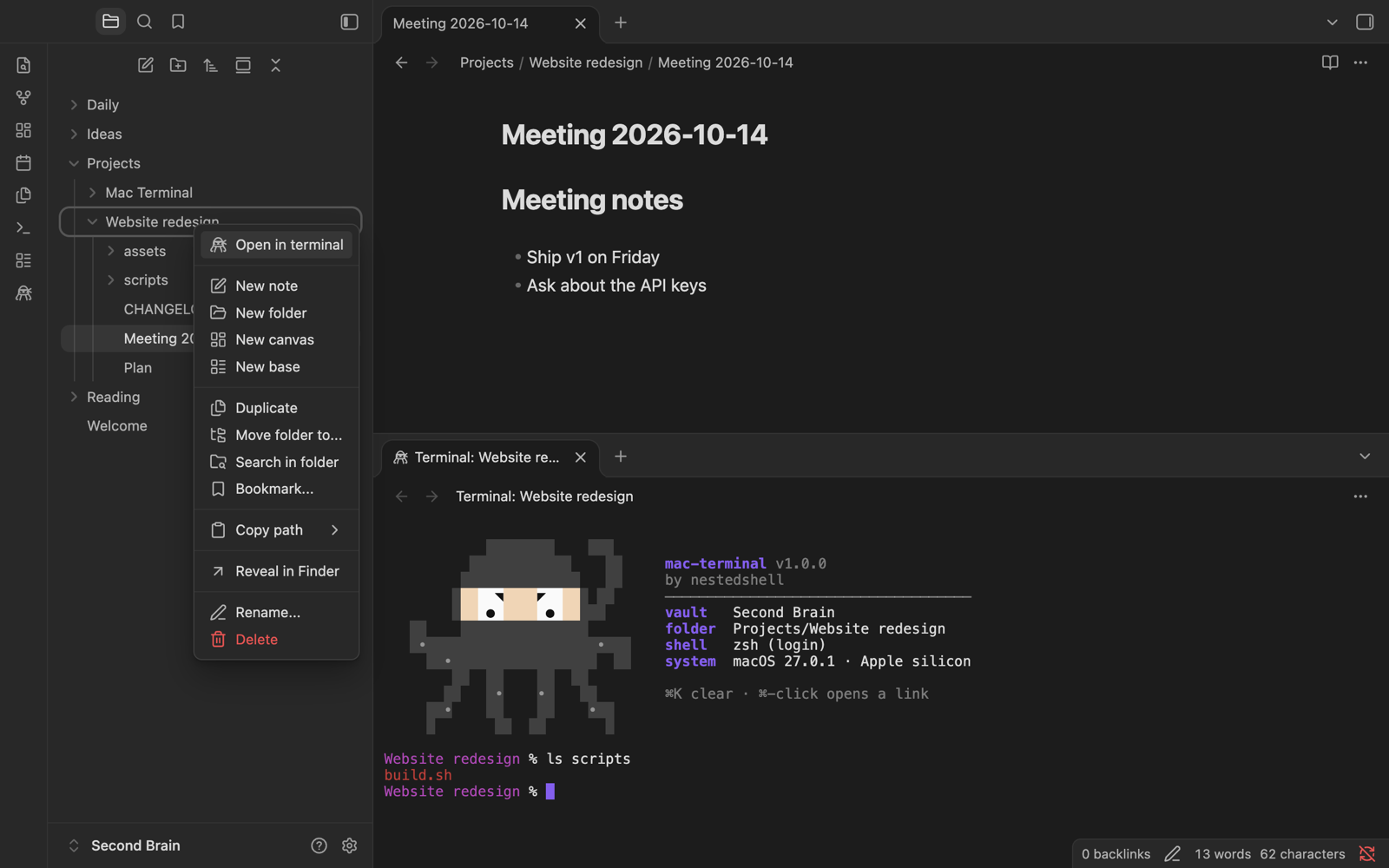
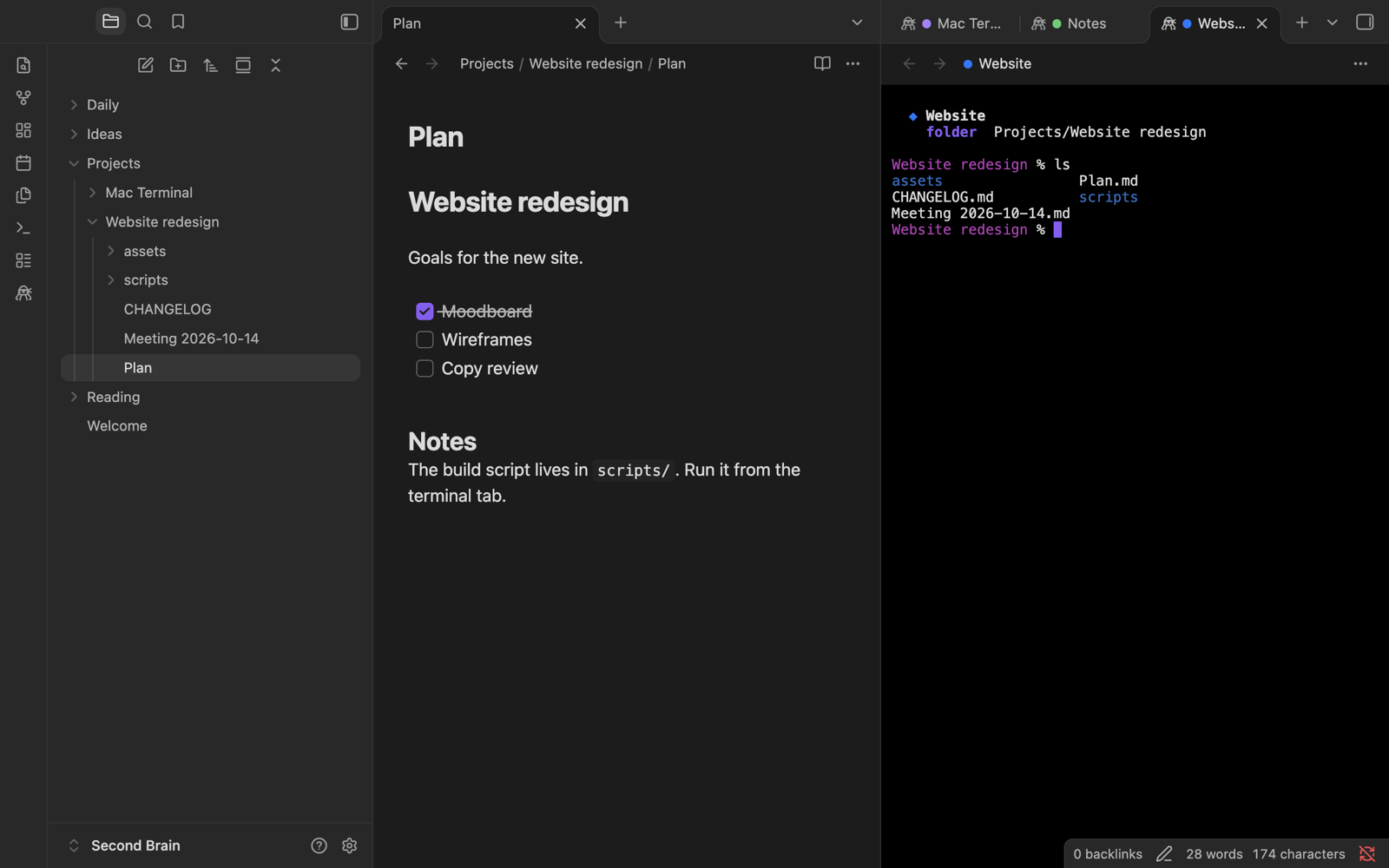
The terminal opens in a split next to the note, side by side or stacked. To tell your projects apart, right-click a terminal and choose Name and color…:
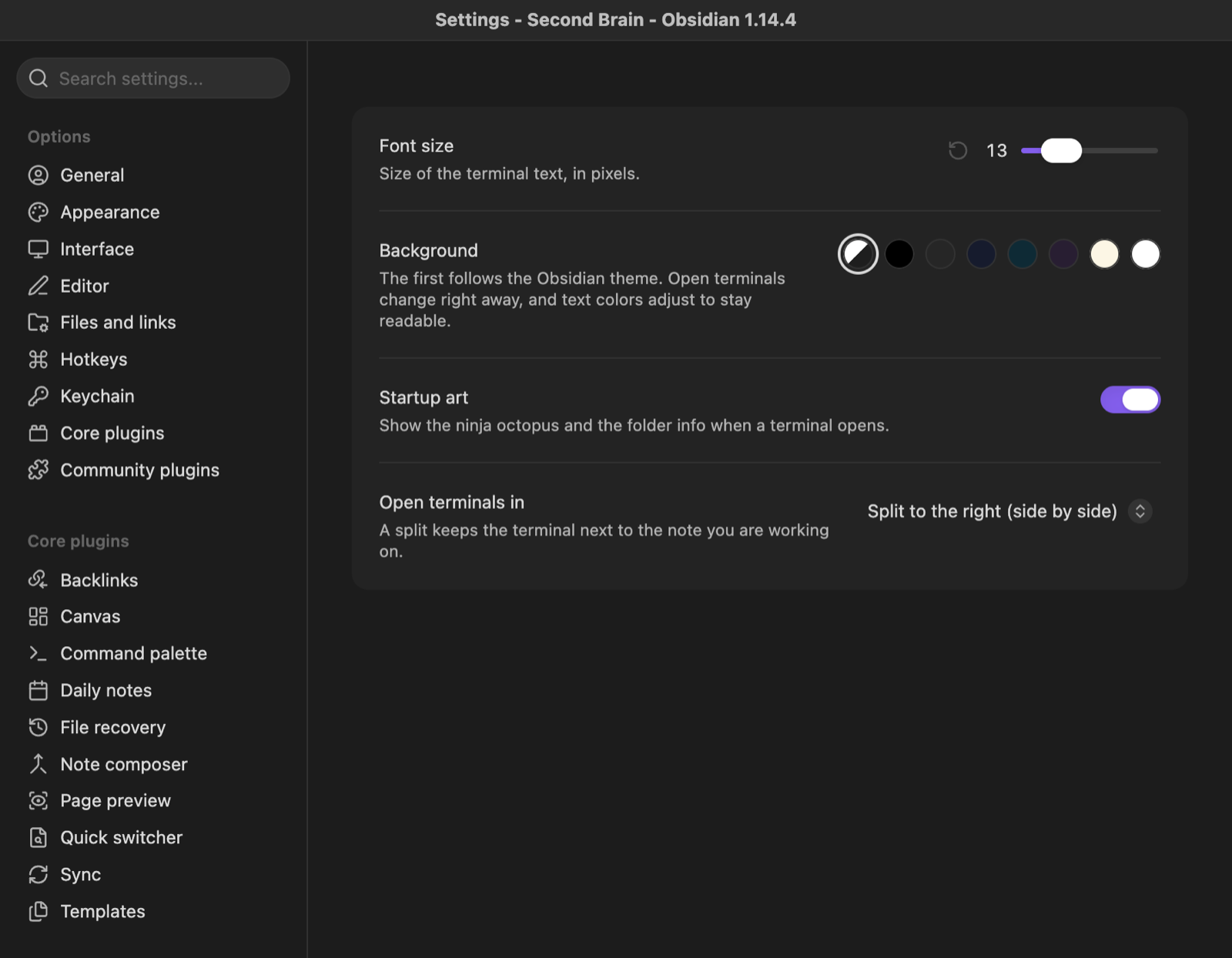
In Settings → Embedded Mac Terminal you choose the font size, the background, the startup art and where terminals open:
Type exit or press Ctrl+D to close a terminal. Terminals are saved with your workspace: after a restart they come back, and the shell starts when you press Enter.
The guide lists every command, setting and shortcut.
How it works
Obsidian tab ── xterm.js (draws the terminal)
      │  keystrokes, output, resize
      ▼
   mt-pty ── pseudo-terminal ── your login shell, in the note's folder
- xterm.js draws the terminal in an Obsidian tab, with the colors and font of your theme.
- mt-pty is a small C program (
native/mt-pty.c) that runs the pseudo-terminal in its own process. No native code runs inside Obsidian, so Reload app can't crash it. - Three files, nothing else.
mt-ptytravels insidemain.jswith its SHA-256. Before starting it, the plugin checks it, copies it to a private temporary folder and runs it from there. There is nothing to download and no macOS security setting to change. - A login shell, as in Terminal.app, so your
PATHand profile are loaded even when Obsidian was opened from the Dock.
Install
- Download
mac-terminal-<version>.zipfrom the latest release and unzip it. - In Obsidian, open Settings → Community plugins, turn community plugins on, and click the folder icon next to Installed plugins.
- Drag the
mac-terminalfolder into the folder that opens. Click the refresh icon and enable Embedded Mac Terminal.
To update, copy the three new files into the mac-terminal folder and reload Obsidian. To build it yourself, see Development.
What the plugin accesses
- Runs programs. It starts your login shell, and the commands you type run with your user's permissions, as in Terminal.app.
- Files outside the vault. A terminal can reach any folder your account can. The plugin itself writes only its settings (
data.json, in its plugin folder) and a copy of its helper in$TMPDIR/mac-terminal-<user id>/. It also reads which shell your account uses and which locales are installed. - No network, no accounts, no telemetry.
- Open source, helper included. The long base64 string in
main.jsisnative/mt-pty, compiled fromnative/mt-pty.c. The build is reproducible, and each release is built by GitHub Actions with a provenance attestation.
It also protects you from hostile pastes, file names, links and terminal output: Security explains how.
License
MIT © nestedshell. Bundles xterm.js (MIT).