Lumina
 Lumina4k downloads
Multilingual AI Assistant & Copilot: Chat with Notes using any local LLM or cloud API, and connect with CLI Agents. Features RAG, Smart Semantic Vector Search, Auto Embeddings & Autonomous MCP Agent.
- Overview
- Scorecard
- Updates71
Lumina is a powerful all-in-one assistant plugin for Obsidian that transforms your knowledge base into a complete AI hub by combining multi-LLM support (Cloud & Local), terminal CLI agents (Claude Code, Antigravity, OpenCode, Codex), zero-config RAG, bidirectional MCP integration, and autonomous AI agents.
English | 한국어 | 日本語 | 简体中文 | 繁體中文 | Español | Deutsch | Français | Português | Русский | Italiano
Multilingual Environment Optimized! The built-in embedding models and UI are fully localized for multilingual environments. (Translation feedback is always welcome!)
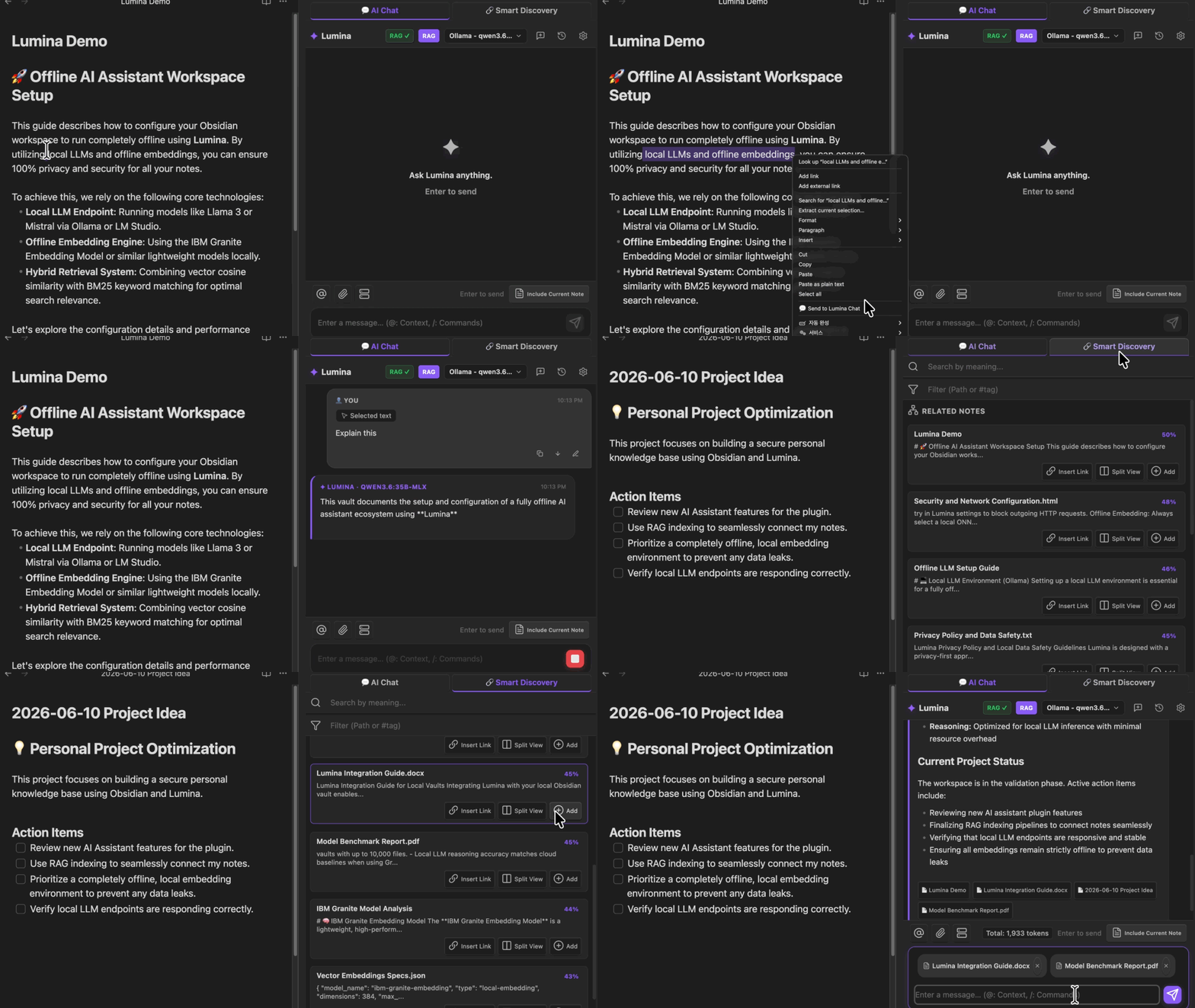
Main Features
| Feature | Description |
|---|---|
| Multi-LLM Chat View | A dedicated side panel that understands the context of your notes. Supports everything from powerful cloud models to local LLMs for maximum privacy. |
| Terminal CLI Agents Integration | Run official terminal AI agents (Claude Code, Antigravity, OpenCode, Codex) inside Obsidian's side panel with real-time thinking streams and read/edit safety modes. |
| Zero-Config RAG | Features 100% offline local embeddings to prevent data leaks. Automatically indexes your vault in real-time without complex configurations. |
| Smart Discovery | Instantly finds documents highly relevant to the note currently being written using semantic search, detects and warns about potential duplicates, and inserts recommended tags and related links with a single click. |
| Inline AI Quick Actions | Highlight text in the editor to instantly summarize, translate, or proofread without interrupting your writing flow. |
| Smart Agent Mode | LLMs autonomously plan and execute complex tasks such as note searching, creation, modification, deletion/move, and code execution in a sandbox using built-in MCP tools. |
| MCP Integration (Client & Server) | A bidirectional, full-stack integration that allows you to use external tools within Obsidian (Client), or let external AIs interact with your notes (Server). |
Quick Start
Lumina offers two tracks tailored to your skill level. Choose the one that suits you best!
Track 1: Start in 3 Steps (Recommended for Beginners)
- Install and enable Lumina.
- Go to Settings > Lumina and enter your free API key (Gemini or Groq) obtained from the links below.
- Open any note and ask Lumina a question in the right sidebar panel. That's it! (Once the local RAG indexing is complete in the side panel, conversations based on your notes will be immediately activated.)
Track 2: Master the Agent (Recommended for Advanced Users)
- In Settings > Connections, connect your preferred Terminal CLI Agent (
Claude Code,Antigravity,OpenCode,Codex), local LLM, or cloud AI. - Select the CLI agent in the side panel chat (with 👁️ Read-Only / ✏️ Edit Mode), or type
/mcpto activate Smart Agent Mode. - Issue autonomous commands like, "Find all this week's meeting notes in my vault and compile them into a single summary file."
[!IMPORTANT] Secure API Key Storage All API keys you enter are never stored as plain text files. They are securely encrypted and stored locally via Obsidian's built-in
SecretStorage, ensuring your data remains safe.
Detailed Features & Usage (Click to Expand)
Multi-LLM Chat View (Cloud & Local Support)
- Description: Instantly converse with various AI models via a dedicated side panel inside Obsidian. Fully supports powerful cloud models like Gemini and Groq, as well as Local LLMs (Ollama, LM Studio, etc.) for absolute privacy.
- How to use: Click the chat icon on the left ribbon or execute
Lumina: Open Chatfrom the command palette. - Pro Tip: Highlight text in the editor, right-click, and use the context menu to directly inject the selected text into the chat as context for your questions!
Terminal CLI Agents Integration (Claude Code, Antigravity, OpenCode, Codex)
- Description: Run and orchestrate terminal AI agents directly inside Obsidian's side panel to explore, analyze, and manage your vault notes.
- Supported Agents: Anthropic Claude Code, Google Antigravity, OpenCode, and OpenAI Codex.
- Key Features:
- Read-Only & Edit Safety Toggle: Switch between 👁️ Read-Only mode (safely inspect and analyze notes without modifying files) and ✏️ Edit mode with a single click in the chat toolbar.
- Visual Thinking: Streams and displays the agent's internal reasoning process in collapsible real-time thinking blocks.
- Real-Time Status & Modified Files: Shows tool execution status in real time and provides clickable badges to instantly open files modified by the agent.
- Active Note & Media Context: Automatically feeds the active note and attached images/files into the CLI prompt for seamless contextual conversations.
- External Terminal MCP Sync (Optional): Generates configuration files (
.claude/mcp.json,opencode.json,codex.json) in your vault so CLI sessions run in your system terminal can also access Lumina's MCP tools.
- How to use: In Lumina Settings > Connections, select your preferred CLI provider, configure the binary path, and start chatting in the side panel.
RAG-Powered Chat & Local Embeddings (Absolute Privacy)
- Description: AI gains deep insight into your knowledge base. It autonomously searches relevant notes during conversations and displays similar documents and recommended tags in the side panel, creating smart contextual links.
- Offline Security: Lumina's RAG system uses 100% offline local embeddings (built-in
ibm-granitemultilingual embedding model) to analyze your notes. Unless a cloud model is selected, your valuable note data will never leave your device. - Fully Automated: Zero configuration required! Background indexing quietly starts the moment the plugin is enabled, and automatically syncs in real-time (
watchmode) whenever notes are modified.
Smart Discovery
- Description: Based on the RAG engine, it visualizes information highly relevant to the note currently being written right in the 'Smart Discovery' tab of the sidebar panel.
- Key Features:
- Semantic Search: Beyond simple keyword matching, it analyzes the context and meaning of the entered sentence to search for similar notes.
- Duplicate Document Detection: Displays a warning if a document with highly similar content already exists in your vault to prevent information fragmentation and duplicate writing.
- Recommended Tags & Related Notes: Analyzes the context of the note being written to suggest appropriate tags and recommend related notes in real-time.
- One-click Integration & Chat: Insert recommended tags or related notes into your document as tags or markdown links (
[[Note Name]]) with a single click, or stage selected notes to immediately start an AI conversation.
- How to use: Click the chat icon on the left ribbon to open the side panel, and switch to the Smart Discovery tab at the top.
Inline Editor AI (Quick Actions)
- Description: Instantly transform text within the markdown editor without breaking your writing flow. Easily handle translation, summarization, grammar correction, and detailed explanations for selected text.
- How to use: Highlight the text and execute Quick Actions via the inline popup menu or command palette. (Tip: Assign hotkeys in Obsidian settings for lightning-fast access!)
Smart Agent Mode
- Description: When activated, the LLM autonomously determines and orchestrates various built-in MCP tools to perform tasks. It can complete complex, multi-step operations by combining note searching, reading, writing, RAG retrieval, sandbox code execution, and daily notes integration.
- Local LLM Support: Implements a dedicated parser that supports text-based tool prompting, allowing the agent to function smoothly even in Local LLM environments, not just with high-performance cloud models.
- Robust Security & User Control (Human-in-the-Loop): Destructive operations such as content modification, file deletion, or code execution cannot be processed by the agent alone. File modifications require inline Diff review in the editor with chunk-by-chunk accept/reject, while sensitive actions like file creation, deletion, or code execution require explicit approval via inline approval cards in the chat panel. (Automatic overwrite-protection backups included)
- Cost Prevention & Limits: Default limits on tool usage count and append character length are applied to prevent AI malfunctions or infinite loops. (These limits can be freely adjusted by the user in advanced settings.)
- How to use: Type the
/mcpcommand in the chat or use the top icon to open the quick popup and enable 'Agent Mode'. (The internal Lumina server will automatically start as needed to execute tools.)
MCP Integration (Bidirectional Client & Server Support)
- Description: Seamlessly bridges Obsidian with the broader AI ecosystem via the Model Context Protocol (MCP). Use Obsidian as an all-in-one AI hub, or leverage it as your AI's second brain!
- Client Mode (Obsidian-led):
- Interact and work directly with AI within Obsidian.
- Connect numerous external MCP servers (GitHub, local DBs, web search, etc.) to instantly scrape and organize vast amounts of data into your notes.
- Server Mode (External AI-led):
- Provides various tools allowing external AI assistants (Claude, Cursor, etc.) or the Agent Mode AI to directly access your vault and the internet.
- Web Search: `lumina_web_search` (Search the web using various providers like Tavily, Exa, Google with smart truncation to save API costs).
- Read & Search:
read_active_note,read_note(supports line rangesstartLine/endLine),search_notes(supports tag filtering),grep_search(regex/text search with line numbers across vault files),glob_files(wildcard file pattern matching, e.g.**/*.md),list_notes,rag_search,get_backlinks,get_note_metadata,list_attachments,list_tags,query_metadatato provide extensive context to the AI. - Write & Modify:
create_note,append_to_note,replace_note,patch_note,update_frontmatter,save_attachment,create_canvas,generate_moc,auto_link_note(create/modify notes/canvases, generate Map of Content notes, auto-link mentions, and save binary files). - Manage & Execute:
open_note(instantly open note/file in Obsidian editor tab),delete_note,move_note(move/rename),execute_code,run_note_code_block(execute code within a sandbox),run_shell_command(execute terminal shell commands on desktop OS),show_notice(display Obsidian UI notifications). - Daily Notes:
read_daily_note,append_to_daily_note(read/write integration for today's daily note). - External Terminal CLI MCP Sync: Optionally generates local MCP server configs (
.claude/mcp.json,opencode.json,codex.json) so CLI tools in external terminals can access Lumina's vault tools. - Vault Safety & User Control (Human-in-the-Loop): Sensitive actions require explicit confirmation via inline approval cards, file edits feature editor inline Diff review, automatic backups are created during file modifications, and code execution is isolated within a secure sandbox environment.
- How to use: Enable MCP features in the plugin settings and configure the client/server transport method (SSE).
- Note: Lumina comes with multi-layered safety mechanisms including sandbox code execution, inline Diff review and user approval cards (Human-in-the-Loop), automatic backups during file modifications (overwrite protection), and limits to prevent infinite loops and runaway tool calls. However, since the agent and external AI directly access your vault, we recommend initially monitoring operations closely.
Debug Mode & Bug Reports
You can view all internal data processed by the plugin by enabling Advanced Settings and toggling [Debug Mode] under the [Misc & Extensions] tab in settings. (Debug logs are not saved until downloaded.)
Helpful Information for Resolution:
- Your OS (Windows, macOS, Linux) and Obsidian version.
- The AI Provider and Model Name used (e.g., OpenAI / gpt-4o, Ollama / llama3).
- The log file downloaded after the error occurred in Debug Mode.
[!IMPORTANT] Since log files may contain chat transcripts, please remove any sensitive information before submitting. Report a Bug (GitHub Issues)
Support & Sponsor
This plugin is distributed 100% free of charge and will be continuously updated.