LAN Vault Bridge
 hardkor8845 downloads
Sync your vault bidirectionally over the local network with tombstone protection and conflict resolution.
- Overview
- Scorecard
- Updates4
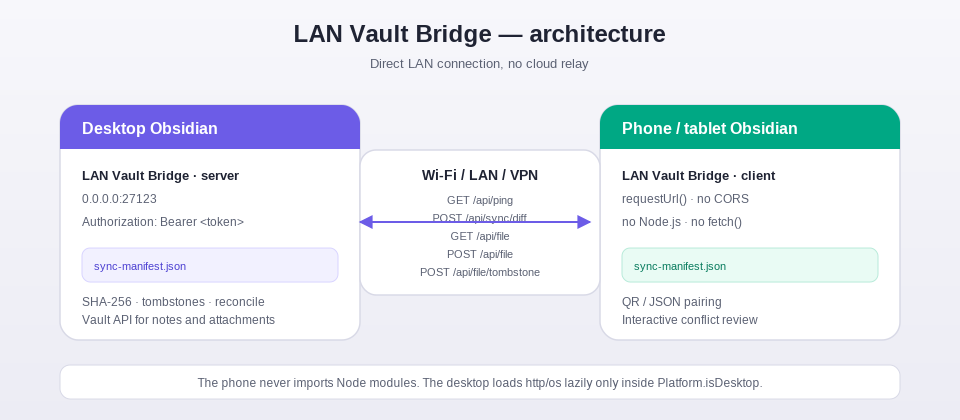
Sync your Obsidian vault between a desktop and a phone over the local network. No cloud, no account, no relay: the desktop serves the vault, the phone connects directly to it. Deletions are protected by tombstones, and conflicts are resolved in an interactive review window.
Not affiliated with Obsidian. LAN Vault Bridge is an independent community plugin.
Русская версия: README.ru.md
Features
- Bidirectional LAN sync. New, changed and deleted files travel in both directions. The desktop runs an HTTP server; phones and other desktops are clients.
- One-tap both-way transfer. “Send to both devices” uploads phone changes and downloads desktop changes in one action, with both directions running in parallel.
- Deletion preview. If a file was deleted on one side and still exists on the other, the two-way action shows its text or image and asks to delete, restore or skip it. Nothing is deleted silently.
- Parallel transfers. 1–6 files can be transferred at once (configurable).
- Zero cloud dependency. No third-party servers, no analytics, no telemetry. File contents only travel between paired devices on your network.
- Tombstone protection. Deleting a file never silently removes its history from
the manifest. A deleted file becomes a
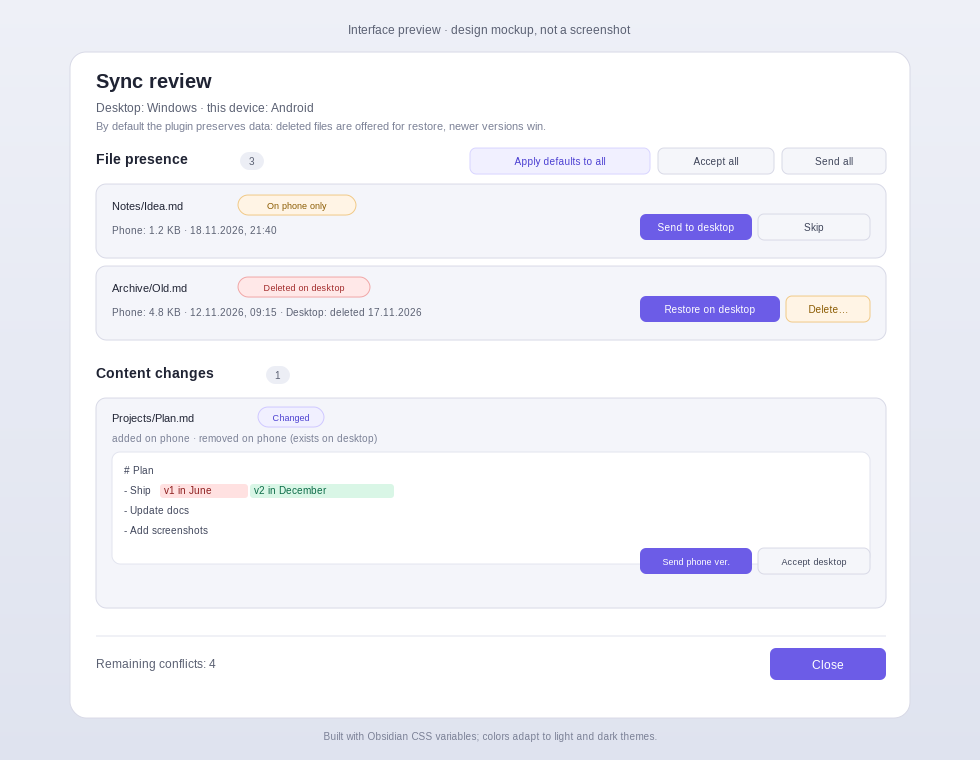
deleted_tombstoneentry, so an accidental deletion cannot resurrect an old version or silently erase the other side. - Explicit conflict review. When both sides changed the same file, or a file was deleted on one side and changed on the other, the plugin opens a modal window with previews, a word-level diff and per-file actions.
- SHA-256 content comparison. Hashes are computed with the browser Web Crypto API, identically on Electron and Android/iOS WebView.
- QR pairing. The desktop renders a QR code with the IP, port and bearer token; the phone imports the same JSON from the clipboard.
- Bilingual UI. English and Russian, following the Obsidian language by default.
- Mobile-aware architecture. Node modules are loaded lazily only on desktop.
The phone never touches
http,os,fsorcryptofrom Node.
How it works
- The desktop starts an HTTP server on
0.0.0.0:27123(configurable). - The phone sends
GET /api/pingandPOST /api/sync/diffwith its manifest. - The desktop reconciles its own vault, compares both manifests and returns
fileConflictsandcontentDiffs. - If there are no differences, the plugin shows “Vaults are identical: no changes found”.
- Otherwise the review window opens. Upload, download, delete or skip each file; the card is marked as done and the remaining counter decreases.
The state manifest lives in .obsidian/plugins/lan-vault-bridge/sync-manifest.json.
It is plugin data, not a note, and is never indexed by Obsidian.
Requirements
- Obsidian 1.13.0 or newer.
- Desktop and phone on the same LAN, or connected through a VPN such as Tailscale or ZeroTier.
- Windows, macOS or Linux for the server side.
- Android or iOS for the client side (the desktop can also act as a client).
Installation
From the community directory
Once the plugin is published: Settings → Community plugins → Browse → search for “LAN Vault Bridge” → Install → Enable.
Manual installation
Download main.js, manifest.json and styles.css from the latest GitHub Release
and place them in:
<vault>/.obsidian/plugins/lan-vault-bridge/
Then reload Obsidian and enable the plugin in Settings → Community plugins.
Mobile installation
Mobile Obsidian has no “install plugin from file” button. Copy the three release
files into the hidden .obsidian/plugins/lan-vault-bridge/ folder using a file
manager that can show hidden files:
- Android:
Documents/Obsidian/<vault>/.obsidian/plugins/; use ZArchiver or MiXplorer if the vault is inAndroid/data. - iOS: Files → On My iPhone → Obsidian →
<vault>; use Documents by Readdle, Finder file sharing or iMazing if.obsidianis hidden.
The ready-to-copy files are in the latest GitHub Release.
LAN Vault Bridge cannot install itself over LAN: everything inside
.obsidianis ignored by design, otherwise plugins would recursively sync themselves.
Pairing
- On the desktop open Settings → LAN Vault Bridge.
- Choose the local IPv4 address (the list includes Wi-Fi, Ethernet, Tailscale and ZeroTier interfaces).
- Scan the QR code with the phone, or press Copy connection string (JSON).
- On the phone open Settings → LAN Vault Bridge → Quick import, paste the JSON and press Import.
- Press Test connection. A successful response shows the desktop device name and plugin version.
The connection string looks like:
{"ip":"192.168.1.5","port":27123,"token":"0123456789abcdef0123456789abcdef"}
Sync workflow
- Press the
refresh-cwribbon icon, run LAN Vault Bridge: Sync now, or use the button in settings. - The client scans the vault, compares hashes and sends its manifest to the desktop.
- The review window has two sections:
- File presence — only on the phone, only on the desktop, deleted on one side, or changed after deletion.
- Content changes — active on both sides but with different SHA-256.
- Per-file actions: send to desktop, download to phone, restore, delete everywhere,
accept the desktop version, or skip. “Delete everywhere” respects the Obsidian
trash preference (
FileManager.trashFile) and records tombstones on both sides. - Send to both devices — one action for both directions. Uploads and downloads run in parallel. A file changed on both sides keeps the newer version; a file deleted on one side and still present on the other opens a preview with Delete / Restore / Skip.
- Bulk actions:
- Apply defaults to all — preserves data: new files are copied, deleted files are offered for restore, newer versions win.
- Accept all from desktop — makes the phone match the desktop.
- Send all to desktop — makes the desktop match the phone (this can delete desktop-only files; a confirmation is shown).
Interface preview
The image below is a design preview of the conflict review window, built from the plugin's real CSS classes. Real screenshots from a vault will be added after the first release.
Security and privacy
- No third-party servers. The plugin only talks to the paired desktop over the LAN. Nothing is sent to the author or to any analytics service.
- Bearer token. Every API request except
OPTIONSrequiresAuthorization: Bearer <token>. The token is 32 hex characters and can be regenerated in settings. - Plain HTTP. Traffic is not encrypted. Use a trusted home network or a VPN.
Do not expose port
27123to the internet. - Token storage. The token is stored in plain text in the plugin
data.json. Anyone with access to the vault folder can read it. - Path safety. The server rejects absolute paths,
..traversal and everything inside.obsidianor the excluded folders. - Vault enumeration is local. The plugin enumerates file paths to build and reconcile the manifest. The manifest is sent only to the paired desktop over the LAN; no file list or content is sent to the author or a third party.
- Clipboard is user-initiated. The clipboard is read only when you press “Paste from clipboard”, and written only when you press a copy button. The plugin never reads or writes the clipboard in the background.
Compatibility and limitations
isDesktopOnlyisfalse: the plugin installs and runs on mobile as a client. Node.js APIs (http,os) are loaded lazily and only inside the desktop branch; if they are unavailable, the client still works.- Sync starts manually. There is no background daemon, interval sync, or file watcher that pushes changes while Obsidian is closed.
- Default file size limit is 50 MB; it can be changed in settings. Both devices should use the same limit.
- Conflict resolution does not merge text automatically: you choose a version.
- Tombstones are kept indefinitely. Clearing them is a manual, irreversible action.
- Excluded folders must match on both devices, otherwise the sides will see different file sets.
Development
npm install
npm run dev      # watch mode
npm run build    # typecheck + production bundle
npm run typecheck
The build produces a single main.js (CJS). obsidian, electron and
@codemirror/* are external; qrcode and diff are bundled.
Project layout:
src/types.ts              shared interfaces and settings
src/manifest.ts           manifest, SHA-256, reconcile, tombstones, diff
src/server.ts             desktop HTTP server (lazy require('http'))
src/client.ts             requestUrl client with timeouts and SHA-256 checks
src/ui/SyncReviewModal.ts conflict review window
src/ui/ConfirmModal.ts    destructive-action confirmation
src/settings.ts           server, pairing, client and sync settings
src/main.ts               plugin lifecycle, events, ribbon and status bar
src/i18n.ts               English/Russian strings
src/logger.ts             debug logging behind a setting
Release
The repository root must contain manifest.json, README.md and LICENSE.
For every release:
- Run
npm run build. - Create a GitHub Release whose tag exactly matches
manifest.jsonversion (for example1.1.0, without avprefix). - Attach
main.js,manifest.jsonandstyles.cssas release assets. - Publish the release — it must not stay a draft or pre-release.
A GitHub Actions workflow at .github/workflows/release.yml does steps 1–3 when a
tag is pushed. See SUBMISSION.md for the community directory PR.
License
MIT — see LICENSE.