Kindle Local Sync
 My Ky Quan306 downloads
Import Kindle highlights and notes from a local My Clippings.txt file into Markdown notes.
- Overview
- Scorecard
- Updates6
Bring your Kindle highlights into Obsidian without sending your reading data anywhere.
Kindle Local Sync is a desktop-only Obsidian plugin. It reads the local My Clippings.txt file from your Kindle and creates tidy Markdown notes for the highlights you choose to keep.
Demo
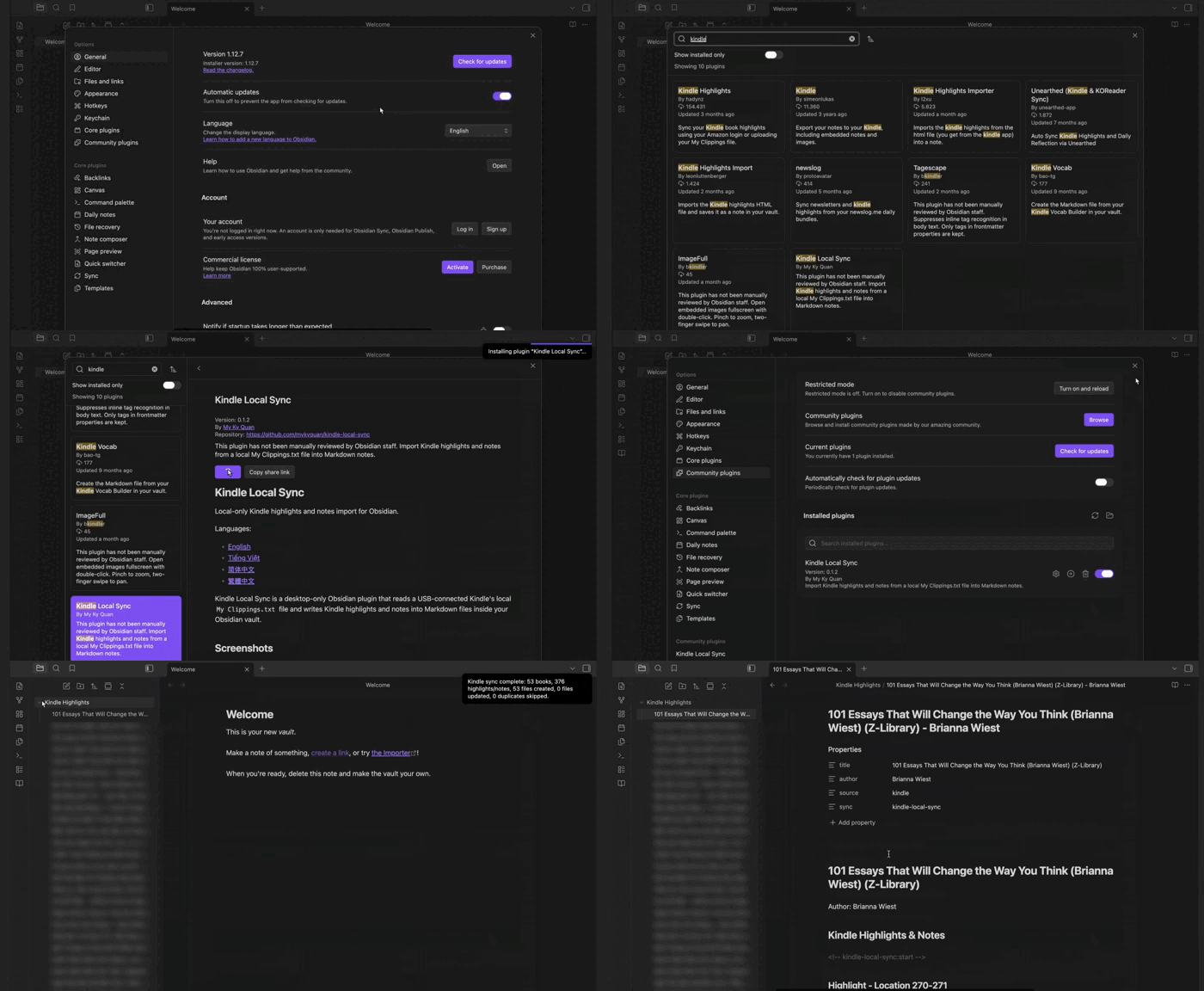
📖 Why use it?
- Keep Kindle highlights close to the notes and projects where you use them.
- Review new highlights before they are added to your vault.
- Keep one Markdown note per book.
- Reconnect existing Kindle Local Sync notes after an update or missing plugin data.
- Keep your own writing separate from the section the plugin updates.
Languages
What you need
- Obsidian on a desktop computer.
- A Kindle with a local
My Clippings.txtfile, usually available when the Kindle is connected by USB. - An Obsidian vault where you want your book notes to live.
Installation
After the plugin is available in Obsidian Community Plugins:
- Open Settings → Community plugins → Browse.
- Search for Kindle Local Sync.
- Select Install, then Enable.
For a beta release, use BRAT or the GitHub Release ZIP only when you intend to test a prerelease build.
🧭 Quick start
- Connect your Kindle by USB.
- In the plugin settings, confirm My clippings.txt path. If the Kindle is not detected, choose the local
My Clippings.txtfile yourself. - Choose a Highlights folder for the Markdown notes.
- Run Sync local kindle highlights from the command palette, or use the book icon in the ribbon.
- Review the highlights that need a decision, then select Finish Sync.
The plugin reads the file, groups highlights by book, and writes approved highlights to the selected folder. A note is created only when an approved import needs one.
What happens during sync
On your first sync, First Sync Preview lets you decide which highlights belong in Obsidian. Later syncs normally recognize highlights you already imported and ask you only about new or missing items.
| Choice | What happens now | What happens next sync |
|---|---|---|
| Import | The selected highlights are added when you select Finish Sync. | They are recognized as imported. |
| Skip This Sync | Nothing is added for that highlight today. | It can appear for review again. |
| Ignore | The highlight is not imported. | It stays ignored until you remove it from the Ignore list. |
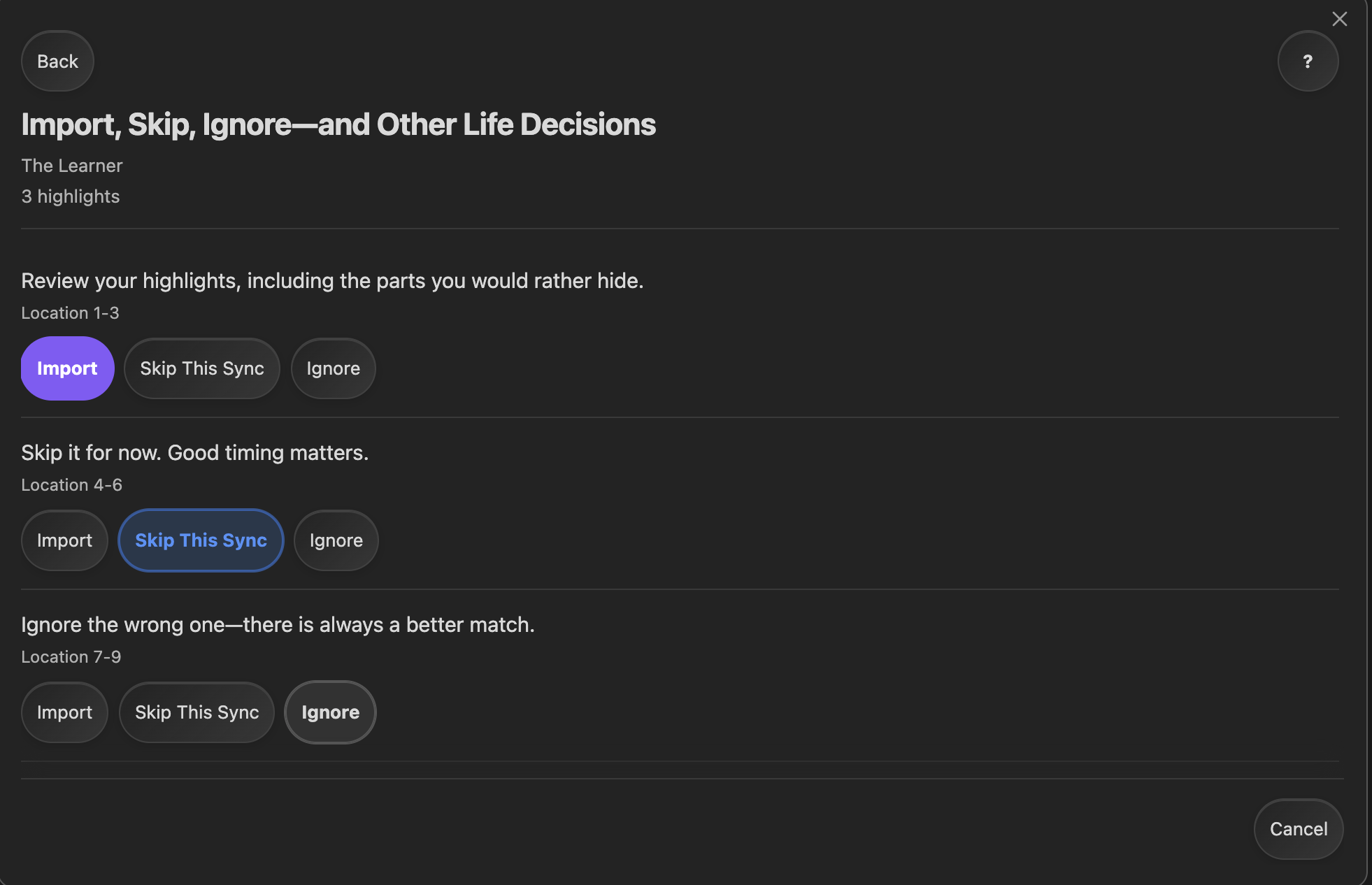
You can also use Import All, Ignore All, or Import All Books when reviewing a larger group. Your review choices stay temporary until you select Finish Sync.
Use search and the review filters to find a book quickly.
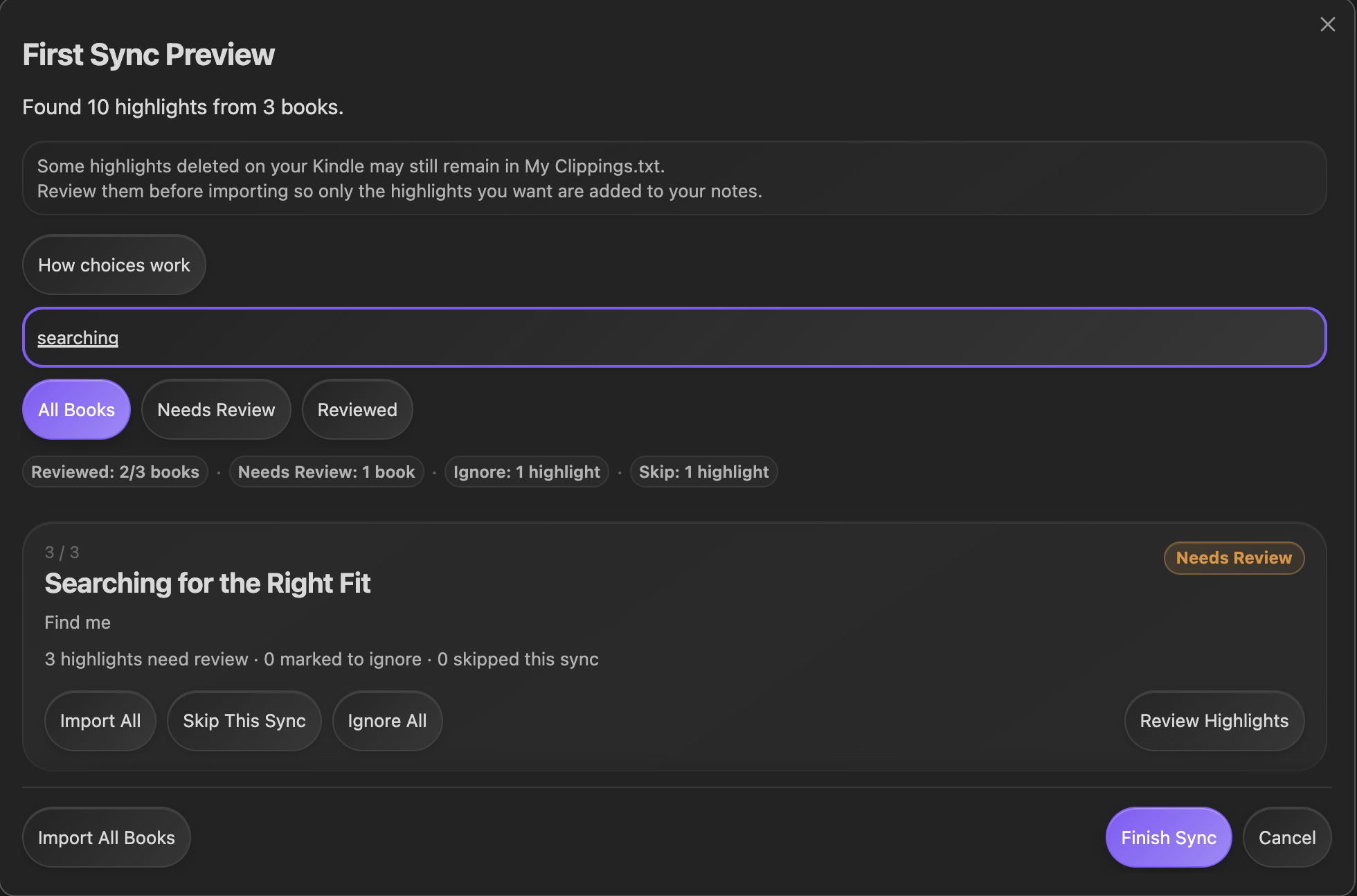
If a highlight later disappears from My Clippings.txt, the plugin does not use that as permission to delete the copy in Obsidian. Kindle devices can keep deleted highlights in that file, so the plugin cannot reliably treat it as a deletion list.
Existing Kindle notes
If you already have Kindle Local Sync notes but the plugin cannot find its saved history, it shows Existing Kindle notes found.
Choose Continue with existing notes to reconnect them. The plugin keeps those notes, recognizes the highlights it can match, and asks you to review only anything it cannot match. It does not ask you to approve every old highlight again.
If a previously imported highlight is no longer found in its expected note, Missing Highlights can offer Import Again, Ignore Going Forward, or Skip This Time. If the plugin cannot check a note safely, it leaves the book unchanged and explains that in the sync summary.
Protecting personal notes
Kindle Local Sync updates only the section it creates between these markers:
<!-- kindle-local-sync:start -->
<!-- kindle-local-sync:end -->
Keep your own writing before or after that section. Content outside the markers is preserved. If the plugin cannot safely update a book note, it leaves the note unchanged instead of guessing.
🔒 Privacy
Your highlights stay local. Kindle Local Sync reads My Clippings.txt from your computer and writes Markdown notes and plugin settings inside your vault. It does not upload your highlights or vault content, and it has no cloud sync, telemetry, Amazon, or Readwise connection.
🛠️ Troubleshooting
| What you see | What it usually means | What to try |
|---|---|---|
| Could not find My Clippings.txt | The Kindle was not detected or its file path changed. | Connect the Kindle, then set My clippings.txt path manually. |
| No highlights are found | The file may contain only bookmarks or unsupported entries. | Check that it contains Kindle Highlight or Note entries. |
| A later sync has no changes | The same highlights are already recognized. | This is expected; new highlights will be offered for review. |
| A book was left unchanged | The plugin could not prove that updating it was safe. | Keep a backup, check the plugin section, and try again after resolving the note issue. |
| Existing Kindle notes found | Existing notes were found without usable saved history. | Choose Continue with existing notes to reconnect them. |
Advanced documentation and help
- Technical architecture explains sync behavior, migration, compatibility, and safety rules for maintainers and advanced users.
- Release checklist covers testing and publishing work.
- Support explains how to report a problem without sharing private reading data.
Kindle Local Sync is released under the MIT License.