JSON Viewer
 Viggo Meesters2k downloads
Browse .json, .jsonl, and .ndjson files as a read-only tree with search, outline navigation, and syntax-highlighted source.
- Overview
- Scorecard
- Updates2
JSON Viewer
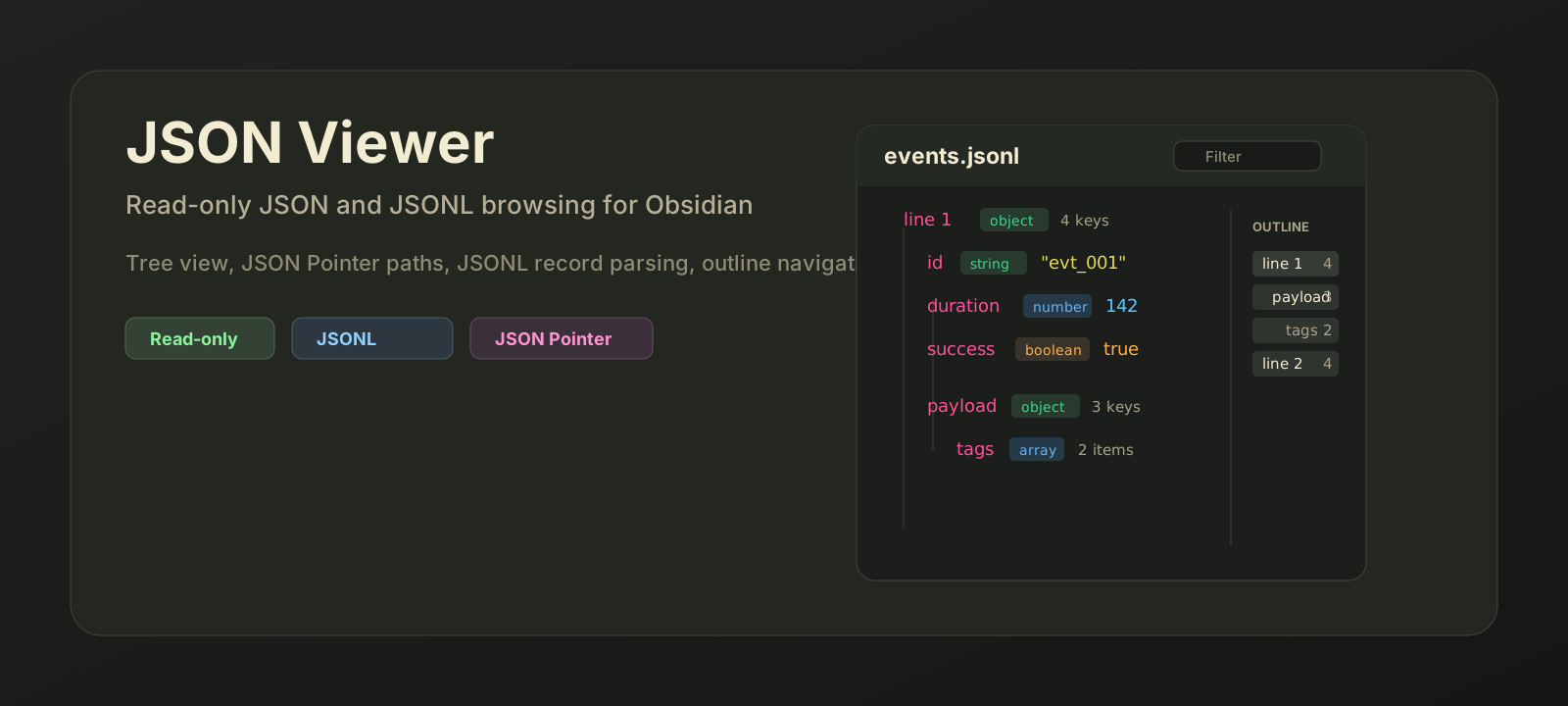
JSON Viewer is a read-only Obsidian plugin for browsing .json, .jsonl, and .ndjson files as structured data. It is built for configuration files, logs, exports, API payloads, datasets, and agent/runtime artifacts that are awkward to inspect as raw text.
Features
- Opens
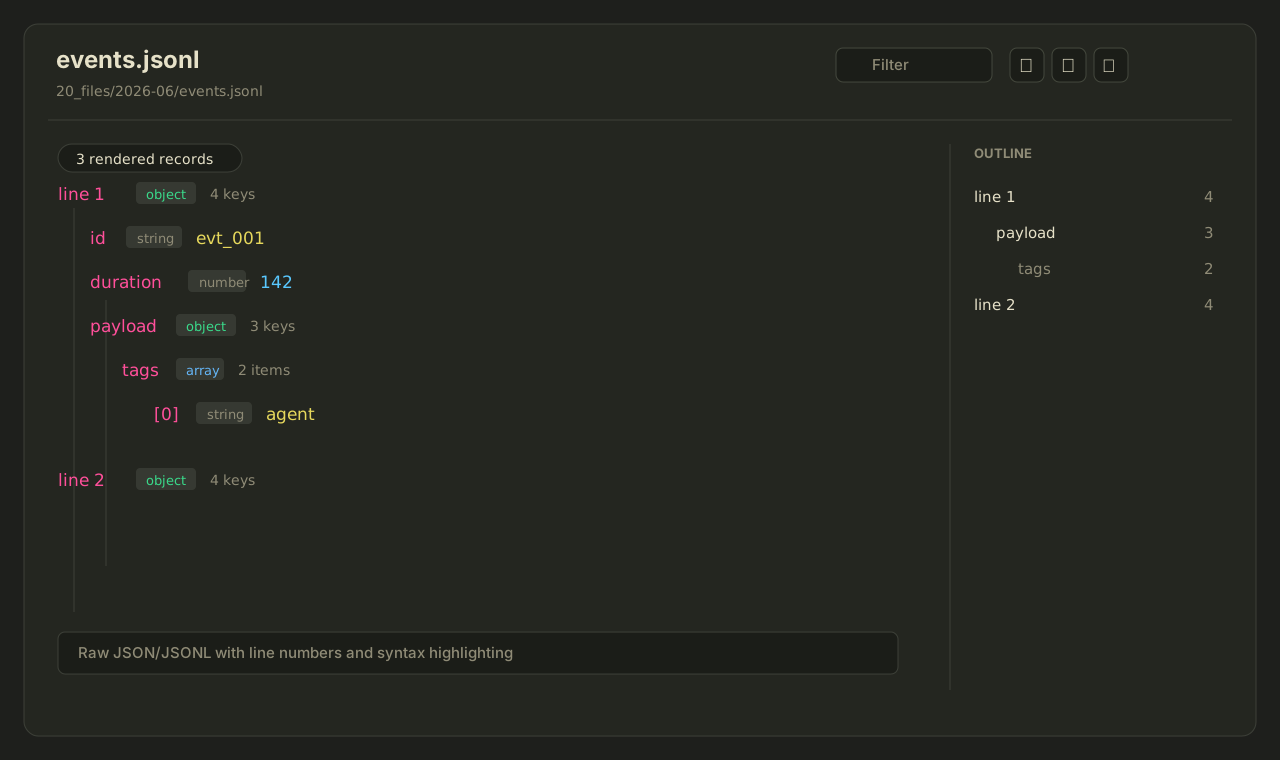
.json,.jsonl, and.ndjsonfiles in a dedicated Obsidian view. - Shows objects, arrays, strings, numbers, booleans, nulls, and parse errors.
- Parses JSONL/NDJSON record-by-record and reports errors per line.
- Filters the tree by key, value, or JSON Pointer path.
- Provides a right-side outline for fast navigation through large structures.
- Includes expand/collapse controls, copy raw JSON, and copy JSON Pointer buttons.
- Shows raw JSON/JSONL with lightweight syntax highlighting and line numbers.
- Stays read-only by design: it never writes back to your data files.
JSONL behavior
JSONL files can be very large. JSON Viewer parses non-empty lines independently and renders the first 1,000 valid records to avoid flooding Obsidian with a huge DOM tree. Additional valid records are counted and reported. Invalid records are shown as line-specific parse errors.
Privacy and clipboard behavior
JSON Viewer does not make network requests and does not send vault content to external services. It writes to the system clipboard only when you explicitly click a copy button, such as copying raw JSON or a JSON Pointer path. It does not read clipboard contents.
Why read-only?
JSON and JSONL files are often generated artifacts or source-of-truth data. JSON Viewer intentionally does not write to disk, so it cannot reformat, reorder, truncate, or corrupt data files.
Installation
Community plugin directory
JSON Viewer is ready for submission to the Obsidian Community plugin directory. Once accepted, it can be installed from Settings -> Community plugins -> Browse inside Obsidian.
Manual installation
Until the community directory submission is accepted:
- Download
main.js,manifest.json, andstyles.cssfrom the latest release. - Create this folder in your vault:
.obsidian/plugins/json-viewer/. - Put the downloaded files in that folder.
- Reload Obsidian.
- Enable JSON Viewer in Settings -> Community plugins.
BRAT installation
For beta testing, install the plugin with BRAT using this repository URL:
https://github.com/viggomeesters/obsidian-json-viewer
Usage
Open any .json, .jsonl, or .ndjson file in your vault. Obsidian will open it with JSON Viewer.
Use the toolbar to:
- filter visible nodes
- expand or collapse the tree
- copy the raw JSON source
- copy individual JSON Pointer paths from tree rows
Use the outline panel to jump through large files quickly.
Development
npm install
npm run build
npx tsc --noEmit
For local development, copy or symlink this repository into .obsidian/plugins/json-viewer/ inside an Obsidian vault.
Release process
Obsidian installs community plugin files from GitHub releases. For each release:
- Update
manifest.json,package.json, andversions.json. - Run
npm install,npm run build, andnpx tsc --noEmit. - Create a GitHub release whose tag exactly matches
manifest.json.version. - Attach
main.js,manifest.json, andstyles.cssas release assets.
Community directory submission
The repository is prepared for Obsidian Community plugin submission. The remaining submission step must be completed by the repository owner in the Obsidian Community site because it requires signing in, linking GitHub, and confirming the developer policies/support commitment.
Submit this repository URL:
https://github.com/viggomeesters/obsidian-json-viewer
Steps:
- Sign in to community.obsidian.md.
- Link the GitHub account that owns this repository.
- Open Plugins -> New plugin.
- Enter the repository URL above.
- Confirm the developer policies and submit.
- Address any automated review feedback.
The current release is ready for review:
- root
README.md,LICENSE, andmanifest.jsonexist manifest.json.versionis0.1.1- GitHub release
0.1.1exists - release assets include
main.js,manifest.json, andstyles.css versions.jsonmaps supported Obsidian versions
Official references: