Search...Search plugins and themes...
⌘K
Sign in
  • Get started
  • Download
  • Pricing
  • Enterprise
  • Account
  • Obsidian
  • Overview
  • Sync
  • Publish
  • Canvas
  • Mobile
  • Web Clipper
  • CLI
  • Learn
  • Help
  • Developers
  • Changelog
  • About
  • Roadmap
  • Blog
  • Resources
  • System status
  • License overview
  • Terms of service
  • Privacy policy
  • Security
  • Community
  • Plugins
  • Themes
  • Discord
  • Forum / 中文论坛
  • Merch store
  • Brand guidelines
Follow us
DiscordTwitterBlueskyThreadsMastodonYouTubeGitHub
© 2026 Obsidian

Journal View

RUverse42 downloads

Turn your daily notes into one continuous, editable journal—scroll through time, jump to any date, and write without leaving the view.

Add to Obsidian
Journal View screenshot
  • Overview
  • Scorecard
  • Updates4

Give your daily notes a sense of continuity. Journal View brings them together in one scrollable, editable timeline, so revisiting the past and writing today feel like part of the same story.
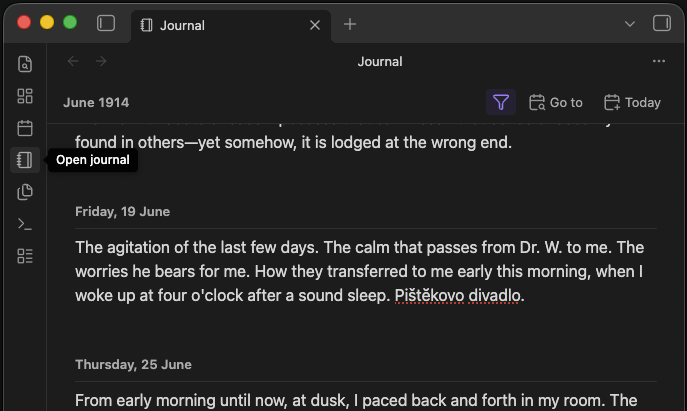
Journal View open in Obsidian

Open Journal View from the sidebar or run Open journal from the command palette.

  • Use the daily notes you already have. Journal View works with your existing notes and daily-note settings—no plugin-specific formats, duplicate files, or lock-in.
  • Navigate through time with ease. Scroll through your journal, jump to any date with the calendar, return to today in one click, or open the surrounding days from the notebook button on a daily note.
  • Edit directly in the timeline. Read and write without switching between files, views, or editing modes.
  • Write only when there is something to say. Start typing on an empty day and Journal View creates the daily note only when you need it.
  • Rediscover past entries. Search across your journal to quickly find notes, ideas, and memories from any day.
  • Stay responsive across years of notes. Journal View keeps the days around you ready to edit while efficiently handling the rest of your timeline.

Settings

Journal View uses your existing daily-note configuration by default. You can override the date format, folder, and template in Settings → Journal View without changing how the rest of your vault handles daily notes.

Setting Default What it does
Date format / Folder / Template Inherited Overrides your vault's daily-note settings for Journal View
Group days by month Off Groups daily entries beneath compact month and year headings
Daily header format dddd, D MMMM Controls how each date appears when month grouping is off
Focus today on open On Opens the journal at today's note and places the cursor there
Only show days that have a note On Skips empty days while always keeping today visible; turn it off to show every day
Rich editor On Uses Obsidian's Markdown editor; turn it off to use the plain-text fallback
Autosave delay 600 ms Sets how long Journal View waits after typing before saving

Privacy

Journal View works locally with files in your Obsidian vault. It does not make network requests, collect telemetry, require an account, or access files outside your vault.

License

MIT © 2026 RUverse

HealthExcellent
ReviewPassed
About
Give your daily notes a sense of continuity. Journal View brings them together in one scrollable, editable timeline, so revisiting the past and writing today feel like part of the same story. - Displays your existing daily notes—no plugin-specific data formats, duplicate notes, or lock-in. - Easily navigate your daily notes: scroll through time, jump to any date with the calendar, or return to today in one click. - Edit notes directly in the timeline without switching between files or modes. - Start writing on an empty day and Journal View creates the note only when you need it. - Search across the journal to quickly rediscover past entries. - Stay responsive across years of notes by keeping only nearby days active.
DatesCalendarEditing
Details
Current version
1.0.3
Last updated
Yesterday
Created
3 days ago
Updates
4 releases
Downloads
42
Compatible with
Obsidian 1.7.2+
Platforms
Desktop, Mobile
License
MIT
Report bugRequest featureReport plugin
Author
RUverseruverse
  1. Community
  2. Plugins
  3. Dates
  4. Journal View

Related plugins

Thino

Quickly capture memos and display them in the sidebar with a heatmap. (Closed source)

Day Planner

Turn tasks from daily notes, the Tasks plugin, and calendars into time blocks on an editable timeline, with built-in time tracker.

Full Calendar Remastered

Complete Calendar HUB experience. Work with all your calendars in one place. Analyze your time and take action!

Periodic Notes

Manage your daily, weekly, and monthly notes.

Journals

Manage your journals.

Calendarium

Craft mind-bending fantasy and sci-fi calendars.

Journal Review

Review your daily notes on their anniversaries, like "what happened today last year".

Yearly Glance

Year at a glance - overview of annual events with customizable management options.

Chronology

A calendar and a timeline of the note's creation and modification.

Calendar

Explore your daily notes.