Interactivity: Calculations and Scripts
 ichichikin2k downloads
Interactivity lets you run local shell commands and scripts directly within your notes, providing the output alongside your written content. Use your favorite tools like Python, Node.js, Java, Perl, PHP, bash, or any other REPLs while taking notes.
- Overview
- Scorecard
- Updates3
Feel free to ask any questions about the plugin on the Obsidian forum!
Interactivity lets you run local shell commands and scripts directly within your Obsidian notes, providing the output alongside your written content. Use your favorite tools like Python, Node.js, Java, Perl, PHP, bash, or any other REPLs directly from Obsidian.
For example, if you need to quickly calculate a project's budget while taking notes, you can type the numbers and hit Enter in your Obsidian note to execute the code in the desired REPL:
## Mike's rate is $120. Thus, it will cost us:

@120*8*21*12+8000
249920
By default, it supports running JavaScript, but you can also configure it to run any other shell commands.
You can trigger shell execution in two ways:
Text Patterns from Notes: Define specific text patterns in your notes that will trigger shell execution when encountered. For example, you can use shortcuts like
@2+2to execute the calculation directly within your note.Hotkeys: Assign a hotkey to run commands. This allows you to execute code without typing any shortcuts. Simply select the part of the text you want to execute and press the designated hotkey. The selection may have more than one line of code.
Installation
- Open Obsidian.
- Go to Settings > Community plugins.
- Click on Browse and search for "Interactivity: Calculations and Scripts".
- Click on the plugin and then click Install.
- After installation, click on Enable to activate the plugin.
Once the plugin is enabled, you can configure it via the plugin settings in Obsidian.
Python Modules Collection
My favorite daily tool is Python, which is why I included several sample Python modules in this plugin.
- chat.py Integrates ChatGPT directly into your notes. Remember to set up an OpenAI API key.
- tables.py Imports Excel and CSV tables into your notes.
- plots.py Embeds matplotlib plots directly into your notes for quick visual data representation.
These modules requires following dependencies: matplotlib, openai, pandas, tabulate.
You can intall them with this command: pip install matplotlib openai pandas tabulate.
Here's a demo of how they work:
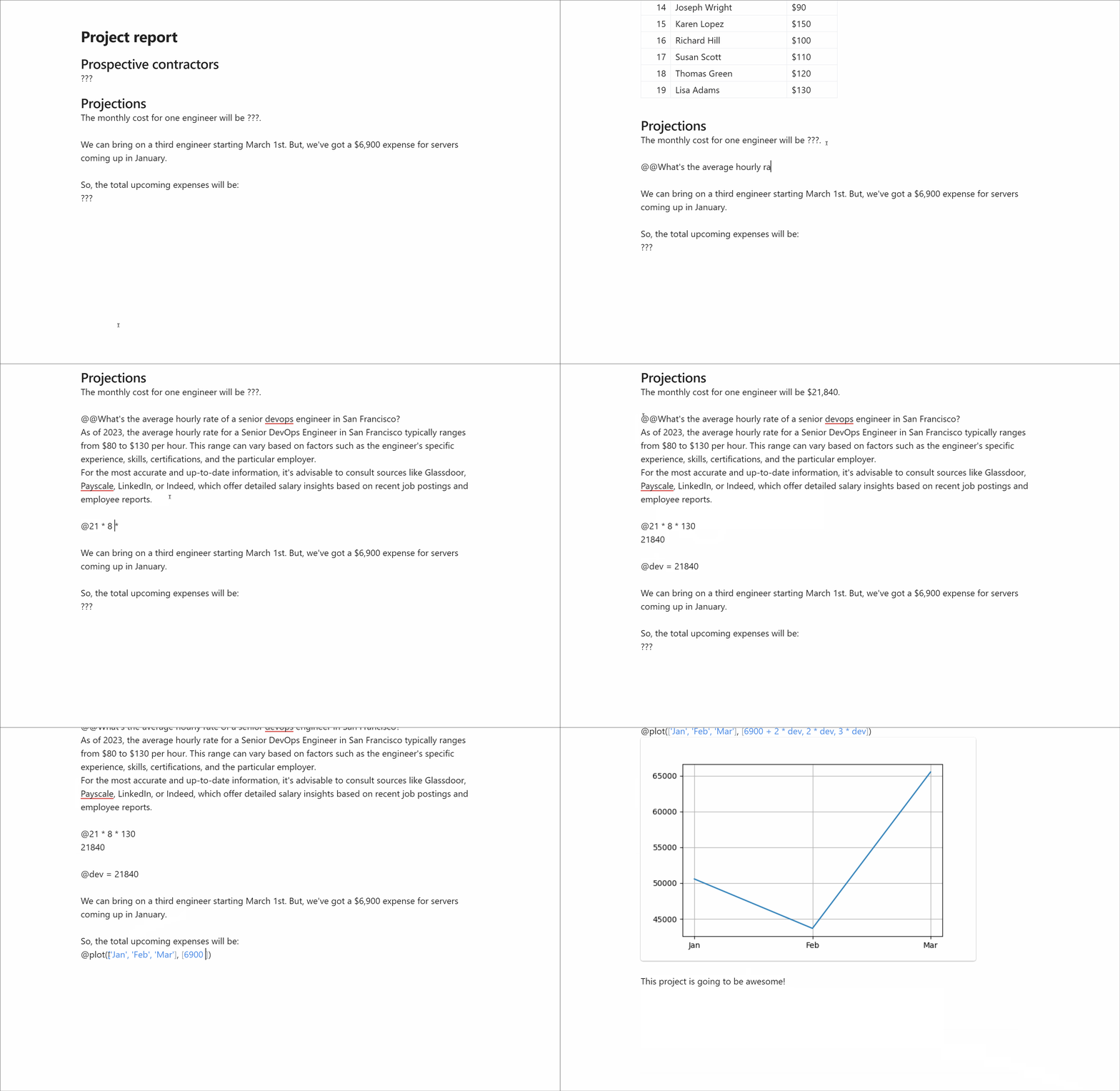
Available Functions in the Modules within Obsidian
plots.py
chat(prompt: str, system: str = None, save_context: bool = True, model: str = 'gpt-3.5-turbo') -> None:
- Parameters:
prompt(str): The user query to be sent to ChatGPT.system(str, optional): An optional system prompt.save_context(bool, optional): Whether to save the chat context for continuity. Default isTrue.model(str, optional): The model to be used for the chat. Default is'gpt-3.5-turbo'.
- Output: Prints the assistant's response directly in the note.
- Parameters:
chat4(prompt: str, system: str = None, save_context: bool = True) -> None:
- Parameters:
prompt(str): The user query to be sent to ChatGPT 4o.system(str, optional): An optional system prompt.save_context(bool, optional): Whether to save the chat context for continuity. Default isTrue.
- Output: Prints the assistant's response directly in the note.
- Parameters:
clean_chat() -> None:
- Output: Cleans the chat history by resetting the stored messages. This function does not produce a direct output in the notes.
plots.py
- plot(*args, **kwargs) -> None:
- Parameters:
*args: Optional positional arguments to be passed to thematplotlib.pyplot.plotfunction.**kwargs: Optional keyword arguments to be passed to thematplotlib.pyplot.plotfunction.
- Output: Creates and embeds a plot in your note. The plot is displayed as a base64-encoded PNG image embedded in markdown format.
- Parameters:
tables.py
excel_table(path: str, *args, **kwargs) -> None:
- Parameters:
path(str): The path to the Excel file.*args: Optional additional positional arguments to be passed topandas.read_excel.**kwargs: Optional additional keyword arguments to be passed topandas.read_excel.
- Output: Reads the Excel file and prints it as a markdown table directly in your note.
- Parameters:
csv_table(path: str, *args, **kwargs) -> None:
- Parameters:
path(str): The path to the CSV file.*args: Optional additional positional arguments to be passed topandas.read_csv.**kwargs: Optional additional keyword arguments to be passed topandas.read_csv.
- Output: Reads the CSV file and prints it as a markdown table directly in your note.
- Parameters:
Custom functions
You can add your custom Python scripts to the py_modules directory within the plugin's directory. All global functions and variables in these scripts will be accessible within Obsidian. You are welcome to contribute new useful scripts in your favorite language.
Configuration
Configure the plugin via the settings panel in Obsidian:
- Use notifications instead of appending the output to the Obsidian notes: Sends output notifications instead of adding them directly to your notes.
- Decorate output: Prepend the output with custom text.
- Decorate each line of the output: Apply custom text to each line of the output.
- Text shortcuts that run commands: Define text shortcuts for running commands. The text before '->' is the shortcut; the text after is the command to execute. Use
##param##to include the line after the shortcut in the command. PressShift+Enterfor a new line without triggering the shortcut.
Advanced Options (Not available on Mobile version)
These options are available only on the desktop version of Obsidian:
- Advanced options: Enable the use of external executables (potentially unsafe). If this toggle is off, the plugin will use the default JavaScript interpreter.
- Shell executable path: Specify the path to the shell executable. Use
##plugin##to refer to the plugin's directory. - Environment variables separated by lines: Set environment variables, one per line. Use
##plugin##to refer to the plugin's directory. - Shell CLI arguments separated by lines: Specify shell command-line arguments, one per line. Use
##plugin##to refer to the plugin's directory. - Commands to run after starting the shell: Define commands to run after starting the shell.
- Commands to run before closing the shell: Define commands to run before closing the shell (not executable when closing Obsidian).
- Enable separate shell sessions for each note: Enable separate shell sessions for each note (requires more memory).
- Apply a RegExp pattern to filter the output: Apply a RegExp pattern to filter the output.
- Specify the number of initial lines to suppress: Specify the number of initial lines to skip (e.g., shell greetings).
Setting up Python integration
Setting up Python module (optional)
If you want to use the plots.py, chat.py, and tables.py modules, download the project directly from this GitHub repository. Then, copy the py_manager.py file and the py_modules directory into the Interactivity plugin's root directory, which is located at ./your_vault/.obsidian/plugins/interactivity/.
You can enhance the functionality by adding custom Python scripts to the py_modules directory within the plugin's directory. All global functions and variables in these scripts will be accessible within Obsidian.
Installing Python
- Windows: Download the installer from python.org and follow the installation instructions. Make sure to add Python to your PATH during the installation.
- Linux: Use your package manager to install Python. For example, on Ubuntu:
sudo apt-get install python3. - macOS: Install Python using Homebrew:
brew install python3.
Finding Python Executable Path
To find the Python executable path, run the following command in your terminal:
which python3
Use the output of this command as the path in the Shell executable path setting.
Next, you should configure the plugin's settings in Obsidian.
Advanced Options
Turn on this toggle.
Shell executable path
Set this field with the Python executable path you found earlier.
Environment Variables
Set environment variables using the Environment variables setting. For Python, it’s crucial to set PYTHONIOENCODING=utf8 to ensure proper encoding:
PYTHONIOENCODING=utf8
Shell CLI Arguments
Specify shell command-line arguments in the Shell CLI arguments setting. For running Python scripts with this plugin, you should use the following settings:
-iq
##plugin##py_manager.py
-i: Interactive mode, useful for keeping the interpreter running.-q: Suppress the startup interpreter's message.##plugin##py_manager.py: Run thepy_manager.pyfile which in turn loads other Python files from thepy_modulesdirectory (includingpy_modules/chat.py).
Commands to Run After Starting the Shell
Use the Commands to run after starting the shell setting to run necessary code at the beginning. For example, to set the OpenAI API key for chat.py:
openai.api_key = "YOUR_OPENAI_API_KEY"
Commands to Run Before Closing the Shell
To ensure memory is properly managed when using Python interpreter, use the Commands to run before closing the shell setting to exit the shell:
exit()
Text Shortcuts for Running Commands
Define text shortcuts to run specific commands with the Text shortcuts that run commands setting. The text before '->' is the shortcut; the text after is the command to execute. Use ##param## to include the line after the shortcut in the command. Press Shift+Enter for a new line without triggering the shortcut.
Example 1
@ -> ##param##
@: This is the shortcut you type at the beginning of a line in your Obsidian note.##param##: This includes the text that follows the shortcut on the same line. Essentially, it allows you to insert any text directly into the command.
This setup allows you to directly execute the input text as a command.
Example 2
@@ -> chat4(r"""##param## """, system='Use markdown and emojis.')
@@: This is the shortcut you type at the beginning of a line in your Obsidian note.chat4(r"""##param## """, system='Use markdown and emojis.'): This command calls thechat4function fromchat.pywith specific parameters.
Let's break down the parameters:
r"""##param##""": This includes the text that follows the shortcut on the same line.system='Use markdown and emojis.': This sets the system ptompt for the chat.
By using this shortcut, you can quickly initiate a chat with ChatGPT using predefined settings, making your workflow more efficient.
Iterating Shortcuts
You can iterate both shortcuts by dividing them with a new line in your Obsidian notes:
@ -> ##param##
@@ -> chat(r"""##param## """, system='Use markdown and emojis.')
When all is set up, you can call Python code from your Obsidian notes:
@import numpy as np
@200 % (10 + 365) / np.e
73.57588823428847

@chat('How are you doing?')
I'm doing well, thanks for asking! How about you? What's on your mind today?

@@How are you doing?
I'm doing well, thank you for asking! How about you? How's your day going?
JavaScript Advanced Shortcuts
Even if you're not using the Advanced options (for example, if you're on the mobile version of Obsidian), you can still tackle complex tasks with pure JavaScript. Here's an example of a sophisticated shortcut for your Text shortcuts that run commands setting that allows you to interact with ChatGPT:
@@ -> const apiKey = 'OPENAI_API_KEY';if(typeof context==='undefined'){var context=[{role:'system',content:'Use markdown and emojis.'}];}async function communicateWithChatGPT(message){context.push({role:'user',content:message});try{const response=await fetch('https://api.openai.com/v1/chat/completions',{method:'POST',headers:{'Content-Type':'application/json','Authorization':`Bearer ${apiKey}`},body:JSON.stringify({model:'gpt-4o',messages:context})});const data=await response.json();if(data.choices&&data.choices.length>0){const assistantMessage=data.choices[0].message;context.push(assistantMessage);return assistantMessage.content;}else{throw new Error('No response from the API');}}catch(error){console.error('Error communicating with ChatGPT:',error);return error;}}(async()=>{cur=this.app.workspace.activeEditor.editor.getCursor();cur.line++;cur.ch=0;try{const ret=await communicateWithChatGPT(`##param##`);this.app.workspace.activeEditor.editor.replaceRange(ret,cur);}catch(error){this.app.workspace.activeEditor.editor.replaceRange('Error: '+error);}})();'';
Please note that the script is written in a single line. Don't forget to set your OpenAI API key with the apiKey variable.
If You Also Use Sublime Text
Check out the Interactivity: Calculations and Scripts for Sublime Text.
Contributing
Contributions are welcome! Please submit a pull request or open an issue to discuss any changes.
License
This project is licensed under the MIT License.