Integrated Task Manager
 kuberrr02k downloads
Manage Markdown tasks with Inbox, Today, Upcoming, projects, tags, and smart lists. Organize work with filters, calendars, Kanban boards, and Gantt charts.
- Overview
- Scorecard
- Updates39
Plan your work from the checklists already in your notes. Integrated Task Manager gathers every - [ ] in your vault into one task manager, with Today and Upcoming views, projects, calendars, Kanban boards and a Gantt timeline. Complete or edit a task anywhere and the change is written back to the note it came from, as plain Markdown.
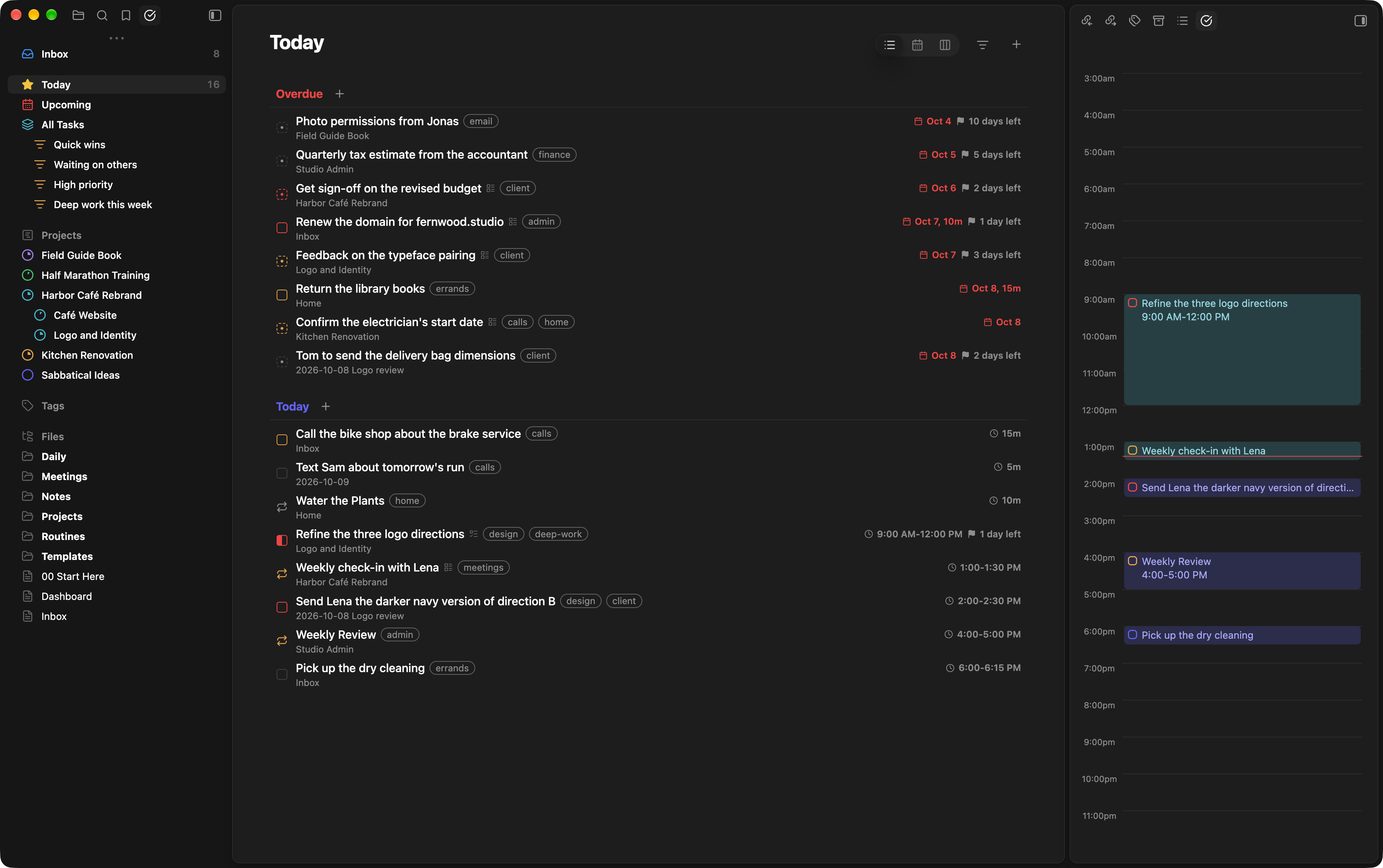
- Your notes stay the source of truth. A task is a checklist line. Its date, deadline, priority and tags are readable text on that line, so your notes still make sense without the plugin.
- Views for every question. Inbox, Today, Upcoming, All Tasks, Projects, Tags, and smart lists you save yourself.
- List, calendar or board. Any task view can switch layout, and the Projects list switches to a Gantt chart.
- Projects are notes. Tag a note
projectand its headings become sections, with dates, a deadline, a colour and progress. - A sidebar that follows you. The Task details sidebar shows today's hours, your tasks with no date, a note's tasks, the task you selected, or else what's coming up.
- Live task lists in any note. A
task-queryblock turns a daily note or a dashboard into a checkable list. - Fast to drive. Select many tasks at once, use single-key shortcuts, and undo any change.
Works on desktop and mobile with Obsidian 1.7.2 or newer. Your tasks stay in your vault: the plugin does not send your notes or tasks anywhere.
Get started
- In Obsidian, open Settings → Community plugins → Browse, search for Integrated Task Manager, then install and enable it.
- Click Open task manager in the ribbon to open the task sidebar, where your views, projects and tags live. The Task details sidebar opens on the right.
- Open Inbox, click +, and type something like
Call the venue tomorrow at 9am p1. Press Enter to add it. - Open Today or Upcoming to see your plan.
New tasks go to Inbox.md unless you pick another inbox note in settings. Checklists already in your notes appear in All Tasks straight away.
Tasks are plain Markdown
Every checklist item in your vault is a task. Its properties go at the end of the line, after the title:
# Drafting
- [/] Draft chapter 3: pigeons and doves 2026-10-12 09:00 2h p2 #writing #deep-work
- [ ] Commission the cover illustration 2026-11-23 1h {2026-12-08} p2 #design
- [?] Photo permissions from Jonas 2026-10-04 {2026-10-19} #email
- [ ] Water the plants 2026-10-09 every week
- [ ] Renew passport >2026-11-01
- [x] Outline all twelve chapters 2026-08-15 3h #writing ✓2026-08-20
| Write | It means |
|---|---|
2026-10-12 or [[2026-10-12]] |
Scheduled date: the day you plan to work on it |
2026-10-12 09:00 |
Scheduled date and time |
2h, 45m, 1h30m |
Duration |
{2026-10-19} |
Deadline, with an optional time: {2026-10-19 17:00} |
p1, p2, p3 |
Priority: high, medium, low |
#writing |
Tag |
every week |
Repeat (see Repeat tasks and keep routines) |
>2026-11-01 or >someday |
Hidden until that day, or set aside with no date (see Snooze) |
✓2026-08-20 |
The day it was completed |
The character in the checkbox is the task's status:
| Markdown | Status |
|---|---|
- [ ] |
To do |
- [/] |
In progress |
- [?] |
Waiting |
- [x] |
Done |
- [-] |
Cancelled |
Indented checklists under a task are its subtasks, and indented bullets are its notes. Other checkbox characters, such as [!], are not treated as tasks.
Dates are written in your Date format (your Daily notes format by default, or YYYY-MM-DD), as plain dates or as [[date]] links. The screenshots use MMM D, YYYY. Tags are written as #tag, or as #[[tag]] if you prefer tags that link to a note.
You rarely type the syntax yourself. When you add or edit a task in a task view, you can write tomorrow 3pm, next friday, p1, #work or every monday in the title, or {friday} for a deadline, and each one is highlighted as you type and saved in the right form. A date written in words only counts at the end of the title, so "Call Sam tomorrow about dinner" keeps its title. Type ~[[Note]] or ~[[Note#Heading]] to send the task to that note or heading.
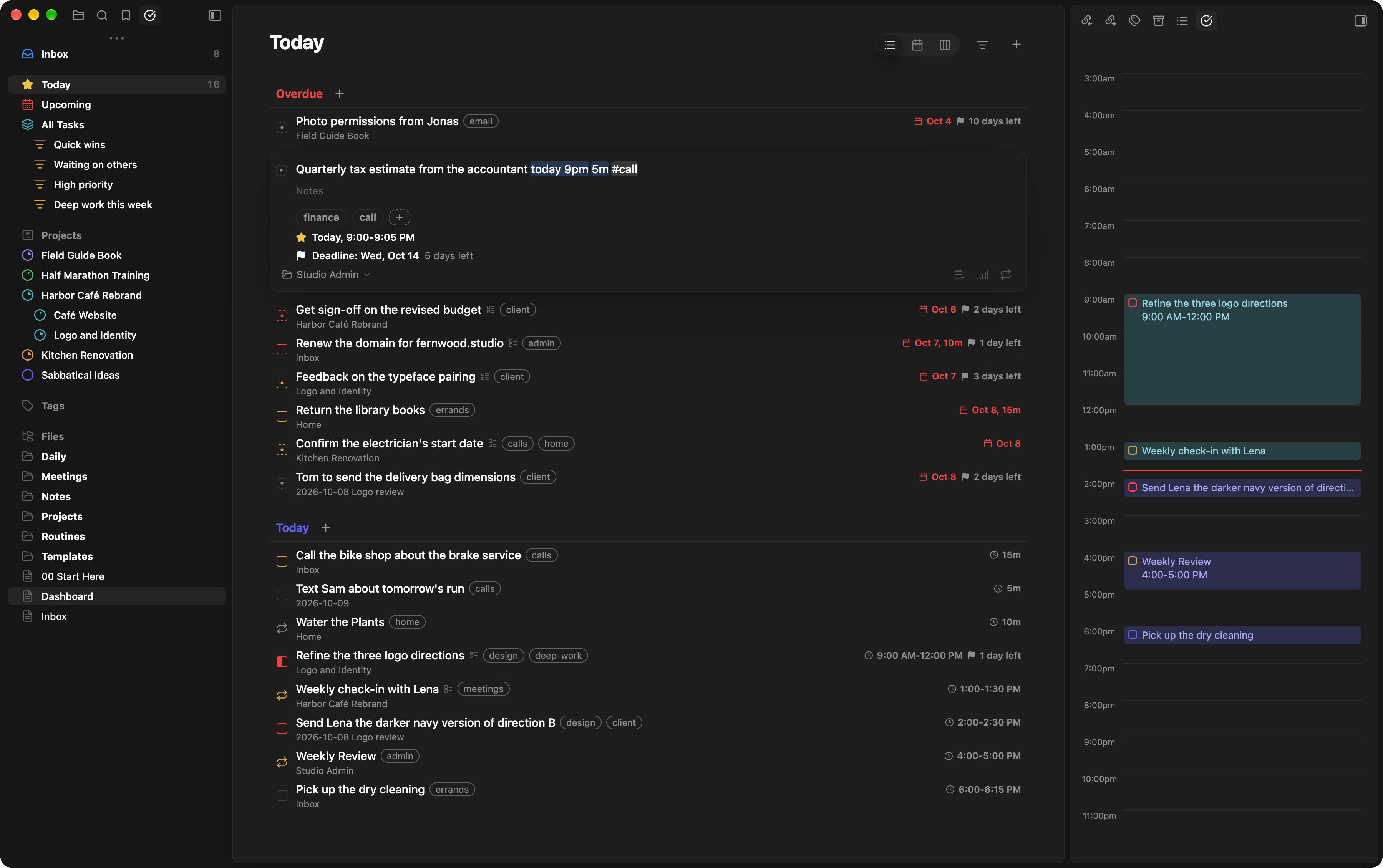
Find what needs your attention
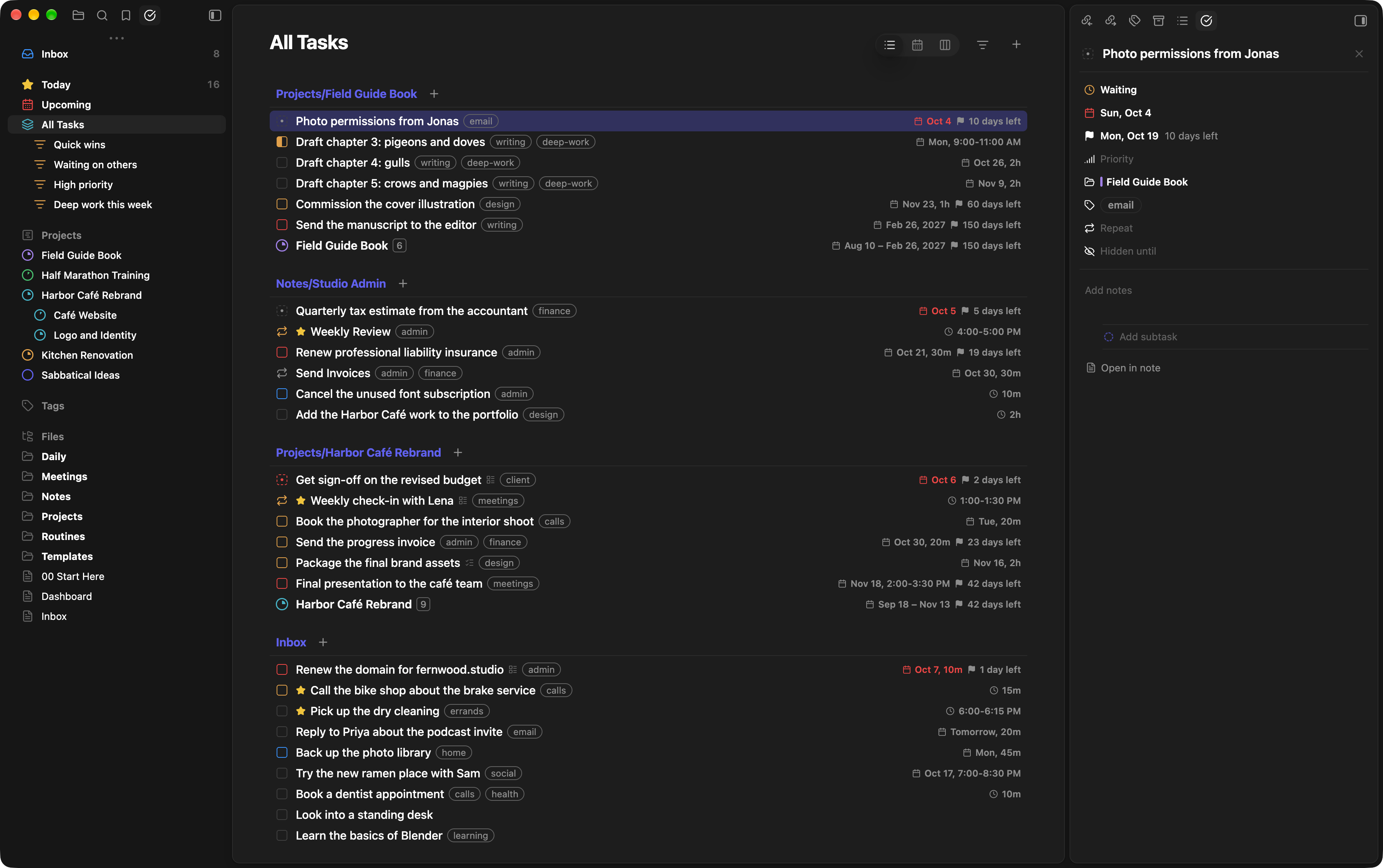
| View | Use it to… |
|---|---|
| Inbox | Capture tasks now and sort them out later. |
| Today | Work through today's tasks, with anything overdue at the top. |
| Upcoming | Look ahead at future tasks, grouped by date. |
| All Tasks | See every open task in your vault, including those without dates. |
| Projects | Review your projects and their progress, as a list or a Gantt chart. |
| A tag | Bring related tasks together across notes: click a tag in the task sidebar. |
| Smart lists | Return to your own saved views, such as "Quick wins" or "Waiting on others". |
Today and Upcoming use a task's scheduled date or its deadline, whichever comes first. Tasks with neither stay in All Tasks, their projects and their notes.
Press Cmd/Ctrl+K in a task view (or run Quick switch to view, project, tag, or task) to jump to any view, project, tag, smart list or open task by typing its name.
The task sidebar lists these views with your smart lists, projects, tags and, with Show files in sidebar, your vault's files. Drag anything in it onto Favorites at the top, or right-click it and choose Add to favorites, to keep it there. Drag items to put them in your own order under their heading, files and folders too; the file tree then follows Custom order under Change sort order. Drag a project right to put it under the project above, or left to take it out, as you would a task. Click the Tags heading to fold your tags away.
Filter, sort and group
Click the filter button at the top of a view to open View options. Pick several statuses, priorities, tags or notes at once, or a date range such as Overdue, Today or Next 7 days. Date ranges stay relative, so "Next 7 days" always means the coming week. More conditions… adds anything else: "is not", a range between two dates, or conditions joined with AND and OR.
Each view remembers its own options and layout. To keep a setup, choose Convert to smart list at the bottom of View options and give it a name. Smart lists appear in the task sidebar under All Tasks and update as your tasks change. To change a smart list later, adjust its View options and choose Update smart list at the bottom.
The Task details sidebar
The Task details sidebar sits in Obsidian's right sidebar. What it shows follows what you're looking at:
- Today: today's hours. Drag a task onto an hour to schedule it, or click an hour to add a task there.
- A calendar, or Upcoming: that view's tasks with no date. Drag one onto a day to give it a date.
- A note: the note's tasks. Put the cursor on a checklist line to see and edit its details.
- A selected task: its title, properties, notes and subtasks, all editable in place. With several tasks selected, change a property once and every selected task follows.
- Nothing else: your upcoming tasks, by date. Click one to see its details. Click the Upcoming heading to show Inbox, Today, All Tasks, a smart list, a project or a tag here instead (type to search them), and use the filter button beside it to filter, sort and group that list.
In the title, Enter saves what you typed and Shift+Enter moves on to the notes (a task card in the list works the same way). Press Escape to go back to the hours or the list. Open in note, at the bottom, opens the task's note at its line, turning task mode off when that note would otherwise open as its task view. If you close the sidebar, run Open task details sidebar to bring it back.
Choose a layout
Every task view switches between list, calendar and Kanban with the buttons at its top right.
List
Click a checkbox to complete a task, or double-click a task to open it. Click a group's heading to fold its tasks away, and click it again to bring them back. Drag tasks to reorder them, move them between sections and notes, or nest them: drag right to make a task a subtask of the one above, left to move it out. Subtasks and notes travel with their task.
You can also drop tasks on the task sidebar: on Inbox, a project or a note to move them there, on Today to schedule them for today, or on a tag to add it. Everything you can do by dragging also works from the keyboard (see Keyboard shortcuts).
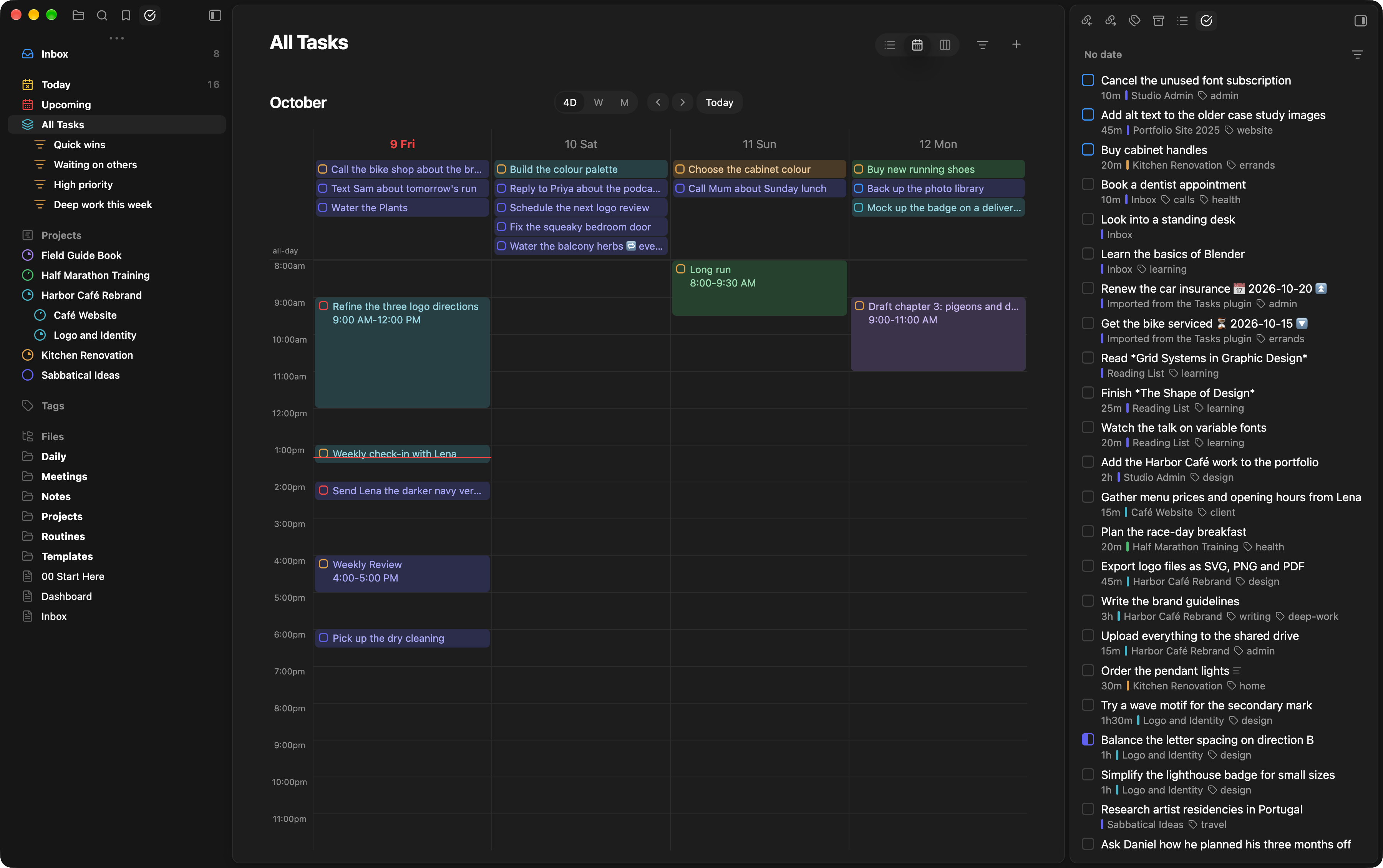
Calendar
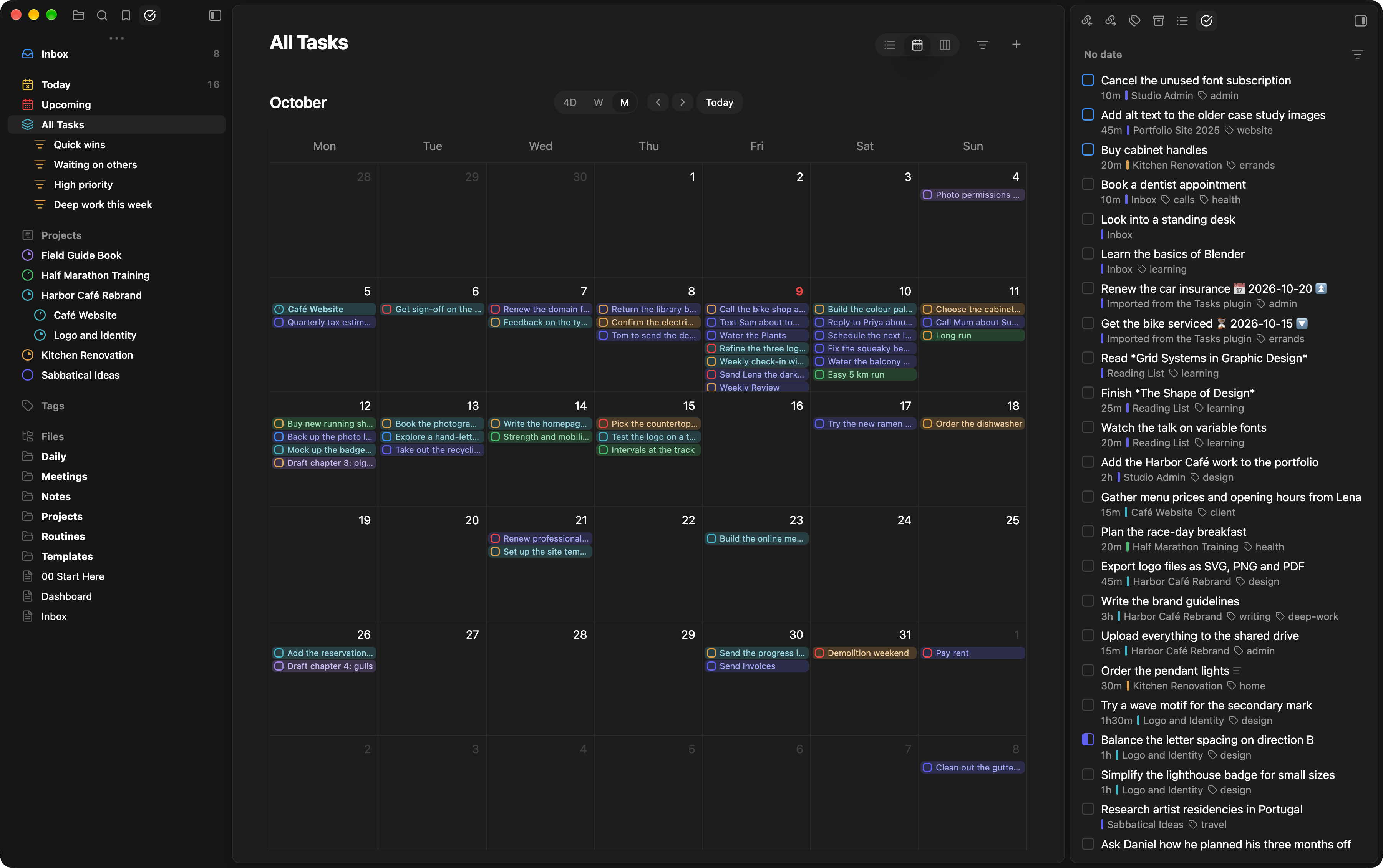
See your tasks across four days, a week or a month (day and year views are in the command palette). A task sits on its scheduled date, or on its deadline if it has no scheduled date, tinted with its project's colour.
Drag a task to another day or time to reschedule it. In the day, 4-day and week layouts, drag across empty time to create a task, or drag the edge of a timed task to change how long it takes. Tasks with a date but no time sit in the row above the hours.
Kanban
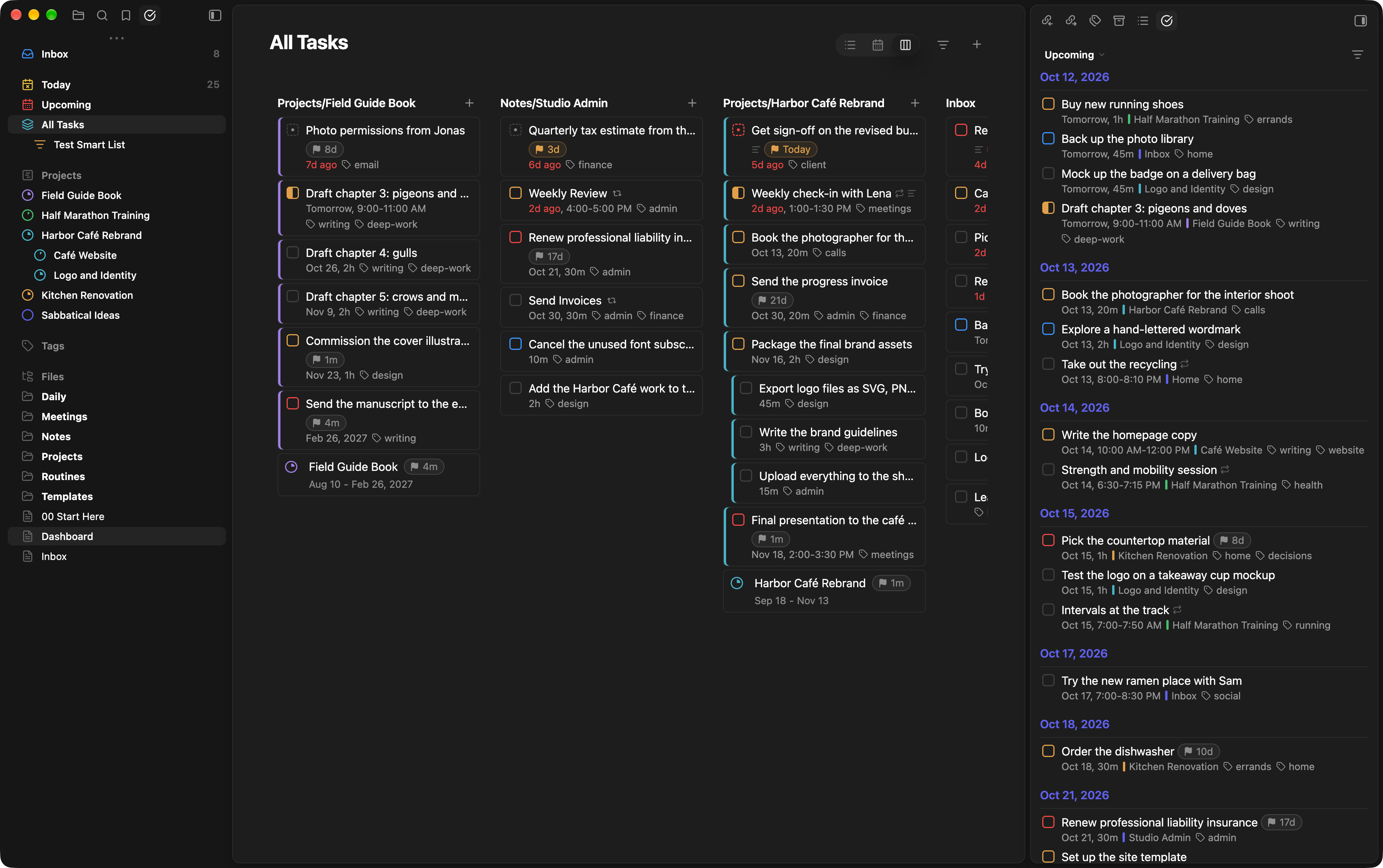
A board's columns follow the view's grouping: a project's sections, Today's overdue and today, Upcoming's dates, All Tasks' notes, or any property such as priority. Group by Status for To do, In progress, Waiting, Done and Cancelled columns. Drag a card to another column to change its section or property.
Turn notes into projects
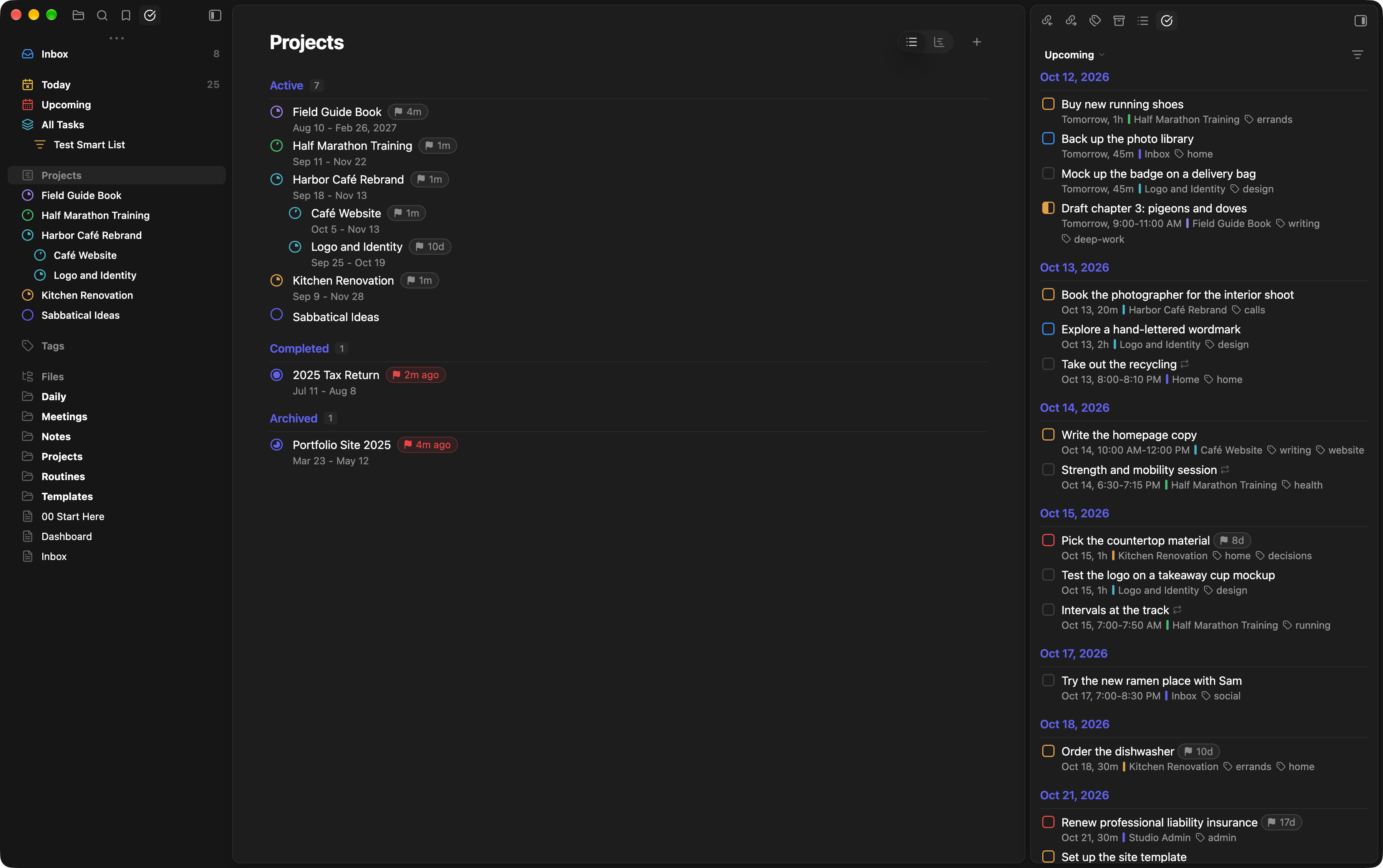
A project is a note tagged project. Create one with + in the Projects view, run Convert to project on any note, or type a new name when you move a task to a project and choose Create project. Headings in the note become the project's sections.
A project's properties live in the note's frontmatter:
tags: [project, writing]
date: 2026-08-10        # start date
end date: 2027-02-26
deadline: 2027-03-08
priority: 3
status: In progress     # To do, In progress, Waiting, Done or Cancelled
color: purple           # or a hex colour such as "#3b82f6"
parent: "[[Studio Admin]]"
description: A short novel, drafted over the winter.
You don't have to edit them by hand: the … beside a project's title, or a right-click on it in the Projects list or the task sidebar, sets its status, priority, dates, deadline, parent, tags, colour and name, and can open or delete it. Subprojects appear under their parent, where you can fold them away, and use its colour unless they have their own. Convert to project adds all of these properties, empty, for you to fill in.
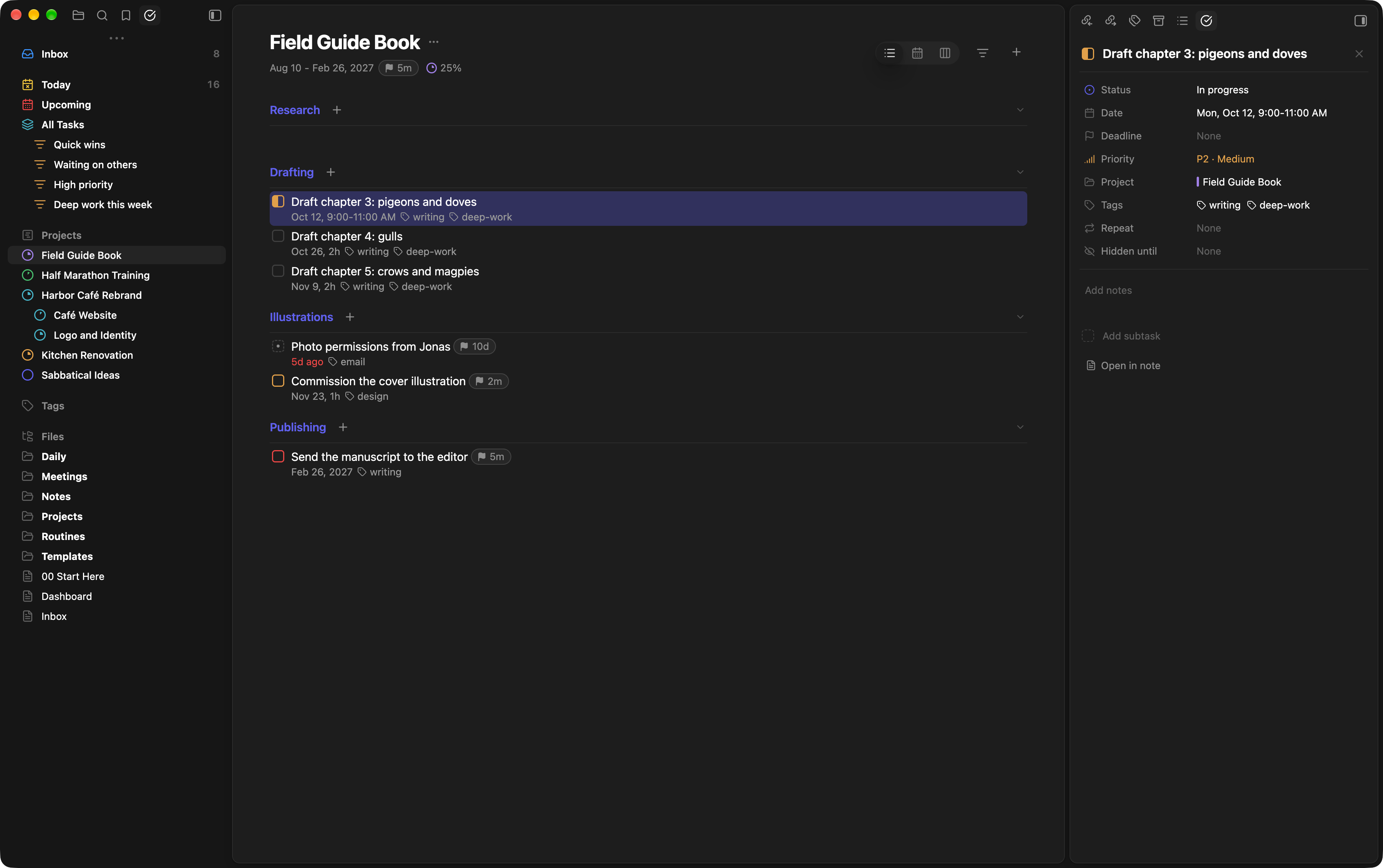
Projects show their progress, counting subtasks. A project's status says where it stands; without one, it is To do until every task is done, then Done. Done and cancelled projects leave the sidebar, and their tasks stay in other views. In task mode a project's description shows in a card at the top of its page; click it to edit.
The Projects view lists your projects grouped by status. Drag a project to another status, in the list or on a board, or move it right under another project to make it a subproject. Use View options to filter, sort and group projects as you would tasks.
Turn on Task mode (in the task sidebar, the ribbon, or with Toggle task mode) to open project notes as task views. Turn it off to edit them as regular notes.
Plan on a timeline
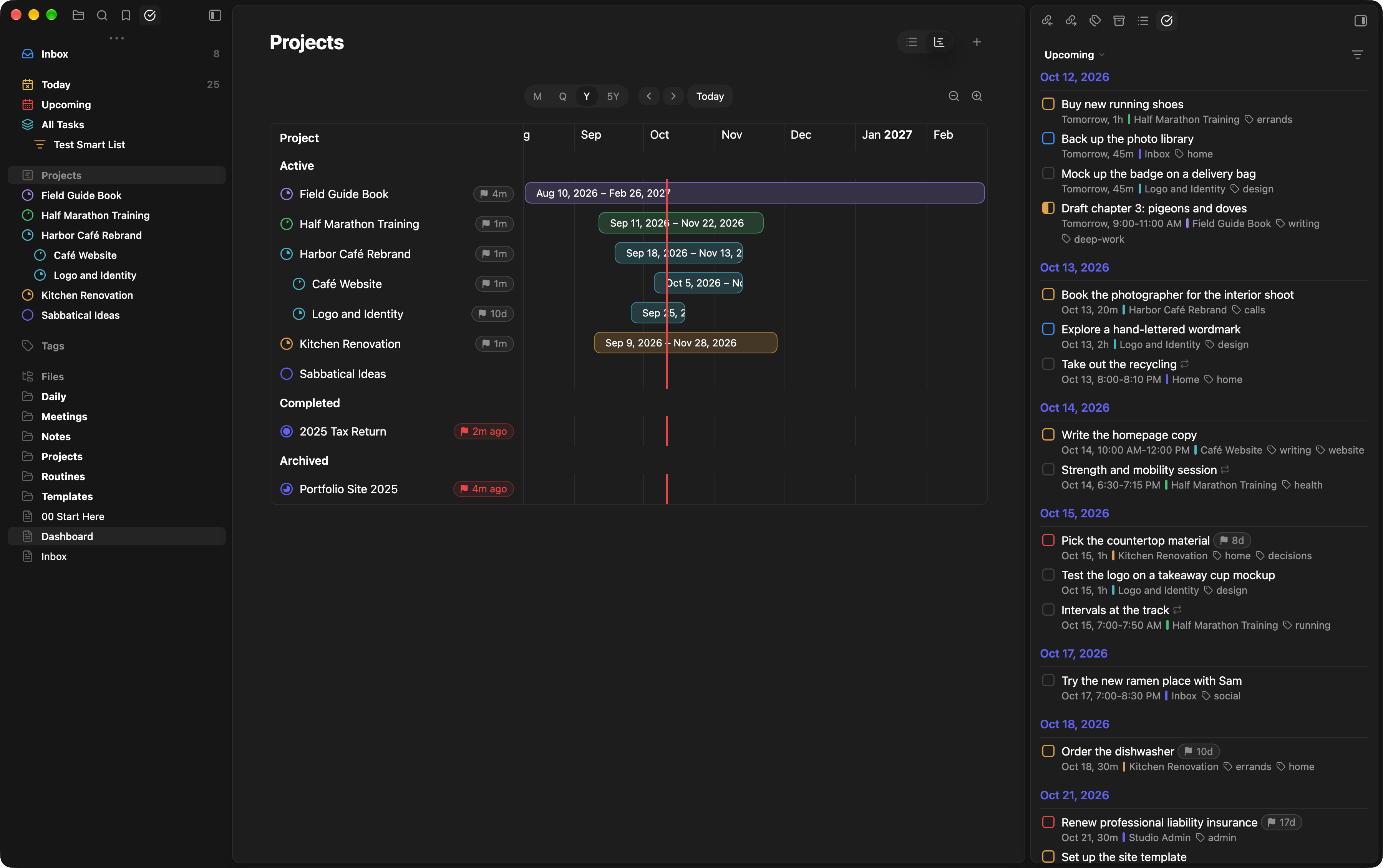
Switch the Projects view to Gantt to see your projects on a timeline. Choose month, quarter, year or five-year views, zoom with the buttons, the + and - keys or Ctrl/Cmd and the mouse wheel, and drag with the right mouse button to move around. Drag a bar's edges to change a project's start and end dates, or drag across an empty row to give a project its dates. Changes are saved to the project note.
Keep working in your notes
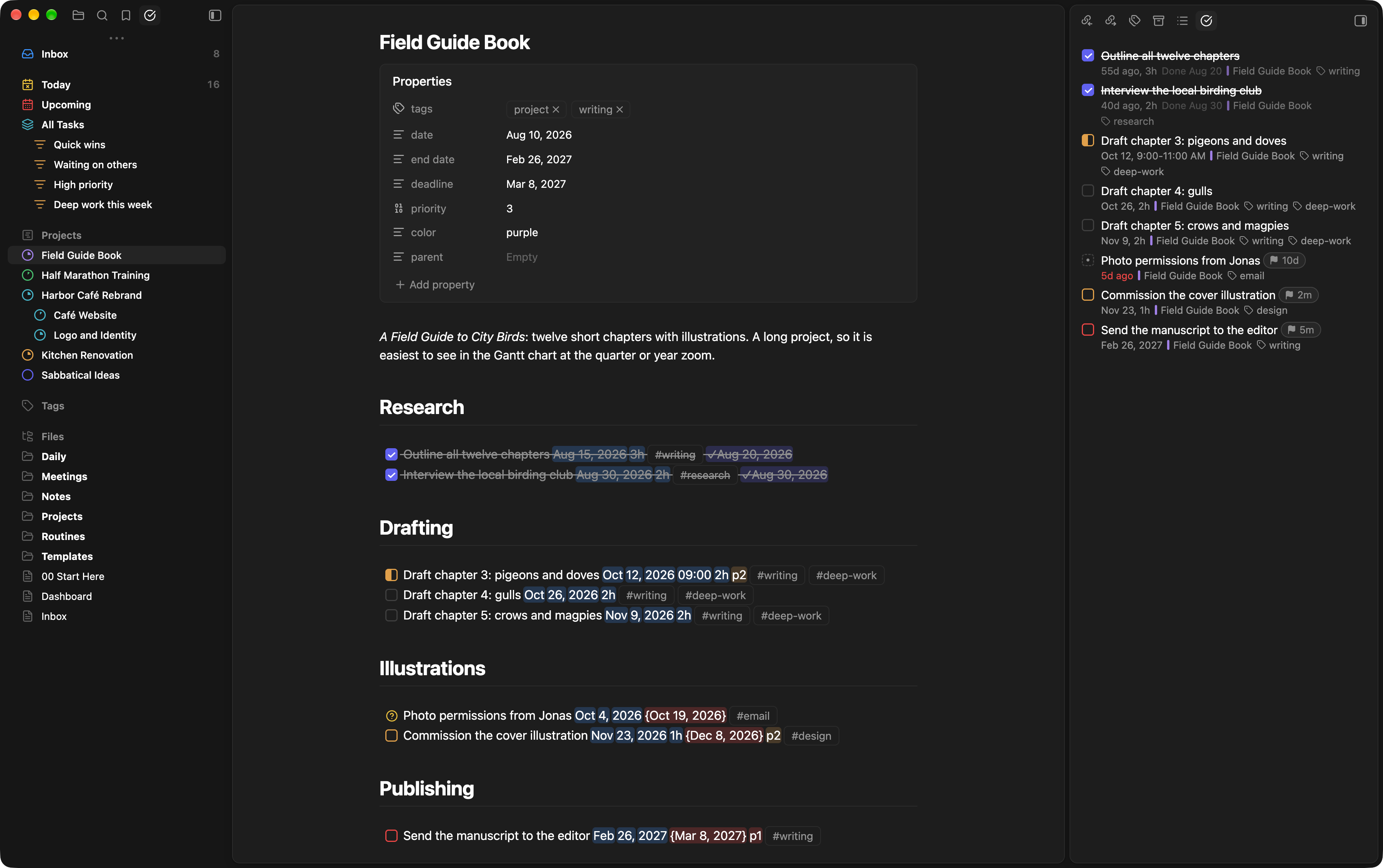
You can keep writing and checking off tasks in your notes as usual. In Live Preview and Reading view, a task's dates, deadline, priority and other properties are highlighted in the colour of what they set, and the checkbox takes its priority's colour.
- Cmd/Ctrl-click a checkbox to open the task.
- With Task mode off, end a checklist line with a date in words, such as "Call the venue tomorrow", and it becomes a real date when you press Enter or leave the line.
- With the note open, the Task details sidebar lists the note's tasks, so you can see and change their properties without touching the syntax.
Show tasks inside any note
Add a task-query block to a daily note, a project hub or a dashboard to show a live list of tasks there. Run Insert task query to start one. Put several blocks in one note to build a dashboard or a weekly review, like this one:
```task-query
title: Overdue
view: overdue
```

```task-query
title: Deadlines in the next 7 days
deadline: before in 7 days
sort: deadline
```

```task-query
title: Waiting on others
status: waiting
group: source
```
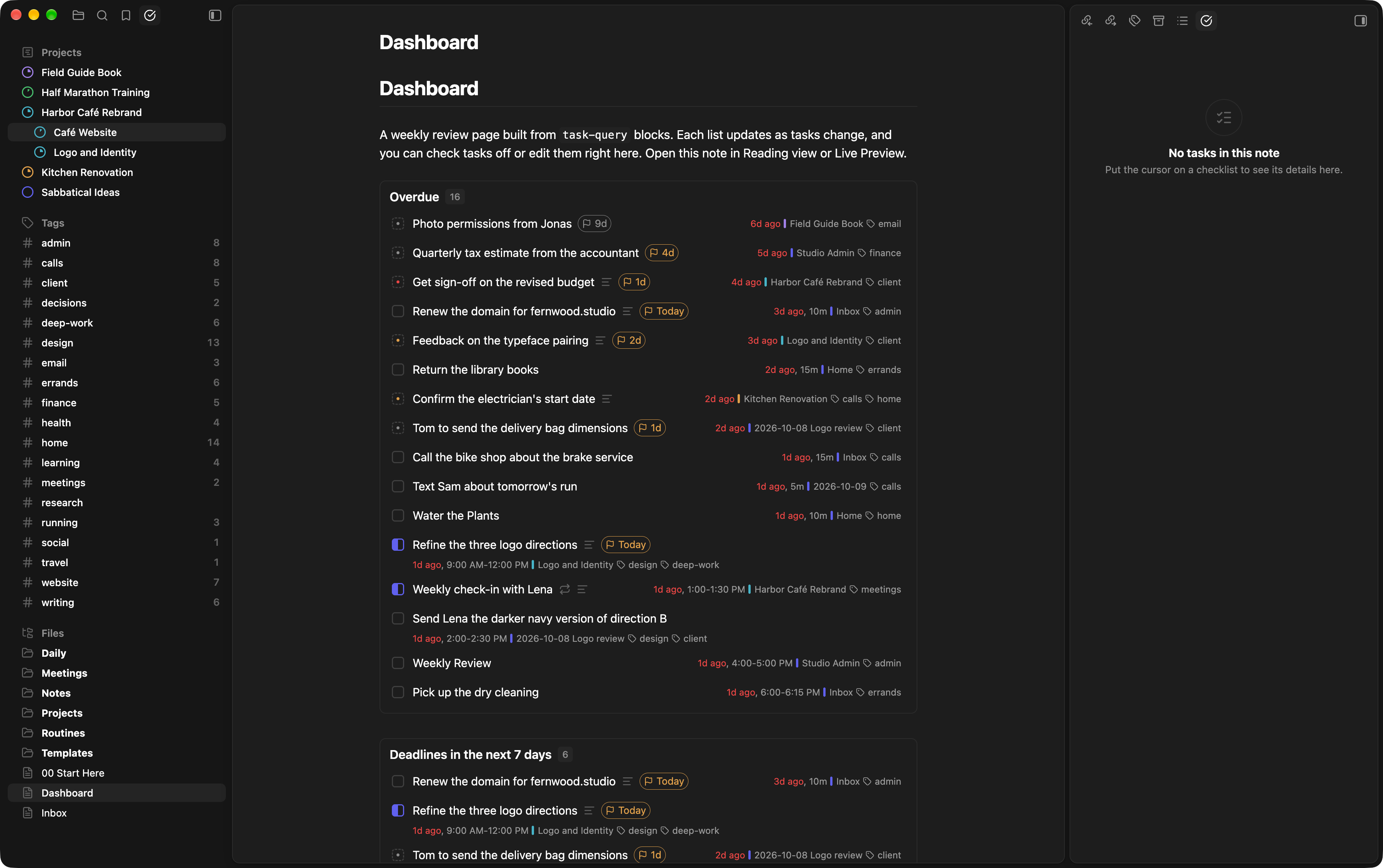
Tasks look as they do in your task views, in the style you chose. Check them off, click a tag to open its tasks, or click a title or date to edit the task right from the note: it opens in the Task details sidebar, or in the task editor with two panes.
Add layout: board to show the tasks as a board, with a column for each status (or for each group, with group). Add layout: calendar for a week calendar, where you can page through the weeks, drag a task to another day or time, and drag across empty time to add one. layout: calendar month opens on a month instead, and a date after it opens on that date's month or week, as in layout: calendar month 2026-11-01 or layout: calendar next monday.
Write one option per line:
| Option | Examples |
|---|---|
view |
today, upcoming, inbox, all, overdue |
smart list |
Quick wins (uses that list's filters, sort and grouping) |
project |
[[Website Refresh]], or this for the note the block is in |
note |
this, [[Inbox]] (tasks written in that note) |
| Any property | priority: 1, 2 · tags: work or home · status: in progress, waiting · repeat: has · hidden until: someday · task title: contains report |
| Dates | deadline: before next friday · scheduled: between today and in 7 days · completed: after 7 days ago · deadline: missing |
search |
words in the title, notes or tags |
sort, group |
sort: priority desc · group: source |
layout |
list (the default), board, calendar, or calendar followed by day, 4 days, week or month and a date to open on |
limit |
how many tasks a list or board shows (50 by default) |
title |
a heading for the list |
show completed |
yes to include completed tasks |
Dates such as today or next friday are worked out each time the list is shown. If a line isn't understood, the block says which one and why. The Tasks plugin's tasks blocks are left alone, so both plugins can be used side by side.
Change many tasks at once
Click a task to select it, Shift-click to select a range, and Cmd/Ctrl-click to add to the selection (Cmd/Ctrl+A selects the whole view). Then right-click, or press a key, to change every selected task at once:
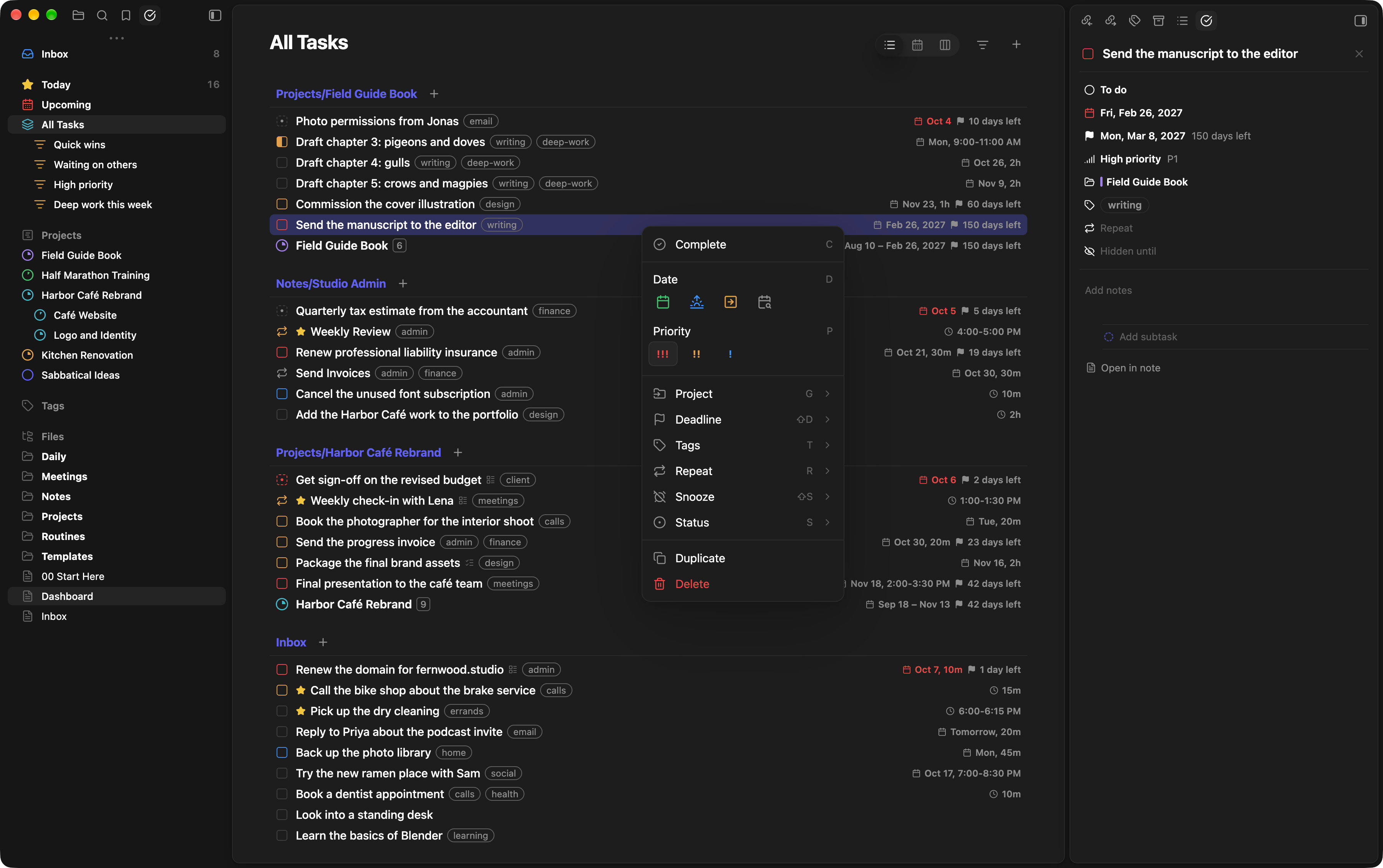
- Complete or Reopen
- Date: Today, Tomorrow, Next week, or any date, time and duration
- Priority, Project, Deadline, Tags, Repeat, Snooze and Status
- Duplicate (with notes and subtasks) and Delete
You can also drag a selection to move it, or drop it on the calendar to reschedule it.
Keyboard shortcuts
In a list:
| Key | Action |
|---|---|
| ↑ / ↓, Home / End | Move between tasks |
| Enter or Space | Open the task |
| Shift + ↑ / ↓ | Select a range |
| Alt + ↑ / ↓ | Move the task up or down |
| Alt + → / ← | Make it a subtask of the task above, or move it out of its parent |
| Cmd/Ctrl + K | Jump to a view, project, tag, smart list or task |
| Cmd/Ctrl + Z | Undo the last change |
| Cmd/Ctrl + Shift + Z (or Ctrl + Y) | Redo |
With tasks selected:
| Key | Action |
|---|---|
| E | Open the task menu |
| M | Move to another section, column or note |
| Shift + T | Schedule for today |
| D / Shift + D | Date, time and duration / Deadline |
| P | Priority (press again to cycle) |
| T | Tags |
| G | Project |
| R | Repeat |
| S | Status (press again to cycle) |
| Shift + S | Snooze |
| C | Complete, or reopen |
| Cmd/Ctrl + C / V | Copy as Markdown / Paste |
| Cmd/Ctrl + D | Duplicate |
| Delete or Backspace | Delete, with subtasks |
Repeat tasks and keep routines
End a task with a rule such as every day, every 2 weeks, every month or every monday. Completing it moves it to its next date instead of checking it off, and a deadline moves with it. A task can have several rules, such as every monday every friday.
For a habit you want a history of, make a routine note:
- Create a note such as Weekly review, with the tag
recurring-taskand arepeatproperty such asevery friday. - In any checklist, link to that note and give the task a scheduled date.
Each time you check the task off (or cancel it), it moves to its next date and the routine note records the day: COMPLETED: 2026-09-19 or CANCELED: 2026-09-26.
Snooze tasks you can't act on yet
End a task with > and a date, such as >2026-11-01, to hide it from Inbox, Today and Upcoming until that day. Use >someday to set it aside with no date. Snoozed tasks still appear in All Tasks, projects and tags, labelled Hidden until. In a task view, press Shift+S on selected tasks to snooze them.
Undo and redo
Press Cmd/Ctrl+Z in a task view, or run Undo last task change, to undo a change made from a task view: completing, moving, editing, snoozing or deleting tasks. The last 20 changes can be undone, and Cmd/Ctrl+Shift+Z redoes them. Undo only runs if the notes involved haven't changed since; otherwise it tells you which note changed. Turn on Show undo notices for a notice with an Undo button after each change.
Use it on your phone
Swipe a task right to select it, or left for its actions. Tap a task to open its details. To move a task, press and hold it until it lifts, then drag it.
Make it yours
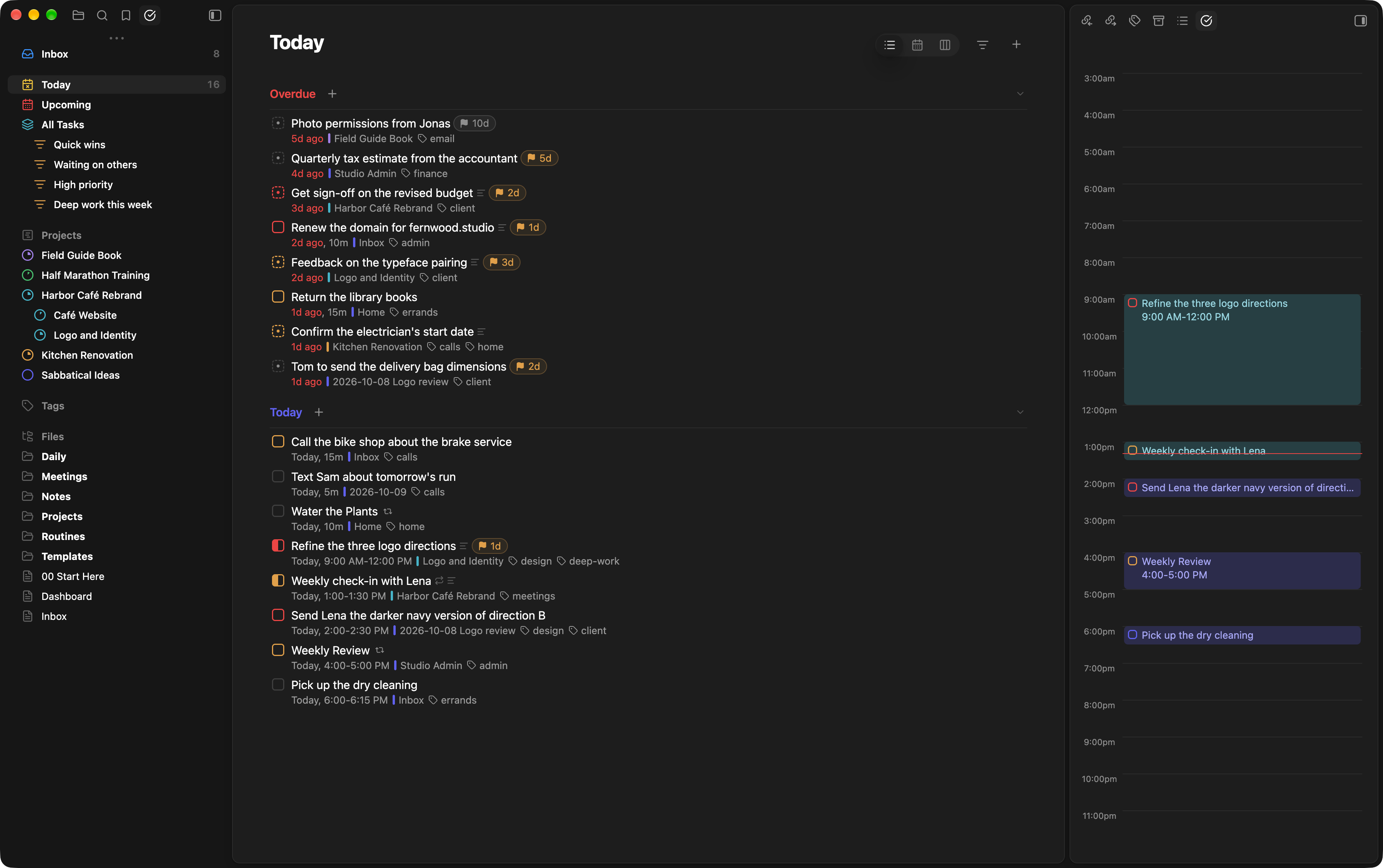
Choose between two Styles in settings: Griply (the default, shown above), where each task's details sit under its title, and Things, shown at the top of this page. Tasks open in the Task details sidebar, beside your list. To open them in the list instead, set Task details to Two panes: in the view: Griply opens a task in the task editor, and Things opens it as a card in the list.
| Setting | What it does |
|---|---|
| Inbox note | Where new tasks go when you're not in a project or note |
| New project location, Move converted notes to the project location | The folder new projects go in, and whether Convert to project moves the note there |
| New task position | Add new and moved tasks at the top or bottom |
| Section heading level | Which heading level divides a project into sections |
| Date format, Link dates | How dates are written; Update dates rewrites existing ones |
| Tag format | #tag or #[[tag]]; Convert notes rewrites existing tags |
| Record completion dates | Add ✓date when you complete a task |
| Ignored folders and notes, Ignored tags | Leave out templates, archives or private notes |
| Ignore tasks in code blocks | Leave out checklist items inside fenced code blocks (on by default) |
| Style, Task details, Density | How lists look and where tasks open |
| Show files in sidebar | Keep your vault's files and folders in the task sidebar |
| Show subtasks in task views | In the Things style, list subtasks as their own rows |
| Color calendar tasks by project, Color calendar checkboxes by priority | Tint calendar tasks with their project's colour, and checkboxes with their priority |
Search for Integrated Task Manager in the command palette to see every command, and assign hotkeys to your favorites under Settings → Hotkeys. If task lists ever look out of date, run Rebuild task index.
Coming from the Tasks plugin
Run Import tasks from the Tasks plugin, or choose Import… in settings, to convert tasks written for the Tasks plugin, in all notes or just the current one:
| Tasks plugin | Becomes |
|---|---|
| 📅 due date | {deadline} |
| ⏳ scheduled date | scheduled date |
| 🛫 start date | > hidden until |
| ✅ done date | ✓ completion date |
| 🔁 every week | every week |
| 🔺 ⏫ / 🔼 / 🔽 ⏬ | p1 / p2 / p3 |
#tag |
a tag at the end of the task, if you choose to convert tags |
[/], [?], [-] |
kept, as in progress, waiting and cancelled |
Dataview-style fields such as [due:: 2026-10-01] are converted too, and your Tasks global filter is removed. You see how many tasks will change, with examples, before anything is written, and the whole import is one change you can undo. Anything it can't convert, such as dependencies, is listed in the preview and left as it is. Tasks query blocks are not touched.
Manual installation
- Download
main.js,manifest.jsonandstyles.cssfrom the latest release. - Put them in your vault's
.obsidian/plugins/integrated-task-manager/folder. - Reload Obsidian and enable Integrated Task Manager under Settings → Community plugins.
Contributing
Bug reports, ideas and pull requests are welcome. See CONTRIBUTING.md.