Image Copy and Reveal
 yujia285 downloads
Rename an image after its note, convert it to WebP, reveal it in Finder or Explorer, or copy it to the clipboard, from the built-in image toolbar.
- Overview
- Scorecard
- Updates7
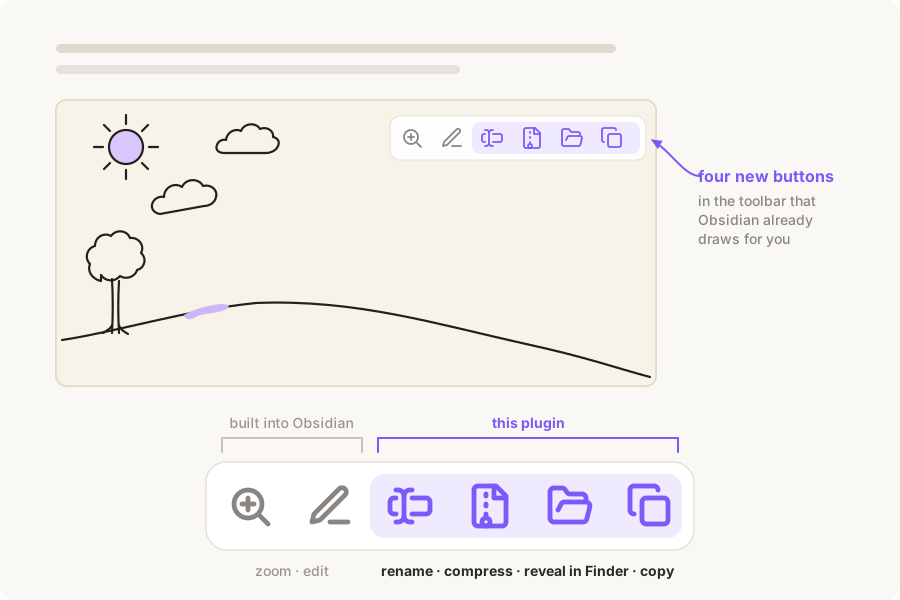
Rename an image after its note, shrink it to WebP, reveal it in Finder or Explorer, or copy it to the clipboard — without leaving Obsidian and without the right-click menu.
Unlike other image plugins, this one does not draw a toolbar of its own. It adds its buttons to the built-in hover toolbar that Obsidian itself shows in the top-right corner of an embedded image, next to the native zoom and edit buttons:
| Button | What it does |
|---|---|
| Rename after this note | Renames the image to match the note it is embedded in, numbering repeats automatically |
| Convert to WebP | Re-encodes the image as WebP, usually shedding 80–90% of its weight, and sends the original to the system trash |
| Reveal in file explorer | Opens the containing folder and selects the file (Finder on macOS, Explorer on Windows) |
| Copy image | Puts the image itself on the system clipboard, so it can be pasted into any other app |
Every action is also a command, so it can be bound to a hotkey and fired while hovering over an image. Labels follow the Obsidian interface language (English and Chinese are included).
WebP conversion
Conversion runs through the WebP encoder Chromium already ships with, so there is nothing to install and no binary bundled with the plugin. On a 1918×820 PNG screenshot, measured end to end:
| Size | Of original | |
|---|---|---|
| Source PNG | 1301 KB | 100% |
| WebP, quality 95 | 159 KB | 12% |
| WebP, quality 90 (default) | 109 KB | 8% |
| WebP, quality 85 | 88 KB | 7% |
Larger screenshots give up proportionally less, since more of their weight is real detail rather than flat colour. A 5052×1902 screenshot went from 4.18 MB to 0.67 MB at the default quality — 16% of the original rather than 8%. Expect somewhere in that band for interface captures, and less from photographs.
This is lossy. Pixels change, and the trade is deliberate: screenshots and diagrams survive quality 90 without visible damage while shedding the great majority of their weight. Photographs with fine gradients deserve a higher setting. Quality is a slider in the plugin's settings; note that 100 is not worth reaching for, as it lands near 89% of the original size.
Because the extension changes, every note embedding the image is updated through Obsidian's own rename machinery, so links follow the file. The original always goes to the system trash, never straight to deletion. For a vault kept in iCloud Drive that is iCloud's own trash rather than the one in the Dock — look in ~/Library/Mobile Documents/.Trash/ if a file seems to have vanished. Files that are already WebP are refused rather than re-encoded, which would only shed more detail, and anything that would not actually get smaller is left alone.
Converting and copying are independent
Two things have to hold at once, and both do: images in the vault get small, and copying still pastes anywhere it did before.
Conversion delivers the first. A 4.18 MB screenshot becomes 0.67 MB on disk — that is what the vault stores, what sync carries, and what a backup has to move.
Copying is untouched by it. The system clipboard carries decoded pixels rather than a file's own bytes, so a paste behaves identically before and after conversion: an image editor, a canvas, a chat window, a rich text editor all receive what they always did. macOS derives a full set of representations from the bitmap — PNG, JPEG, TIFF, GIF and more — and each application takes the one it prefers.
The consequence is only that the clipboard payload has nothing to do with the file size:
| Size | |
|---|---|
| Source PNG on disk | 4.18 MB |
| WebP on disk after conversion | 0.67 MB |
| PNG placed on the clipboard by copying the WebP | 4.75 MB |
The clipboard copy is larger than either file on disk, because canvas encodes quickly rather than tightly. This is a buffer that lives until the next copy; it is never stored and never synced, so it costs the vault nothing and costs a paste nothing.
Handing the clipboard a reference to the file instead would make a paste land as the compressed file itself. It is not worth it: on macOS the two cannot coexist — writing a custom pasteboard type clears the pasteboard first — so buying that would mean giving up the bitmap, and with it every target that takes an image but not a file. The plugin therefore writes the bitmap and nothing else. When a target genuinely needs the small file, the reveal button puts it in Finder ready to drag.
WebP cannot be read by Electron's nativeImage, so those images are repainted through a canvas to produce the bitmap. PNG and JPEG are handed over directly.
Renaming
The first image takes the note's own name; later ones get -1, -2 and so on, and the counter skips over names that are already taken. Links are updated through Obsidian's own rename machinery, so every note that points at the image follows along.
Requirements
- Obsidian 1.13.0 or later (the hover toolbar this plugin extends is built in from that version)
- Desktop only — the clipboard and file-explorer integrations use Electron APIs that do not exist on mobile
Installation
From the community plugin store
Settings → Community plugins → Browse → search for "Image Copy and Reveal" → Install → Enable.
Manual
- Download
main.jsandmanifest.jsonfrom the latest release. - Put them in
<vault>/.obsidian/plugins/image-copy-reveal/. - Reload Obsidian and enable the plugin under Settings → Community plugins.
How it works
Obsidian renders its own action toolbar as .embed-actions inside .image-embed. The plugin watches for that element and appends its two buttons to it, so they sit alongside the built-in zoom and edit buttons and inherit their styling.
The image file is located from the app:// URL on the rendered <img>, falling back to resolving the embed's link target through the metadata cache.
That toolbar is an internal part of Obsidian rather than a public API, so a future redesign of it could stop the buttons from appearing. Nothing else breaks if that happens, and the two commands keep working. Toolbars inside hover popovers are not covered, because the plugin only watches the workspace container.
License
MIT — see LICENSE.