HTML Studio
 pherehouse65 downloads
Read, view and visually edit HTML files in Obsidian — slide decks, long pages and more. Based on obsidian-html-plugin by Nuthrash.
- Overview
- Scorecard
- Updates7
HTML Studio
在 Obsidian 中直接阅读、查看和可视化编辑 HTML 文件。
现在 AI 生成的 HTML 越来越好看了——PPT、报告、仪表盘。但开会前想改个标题,还得回去翻代码。
HTML Studio 让你直接点上去改。改完保存,就这么简单。
它有什么不同
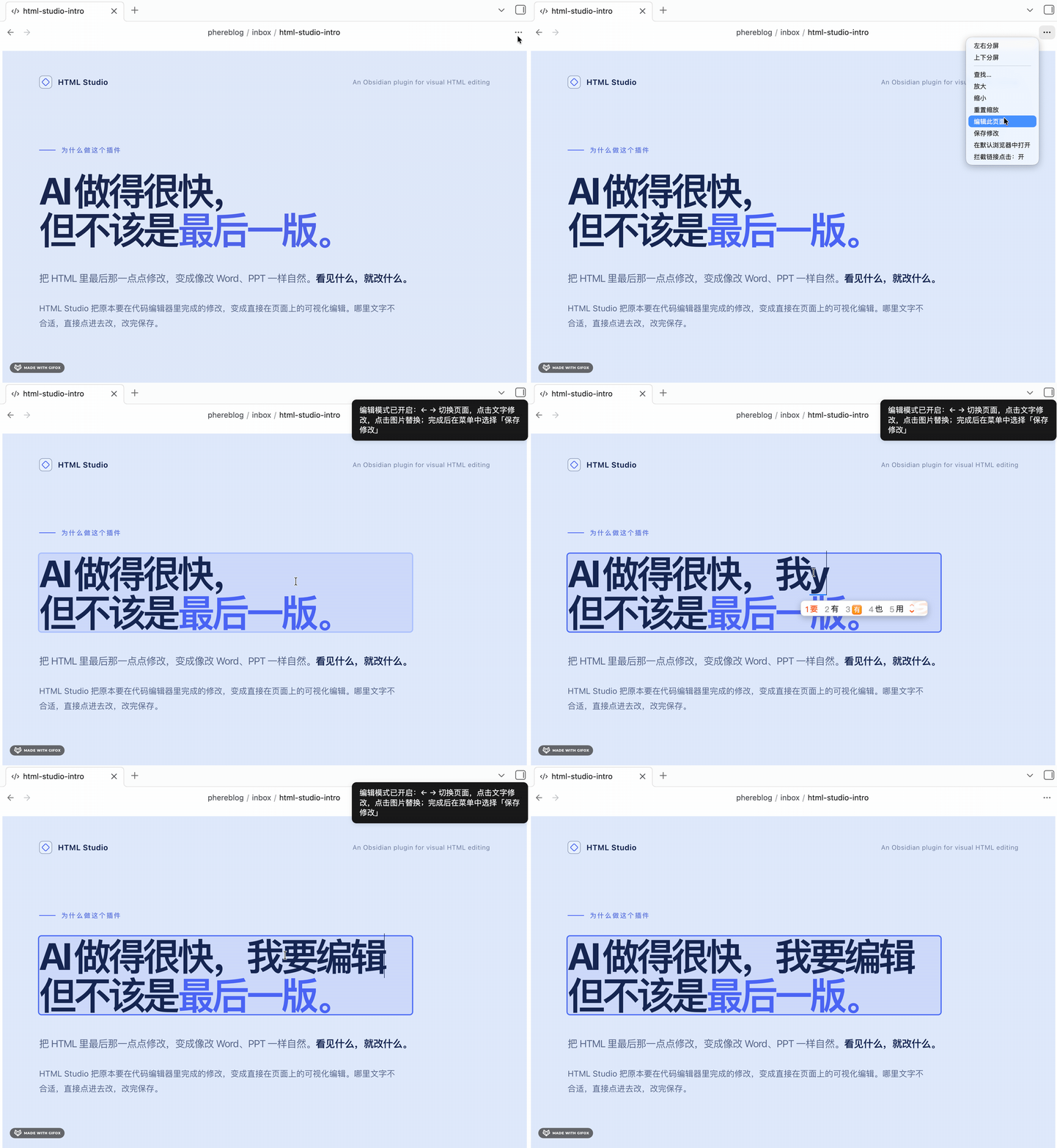
- 像改文档一样改网页 —— 点文字直接输入,点图片直接替换。幻灯片和长页面都支持,不管文件怎么写的。
- 保存不会弄坏文件 —— 只合并你改过的部分,脚本和样式原样保留。
- 开箱即安全 —— 沙箱渲染,链接不会随手一点就跳转(也不会触发埋点),想打开用
⌘/Ctrl + 点击。
功能特性
📖 阅读与浏览
在 Obsidian 中直接打开 .html / .htm / .mhtml 文件 —— 渲染呈现,而非原始源码。
- 沙箱渲染 —— 文件在安全 iframe 中显示,提供 5 档安全级别可选(Balance / Low Restricted / Unrestricted / High Restricted / Text-only)。
- 适配各种结构 —— 幻灯片(reveal.js、JMC 书页式分页 HTML……)与纵向滚动长页(报告、简报、仪表盘)均可自动识别并正确渲染。
- 缩放(放大/缩小/重置)、自定义背景色、页内搜索。
- 支持 MHTML —— 可打开浏览器保存的
.mht/.mhtml网页存档。 - 在默认浏览器中打开 —— 一个菜单动作,把文件交给系统浏览器做全保真预览。
- 对上游的 Bug 修复:
position: fixed元素正确悬浮(上游无条件写入transform: scale(1)会破坏 fixed 定位)。
✏️ 可视化编辑
- 点击编辑文字 —— 文件中的所有文本块均可就地编辑:标题、段落、列表项、表格单元格,以及
div/span内的文字。通过文本节点遍历器自动标记所有可编辑区域,不受页面标签习惯限制。 - 替换图片 —— 点击任意图片并选择本地文件;图片以 Data URL 内嵌,保存后的文件完全自包含、离线可用。
- 幻灯片式翻页编辑 —— 幻灯片配备悬浮页码条 +
← →键盘翻页(7 种选择器策略自动探测,配合真分页启发式判定,纵向长页不会被误判为幻灯片、保持原生滚动)。 - 动态目录导航可编辑(v2.0.1)—— JS 运行时生成的悬浮目录(由各 slide 的
data-title构建)同样可编辑:点击目录文字直接修改,保存时写回对应 slide。运行时生成的 UI 绝不会写进你的文件。 - 安全保存(母版合并) —— 保存时重新从磁盘读取原文件作为母版,仅替换编辑过的部分。脚本、样式及其他未编辑内容原样保留——即使预览模式曾剥离它们。
🛡 链接安全处理
- 普通点击外部链接不跳转——同时防止误触跟踪/埋点上报。使用
⌘/Ctrl + 点击刻意打开,或在页面菜单中随时开关拦截。
使用方法
- 在仓库中打开任意
.html/.htm文件 —— 将以 HTML Studio 视图打开,而非原始文本。 - 编辑:打开右上角
⋮菜单 → 编辑此页面。文字变为可编辑(蓝色聚焦框);点击图片可替换。幻灯片用← →或悬浮页码条翻页。 - 保存:
⋮菜单 → 保存修改。原文件以母版合并方式重写,运行时脚本保持原样。 - 链接:默认拦截;
⌘/Ctrl + 点击手动打开,或在⋮菜单中切换。 - 浏览器:
⋮菜单 → 在默认浏览器中打开。
提示:对于含丰富交互(你关心的脚本)的页面,编辑和保存前请切换到 Unrestricted 模式。
安装
社区插件市场(最简单)
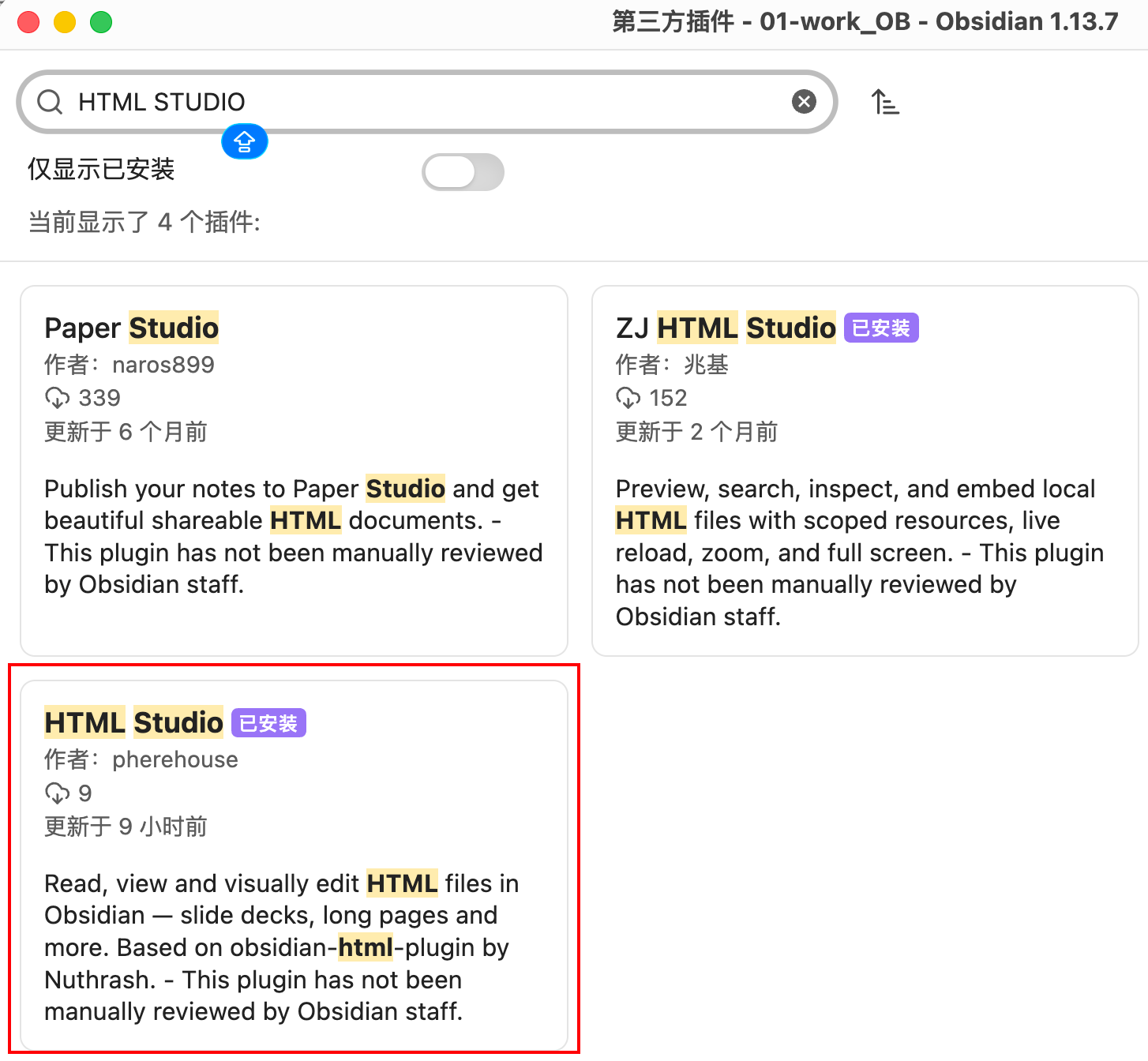
设置 → 第三方插件 → 社区插件市场,搜索 HTML Studio,点击安装并启用。
AI 安装
把下面这段话直接发给你的 AI 助手(Claude Code、Cursor、Copilot、Trae 等),让它替你装好:
帮我安装 Obsidian 插件 "HTML Studio":
1. 从 https://github.com/pherehouse/obsidian-html-studio/releases/latest 下载 zip
2. 解压后把 html-studio 文件夹放到 <我的仓库>/.obsidian/plugins/ 目录下
3. 告诉我如何在 Obsidian 设置里启用它
或者用 curl 一条命令(对 AI 最友好,单个文件):
curl -fsSL https://github.com/pherehouse/obsidian-html-studio/releases/latest/download/html-studio.zip -o /tmp/html-studio.zip
unzip -o /tmp/html-studio.zip -d <我的仓库>/.obsidian/plugins/
AI 只需下载一个 zip、解压到插件目录——几秒搞定,无需手动下载。
从 GitHub 手动安装
- 从 最新 release 下载
html-studio.zip。 - 解压到
<你的仓库>/.obsidian/plugins/—— 自动生成html-studio/文件夹。 - 在 设置 → 第三方插件 中启用 HTML Studio。
BRAT(推荐用于跟踪更新)
将本仓库添加到 BRAT,它会自动跟踪 release 更新。
兼容性说明
- 编辑与保存仅限桌面端(使用 Electron 原生对话框 API)。
- 在你显式保存之前,文件绝不会被修改。查看器本身是只读的。
致谢与许可
- 本项目由 pherehouse 开发维护。
- 基于 Nuthrash 的 obsidian-html-plugin —— 感谢其扎实的查看器基础、多模式渲染管线和 MHTML 支持。本 Fork 的新增内容:可视化编辑、智能幻灯片识别、母版合并保存、链接拦截、默认浏览器移交,以及
position:fixed修复。 - 感谢 Obsidian 社区的反馈与灵感。
以 MIT License 开源,并遵循上游许可协议。
HealthExcellent
ReviewCaution
About
Open and view .html, .htm, and .mhtml files inside Obsidian with a sandboxed renderer and selectable security levels. Click to edit text and images in place, save edits back to your vault, and render slide decks and long-form pages correctly.Details
Current version
2.1.1
Last updated
2 weeks ago
Created
2 weeks ago
Updates
7 releases
Downloads
65
Compatible with
Obsidian 1.8.7+
Platforms
Desktop only
License
MIT