Heading to Note
 Carlos J Barroso29 downloads
Pick a heading and turn its section, with all of its subsections, into a new note, leaving a link behind.
- Overview
- Scorecard
- Updates4
An Obsidian plugin that takes a heading in your note and moves its whole section — the heading plus every subsection under it — into a new note, then leaves a link where the section used to be.
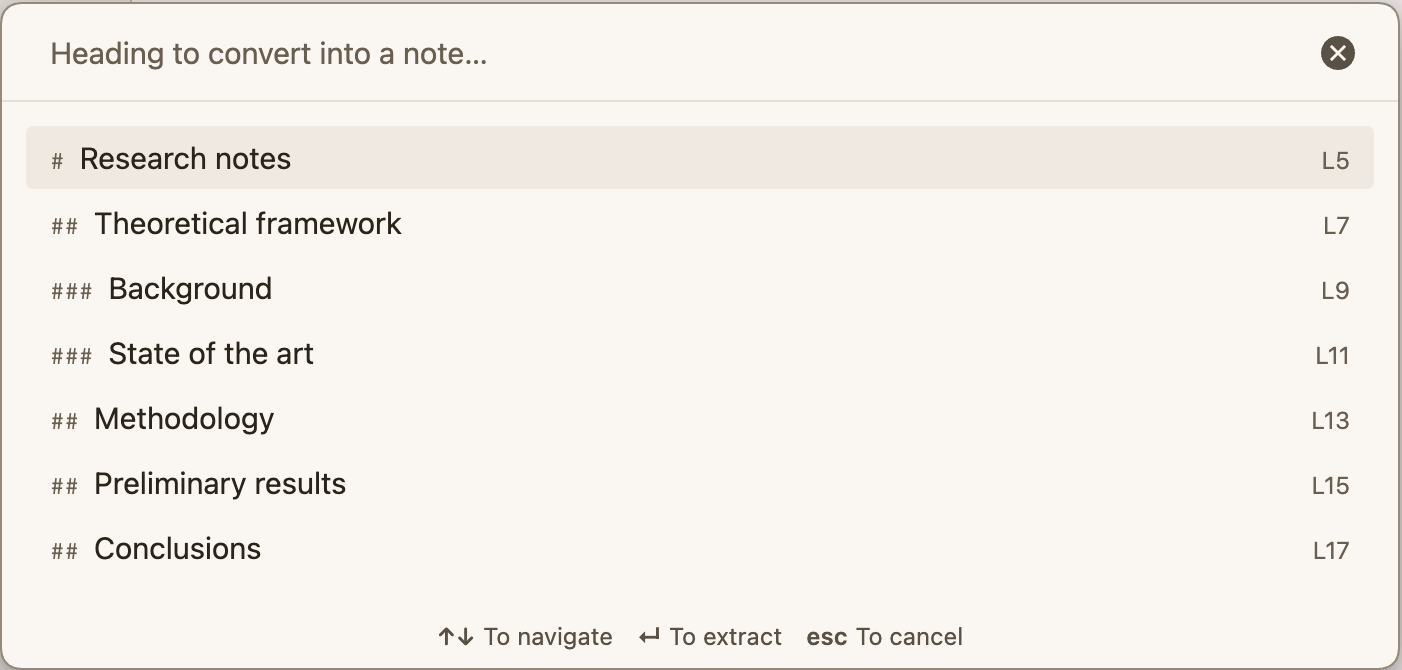
Built for a Zettelkasten / PKM workflow where a section of a long note turns out to deserve a note of its own.
Installation
Heading to Note is in the official community plugin directory, so you can install it without leaving Obsidian:
- Open Settings → Community plugins → Browse.
- Search for Heading to Note.
- Select Install, then Enable.
That's the whole install. When a new version is published, Obsidian offers you the update.
Beta versions
Releases are published on GitHub before they reach the directory. To run those early versions, install BRAT and point it at the repository:
- In Obsidian, open Settings → Community plugins → Browse.
- Search for BRAT (
Obsidian42 - BRAT), then Install and Enable it. - Open the command palette (
Ctrl/Cmd + P) and runBRAT: Add a beta plugin for testing. - Paste this repository:
cjbarroso/obsidian-heading-to-note - Select Add Plugin, then enable Heading to Note in Settings → Community plugins.
BRAT only needs the repository name — no build step, no manual file copying. You don't need BRAT if you installed from the directory: both manage the same plugin folder.
Manual installation
If you would rather not use the directory, or you are setting up a vault offline, copy the three release files yourself:
- Download
main.js,manifest.jsonandstyles.cssfrom the latest release. - Create the folder
<your-vault>/.obsidian/plugins/heading-to-note/if it does not exist. - Put the three files inside that folder.
- Reload Obsidian (
Ctrl/Cmd + R, or quit and reopen). - Go to Settings → Community plugins → Installed plugins and enable Heading to Note.
If the plugin does not show up, check that Restricted mode is off and that the folder is named
exactly heading-to-note (the folder name must match the id in manifest.json).
From source
There is no build step: main.js is plain CommonJS and loads directly.
git clone https://github.com/cjbarroso/obsidian-heading-to-note.git
cp main.js manifest.json styles.css "<your-vault>/.obsidian/plugins/heading-to-note/"
Usage
Three ways to run it:
| Where | Command |
|---|---|
| Command palette | Convert a heading into a new note — opens a searchable list of every heading in the note |
| Command palette | Convert the current section into a new note — uses the heading that contains the cursor |
| Editor right click | Convert section into a new note |
What it does
- Finds the heading and its subtree: everything up to the next heading of the same or a higher level. Headings inside code fences and inside the frontmatter are ignored.
- Creates the new note, named after the heading. If that name is taken, it appends
1,2, … - Copies the frontmatter of the source note, minus the excluded properties.
- Replaces the moved section in the source note with a link to the new note, and saves the file immediately instead of waiting for Obsidian's deferred autosave.
- Rewrites links across the vault that pointed at the moved headings:
[[Source#Section]]→[[New note#Section]], keeping aliases and block references intact.
Settings
Settings → Heading to Note
| Setting | Default | Description |
|---|---|---|
| Destination folder | (empty) | Empty means the folder of the source note. A path that does not exist is created. The field autocompletes the folders in the vault. |
| Open the new note | on | Opens the extracted note in a new tab. |
| Inherit frontmatter | on | Copies the source note's properties. |
| Excluded properties | id, aliases |
Properties that are never copied (keeps a Zettelkasten id from being duplicated). |
| Keep the heading line | on | Off: the new note starts directly with the section body. |
| Leave a link | on | Off: the section disappears with no trace. |
| Link format | Wikilink | Or a callout: > [!abstract] Extracted to [[New note]]. |
| Update incoming links | on | Rewrites links elsewhere in the vault. |
Languages
The interface follows the language configured in Obsidian: English by default, Spanish when the app is in Spanish. The callout left behind in the source note uses the same language.
Notes and limitations
- Editor only: if the note is in reading view, the commands are unavailable.
- Only Markdown files.
- Links inside the moved text that point to headings that stayed behind are not rewritten.