Harpoon
 rodrez4k downloads
Use shortcuts to manage and navigate your top four frequently-used files.
- Overview
- Scorecard
- Updates8
An Obsidian plugin to manage and quickly navigate to your favorite files. This is a port of Harpoon (github.com/theprimeagen/harpoon) plugin for Obsidian.
If you find value in this plugin, I'd greatly appreciate it if you could show your support by giving a star to this repository. Alternatively, if you're feeling generous, you can also treat me to a coffee using the link below. Your contribution means a lot and helps in further development. Thank you!
Installation
Note: This assumes that you're already familiar with installing Obsidian plugins.
- Download the Harpoon Plugin
- Install it in your Obsidian vault as you would with any other plugin.
Inital Setup
I recommend for you to use your favorite keybindings to add/navigate files. After installation, the plugin will create a default configuration file named harpoon-config.json in your vault.
Usage
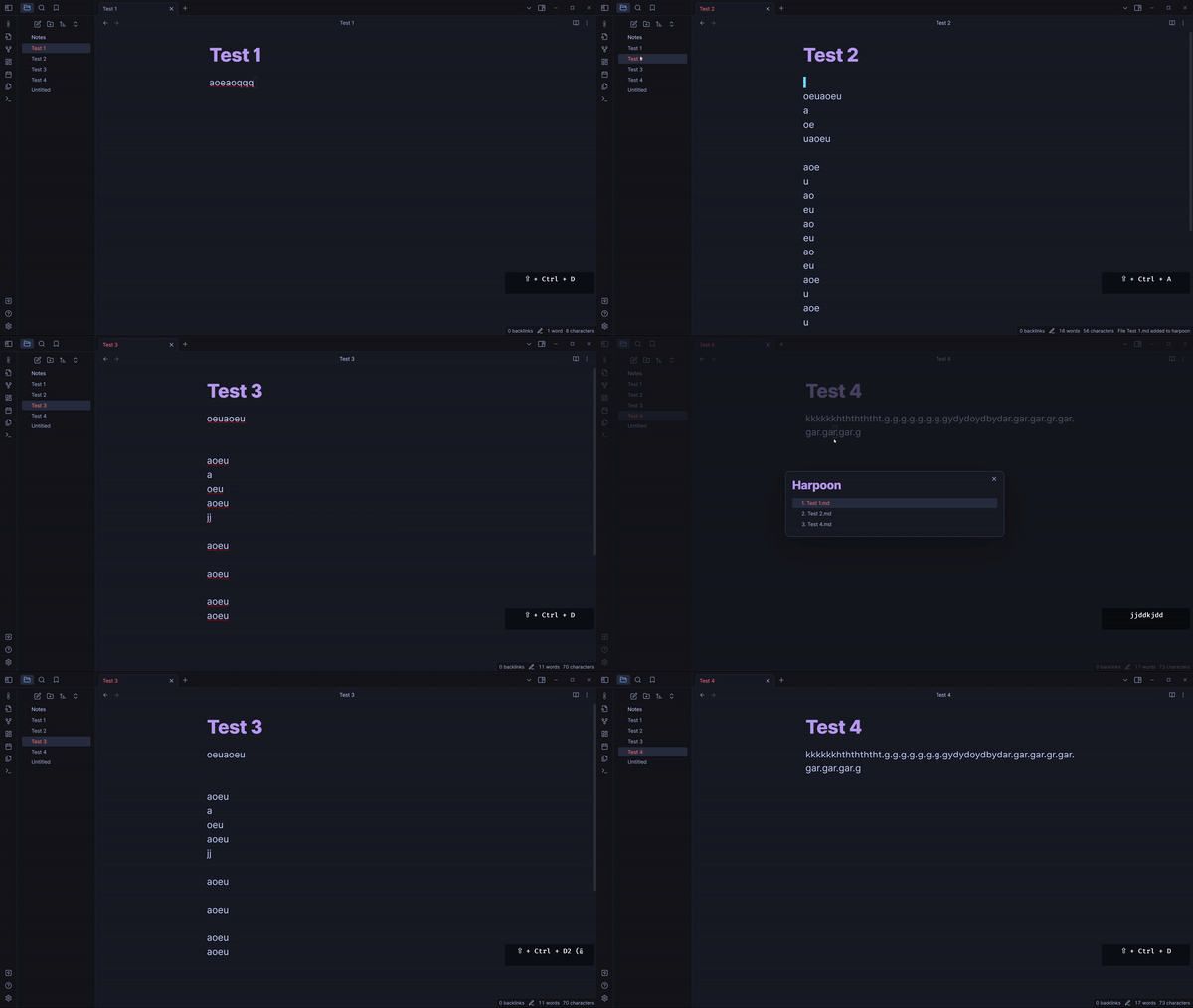
- Open File List: This command opens a modal that lists the files you've hooked with Harpoon.
- Add File to List: Add the currently active file to the Harpoon list. Note: There's a limit of 4 files that can be added.
- Go To File: You can use one of the Go To File x commands (where x is a number from 1 to 4) to quickly jump to one of your hooked files.
Keyboard Shortcuts
Ctrl + Shift + D: Opens the modal.
While the Harpoon modal is open:
Ctrl + Shift + D: Close the modal.
Enter: Choose the file corresponding to the currently highlighted index.
dd: Quickly press twice to remove a file from the list.
p: Insert the last removed file just after the currently highlighted file.
Shift + p: Insert the last removed file just before the currently highlighted file
ArrowDown or J: Navigate downwards in the list. ArrowUp or K: Navigate upwards in the list.
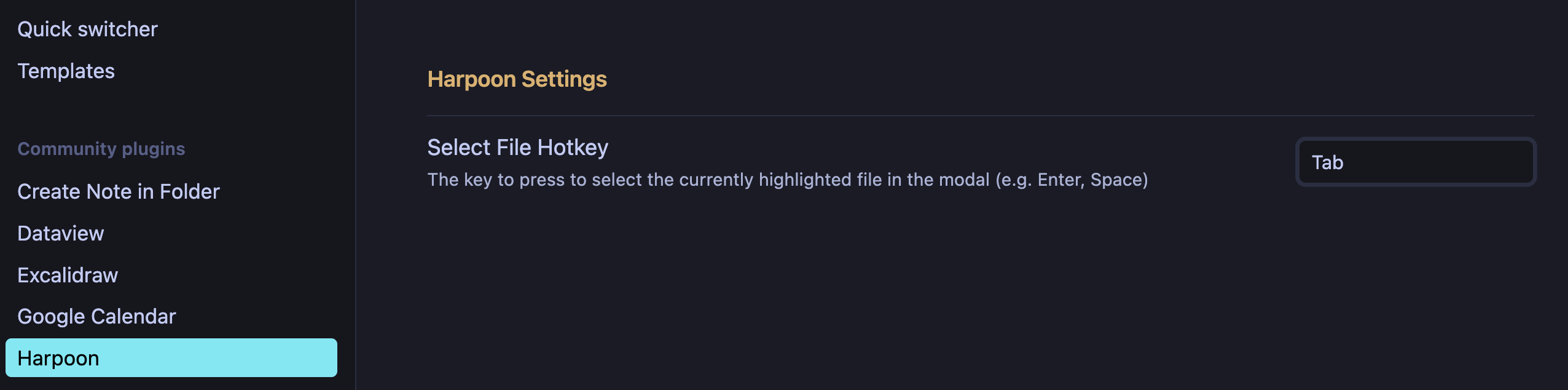
Note: You can change the keybindings in the plugin settings for selectFileHotkey. Instead of Enter, you can use any keybinding you want.
Tips
- Make sure not to manually delete the harpoon-config.json unless you're sure about it. It holds the configuration and list of hooked files for the plugin.
- The plugin is designed for quick navigation, so make use of keyboard shortcuts for efficient usage.
Todos
- Add scroll to pos (includes on initial load/refresh)
- Add adjustable keybindings for Harpoon Modal? (maybe)