
- Overview
- Scorecard
- Updates9
Preview GLSL shaders on Obsidian.
Features
Shadertoy Compatibility (Limited)
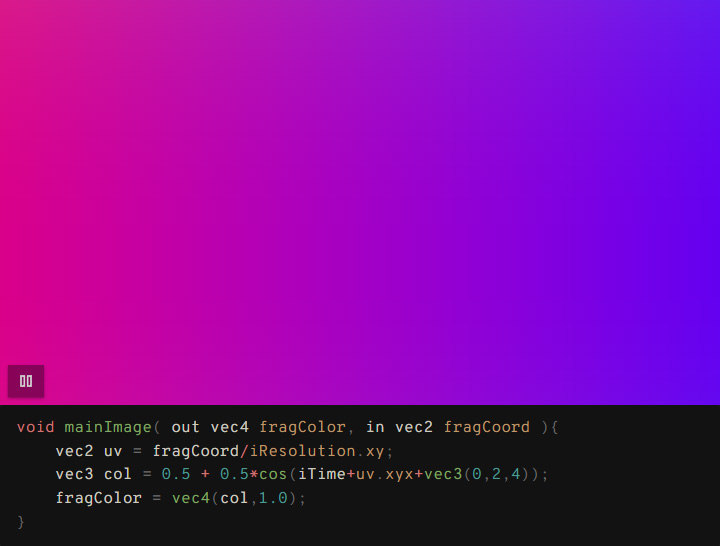
Same syntax as Shadertoy - easily port your creations and reuse code snippets between platforms
Custom Textures
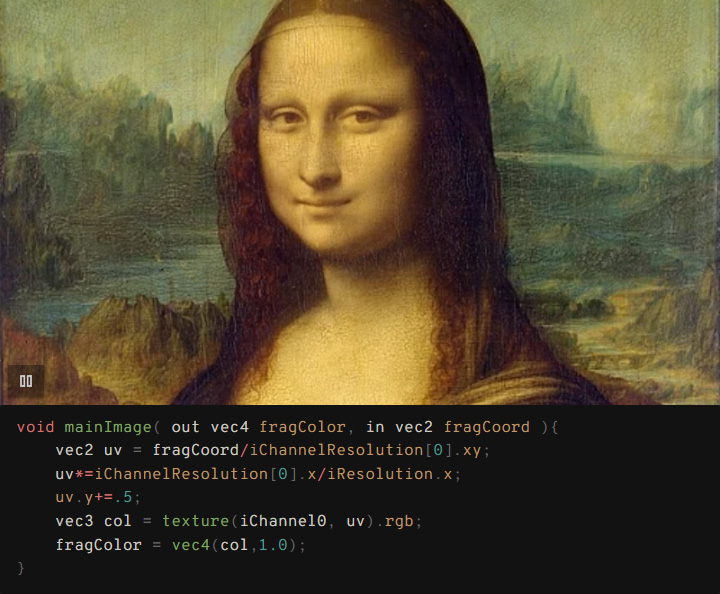
Load images from your vault as textures (iChannel0-3)
Template System
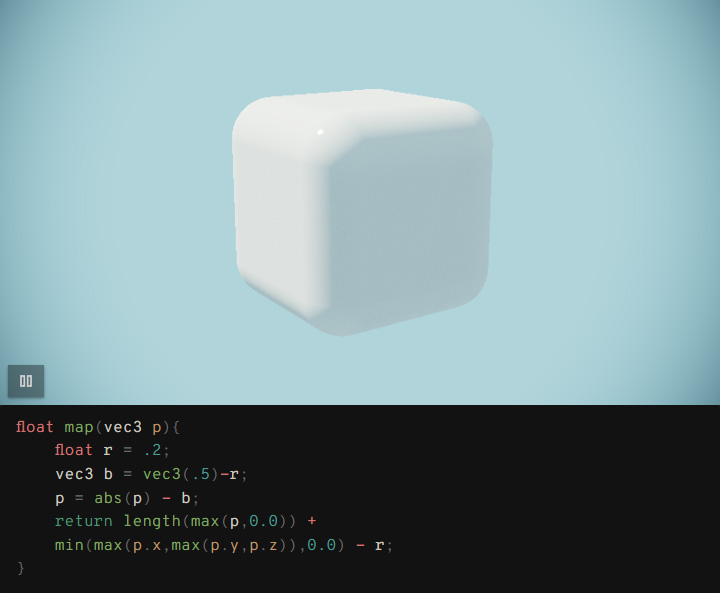
Use templates to simplify complex shaders - write minimal code, get maximum results
And more
- 📸 Thumbnail generation: Automatic thumbnails for non-autoplay shaders
- ⚙️ Configurable canvas ratio, autoplay, and code visibility
- 🔧 Flexible configuration using comments in code blocks
- 🎯 Texture shortcuts: Quick reference to frequently used textures
- 📁 Texture browser: Visual texture selection with folder filtering
- 🙈 @hideCode: Show only the viewer or with code
- 📁 Configurable folders: Set custom locations for templates and thumbnails
- 🎯 Works with syntax highlighters: No conflicts with other code plugins (Shiki Highlighter)
Installation
- Copy this plugin to your Obsidian plugins folder
- Enable the plugin in Obsidian settings
Usage
Use standard glsl code blocks with @viewer directive:
Directive Styles:
Single-line comments:
```glsl
// @viewer
// @aspect: 0.75
// @autoplay: true
void mainImage(out vec4 fragColor, in vec2 fragCoord) {
    vec2 uv = fragCoord / iResolution.xy;
    vec3 col = 0.5 + 0.5 * cos(iTime + uv.xxy + vec3(0, 2, 4));
    fragColor = vec4(col, 1.0);
}
```
Multi-line comments:
```glsl
/*
@viewer
@aspect: 0.75
@autoplay: true
@hideCode: true
@iChannel0: assets/texture.png
*/
void mainImage(out vec4 fragColor, in vec2 fragCoord) {
    vec2 uv = fragCoord / iResolution.xy;
    vec3 col = 0.5 + 0.5 * cos(iTime + uv.xxy + vec3(0, 2, 4));
    fragColor = vec4(col, 1.0);
}
```
Basic Example
```glsl
// @viewer
void mainImage(out vec4 fragColor, in vec2 fragCoord) {
    vec2 uv = fragCoord / iResolution.xy;
    vec3 col = 0.5 + 0.5 * cos(iTime + uv.xxy + vec3(0, 2, 4));
    fragColor = vec4(col, 1.0);
}
```
Setting Example
```glsl
// @viewer
// @aspect: 1.0
// @autoplay: true
// @iChannel0: assets/images/texture.jpg
// @hideCode: true
void mainImage(out vec4 fragColor, in vec2 fragCoord) {
    vec2 uv = (fragCoord-iResolution.xy*.5) / iResolution.y;
    uv+=vec2(sin(iTime),cos(iTime));
    vec3 texColor = texture(iChannel0, uv * 2.0).rgb;
    vec3 col = texColor;
    fragColor = vec4(col, 1.0);
}
```
Template Example
Templates enable the creation of complex shader patterns with minimal code.
Create custom templates in your configured templates folder (default: GLSL Templates/).
Share complex setups across multiple shaders.
```glsl
// @viewer
// @template: raymarching.glsl
vec4 map(vec3 p) {
    float d = length(p) - .5;  // Sphere distance function
    return vec4(d, COL_S2);     // Return distance and material color
}
```
Using Textures
Three ways to specify textures:
- Shortcuts:
tex1(configured in settings) - Filenames:
wood.png(when Texture Folder is set) - Full paths:
images/wood.png(relative to vault root)
Texture Shortcuts
Create shortcuts for frequently used textures in plugin settings.
Shortcuts are always relative to your Texture Folder setting:
```glsl
// @viewer
// @iChannel0: tex1      // Uses shortcut 'tex1' → {TextureFolder}/wood.png
// @iChannel1: noise     // Uses shortcut 'noise' → {TextureFolder}/noise.jpg
void mainImage(out vec4 fragColor, in vec2 fragCoord) {
    vec2 uv = fragCoord / iResolution.xy;
    vec3 tex = texture(iChannel0, uv).rgb;    // wood texture
    vec3 n = texture(iChannel1, uv).rgb;      // noise texture
    fragColor = vec4(mix(tex, n, 0.5), 1.0);
}
```
Configure shortcuts in Settings → GLSL Viewer → Texture Shortcuts
Configuration Options
Comment Settings
| Setting | Description | Default |
|---|---|---|
@viewer |
Enable viewer for glsl code blocks |
- |
@aspect: number |
Canvas aspect ratio (height/width) | 0.5625 |
@autoplay: true/false |
Auto-start animation | false |
@hideCode: true/false |
Hide code block, show viewer only | false |
@template: filename |
Use template from templates folder | - |
Note: @viewer directive is required only for glsl code blocks. glsl-viewer blocks are always processed.
Available Uniforms
vec3 iResolution- Screen resolution ✅float iTime- Elapsed time ✅float iTimeDelta- Frame delta time ✅int iFrame- Frame number ✅vec4 iMouse- Mouse position (Shadertoy-compatible) ✅vec4 iDate- Date info (year, month, day, seconds) ✅sampler2D iChannel0-3- Textures ✅vec3 iChannelResolution[4]- Texture resolutions (width, height, 1.0) ✅
Technical Details
- Shader Type: Fragment shaders only
- Entry Point:
mainImage(out vec4 fragColor, in vec2 fragCoord) - Textures: Load images from anywhere in your vault with flexible path resolution
- Templates: Custom templates with
@TEMPLATE_LINESplaceholder replacement - Thumbnails: Auto-generated for non-autoplay shaders, stored in configurable folder
- Texture Folder: Serves as base directory for relative texture paths and shortcuts
Plugin Settings
Access via Settings → Community plugins → GLSL Viewer:
Display Settings:
- Default Aspect Ratio: Canvas ratio for new shaders
- Default Autoplay: Whether new shaders auto-start by default
- Default Hide Code: Whether to hide code blocks by default
Folders: (in setup priority order)
- Thumbnails Folder: Where generated thumbnails are stored (default:
GLSL Thumbnails) - Texture Folder: Base folder for texture paths and browsing (optional)
- Templates Folder: Where GLSL templates are stored (default:
GLSL Templates)
Texture Shortcuts:
- Create shortcuts for frequently used textures (e.g.,
tex1,noise) - All shortcuts are relative to the Texture Folder setting
Creating Templates
- Create a
.glslfile in your Templates Folder (default:GLSL Templates/) - Use
@TEMPLATE_LINESwhere your code should be inserted - Reference with
// @template: filename.glsl
Development
npm install
npm run dev    # Development mode
npm run build  # Production build
License
MIT License
Compatibility
- Obsidian: v1.0.0+
- Shiki-highlighter