GitHub Image Uploader
 zhaohongxuan336 downloads
Upload images to GitHub when pasting. Choose between cloud hosting on GitHub or local storage.
- Overview
- Scorecard
- Updates5
Obsidian 图片上传插件。复制图片后直接粘贴,自动上传到 GitHub 或保存到本地,让笔记中的图片管理变得简单。
主要功能
粘贴即上传
复制图片后按 Ctrl+V 或 Cmd+V,弹出上传确认框,选择存储位置后自动处理并插入 Markdown 链接,支持压缩保存/上传。
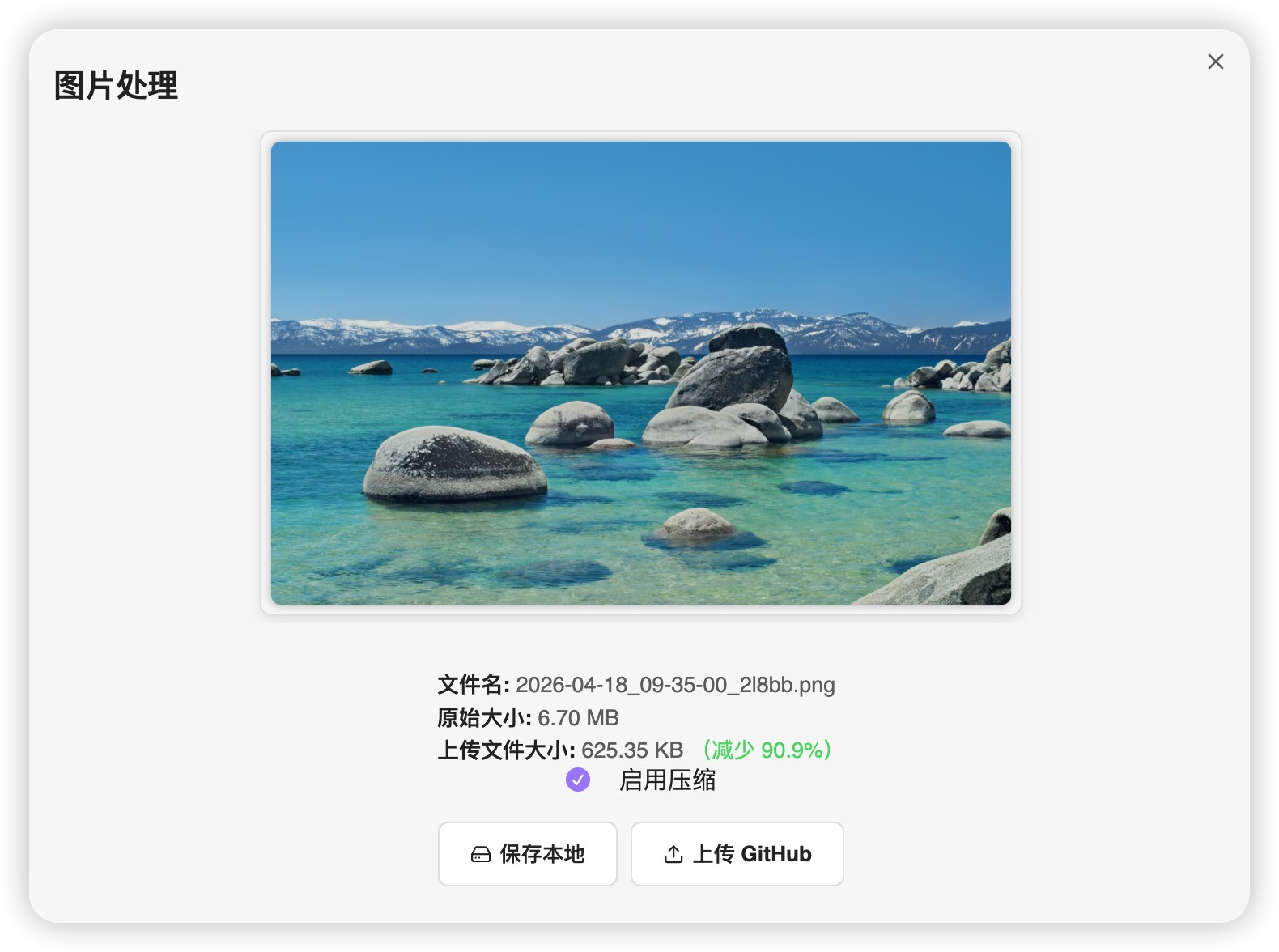
GitHub 图床
将图片上传到指定的 GitHub 仓库,生成永久有效的原始文件链接。
本地存储
图片可保存到 Vault 本地文件夹,使用相对路径,完全离线可用。
统一图库
在插件提供的图库视图中,可以集中浏览和管理所有图片:
- 本地图片和 GitHub 图片统一展示
- 点击图片查看详情,支持复制链接或删除
- 本地图片可直接上传到 GitHub,并自动替换笔记中的引用
- 显示每张图片被哪些笔记引用
安装
方式一:BRAT 插件(推荐)
安装 BRAT 插件
- 打开 Obsidian 设置 → 社区插件
- 搜索 "BRAT" 并安装
- 启用 BRAT 插件
添加 GitHub Image Uploader 到 BRAT
- 设置 → 插件选项 → BRAT → Add a beta plugin for testing
- 输入仓库地址:
https://github.com/zhaohongxuan/obsidian-github-image-uploader - 点击 "Add Plugin"
启用插件
- 设置 → 社区插件
- 找到 "GitHub Image Uploader" 并启用
方式二:手动安装
- 下载最新版本
- 解压到 Vault 的
.obsidian/plugins/github-image-uploader/目录 - 重启 Obsidian,启用插件
快速开始
准备 GitHub 令牌
- 访问 GitHub 令牌设置页面,创建精细化令牌
- 勾选仓库权限 → 内容(Contents)→ 读取和写入
- 生成并保存令牌
配置插件
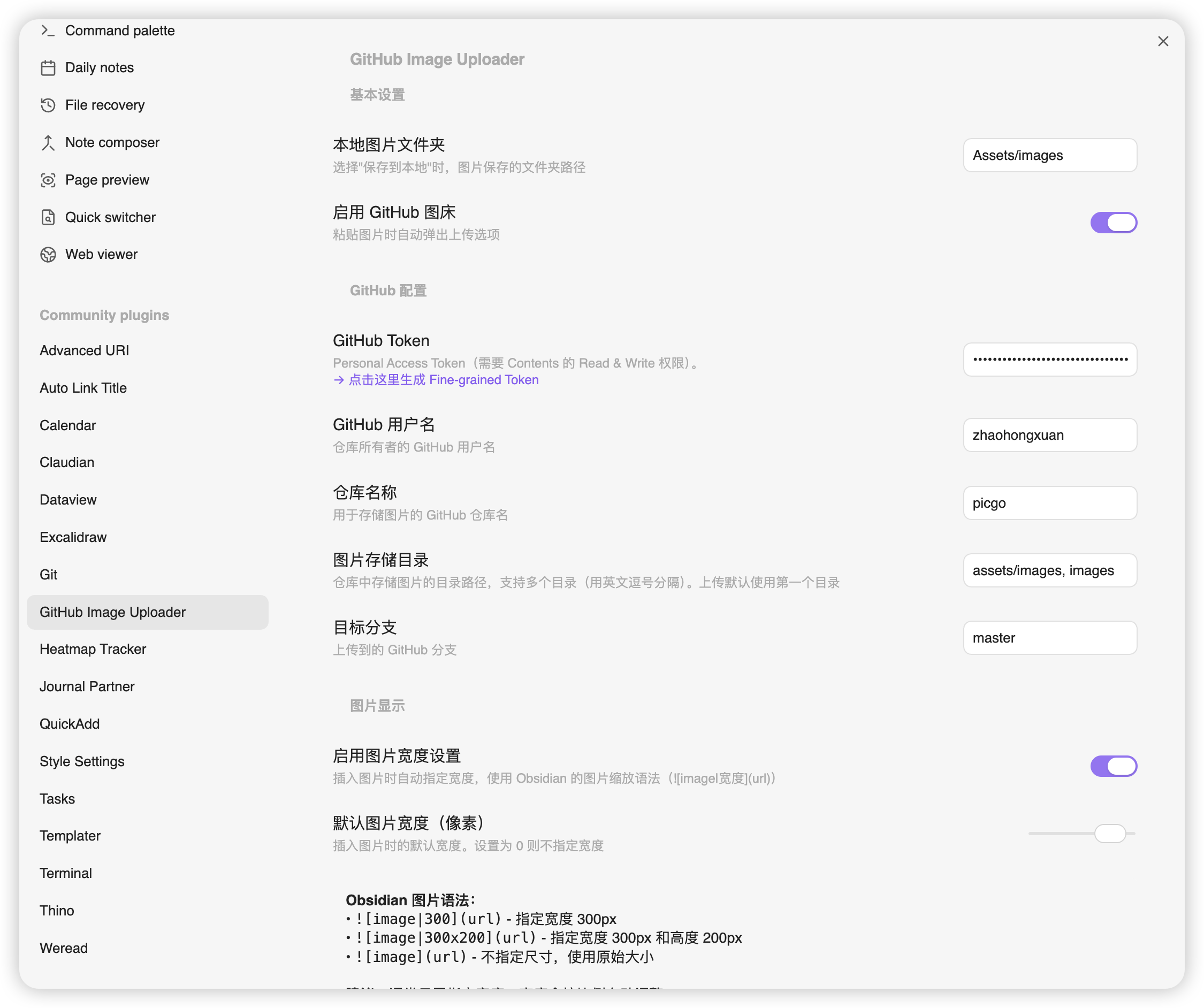
在设置 → 插件选项 → GitHub Image Uploader 中填写:
- GitHub 令牌
- GitHub 用户名
- 仓库名称
- 存储目录
- 目标分支
- 本地文件夹路径
开始使用
复制图片后粘贴,选择上传到 GitHub 或保存本地,完成后自动插入 Markdown 格式的图片链接。
工作流程
上传流程
- 检测到粘贴动作
- 弹出确认框显示图片预览
- 选择存储位置(GitHub / 本地)
- 自动处理并插入链接
图库管理流程
- 打开 Ribbon 打开图片库,或者打开命令窗口输入:打开图片库
- 浏览所有图片
- 点击图片查看大图和引用该图片的笔记列表
- 对本地图片可选择上传到 GitHub 并自动替换笔记中的引用
常见问题
上传失败
- 检查令牌权限是否包含仓库内容读写
- 确认用户名、仓库名、目录配置正确
- 确保网络连接正常
图片不显示
- GitHub 图片检查链接是否正确
- 本地图片确认路径相对于 Vault 根目录正确
开发
# 克隆项目
git clone https://github.com/zhaohongxuan/obsidian-github-image-uploader.git

# 安装依赖
npm install

# 开发模式
npm run dev

# 生产构建
npm run build
反馈和问题欢迎到 GitHub Issues 提交,也欢迎提交 PR。
MIT License
HealthExcellent
ReviewRisks
About
Paste images to upload them to a configured GitHub repo or save them into your Vault, inserting ready-to-use Markdown image links and optionally compressing files. Browse a unified gallery of local and GitHub images, preview and copy links, see which notes reference each image, delete items, and push local images to GitHub to auto-replace in-note references.Details
Current version
1.4.2
Last updated
Last month
Created
3 years ago
Updates
5 releases
Downloads
336
Compatible with
Obsidian 1.4.0+
Platforms
Desktop, Mobile
License
MIT