Gallery Navigator
 groundfic1k downloads
Visual vault navigator: folder/tag tree with a cover-image card wall, full-text search (including PDFs), image quick-look, and link preview cards.
- Overview
- Scorecard
- Updates5

Gallery Navigator
A visual way to browse your Obsidian vault: a folder/tag tree on the left, a masonry wall of cover-image cards on the right. Designed as a visual alternative to list-based file explorers.
Interface available in English and 繁體中文 (follows your Obsidian language setting, with a manual override in settings).
Screenshots
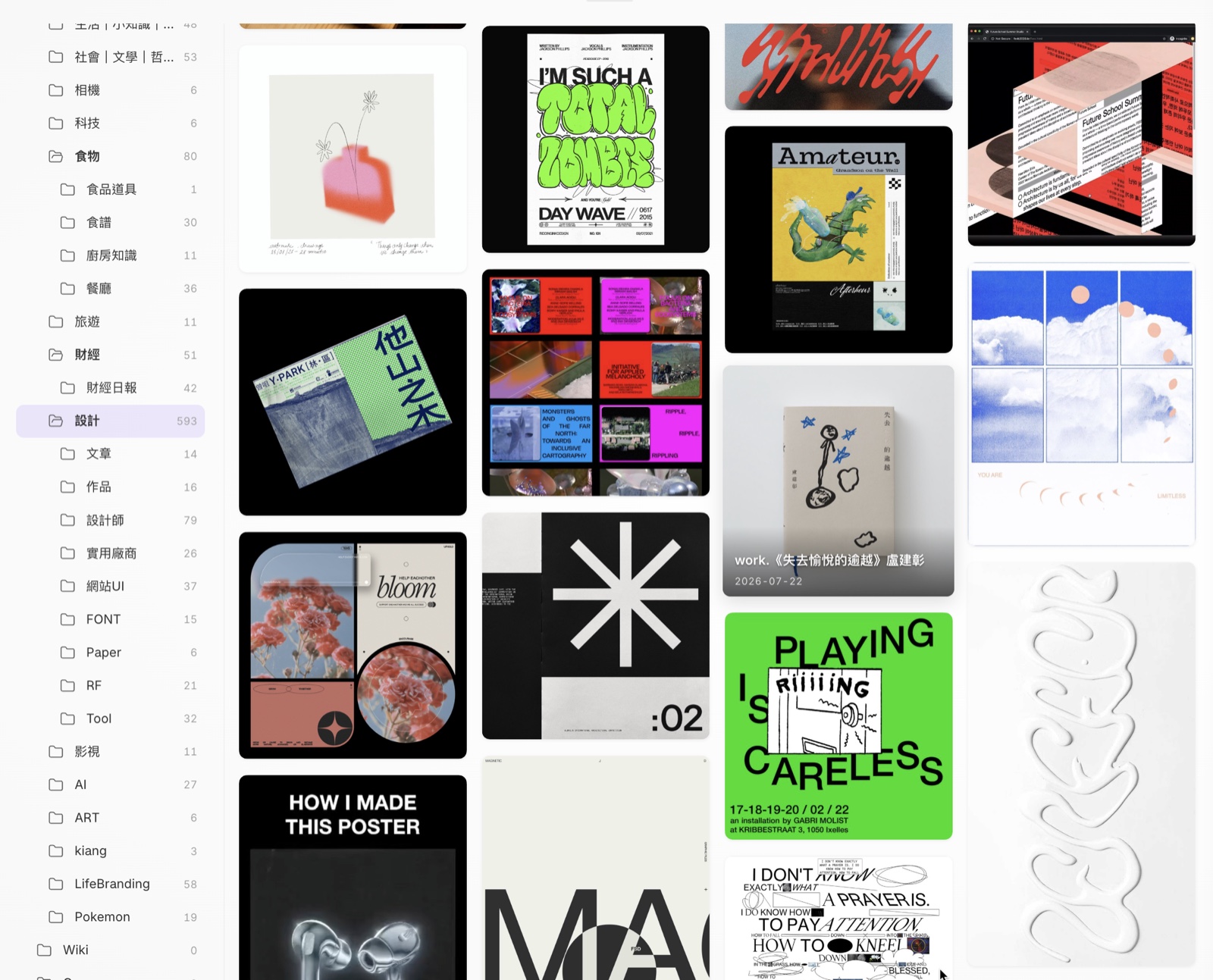
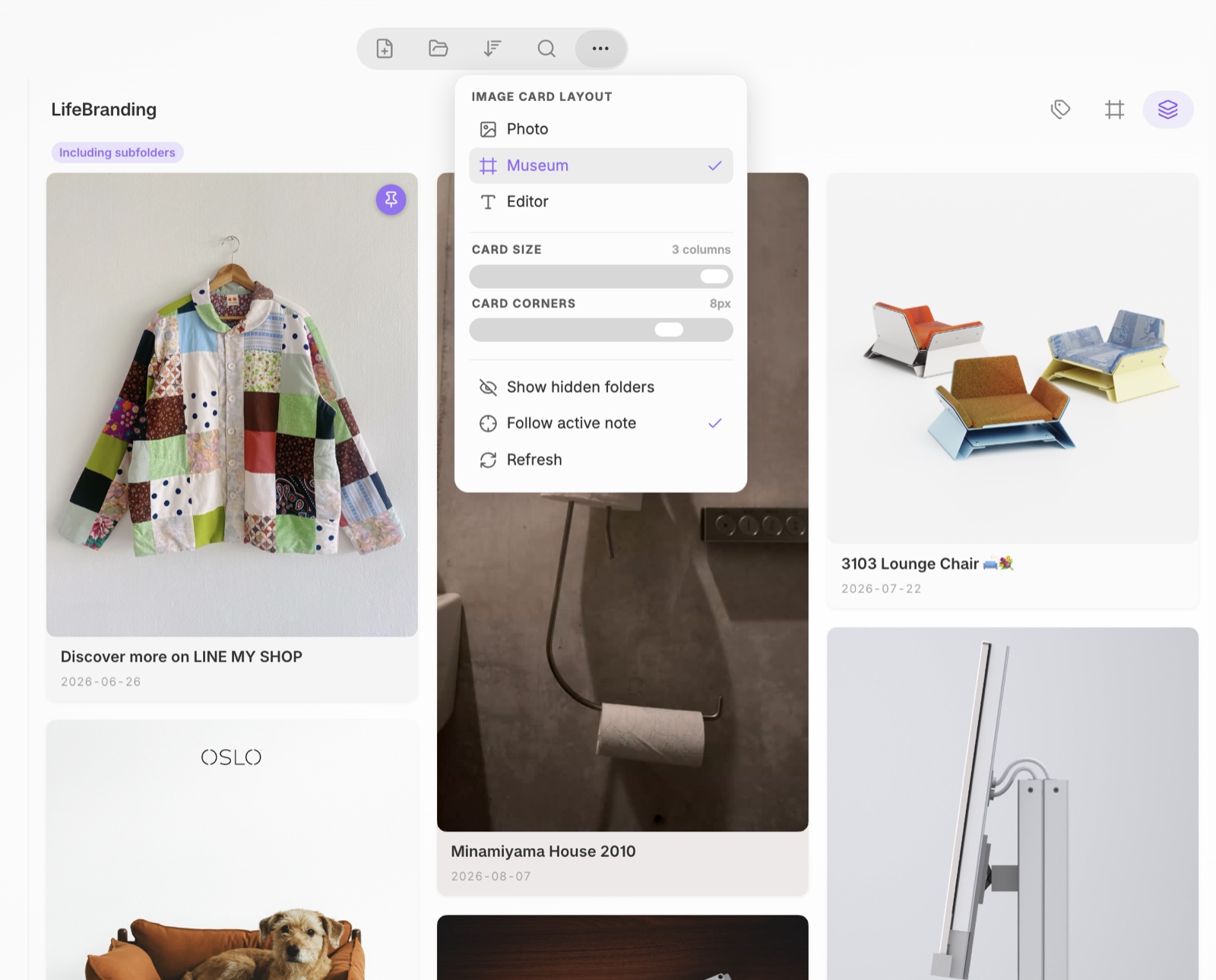
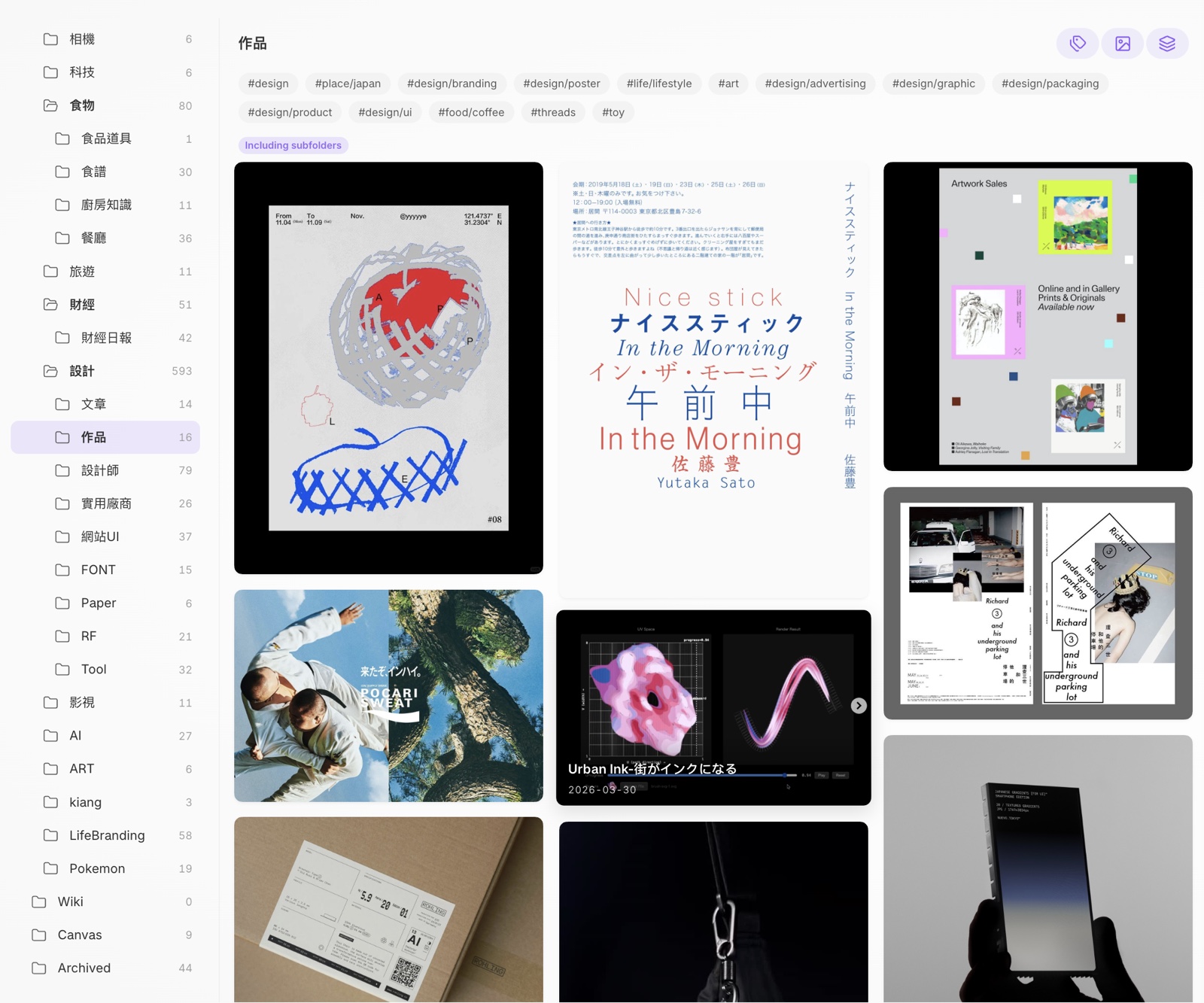
| Card wall | Tag tree | Search |
|---|---|---|
 |
 |
 |
[!TIP] These screenshots were taken with the Velocity theme — a good pairing if you want the card wall to look like the shots above. The plugin styles itself from Obsidian's CSS variables, so it follows whatever theme you use, in both light and dark mode.
Features
Card wall
- True JS masonry layout with lazy, chunked rendering (handles folders with thousands of files, mobile-friendly)
- Covers from
cover:frontmatter, first embedded image, image files themselves, PDF first pages, and web pageog:imagefor link notes - Pin cards to top, per-card background colors, multi-select with batch move / delete (optionally removing orphaned attachments) / copy-wiki-links
- Canvas and Base files render as cards too (Canvas uses its first embedded image as the cover when available)
Image card layouts
Three layouts, switchable any time from the toolbar's ⋯ More panel — they change how the title and date sit against the cover image:
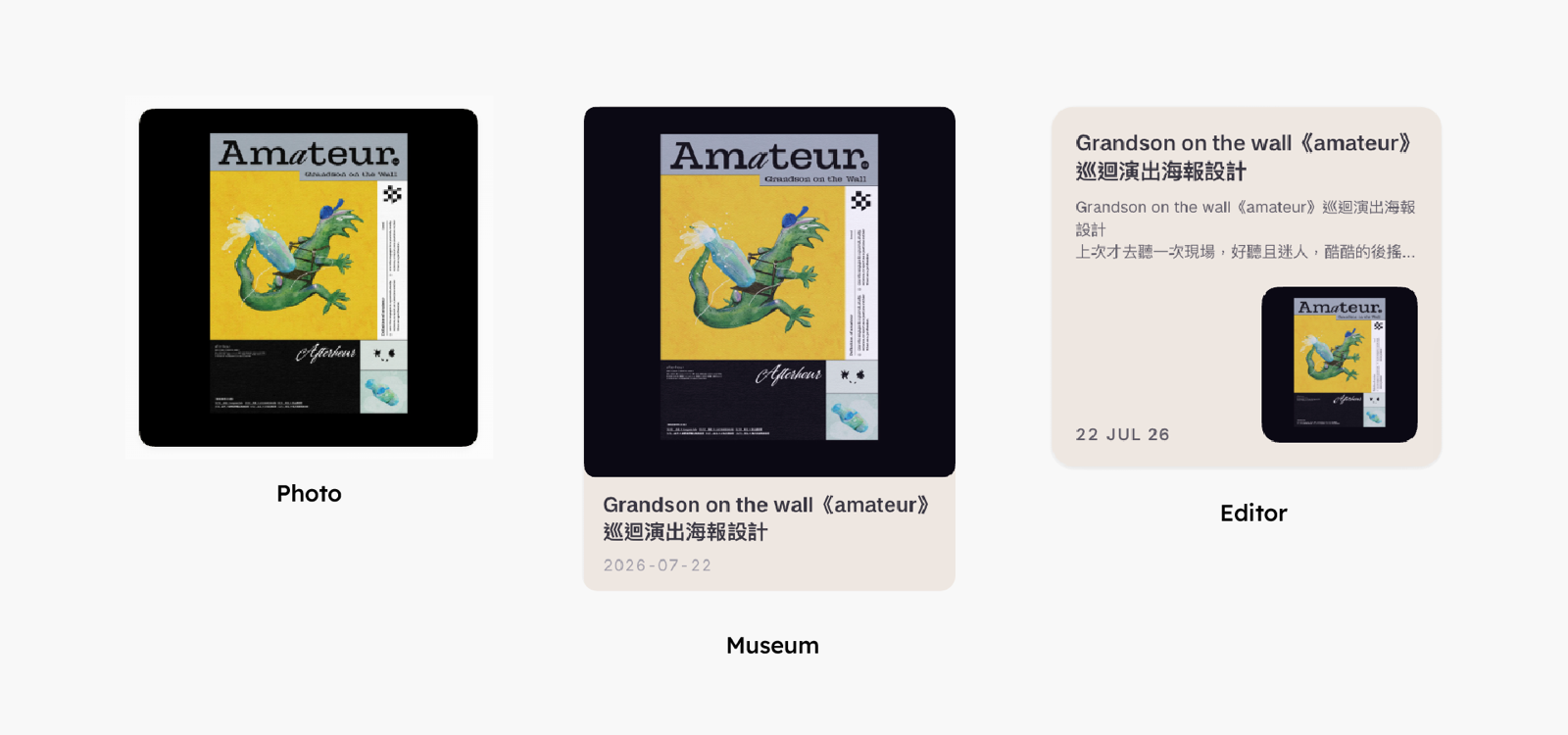
- Photo — the title is overlaid on the image itself, so a folder reads as one continuous sheet of photographs. Best for image-heavy collections where the picture is the content.
- Museum — the image sits on top with the caption below it, like a label beside an exhibit. Best when you want the covers to stay uncropped and still read the titles at a glance.
- Editor — a small thumbnail paired with a large date block and a text excerpt. Best for text-first browsing, where the note matters more than its cover.
Navigation
- Folder tree with drag-to-reorder, custom colors, hide/unhide, favorites, and inline rename
- Reordering on mobile: long-press a folder → Reorder folders, then drag the handle on the right of each row. The order is the same one the desktop uses, so it follows you across devices
- Right-click empty space in the folder pane to create a new top-level folder
- Multi-select folders for batch moves —
Cmd/Ctrl-click to add,Shift-click for a range, or Select multiple from the long-press menu on mobile. Drag any selected folder to move the whole batch - Renaming or moving a folder keeps its position in the tree, along with its color, icon, hidden state, favorite status, and layout
- Bear-style nested tag tree with an "untagged" node
- Follow mode: opening a note reveals it in the tree and card wall
- Mobile: side-by-side panes with finger-following swipe navigation
- Multi-device friendly: shared settings (folder order, colors, icons, pins, favorites…) are merged with whatever another device has written instead of overwriting it, and are picked up without restarting Obsidian. Per-device view state (current folder, expanded folders, pane width, card size) stays on each device
Full-text search
- Built-in BM25 index over all notes and PDFs (Chinese word segmentation + bigram fallback)
- Spotlight-style popup search (assignable hotkey) with thumbnails, highlighted matches, and context snippets
Shift+Entersends all results to the card wall- PDF text is read from the Text Extractor plugin's cache when available (optional dependency — file-name search works without it)
Extras (can be disabled individually)
- Image peek: Quick Look-style image preview with share/copy actions
- Link cards: bare URLs rendered as rich preview cards
- Clean links: strips tracking parameters (
utm_*,xmt,slof,fbclid,igsh,gclid…) from URLs — automatically on paste, from the editor right-click menu (one link, the selection, or the whole note), or by right-clicking a link card. Blacklist-based, so functional parameters like YouTube's?v=are never touched; extra/keep lists are configurable. Parameter stripping is entirely offline. Threads/Instagram/share/links hide their tracking code in the path instead, so expanding those to the real post URL is an opt-out network request (see below).
Network use disclosure
This plugin makes network requests only for the features below. Nothing is collected, tracked, or sent anywhere else; there is no telemetry.
| Feature | What is sent | To where |
|---|---|---|
| Link previews / link cards | GET requests for URLs found in your notes, to read og:image/metadata |
The sites your notes link to |
| Site icons on link cards | The domain name of each linked site | Google favicon service (www.google.com/s2/favicons) |
| Link cards for Instagram posts | The post URL being previewed, to read the author name and post text | Instagram's oEmbed endpoint (instagram.com) |
| Clean links — short link expansion (on by default, can be turned off) | A GET request for the threads.com/share/… or instagram.com/share/… link being expanded, to read its canonical URL |
Threads / Instagram |
About User-Agent headers. Metadata requests are sent with the User-Agent of a common browser or of a link-preview bot (facebookexternalhit, Slackbot-LinkExpanding), trying them in that order until one returns usable metadata. Some sites return 403 to a default User-Agent but serve og: tags to link-preview bots, so without this most cards would come back empty. This is the same mechanism chat apps such as Slack and iMessage use to render link previews, and only public metadata is read — no login, no credentials, no user data.
All caches (link previews, PDF thumbnails) are stored locally in the plugin folder.
What the plugin accesses
| Capability | Why it is needed |
|---|---|
Listing vault files (getFiles, getMarkdownFiles) |
The card wall and the folder/tag tree are built from the file list — the plugin has to know which files exist in order to show them. Nothing is sent anywhere; the list stays in memory. |
Reading files (cachedRead) |
To resolve a note's cover image, render the text excerpt on a card, and build the search index. |
Writing files (create, modify, rename, delete) |
Only in response to an explicit action: creating a note, renaming, moving, batch delete, and the "convert Canvas image to note" command. |
| Clipboard | Only for the copy actions you invoke — copy image, copy wiki-links for the selected cards, and cleaning a pasted URL. |
localStorage |
Obsidian's own language key is read to follow the interface language. Per-device view state (current folder, expanded folders, pane width, card size…) is stored through Obsidian's vault-scoped App.saveLocalStorage API, so it stays on the device and does not travel with sync; on Obsidian versions without that API it falls back to data.json. Everything else is stored through Obsidian's plugin data API (data.json). |
Install
Until this plugin is available in the community store, install manually:
- Download
main.js,manifest.json, andstyles.cssfrom the latest release - Copy them into
<your vault>/.obsidian/plugins/gallery-navigator/ - Enable Gallery Navigator in Settings → Community plugins
Or use BRAT with this repository.
[!IMPORTANT] Coming from Image Peek or Link Card Preview? Disable them first.
Both of my earlier standalone plugins are now built into Gallery Navigator as the Image peek and Link cards modules. Running either one alongside this plugin means the same work happens twice: two sets of document listeners, two cards rendered for the same URL, and two separate caches for the same downloads.
Their settings and caches are not carried over — link previews will simply be fetched again on first use. If you prefer, you can keep using the standalone versions and turn the matching module off here (Settings → Gallery Navigator → Image peek / Link cards).
Development
npm install
npm run dev        # build CSS once, then esbuild watch for JS
npm run dev:css    # watch the CSS parts only (handy while styling)
npm run build      # production bundle → main.js + styles.css
Source lives in src/. Both main.js and styles.css in the plugin root are build artifacts — don't edit them directly.
JS —
src/main.jsis the entry point, bundled by esbuild.CSS — Obsidian only loads a single
styles.css, but 3000 lines in one file is unmaintainable, so it is assembled from parts byscripts/build-css.mjs:Part Scope src/header.cssFile header comment src/gallery.css.gn-*— tree, card wall, toolbarsrc/peek.css.qp-*— image peeksrc/linkcard.css.lcp-*— link cardsOrder matters (later parts can override earlier ones). The build refuses to write
styles.cssif braces are unbalanced, so a truncated part fails loudly instead of silently breaking the stylesheet.UI strings —
src/i18n.js, English text as keys, with a zh-TW dictionary.
Releasing
npm run release 0.2.1      # bumps manifest/package/versions, builds, commits, tags
git push origin main && git push origin 0.2.1
Pushing the tag triggers .github/workflows/release.yml, which rebuilds from source, verifies the tag matches manifest.json, attaches build provenance attestations, and creates the release. Don't run gh release create by hand — assets uploaded that way can't be attested.
The version lives in three files (manifest.json, package.json, versions.json) and the release script keeps them in sync. versions.json maps each plugin version to its minimum Obsidian version, so users on older Obsidian builds still resolve to a compatible release.
Never re-tag a published version. Obsidian decides whether an update exists by comparing version numbers, so quietly replacing the assets of an existing release means installed users never receive the fix. Ship a new patch version instead.