Folder Tabulation
 speedarj767 downloads
Enables navigation between files in a folder via hotkeys and commands.
- Overview
- Scorecard
- Updates3
A simple plugin for Obsidian designed to help you with navigating your vault by enabling you to move through files in a single folder like they are tabs in a web browser.
Features
The plugin gives you the following:
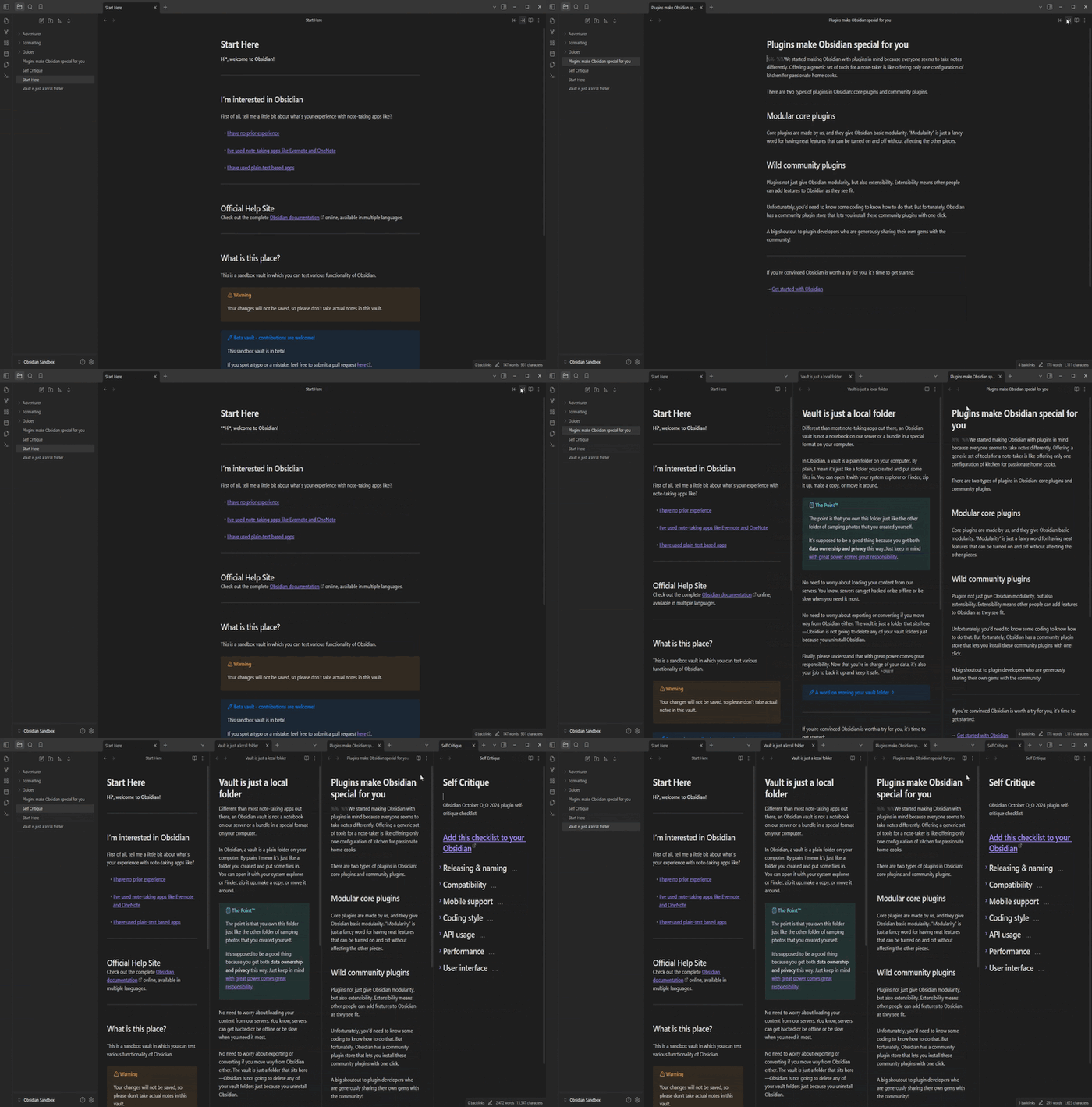
- Enables two new commands that let you move to the next and previous files in a folder relative to the current file.
- If you reach the end of the folder, the files will loop.
- You can choose weather you want the new files to be opened in the same tab, new tab, new pane, or new window (not supported on mobile).
- If a file is already open, it will be focused instead of opening a new one.
- The plugin add two buttons to the file bar above the editor, that enables you to cycle between the files.[^1]
- If you don't like the position of these buttons, you can disable them from the settings menu. I would recommend the Obsidian Commander plugin to place these buttons wherever you want if you want to move them.
Installation
I'm working on getting this plugin published on the Obsidian Plugin Store, as soon as I can.
In the meantime you can install it in one of the following ways.
BRAT
Use the Obsidian BRAT plugin and install it using the link to this repository:https://github.com/SpeedaRJ/obsidian_folder_tabulation
Manually
- Download the latest release files from the Releases page.
- Inside your Obsidian plugins folder (
%OBSIDIAN_HOME%/.obsidian/plugins/) create the folderobsidian_folder_tabulation. - Move the files to the created folder.
Alternatively, you can build the plugin yourself by downloading the source code (zip/tar.gz from the Releases page) and running npm i and npm run build inside the created folder after extracting the archive.
Known Issues
- You might need to restart Obsidian after installing the plugin for the buttons to appear.
- The plugin doesn't play well with pinned tabs. Otherwise it should work fine.
- Performance might be an issue on large vaults (don't quite know why).
- If a window is in the background, the plugin will not move it to the front.
Demo
Below is a demonstration of the plugin in action. I bound my hotkeys to the following key-bindings:
Ctrl + Shift + ]- Move to the next fileCtrl + Shift + [- Move to the previous file
[^1]: To change their color use CSS snippets, the default color is your Obsidian accents color.
If you find this plugin helpful and want to support me!