FlexiCal
 Kevin Cao335 downloads
A flexible calendar plugin for Obsidian to display the notes you want to see in a calendar view. You pick the filter and color, and FlexiCal will do the rest.
- Overview
- Scorecard
- Updates7
FlexiCal is a flexible calendar plugin for Obsidian that surfaces the notes you care about in a calendar view. You define one or more calendars, each with its own filter and color, and FlexiCal marks the days that have matching notes.
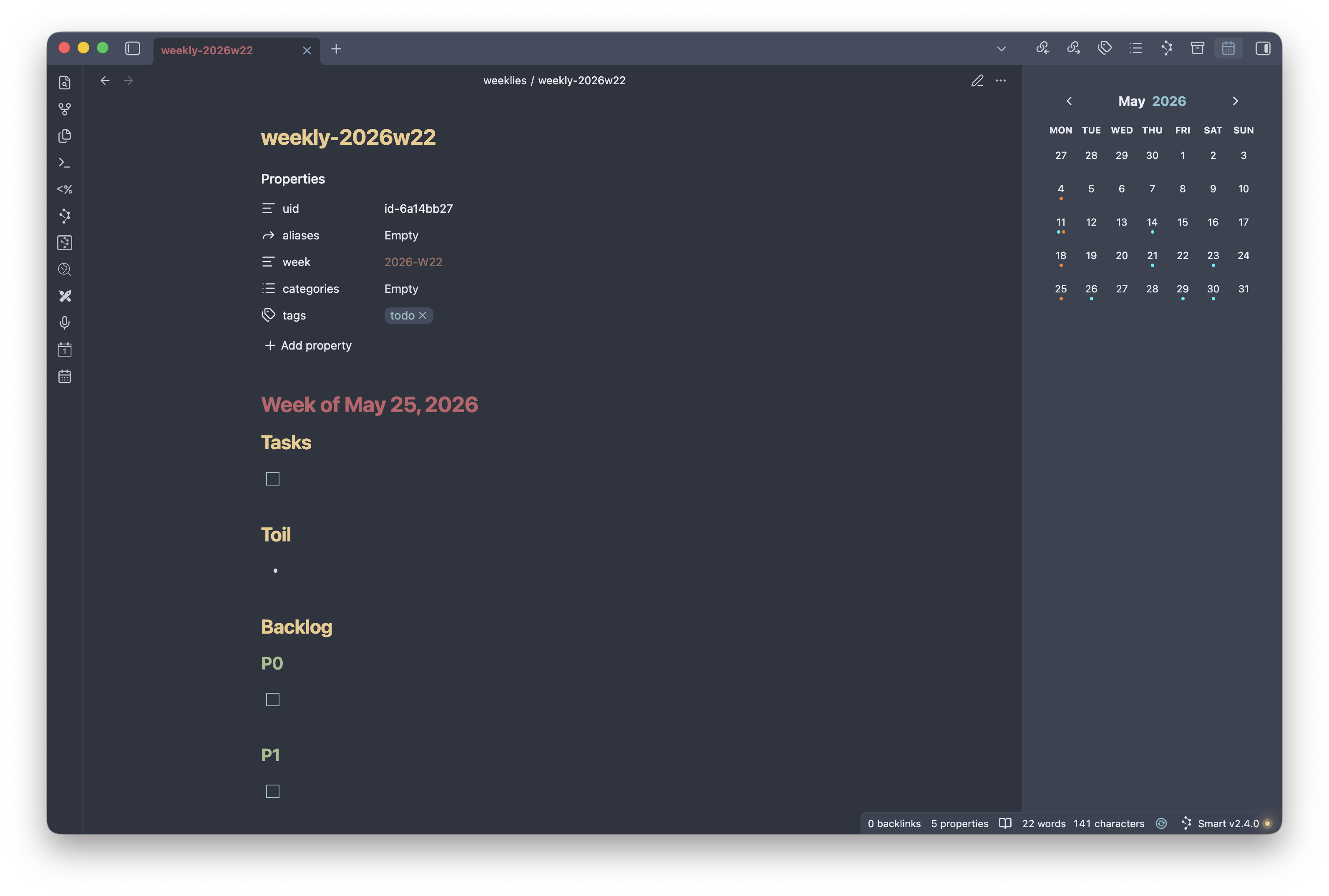
What it does
- Adds a calendar to the right sidebar (open it with the Show calendar ribbon icon).
- For every calendar you configure, FlexiCal scans your vault for notes whose frontmatter date falls in the month being viewed and that match the calendar's filter.
- Matching notes are shown as small colored dots on their day, using each calendar's color. Days with matches from multiple calendars show a dot per calendar, up to six dots per day.
- A note belongs to only one calendar: the first calendar (in the order listed in settings) whose filter and date field it matches. Reorder calendars to change which one claims a shared note.
- Click a day to open its notes. If a single note matches, it opens directly; if several match, a picker lets you choose.
- The view updates automatically as notes are created, modified, or deleted.
Configuration
Open Settings → FlexiCal to configure the plugin.
Calendars
This is the heart of FlexiCal. Use the + button next to the Calendars heading to add a calendar, and the trash icon on a calendar to remove it. The order calendars appear in matters: a note is claimed by the first calendar it matches, so list more specific calendars above more general ones. Each calendar has the following settings:
Name — A label for the calendar. Used only to identify it in settings.
Color — The color of the dots drawn for this calendar's matching notes.
Date field — The frontmatter property that holds a note's date (for example,
date). A note is placed on the day given by this field. Values may be a plain date (2026-06-14) or a full timestamp; dates are interpreted in UTC.Week field — Optional. The frontmatter property that holds a note's ISO week (for example,
2026-W33), for weekly notes. When a note has no value for the date field, FlexiCal falls back to this field and places the note on the Monday of that week.Filter — Optional. Restricts which notes this calendar includes. Click Edit filter to open the filter builder. Filters can be combined and nested:
- All of the following… — matches a note only if every child filter matches (AND).
- Any of the following… — matches if at least one child filter matches (OR).
- None of the following… — matches only if no child filter matches (NOT).
- Frontmatter property… — matches on a frontmatter property by type (text, number, date, checkbox, list, or tag), each with type-appropriate operators (such as contains, equals, greater/less than, or regex).
- File path… — matches notes whose path fits a glob pattern (for example,
journal/*.md).
With no filter, a calendar includes every note that has a value for its date (or week) field and hasn't already been claimed by an earlier calendar.
Debug mode
Enables verbose logging to the developer console. Leave this off for normal use; turn it on only when troubleshooting.