Flashcards MD
 sreegjl88 downloads
Write flashcards in your notes, including multiple-choice and typed-answer cards, and study them in a flip-card view or right in the note.
- Overview
- Scorecard
- Updates2
Flashcards MD
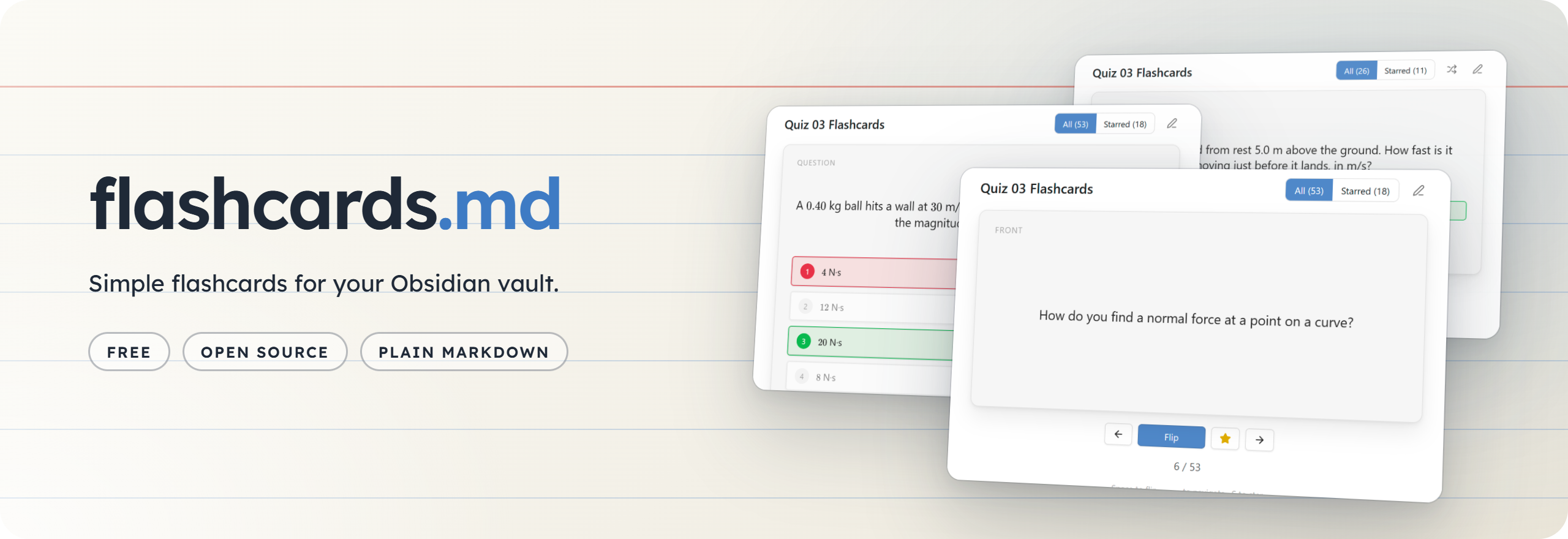
An Obsidian plugin for writing flashcards in your notes, including multiple-choice and typed-answer cards. Study them in a flip-card view, or right in the note with inline cards.
Writing cards
Each flashcard code block is one card:
```flashcard
front: What is the capital of France?
back: Paris
```
- Values can run over several lines. Any line that doesn't start with
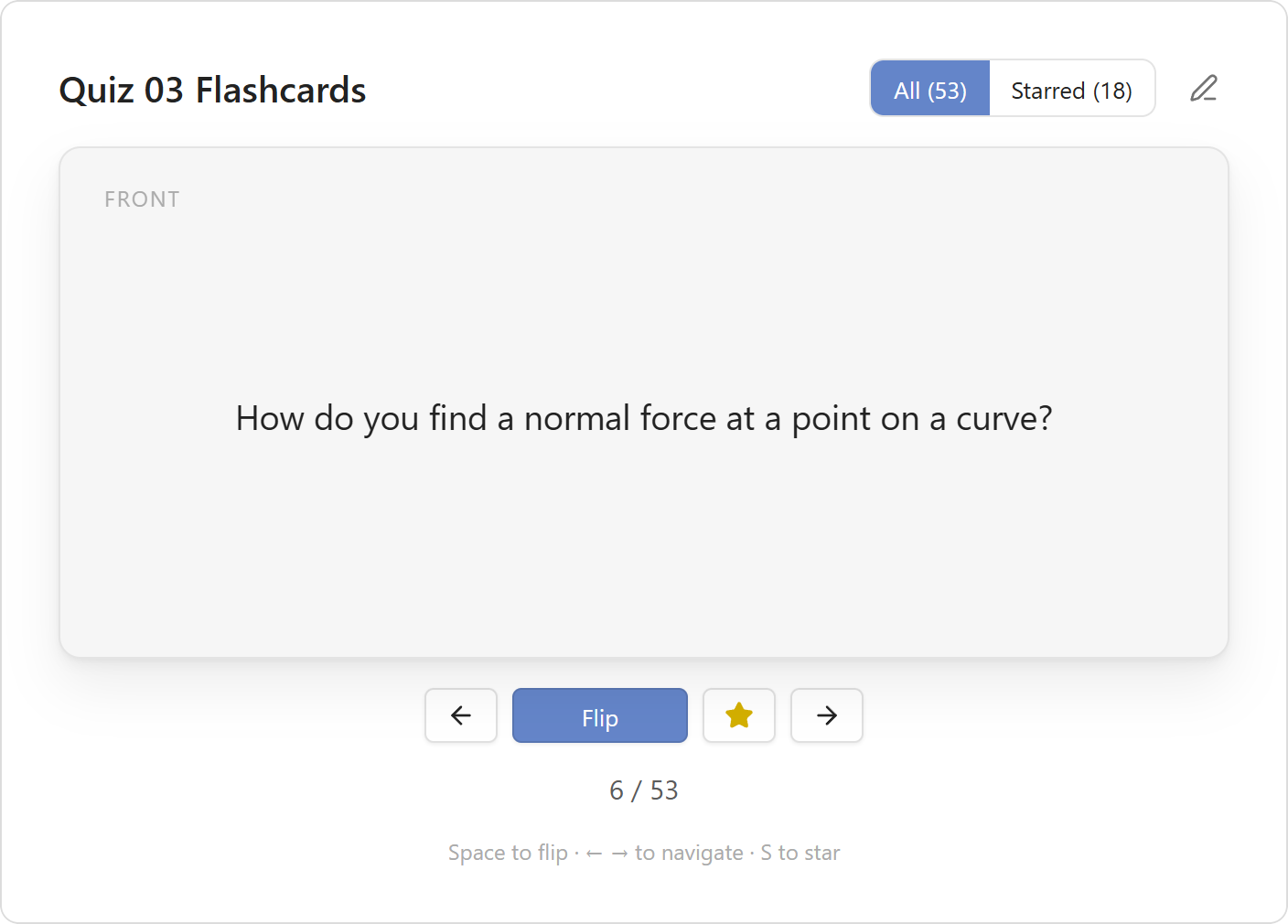
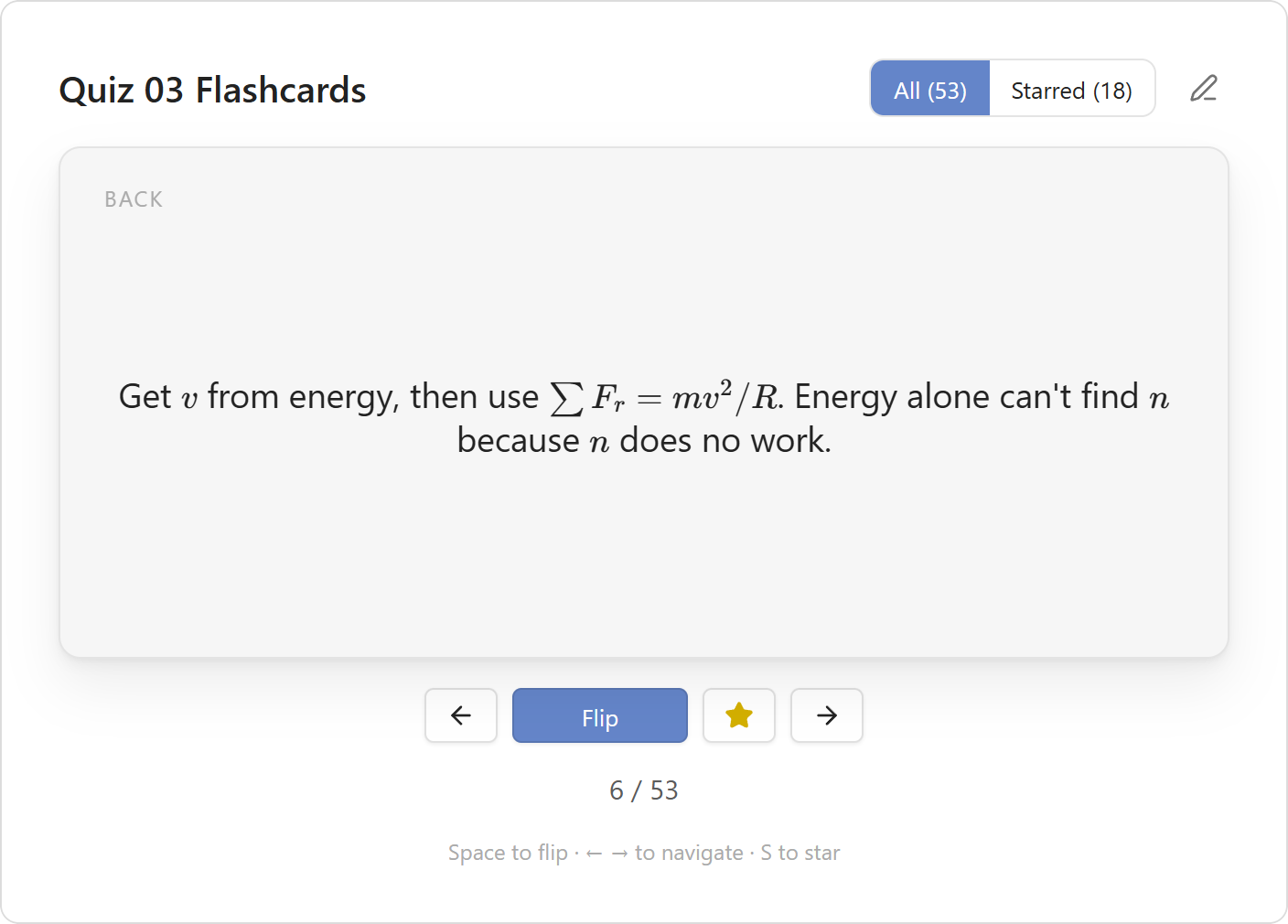
front:,back:,answer:orstarred:continues the field above it. - Markdown works on both sides, including bold, lists, links and images.
- In reading view, each block shows as a small front/back preview. To study a card right in the note instead, see Playable cards in notes.
Multiple choice
Give a card options as a checklist instead of a back:, and mark the right one with [x]:
```flashcard
front: Which planet is closest to the Sun?
- [ ] Venus
- [x] Mercury
- [ ] Mars
```
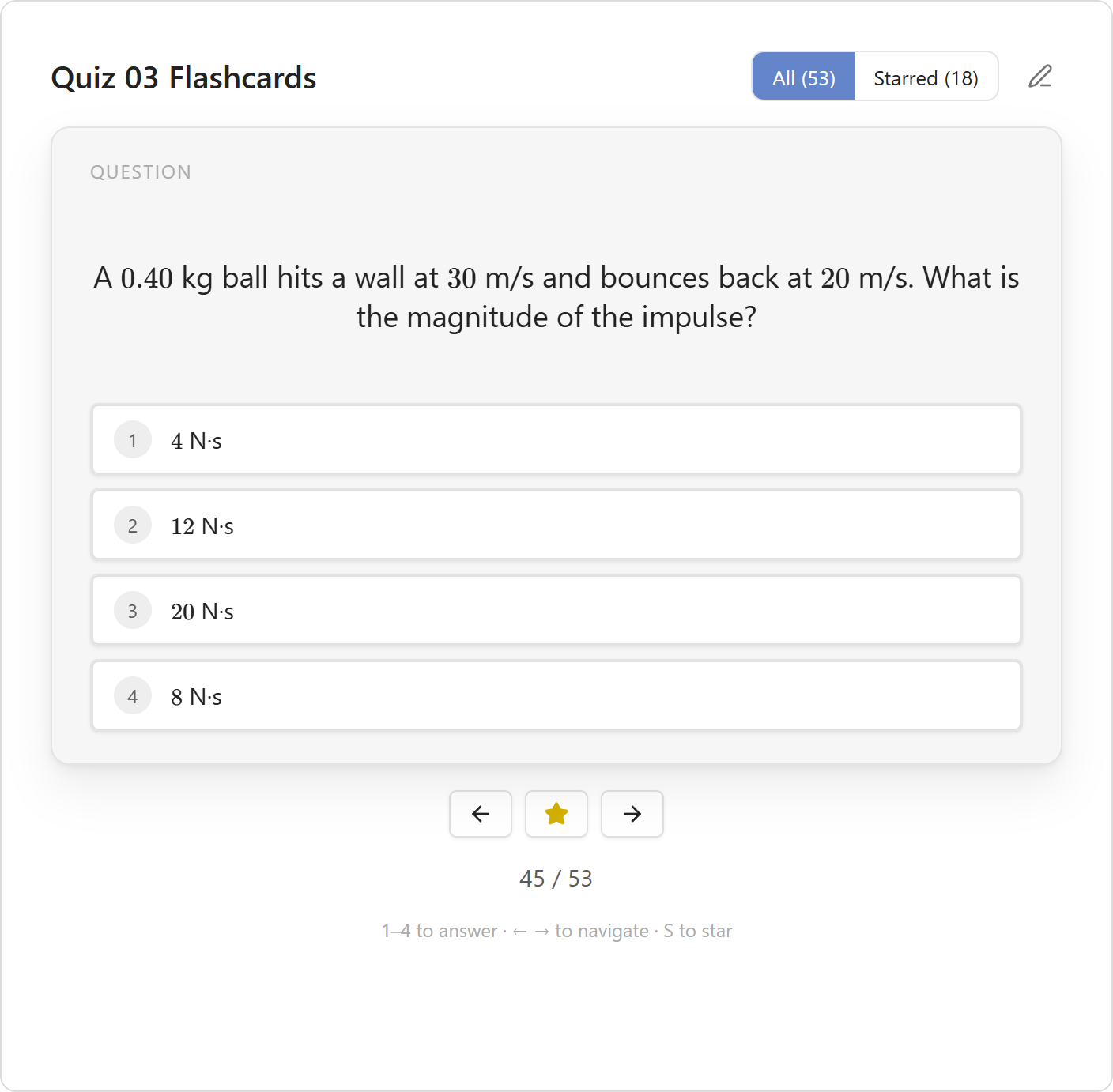
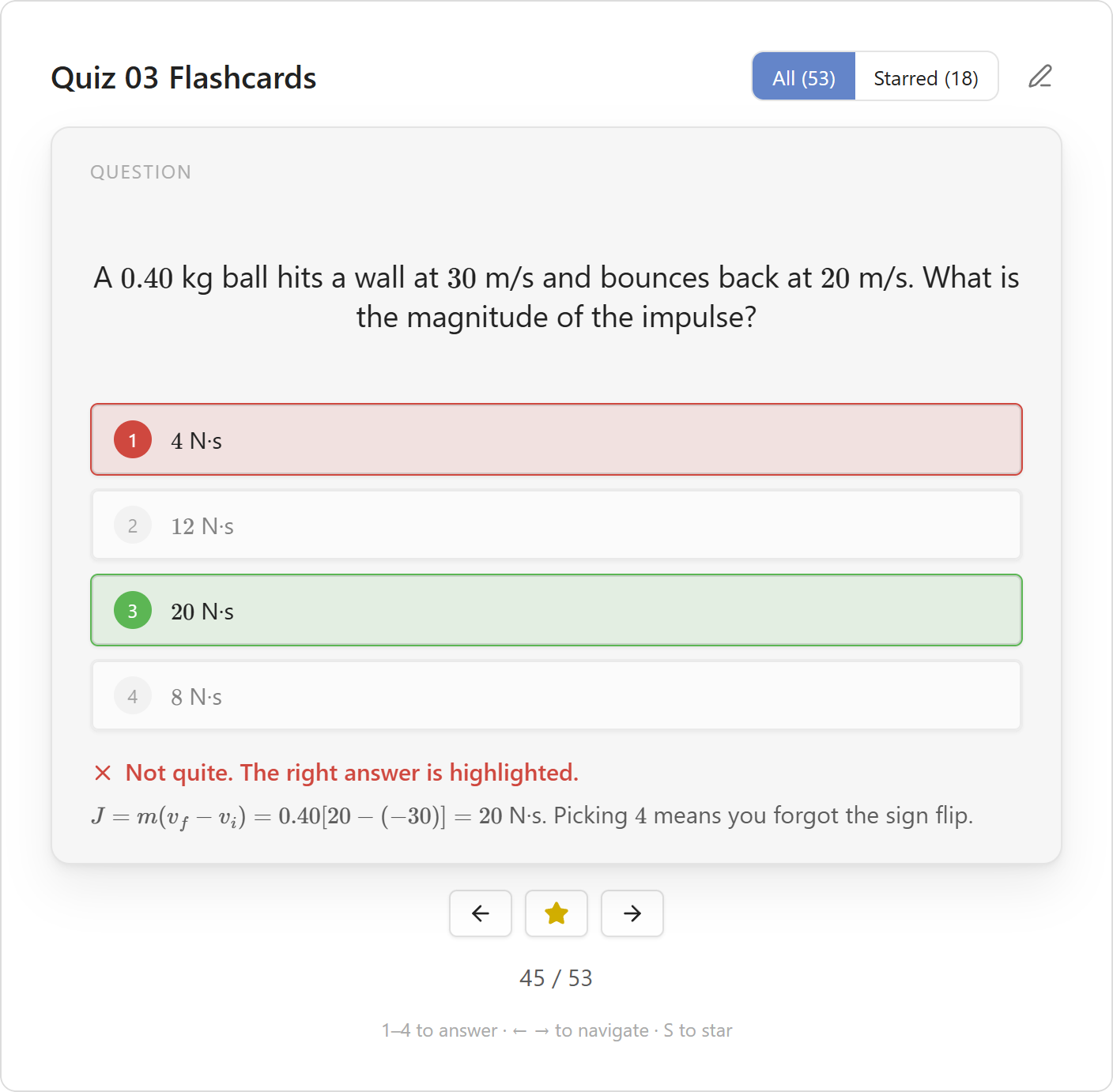
In flashcard view, a multiple-choice card shows its options instead of flipping. Pick one to see if you got it right. The correct option turns green and a wrong pick turns red. If more than one option is marked [x], any of them counts as right. You can still add a back: line, and it shows as an explanation after you answer.
Any - [ ] or - [x] line in a card is treated as an option, so don't use checklists inside a regular card's back:.
Typed answer
Give a card an answer: instead of a back: to type the answer in yourself:
```flashcard
front: What is the chemical symbol for gold?
answer: Au
```
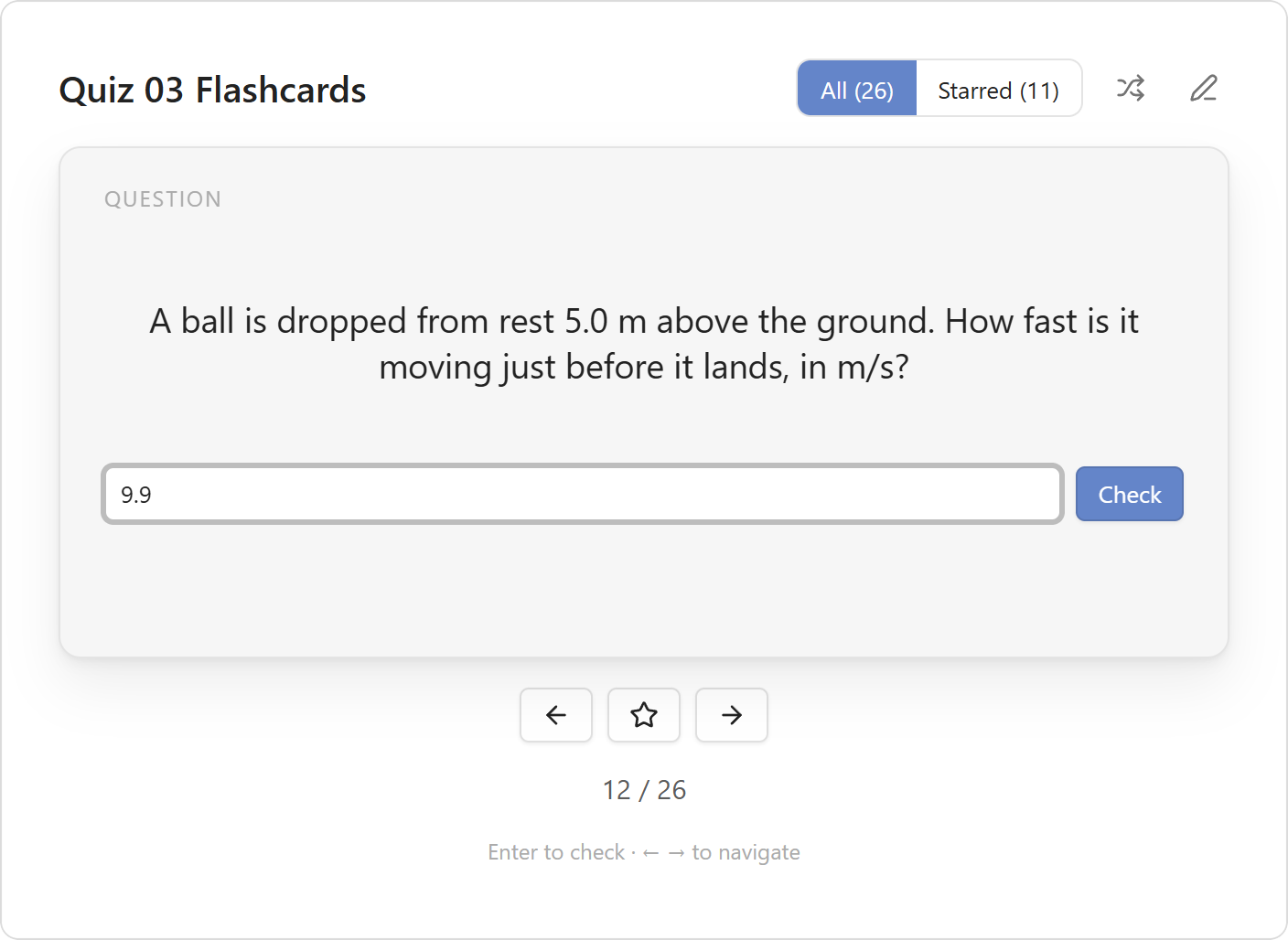
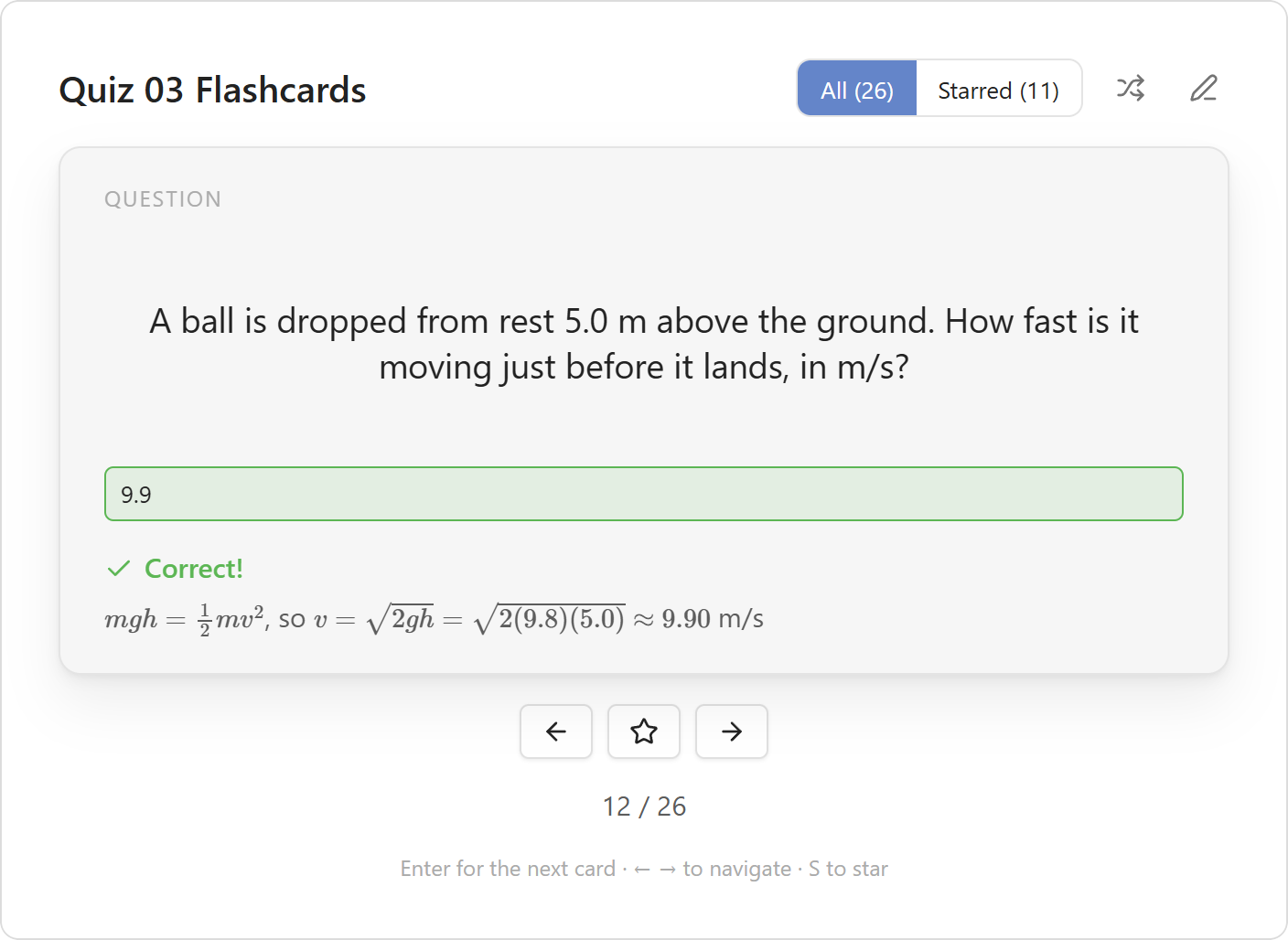
In flashcard view, type your answer and press Enter or Check. Matching ignores capitals, extra spaces and a trailing ., ! or ?. Anything else has to match exactly. For more than one accepted answer, add more answer: lines. If you get it wrong, the card shows the first answer. As with multiple choice, an optional back: shows as an explanation after you check.
For a number, give a range with ± (or +-), either as an amount or a percent. A unit can follow it:
```flashcard
front: A ball is dropped from 5.0 m. How fast is it going when it lands?
answer: 9.899 ± 0.05 m/s
```
Here anything within 0.05 of 9.899 counts, so 9.9 and 9.90 are right but 10 isn't. The unit is optional, but a different unit like km/s is marked wrong. answer: 120 ± 5% N accepts 114 to 126. Without a ±, a number has to be exactly equal, though 56, 56.0 and 5.6e1 all count.
While the answer box is selected, keys type into it instead of acting as shortcuts. ← and → still change cards while the box is empty, and Esc leaves the box.
Playable cards in notes
Write flashcard-inline instead of flashcard to make a card playable right in the note, in both reading view and Live Preview:
```flashcard-inline
front: What is 7 × 8?
answer: 56
```
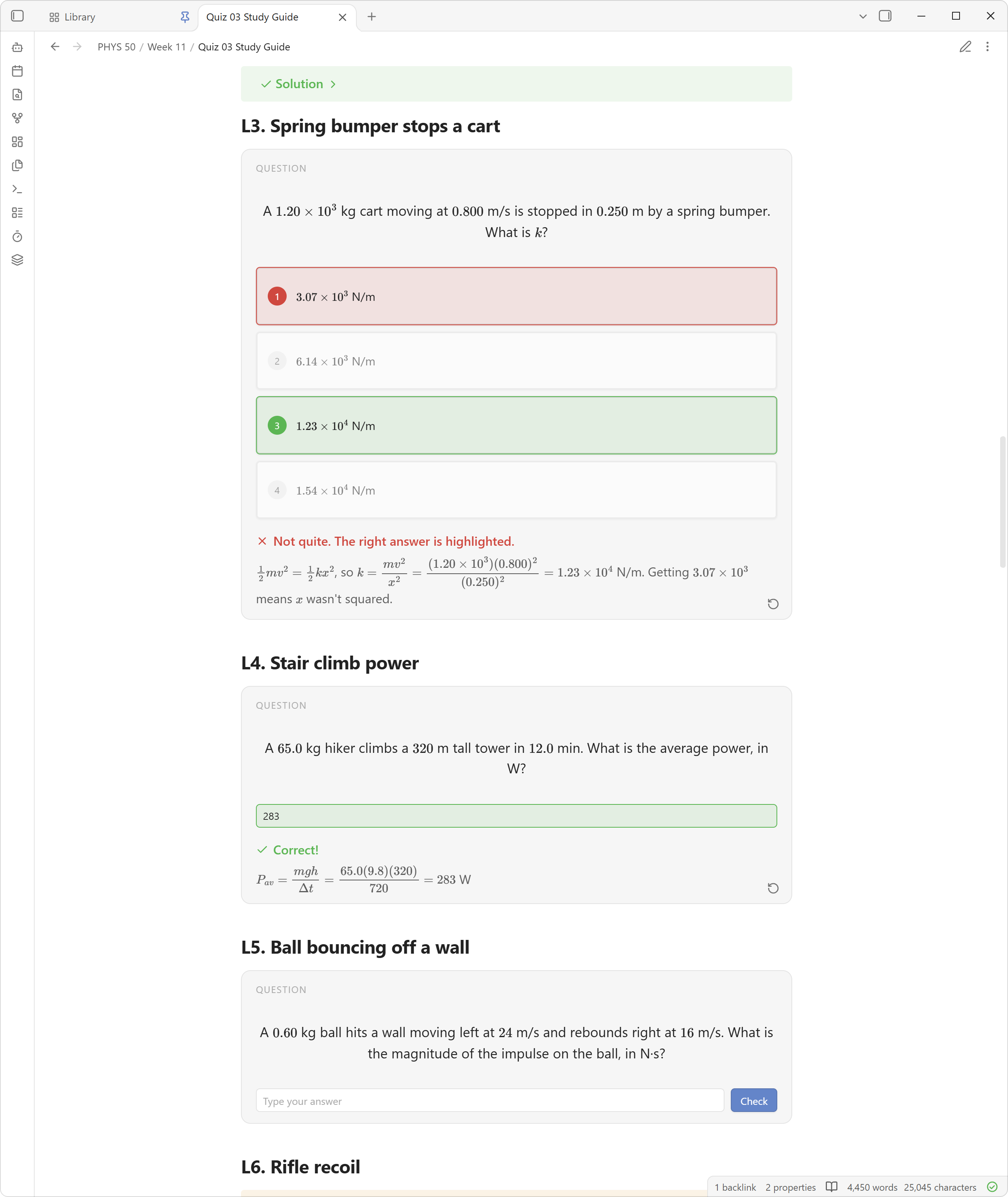
Instead of the front/back preview, the note shows the card itself. Click a regular card to flip it, pick an option on a multiple-choice card, or type into a typed-answer card. After answering, the ↺ button in the corner resets the card so you can try again. Inline cards also show up in flashcard view like any other card, and can be mixed with regular flashcard blocks in the same note.
Studying
Open a note in flashcard view in any of these ways. The ribbon icon and the command are toggles, so using either again switches back to the normal note:
- the layers icon in the ribbon,
- the command Flashcards MD: Toggle flashcard view,
- right-clicking the note in the file explorer and choosing Open in flashcard view.
In the view:
| Action | Mouse | Key |
|---|---|---|
| Flip card | Click the card or Flip | Space / Enter |
| Answer a multiple-choice card | Click an option | 1–9 |
| Check a typed answer | Check | Enter |
| Next card after answering | Arrow button | Enter |
| Previous / next card | Arrow buttons | ← / → |
| Star / unstar | Star button | S |
| Show all or only starred cards | All / Starred toggle | |
| Shuffle, or go back to note order | Shuffle button | |
| Go back to editing | Pencil button |
Stars are saved in the note as a starred: true line inside the card's block. They stay with the note when you sync, rename or move it.
Other commands
- Create new flashcard note creates
Flashcards.mdwith a few example cards. - Insert flashcard adds an empty card at the cursor.
- Insert multiple choice flashcard adds an empty multiple-choice card with three options.
- Insert typed answer flashcard adds an empty typed-answer card.
Development
npm install
npm run dev     # watch mode
npm run build   # type-check and production build
To install by hand, copy main.js, manifest.json and styles.css into <vault>/.obsidian/plugins/flashcards-md/. Then turn on the plugin under Settings → Community plugins.