Search...Search plugins and themes...
⌘K
Sign in
  • Get started
  • Download
  • Pricing
  • Enterprise
  • Account
  • Obsidian
  • Overview
  • Sync
  • Publish
  • Canvas
  • Mobile
  • Web Clipper
  • CLI
  • Learn
  • Help
  • Developers
  • Changelog
  • About
  • Roadmap
  • Blog
  • Resources
  • System status
  • License overview
  • Terms of service
  • Privacy policy
  • Security
  • Community
  • Plugins
  • Themes
  • Discord
  • Forum / 中文论坛
  • Merch store
  • Brand guidelines
Follow us
DiscordTwitterBlueskyThreadsMastodonYouTubeGitHub
© 2026 Obsidian

File Media Gallery

Arseniy SerokaArseniy Seroka161 downloads

Right-click a note to view all its media (images, video, audio, PDF) as a gallery with per-type tabs and a fullscreen lightbox.

Add to Obsidian
  • Overview
  • Scorecard
  • Updates1

Right-click a note → Show all media from the file → a gallery of everything it references.

Images, video, audio, and PDFs — from vault attachments and external URLs (like links to your own S3/object storage) — gathered into per-type tabs with a fullscreen lightbox. Great for notes whose media lives outside the vault.
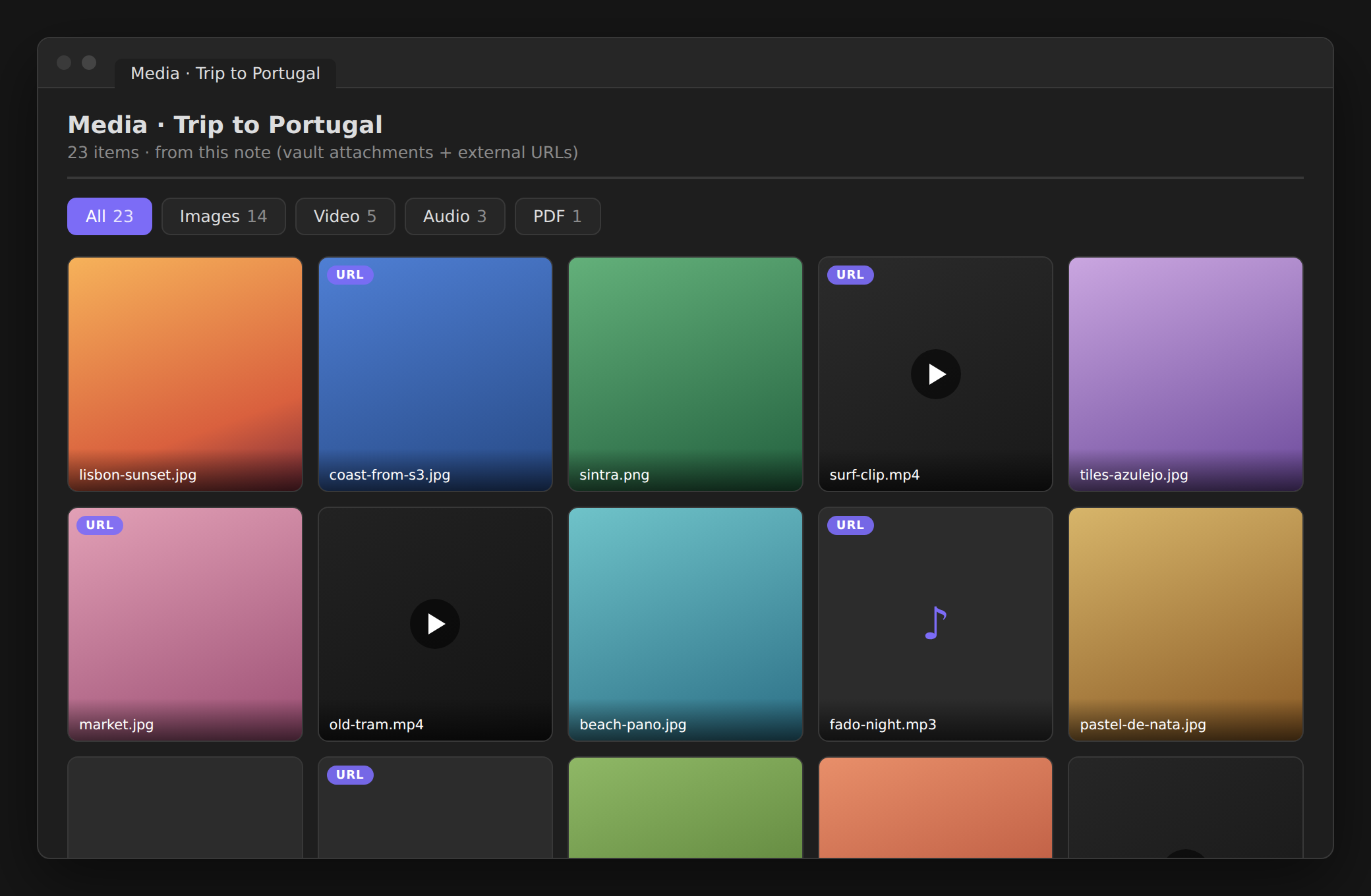
The gallery view — per-type tabs over a note's images, video, audio and PDFs, with vault attachments and external **URL** media side by side

Click any thumbnail for a fullscreen lightbox with prev/next:
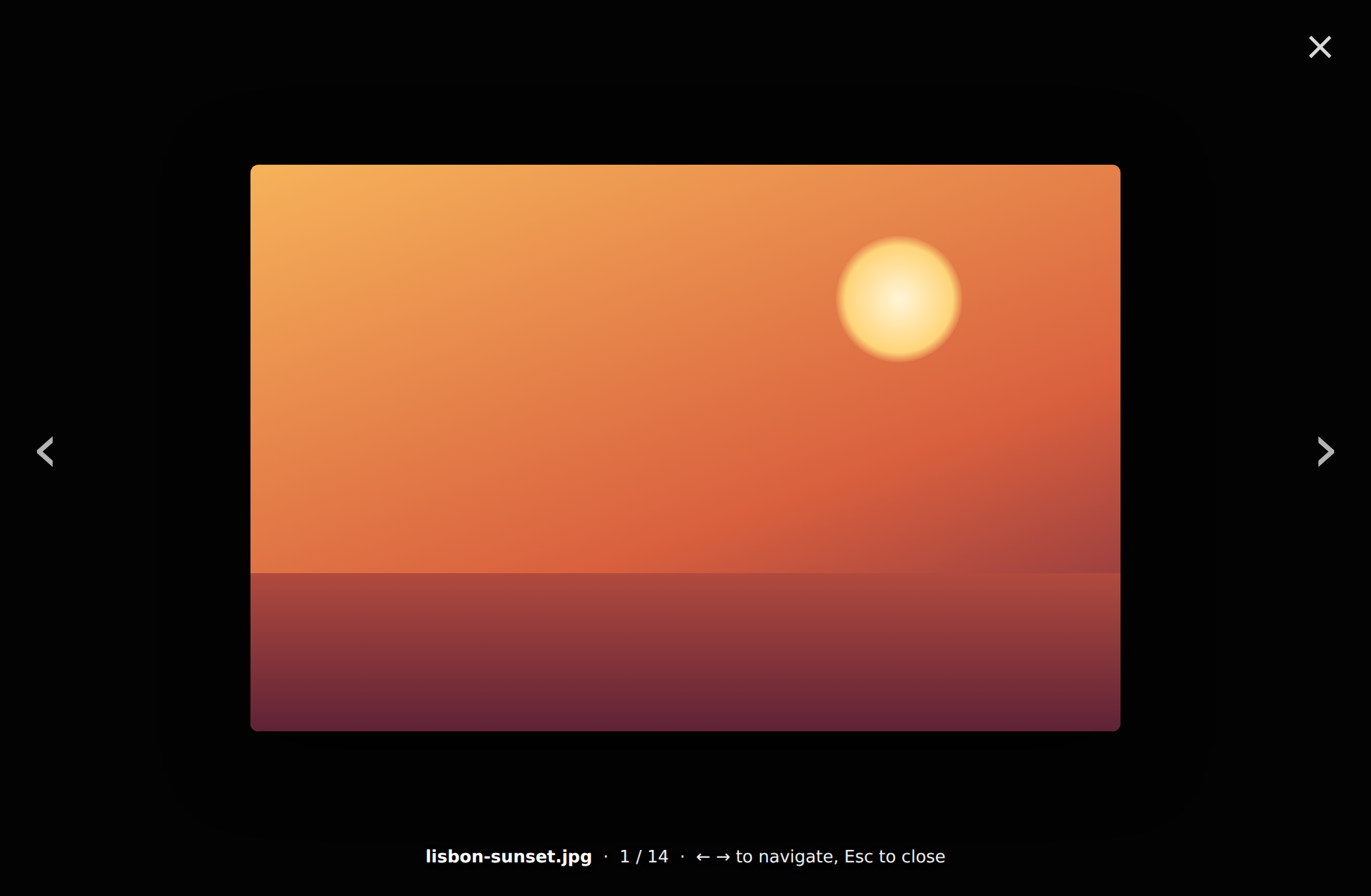
Fullscreen lightbox with caption and navigation

Features

  • 🔎 Finds everything it references — embeds (![[img.png]], ![](img.png)), vault links ([[img.png]]), and external http(s) URLs parsed from the markdown (![](https://…/clip.mp4), [caption](https://…/file.pdf), bare URLs).
  • 🗂️ Per-type tabs — All · Images · Video · Audio · PDF · Files (only the ones present show, each with a count).
  • 🔍 Fullscreen lightbox — click a thumbnail to enlarge; ‹ › / ← → to step through, Esc or click-outside to close.
  • 🎬 Right tile for each type — image covers, video first-frame tiles with a ▶ badge, inline audio, inline PDF, and other files (pptx, docx, zip…) with an Open externally action.
  • 🔄 Refresh button re-scans the note.

Usage

  1. Right-click a note (or run Show all media from the active note).
  2. Pick Show all media from the file.
  3. Browse the tabs; click any thumbnail for the lightbox.

Privacy & network

No network requests of its own, no telemetry, nothing written. It only displays the media your note already references — external URLs are loaded by the app from those URLs (same as rendering them in the note), vault files load locally.

Install

Community plugins (recommended): Settings → Community plugins → Browse → search File Media Gallery → Install → Enable.

BRAT: add jagajaga/obsidian-file-media-gallery.

Manual: download main.js, manifest.json, styles.css from the latest release into <vault>/.obsidian/plugins/file-media-gallery/, then enable it.

How it works

For the selected note it gathers references two ways — vault files from Obsidian's metadata cache, and external http(s) URLs parsed from the raw markdown (robust to brackets in link text and URL-encoding) — classifies each by extension, de-duplicates, and lays them out in per-type tabs. Plain JavaScript, no build step, desktop and mobile.

Related

  • Folder Reader — read every note in a folder together as one continuous scrolling view.

License

MIT © Arseniy Seroka

HealthExcellent
ReviewPassed
About
Show all media referenced by a note in a per-type gallery with tabs for Images, Video, Audio, PDF and other files. Open thumbnails in a fullscreen lightbox with sequential navigation and open external files directly, gathering media from both vault attachments and external URLs.
AttachmentsImagesVideo
Details
Current version
1.0.0
Last updated
Last month
Created
Last month
Updates
1 release
Downloads
161
Compatible with
Obsidian 1.4.0+
Platforms
Desktop, Mobile
License
MIT
Report bugRequest featureReport plugin
Author
Arseniy SerokaArseniy Serokajagajaga
GitHubjagajaga
  1. Community
  2. Plugins
  3. Attachments
  4. File Media Gallery

Related plugins

Ink

Handwriting and drawing directly between paragraphs using a digital pen, stylus, or Apple pencil.

Pixel Perfect Image

Pixel perfect 100% image resizing, copy to clipboard, show image in Finder/Explorer, and much more.

Local Images Plus

A reincarnation of Local Images to download images in Markdown notes to local storage.

Image Context Menus

Image context menus (mostly on right click): Copy to clipboard, Open in default app, Show in system explorer, Reveal file in navigation, Open in new tab.

Pixel Banner

Enhance your notes with customizable banner images.

Paste image rename

Rename image after pasting, support name pattern and auto renaming.

Image auto upload

Upload images from your clipboard by PicGo.

Imgur

Upload images from your clipboard to imgur.com and embeds uploaded image to your note.

CMDS Eagle

Connect Eagle asset library to Obsidian. Search, embed, and upload images to cloud (ImgHippo, R2, S3, WebDAV).

S3 Image Uploader

Self-host images on AWS S3.