Epoch Note Converter
 theluckystrike1 downloads
Convert a selected Unix timestamp into an explicit UTC or local date and time.
- Overview
- Scorecard
- Updates1
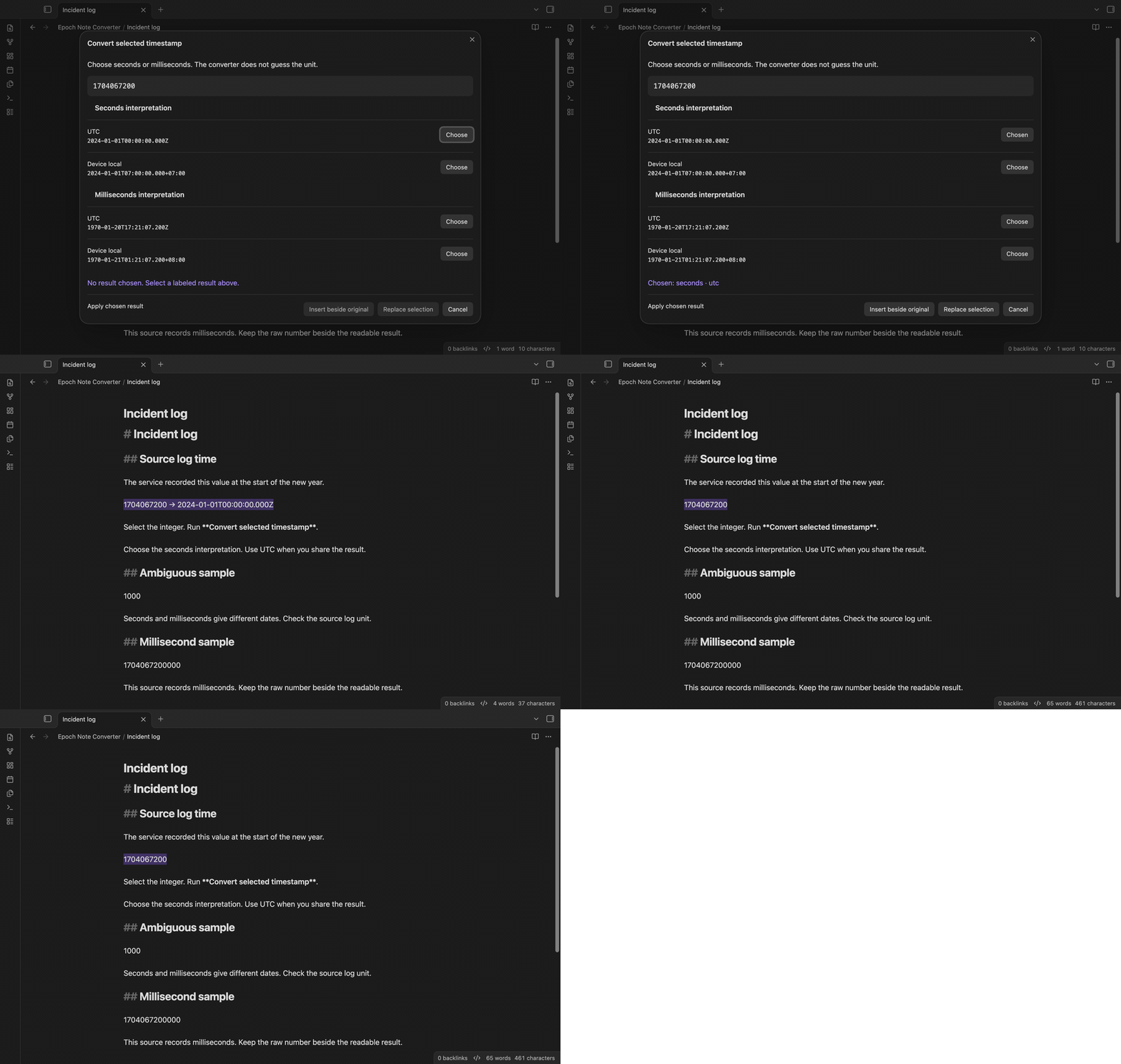
Epoch Note Converter reads a selected Unix timestamp in a technical note. It shows seconds and milliseconds as separate interpretations. You choose a readable UTC or device-local value, then insert it beside the source or replace the selection.
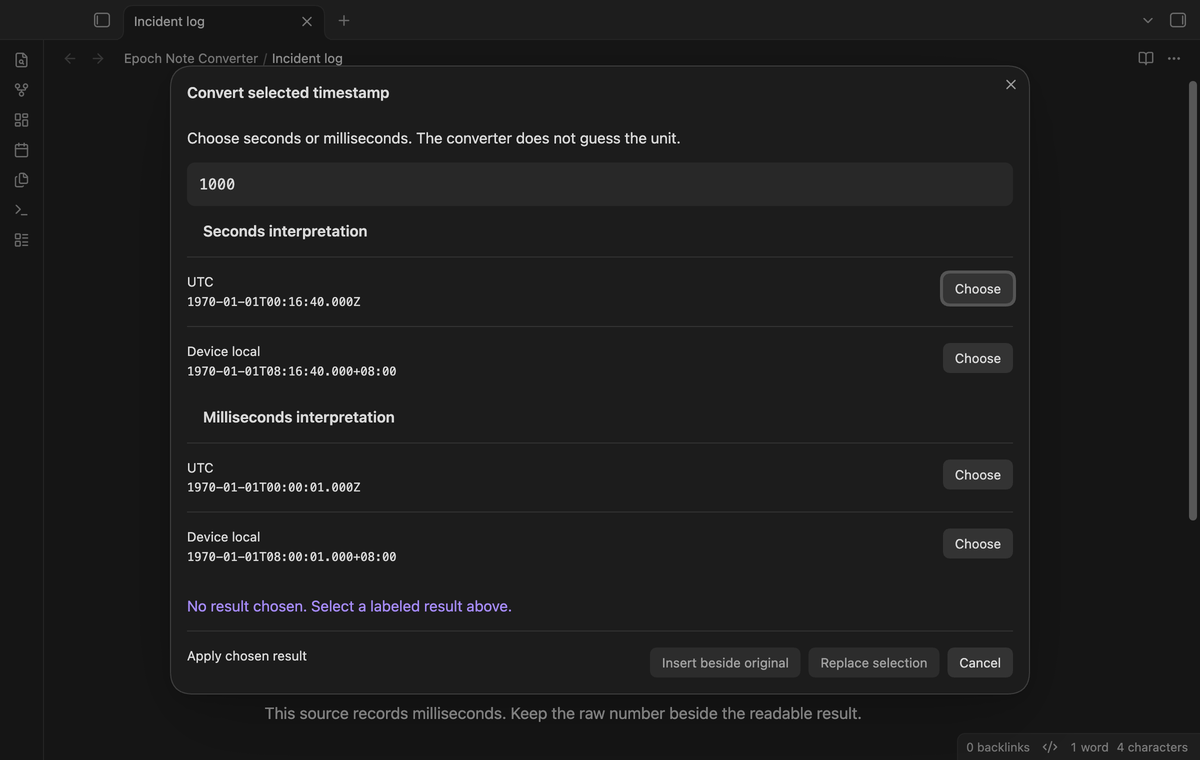
A copied number does not tell you its unit. For example, 1000 can mean sixteen minutes and forty seconds after the epoch, or one second after it. The preview keeps those choices visible. Check the source log before you apply a result.
Features
Separate seconds and milliseconds
Select one signed integer and run the conversion command. The preview shows two labeled interpretations. Neither unit is selected when the preview opens. The apply buttons stay disabled until you choose a result. Negative values represent times before the Unix epoch.
UTC and device-local time
Each interpretation has a UTC row and a device-local row. UTC output ends with Z. Local output includes a numeric offset, such as +07:00. The device time zone controls the local value. Its offset is calculated for the represented date, so daylight saving can change the offset between dates.
Insert beside the original or replace it
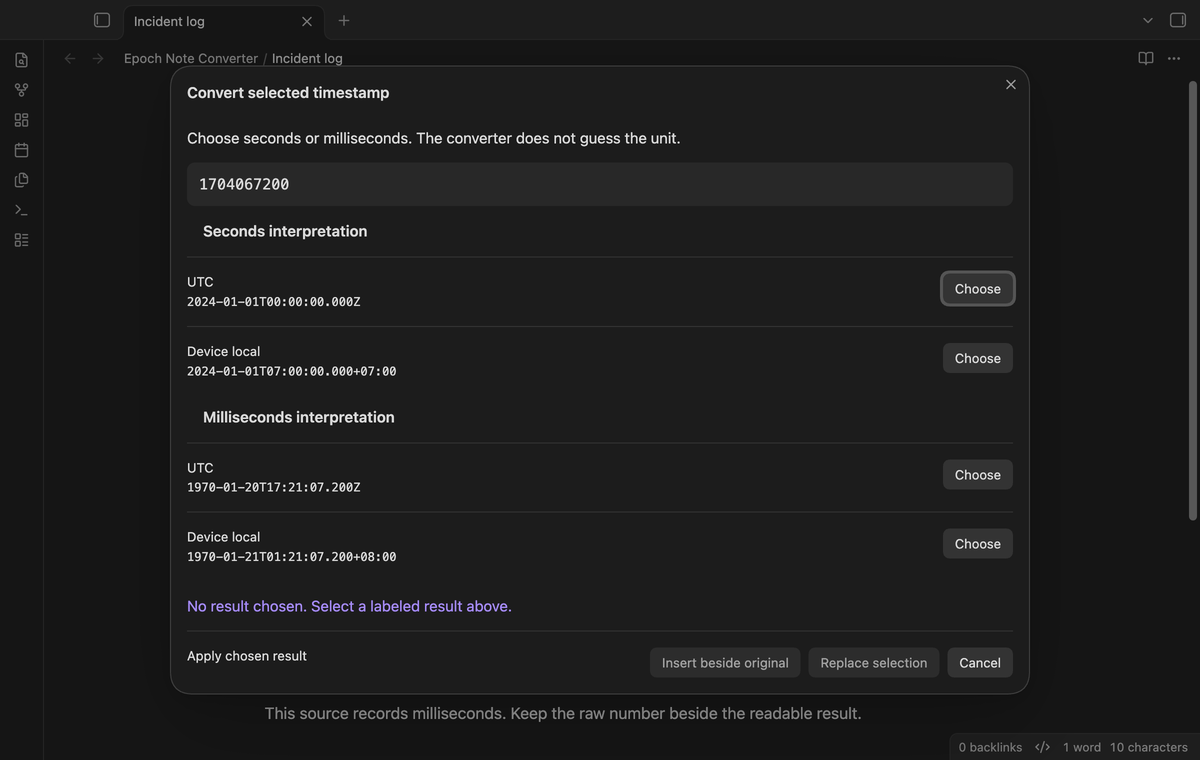
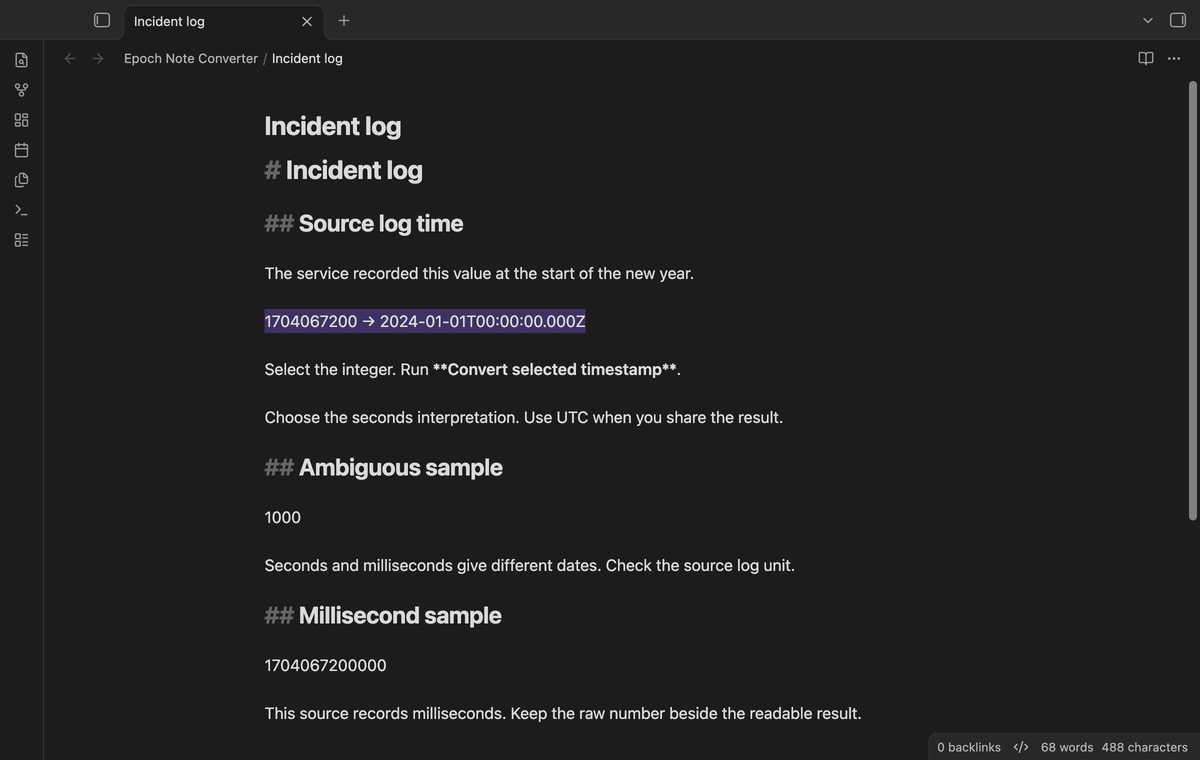
Select a result, then select "Insert beside original" or "Replace selection". Insertion keeps the raw value, adds an arrow, and adds the readable value. Replacement changes the selected value. Spaces at the ends of the selection stay in place, so words do not join. One Undo restores the original note after a conversion. Text outside the selected range stays in place.
Range checks before an edit
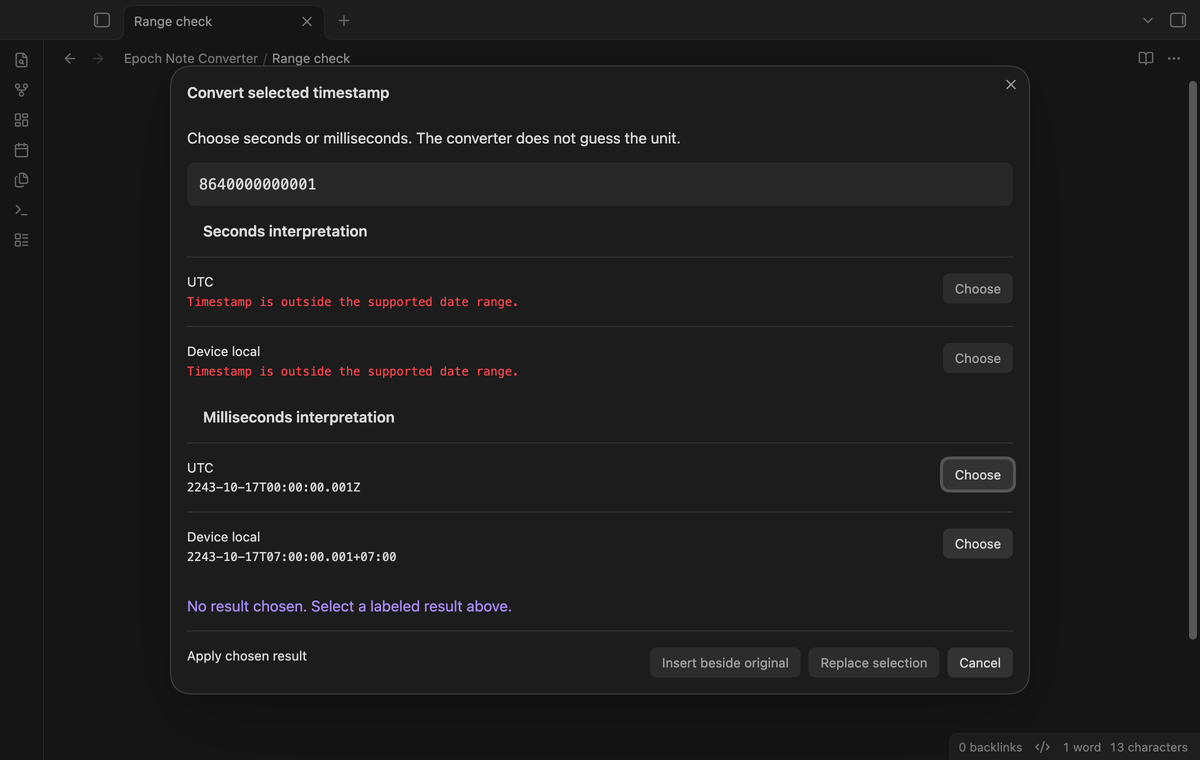
Fractions, exponent notation and words produce an error in the preview. A number outside the supported range disables that interpretation. The other interpretation can still be valid. If the source note or selection changes while the preview is open, applying the result closes the preview and asks for a fresh command run.
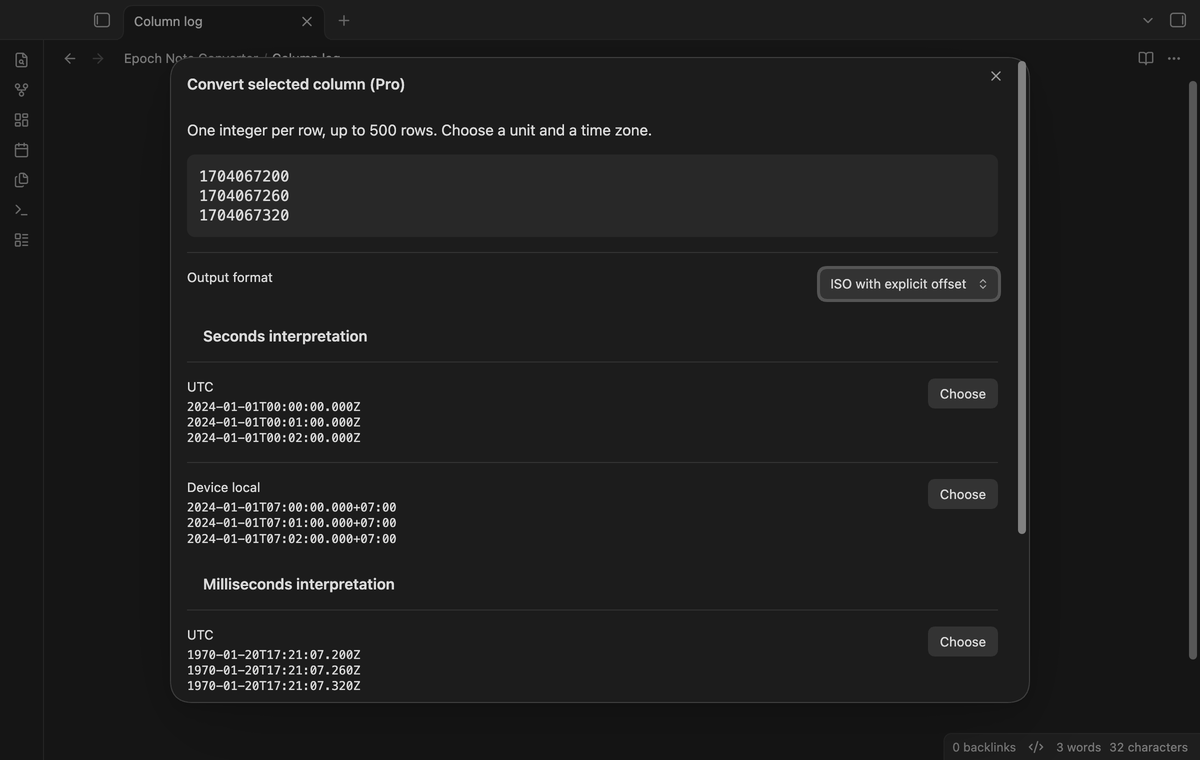
Selected column conversion (Pro)
Select one continuous column with one integer per row, up to 500 rows. Run "Convert selected column (Pro)". Choose a unit and a zone for the column. The preview displays up to three converted rows. An invalid row stops that choice from being applied. Insertion places a result beside each source row; replacement produces one converted value per row.
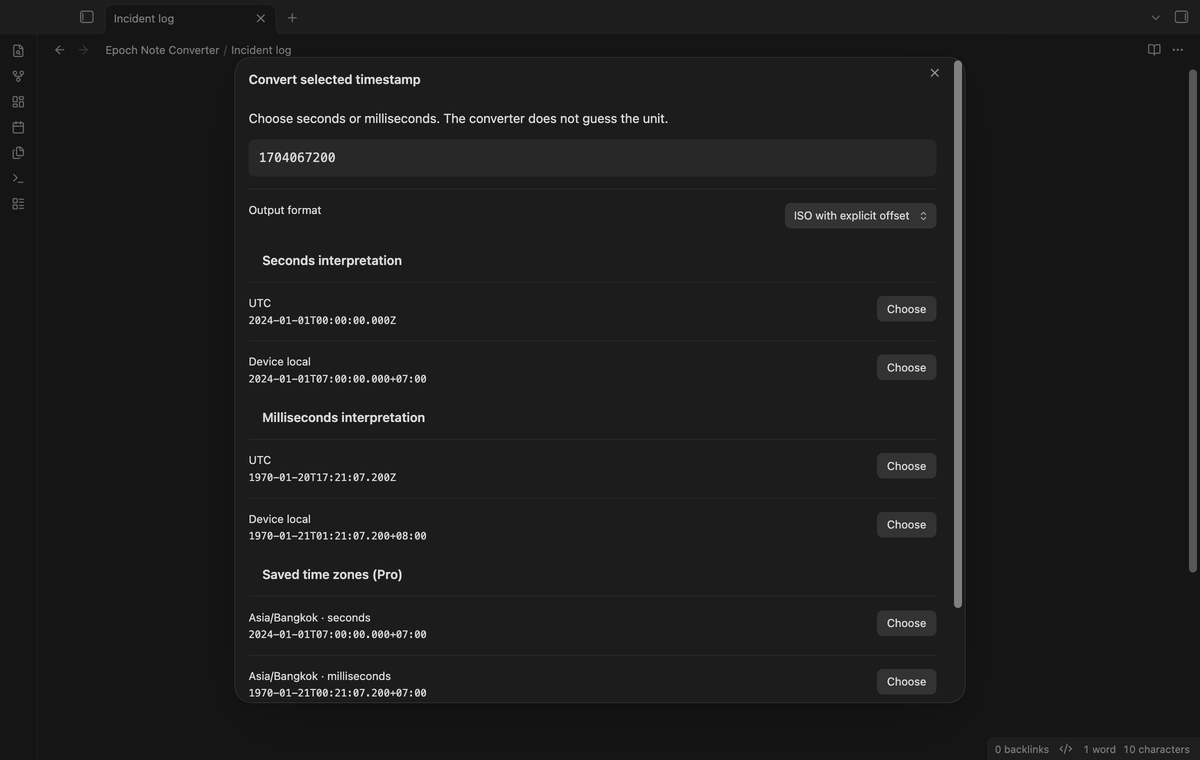
Saved time zone comparisons (Pro)
Save up to six IANA time zone names in settings. The preview adds seconds and milliseconds rows for those zones. Compare them with UTC and local output, then choose the row that belongs in your note. Named zones use the time zone data available on the device. An unsupported name is removed when you save settings.
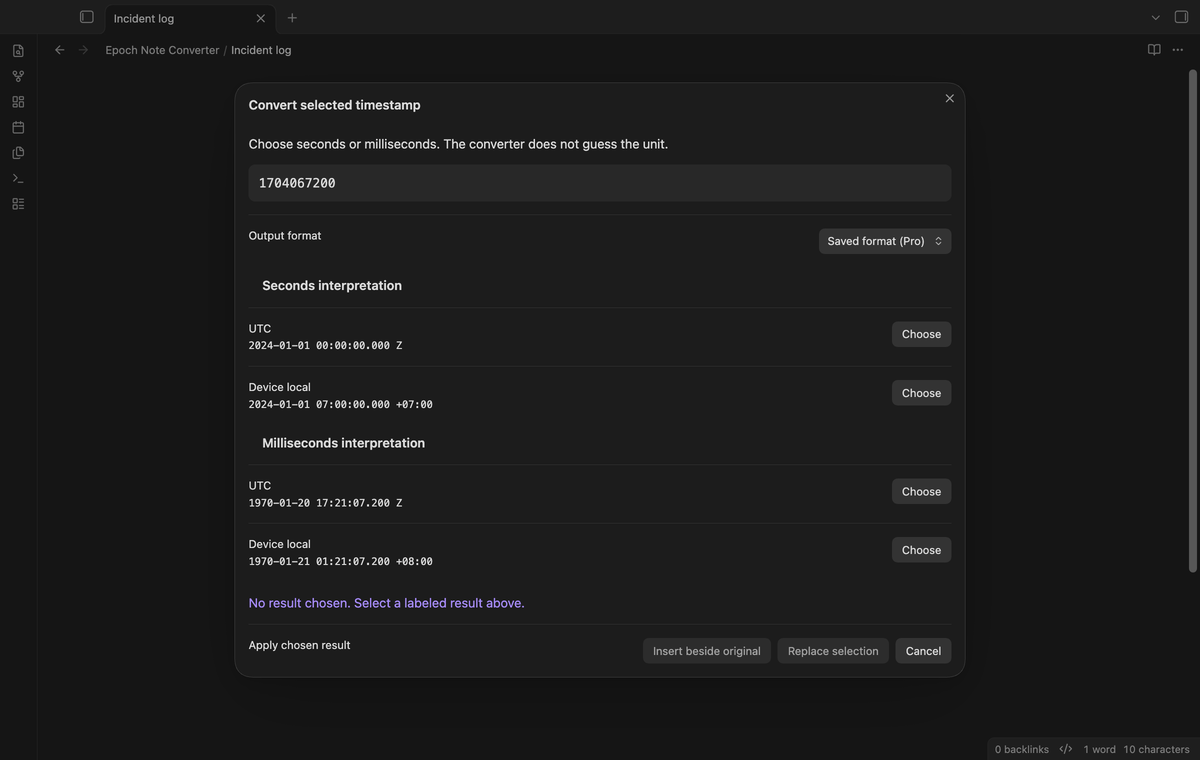
Saved output format (Pro)
Save one template for technical notes. Use {date}, {time} and {offset} once each. For example, {date} {time} {offset} puts spaces between the parts. Select "Saved format (Pro)" in the preview to use it. The ISO choice remains available. A format must fit within 120 characters and must have no line breaks or unknown tokens.
Install
This version is prepared for review. A community listing is not part of this build. For manual installation, copy main.js, manifest.json and styles.css from the release files into <vault>/.obsidian/plugins/epoch-note-converter/. Open Community plugins in settings and enable Epoch Note Converter. The minimum supported app version is 1.13.4.
Usage
Open a Markdown note in an editor. Select the integer without its surrounding sentence. Open the command palette and run "Epoch Note Converter: Convert selected timestamp". Read the labeled rows. Choose seconds or milliseconds from the unit used by the source system. Choose UTC for a shared incident timeline, or device-local time when the local offset is useful.
Apply the chosen result with one of the two edit buttons. Cancel closes the preview without an edit. The preview does not remember a unit choice between runs. If you need to compare another number, close the preview, select that number, and run the command again.
For a Pro column, select the timestamp text across adjacent lines. Blank rows, Markdown table separators and extra columns are not accepted. Trim those parts from the selection before the command. The unit applies to the column; mixed seconds and milliseconds need separate runs.
Settings
The settings tab has the GitHub Sponsors account controls and the two saved Pro options. Conversion of a single timestamp needs no setup. Saved time zones use comma-separated names, such as UTC, Asia/Bangkok, America/New_York. Duplicate names are removed. An empty field gives no extra comparison rows.
The saved format starts as {date}T{time}{offset}. Invalid saved data returns to that ISO format when settings load. Saved Pro options remain stored after sign out, but the preview offers the free ISO, UTC and local choices. The Pro controls are disabled while Pro is off. Signing out also clears the chosen result in an open preview.
FAQ
Does it infer the unit from the number length?
No. The command requires a labeled choice. A modern timestamp in milliseconds can also produce a valid, distant date when interpreted as seconds. A valid date does not prove that the source used that unit.
What input is supported?
Signed decimal integers are supported, with spaces permitted at the ends of a selection. There is a 32-character input limit before parsing. The chosen interpretation must fit within the JavaScript Date range, which is 8640000000000000 milliseconds from the epoch in either direction. Fractional seconds, readable date parsing and leap-second notation are outside this version's scope.
What was not tested?
Phone and tablet use, Linux runtime use, screen readers and third-party themes were not tested in this build. Real GitHub sign in and payment were not tested. Automated Pro checks use a local sponsorship reply. The app tests cover the earliest supported and latest public versions on the builder Mac. Saved zone results depend on device time zone data; the tests cover selected zones and dates.
Payment, account and network
The core features are free. Pro features need a GitHub Sponsors sponsorship of theluckystrike: $5 a month or more, or $15 once. A total payment of $15 meets the payment requirement for Pro without further payment. Sign-in and the checks below still apply. Your notes stay readable and editable with or without Pro.
GitHub handles the payment. Sponsor at https://github.com/sponsors/theluckystrike. You need no account for the free features. Pro needs the GitHub account that sponsors.
Until you select "Sign in with GitHub" in the settings, Epoch Note Converter makes no network requests. Sign in uses the GitHub device flow. Epoch Note Converter sends its public client ID and the scope read:user to https://github.com/login/device/code and shows you a code. While you enter the code at https://github.com/login/device, it asks https://github.com/login/oauth/access_token every few seconds to check the sign-in status. The scope permits profile reads only. GitHub needs this access to show the sponsorship tier. It grants no repository scope and no write access.
After sign in, Epoch Note Converter sends one query to https://api.github.com/graphql. It checks if the signed-in account sponsors theluckystrike. It asks for the tier and the total payment to theluckystrike. The plugin reuses a successful check for 7 days. Failed checks can retry after 6 hours. Select Refresh to request an earlier check. It sends no note content, file names or other vault data, and it has no telemetry.
After a successful check, Pro can work offline for up to 14 days. Sign out or a negative sponsorship answer turns Pro off. The plugin stores the GitHub token through the secret storage API of Obsidian. It does not put the token in its saved settings or its local sponsorship data. The local storage of this device keeps your GitHub login, the tier and the time of the last check. Sign out clears the token. You can also revoke the access in your GitHub settings, under Applications.
Support
Report a conversion problem in the repository issues after publication. Include your app version, the selected integer, the chosen unit and the expected zone. Use a small public sample in place of private log text. State whether you inserted or replaced the selection. This information helps reproduce the result without access to your vault. Source code is provided under the MIT license.