Engram Chat
 PixelAnay738 downloads
The AI that remembers you. A personal intelligence with persistent memory, multi-provider AI, and full vault access.
- Overview
- Scorecard
- Updates57
The AI that remembers you. A persistent personal intelligence for Obsidian with evolving memory, semantic vault search, multi-provider support, interactive slash commands, and secure, scoped vault access.
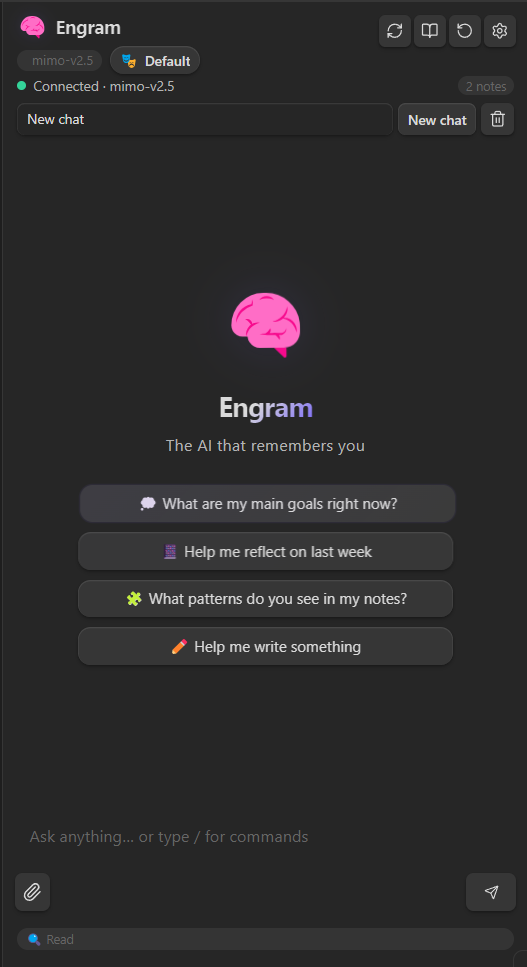
🧠 What is Engram?
Engram transforms Obsidian's sidebar chat from a simple query assistant into a persistent thinking partner. By maintaining a structured, auto-summarizing memory file (memory.md), Engram accumulates knowledge about your projects, preferences, habits, and beliefs over time. It reasons over your vault safely using semantic vector search, costs pennies to run, and respects your privacy—all data stays on your machine.
✨ Key Features
1. Evolving Personal Memory System
- Structured Evolving Memory: Engram tracks your core identity, ongoing projects, habits, and life events in a dedicated, markdown-based memory file (
memory.md). - Auto-Summarization: When your memory file grows, Engram automatically condenses older entries to minimize LLM token costs without losing context.
- Interactive Control: Use
/memoryto prompt the AI to extract and summarize key takeaways from your current chat session, review them in a confirmation modal, and save them. Use/forgetto open and edit your memory file at any time.
2. Semantic Vault Search (Vector Embeddings)
- True Semantic Understanding: Instead of basic keyword matching, Engram can embed all your notes as high-dimensional vectors and find conceptually related content even when exact words don't match. Ask about "times I felt disconnected" and it will surface journal entries mentioning numbness, dissociation, or withdrawal.
- Multi-Provider Embedding Support: Works with any embedding model via:
- Ollama (local, free) — e.g.
nomic-embed-text,mxbai-embed-large - OpenAI — e.g.
text-embedding-3-small - Custom / llama.cpp — point it at any OpenAI-compatible
/v1/embeddingsendpoint
- Ollama (local, free) — e.g.
- Manual Index Control: A dedicated "Index Vault" button in Settings lets you trigger indexing on demand. A progress bar shows files indexed in real time.
- Auto-Attached Context UI: When semantic search is used, the matched notes are shown as clickable chips directly under your message bubble — so you can always see which notes were injected into the AI's context.
- Smart Cache Invalidation: If you change your embedding model, provider, or URL, Engram automatically discards old vectors and re-indexes cleanly.
- Persistent Storage: Embeddings are stored in
.obsidian/plugins/engram-chat/data.jsoninside your vault. They survive plugin reloads and Obsidian restarts.
3. Multi-Provider LLM Compatibility
Engram supports all major local and cloud LLM providers out of the box:
- Cloud Providers: Anthropic Claude, OpenAI (GPT series), Google Gemini (Pro / Flash), DeepSeek (V4-Pro / R1), Xiaomi MiMo, Z.ai (GLM), Mistral, Groq, and xAI.
- Local Models: Ollama, LM Studio, and llama.cpp (fully capable of running models like Llama 4, Qwen3, and Gemma with local tool-calling).
- Aggregators: OpenRouter (one API key for 100+ models).
- CORS-Safe Architecture: Uses Obsidian's native request APIs to bypass CORS blocks for cloud integrations, and fully supports SSE-based text streaming.
4. Granular Vault Scoping & Safety
- Knowledge Scopes: Restrict the AI to specific directories using Allowlists or Denylists. Files in private folders are fully excluded from indexing, searches, and context injection.
- Interactive Permissions Badge: Toggle permissions directly in the chat footer with a single click:
🔍 Read— Read-only access (safe browsing).✏️ Append— AI can only append details to the end of notes.⚠️ Full Edit— Full modification, creation, and deletion capabilities.
- Destructive Protections: Shows a real Obsidian confirmation modal before the AI can overwrite notes, create files, or delete items.
5. Premium, Modern User Interface
- Slash Commands & Mentions: Type
/to select commands or@to autocomplete note names as context links. - Token Budget Bar: A color-coded progress bar in the footer showing active token usage against your provider's context window.
- Dynamic Welcome Chips: Prompts you with suggestions based on your most recently edited notes or top vault tags.
- Undo History Panel: Review and selectively undo any file creation, append, or overwrite operation performed by the AI.
6. Local Offline PDF Attachment Parsing
- Drag and drop or attach a PDF.
- Select a page range (e.g. page 1–3) using an interactive popup.
- Engram converts and extracts pages locally into images using a built-in PDF.js worker — no external servers, 100% offline.
🚀 Installation
Option 1: Via BRAT (Recommended)
- Install the BRAT (Beta Reviewer's Auto-update Tool) plugin from Obsidian's community store.
- In Obsidian Settings, go to Beta Reviewer's Auto-update Tool.
- Click Add Beta plugin and paste this repository URL:
https://github.com/PixelAnay/Engram - Enable Engram under Community Plugins.
Option 2: Manual Installation
- Go to the Releases tab.
- Download
main.js,manifest.json, andstyles.css. - Create a folder named
engram-chatinside your vault's plugins folder:<VaultPath>/.obsidian/plugins/engram-chat/ - Copy the downloaded files into that directory.
- Reload Obsidian and enable the plugin.
🔍 Setting Up Semantic Search (Embeddings)
Semantic search lets Engram understand the meaning of your notes rather than just searching for exact words. This is the most powerful way to use Engram with a large vault.
Step 1: Choose an Embedding Provider
Option A — Ollama (Easiest, Free, Local)
- Install Ollama and pull an embedding model:
ollama pull nomic-embed-text - Ollama runs a local server at
http://localhost:11434by default.
Option B — llama.cpp (Custom GPU, Maximum Control)
- Download a GGUF embedding model (e.g.
Qwen3-Embedding-4B-Q8_0.gguf). - Start llama.cpp server in embedding mode:
# Windows — run from the folder containing llama-server.exe
.\llama-server.exe -m "C:\path\to\model.gguf" --port 8080 --embedding
Note: Use
llama-server.exe, notllama-server(no.execauses a "not recognized" error on Windows PowerShell). - Verify the server is up by visiting
http://localhost:8080/v1/modelsin your browser.
Option C — OpenAI
Use text-embedding-3-small or text-embedding-ada-002 with your OpenAI API key.
Step 2: Configure Engram
Open Obsidian → Settings → Engram → Semantic Search (Embeddings) section:
| Setting | Value |
|---|---|
| Provider | Ollama, OpenAI, or Custom (llama.cpp / compatible) |
| Model Name | e.g. nomic-embed-text or Qwen3-Embedding-4B |
| Base URL | e.g. http://localhost:11434 (Ollama) or http://localhost:8080 (llama.cpp) |
| API Key | Only needed for OpenAI |
⚠️ Important: If the Base URL is wrong or the server isn't running, Engram will show an error when you try to index. The "Index Vault" button will not silently succeed.
Step 3: Index Your Vault
- In Engram Settings, click "Index Vault".
- A progress bar appears showing files being embedded in real time.
- When complete, you'll see a confirmation notice (e.g. "Indexed 349 files").
- Embeddings are saved automatically to
data.jsonin the plugin folder.
Re-indexing: If you add many new notes or change your embedding model, click "Index Vault" again. Engram detects model/URL changes automatically and discards stale vectors.
Step 4: Use It
Just chat normally. When you ask a question, Engram:
- Embeds your query using the same model.
- Runs a cosine-similarity search across all indexed notes.
- Injects the top matches into the AI's context as
[VAULT DATA]. - Shows matched note names as clickable chips under your message bubble.
You don't need to do anything special — semantic search is automatic when the index is ready.
🛠️ Usage & Commands
- Ribbon Icon: Click the Brain icon 🧠 in the left ribbon to open the chat sidebar.
- Slash Commands:
/memory— Extract and save notes/facts from the current conversation./forget— Open the active memory file to prune or view entries./persona [name]— Switch between configured LLM personas./export— Save the active chat session to a Markdown file./clear— Clear the current session./scope— Display the folders the AI currently has permission to read.
- Command Palette:
Open Engram sidebarEngram: Re-index vaultEngram: Open memory file
🔒 Security Hardening
- Sandbox Boundaries: Note content is wrapped in strict
[VAULT DATA START]and[VAULT DATA END]markers inside the LLM prompt. The system instructions mandate that the AI treat everything inside these boundaries strictly as data rather than instructions, mitigating prompt injection attacks. - Key Security: API keys are excluded from
data.jsonand are not synced with Git, Obsidian Sync, or iCloud.
🐛 Troubleshooting
"It says indexing done even with a wrong URL"
- This was a bug fixed in v5.0.26. Engram now validates the embedding server connection before accepting any indexing result. Errors are surfaced immediately in the UI.
"The AI says it didn't use semantic search"
- Confirm the index is ready: go to Settings → Engram and check if the indexed file count is shown.
- Verify your embedding server is still running (it must be running at chat time, not just at index time).
- Check the
[VAULT DATA]block: the AI does have the context but may not explicitly say so. Look for the auto-attached note chips under your message bubble instead.
"llama-server is not recognized" (Windows)
- Make sure you are running
llama-server.exe(with the.exeextension). - Run the command from the directory that contains the executable, or add it to your system
PATH. - Example:
cd C:\llama.cpp\build\bin && .\llama-server.exe -m model.gguf --port 8080 --embedding
"model output error: model output must contain either output text or tool calls"
- This error comes from the LLM provider when the model returns an empty response.
- Try switching to a different model or reducing the complexity of your query.
- If using a local model, ensure it is fully loaded and not running out of VRAM.
Embeddings are lost after restarting
- Embeddings persist in
data.json— they should survive restarts. If they are gone, the model/URL config may have changed, triggering automatic cache invalidation. Re-index once to rebuild.
💻 Development
If you want to build the plugin from source:
- Clone this repository:
git clone https://github.com/PixelAnay/Engram.git - Install dependencies:
npm install - Build the production bundle:
npm run build - Sync to your development vault by setting your vault path:
Then run:# Windows (PowerShell) setx OBSIDIAN_VAULT_PATH "C:\Path\To\Your\Vault"npm run deploy
📄 License
MIT License. See LICENSE for details.