
- Overview
- Scorecard
- Updates2
Dayframe is an Obsidian plugin that adds a customizable "frame" (prefix and suffix content) around your daily notes when viewed in preview mode. This helps keep your raw markdown files clean and focused on the content, while still providing rich, contextual information (like links, queries, or transclusions) in the preview.
Inspired by the desire to simplify my daily notes.
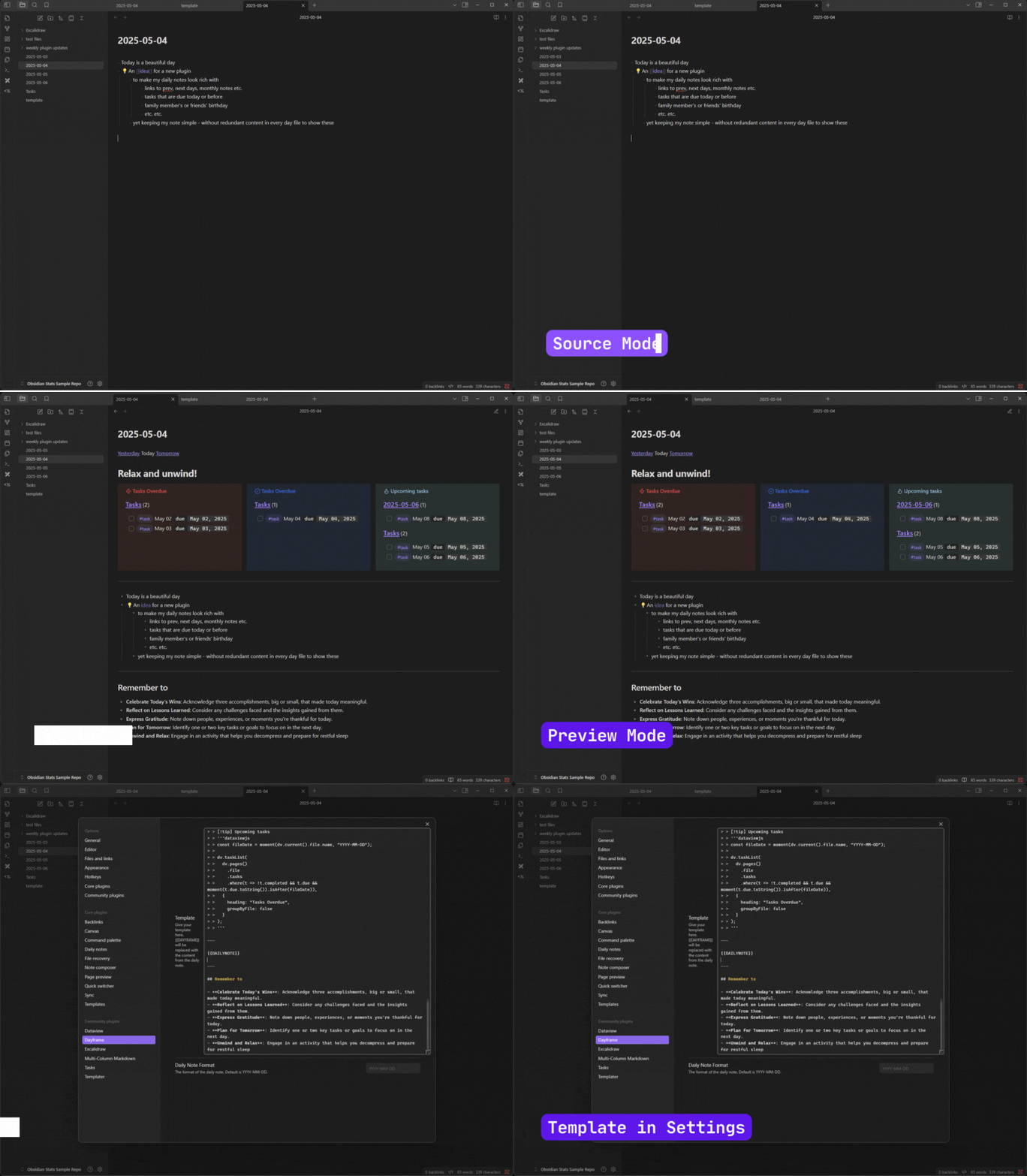
How it Works
The plugin monitors open notes. If a note is identified as a "daily note" (by its filename matching the YYYY-MM-DD format), Dayframe will:
- Read a template you define in its settings.
- Split this template using a
{{CONTENT}}placeholder. The content before{{CONTENT}}becomes the prefix, and the content after becomes the suffix. - Render this prefix and suffix around the note in Reading view and Live Preview.
- Keep the Live Preview frame non-editable, so the cursor remains in the daily note content.
This means your actual markdown files for daily notes remain clean, containing only your core content. The "frame" is dynamically added only for viewing.
- Keeps your
YYYY-MM-DD.mdfiles free of repetitive template boilerplate. - Automatically adds a prefix and/or suffix to your daily notes in Reading view and Live Preview.
- The prefix and suffix content are rendered as markdown, allowing for links, embeds, and other markdown features.
- Define your own frame content via the plugin settings using a
{{CONTENT}}placeholder. - Open daily notes update immediately when the template setting or selected template file changes.
Installation
The plugin is not available in the official Community Plugins repository yet.
Beta versions
To install the latest beta release of this plugin (regardless if it is available in the official Community Plugins repository or not), follow these steps:
- Ensure you have the BRAT plugin installed and enabled.
- Click Install via BRAT.
- An Obsidian pop-up window should appear. In the window, click the
Add pluginbutton once and wait a few seconds for the plugin to install.
Offline (Manual) Installation
- Download the latest release files (
main.js,manifest.json,styles.cssif available) from the Releases page of this repository. - In your Obsidian vault, navigate to the
.obsidian/plugins/directory. - Create a new folder named
dayframe. - Copy the downloaded files into this new
dayframefolder. - Reload Obsidian (or disable and re-enable the community plugins).
- Enable the "Dayframe" plugin in Obsidian's community plugin settings.
Configuration
- Open Obsidian's settings.
- Navigate to "Dayframe" under the "Community plugins" section.
- In the "Dayframe Template" setting, enter your desired template.
- Use
{{CONTENT}}as a placeholder to indicate where your daily note's actual content should appear. - Content before
{{CONTENT}}will be your prefix. - Content after
{{CONTENT}}will be your suffix.
- Use
- Choose "Vault file" to search for and select a Markdown template from the vault instead of storing it in the plugin settings.
- Inline templates and template files are not saved unless they contain
{{CONTENT}}.
Example Template From Demo:
This template uses (though none of them are mandatory)
```dataviewjs
let fileDate = window.moment(dv.current().file.name, "YYYY-MM-DD");
let yesterday = moment(fileDate).subtract(1, "day").format("YYYY-MM-DD");
let tomorrow = moment(fileDate).add(1, "day").format("YYYY-MM-DD");
dv.paragraph(`[[${yesterday}|Yesterday]] Today [[${tomorrow}|Tomorrow]]`);
```


```dataviewjs
// Define greeting messages for different times of the day
const greetings = {
  morning: [
    "Good morning! ☀️",
    "Rise and shine! 🌅",
    "Top of the morning to you!",
    "Wakey, wakey!",
    "Morning, sunshine!"
  ],
  afternoon: [
    "Good afternoon! ☀️",
    "Hope your day is going well!",
    "Keep up the great work!",
    "Hello there!",
    "Enjoy your afternoon!"
  ],
  evening: [
    "Good evening! 🌇",
    "Hope you had a great day!",
    "Relax and unwind!",
    "Evening vibes!",
    "Time to relax!"
  ],
  night: [
    "Good night! 🌙",
    "Sweet dreams!",
    "Rest well!",
    "Sleep tight!",
    "Nighty night!"
  ]
};

// Simple hash function to generate a consistent number from a string
function hashString(str) {
  let hash = 0;
  for (let i = 0; i < str.length; i++) {
    hash = ((hash << 5) - hash) + str.charCodeAt(i);
    hash |= 0; // Convert to 32bit integer
  }
  return Math.abs(hash);
}

// Get the current date in YYYY-MM-DD format
const today = moment().format("YYYY-MM-DD");

// Determine the current hour
const hour = moment().hour();

// Determine the time period
let timePeriod;
if (hour >= 5 && hour < 12) {
  timePeriod = "morning";
} else if (hour >= 12 && hour < 17) {
  timePeriod = "afternoon";
} else if (hour >= 17 && hour < 21) {
  timePeriod = "evening";
} else {
  timePeriod = "night";
}

// Select a greeting based on the hashed date
const messages = greetings[timePeriod];
const index = hashString(today) % messages.length;
const greeting = messages[index];

// Display the greeting as an H1 header
dv.header(1, greeting);
```


> [!multi-column]
> > [!danger] Tasks Overdue
> > ```dataviewjs
> > const fileDate = moment(dv.current().file.name, "YYYY-MM-DD");
> >
> > dv.taskList(
> >   dv.pages()
> >     .file
> >     .tasks
> >     .where(t => !t.completed && t.due && moment(t.due.toString()).isBefore(fileDate)),
> >   {
> >     heading: "Tasks Overdue",
> >     groupByFile: false
> >   }
> > );
> > ```
>
> > [!todo] Tasks Overdue
> > ```dataviewjs
> > const fileDate = moment(dv.current().file.name, "YYYY-MM-DD");
> >
> > dv.taskList(
> >   dv.pages()
> >     .file
> >     .tasks
> >     .where(t => !t.completed && t.due && moment(t.due.toString()).isSame(fileDate, 'day')),
> >   {
> >     heading: "Tasks Overdue",
> >     groupByFile: false
> >   }
> > );
> > ```
>
> > [!tip] Upcoming tasks
> > ```dataviewjs
> > const fileDate = moment(dv.current().file.name, "YYYY-MM-DD");
> >
> > dv.taskList(
> >   dv.pages()
> >     .file
> >     .tasks
> >     .where(t => !t.completed && t.due && moment(t.due.toString()).isAfter(fileDate)),
> >   {
> >     heading: "Tasks Overdue",
> >     groupByFile: false
> >   }
> > );
> > ```

---

{{CONTENT}}

---

## Remember to

- **Celebrate Today's Wins**: Acknowledge three accomplishments, big or small, that made today meaningful.
- **Reflect on Lessons Learned**: Consider any challenges faced and the insights gained from them.
- **Express Gratitude**: Note down people, experiences, or moments you're thankful for today.
- **Plan for Tomorrow**: Identify one or two key tasks or goals to focus on in the next day.
- **Unwind and Relax**: Engage in an activity that helps you decompress and prepare for restful sleep
Development testing
Run the local test pipeline:
yarn test
This starts a development-mode watch build and packages the plugin into test-vault/.obsidian/plugins/dayframe. On the first run, obsidian-dev-utils also downloads the Hot Reload plugin into the test vault.
Open test-vault as a vault in Obsidian, allow community plugins when prompted, then enable Dayframe and Hot Reload. Open 2026-08-07.md in Reading view to exercise the plugin. Source changes are rebuilt and copied into the vault until the command is stopped with Ctrl+C.
The generated plugin folders and Obsidian workspace state are ignored by Git. The sample note and minimal vault configuration remain tracked as repeatable test fixtures.
Debugging
By default, debug messages for this plugin are hidden.
To show them, run the following command in the DevTools Console:
window.DEBUG.enable('dayframe');
For more details, refer to the documentation.