Day Echo
 lucas250 downloads
Gather all your daily notes into one vertical timeline view.
- Overview
- Scorecard
- Updates3
Gather all your daily notes into one vertical timeline view.
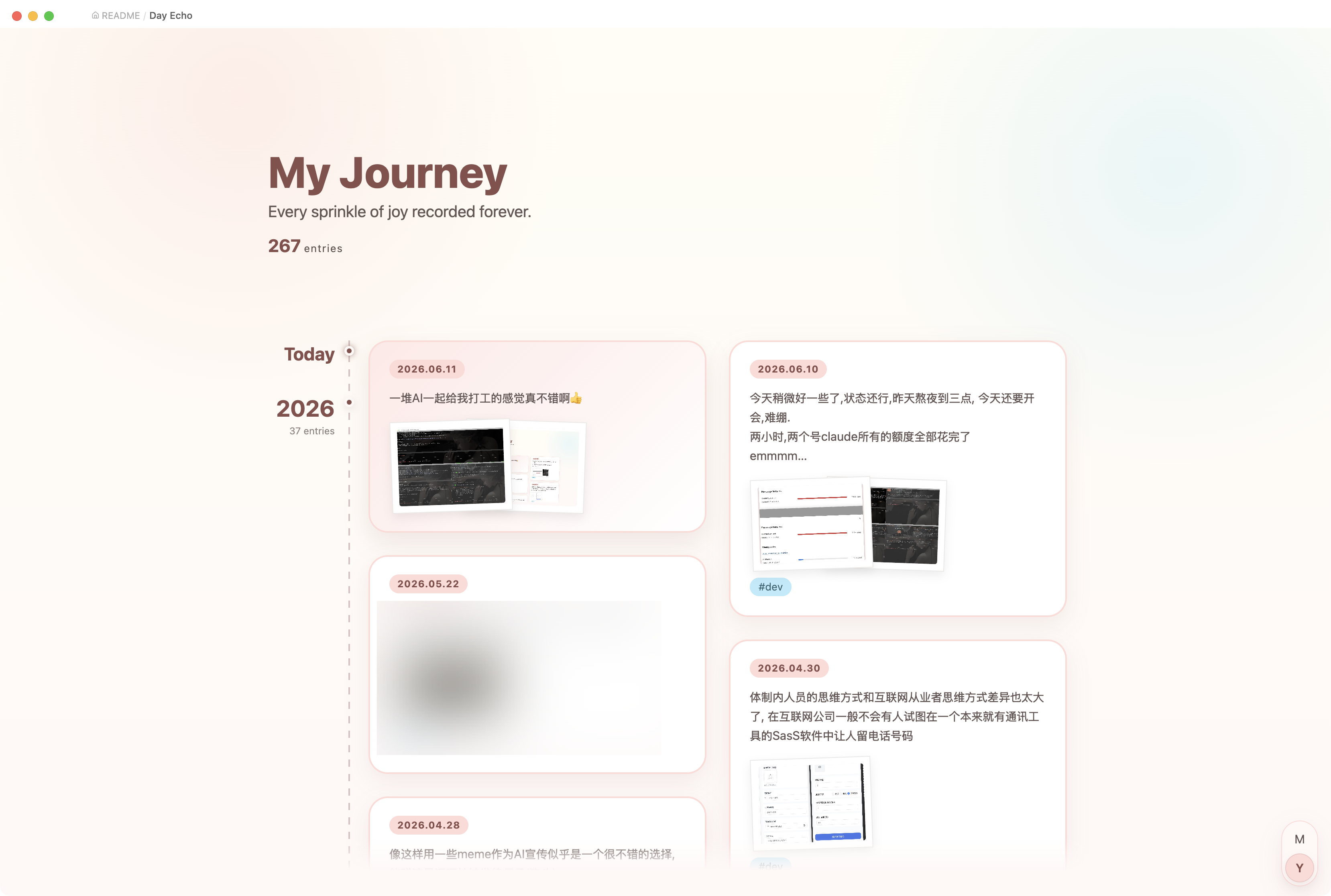
Day Echo is an Obsidian plugin that turns your scattered daily notes into a single, scrollable timeline — so you can scan months and years of journaling at a glance, reopen any day in a click, and keep writing without losing the thread.
Features
Vertical timeline
Collects every daily note in your diary folder into one continuous, two-column timeline:
- A left-hand axis marks each section (month or year), with a running entry count.
- Cards flow newest-first (or oldest-first) and are balanced across two columns.
- A sticky label pins the current section to the top as you scroll, and a back-to-top button slides in once you've scrolled past one full screen.
- The top of the timeline shows a small "My Journey" header with your total entry count.
Open it from the calendar ribbon icon on the left, or via the command palette: Open Day Echo timeline.
Rich cards
Each day is rendered as a preview card:
- A text snippet of the note (frontmatter, code, and images stripped out).
- Lazy-loaded image thumbnails in a stacked, polaroid style — full-size images decode off the critical path so scrolling stays smooth.
- The note's tags (excluding the
#dailymarker).
Click a card to open the full day's note in a modal popup; click the date label to open the note in the editor.
Month / Year zoom
A floating segmented control in the bottom-right corner switches between month and year aggregation:
- Click a segment, or hold Ctrl / Cmd / Alt and scroll the wheel to zoom in or out.
- Zooming plays a smooth crossfade and keeps the section under your cursor anchored in place.
- In year view, only representative entries are shown per year, with a "show more" card to expand the rest.
Plain wheel scrolling is replaced by an eased, speed-capped glide for a calmer reading feel. (Both effects respect your system's reduce motion setting.)
Today shortcut
When viewing newest-first, the top of the timeline always reflects today:
- If today's note already exists, it appears as a highlighted card under a "today" marker.
- If it doesn't, a "start today's diary" card creates and opens the note for you.
Daily-note navigation bar
When you open any date-named daily note (YYYY-MM-DD), Day Echo injects a previous / next bar at the bottom of the note, so you can step through adjacent days without leaving the editor. This can be toggled off in settings.
Energy & mood block
Drop an echo-interaction code block into any note to rate a day's energy and mood on a 1–5 scale. Saving writes the scores into that day's daily-note frontmatter (energy / mood):
```echo-interaction
date: yesterday
```
date accepts yesterday (default), today, or an explicit YYYY-MM-DD.
The timeline refreshes automatically whenever notes in the diary folder are created, modified, renamed, or deleted.
Settings
| Setting | Description |
|---|---|
| Daily notes folder | Folder scanned for daily notes, relative to the vault root. Default: daily. |
| Oldest first | Default sort direction. Off (default) shows the newest entries at the top. |
| Show diary navigation | Show the previous / next bar on top of open daily notes. |
Day Echo treats notes named YYYY-MM-DD.md inside the daily folder as diary entries.
Installation
From within Obsidian (once published)
- Open Settings → Community plugins and disable Restricted Mode.
- Click Browse, search for Day Echo, and install it.
- Enable the plugin.
Manual
- Download
main.js,manifest.json, andstyles.cssfrom the latest release. - Copy them into
<your-vault>/.obsidian/plugins/day-echo/. - Reload Obsidian and enable Day Echo in Settings → Community plugins.
Requires Obsidian 1.5.7 or newer. Works on both desktop and mobile.
Development
pnpm install
pnpm dev      # watch + rebuild
pnpm build    # type-check + production build
pnpm test     # run the unit tests (vitest)