Screen and File QA
 12330 downloads
Ask AI about your screen or files, practise concepts with Feynman learning, and automatically save each conversation to a note.
- Overview
- Scorecard
- Updates6
简体中文 · Changelog · Privacy and security
Ask AI about the screen or an open file in Obsidian. Keep each conversation in one note, organize completed answers by topic, and check understanding with Feynman practice. You can preview Markdown revisions before applying them.
The plugin is free and open source. AI providers may require their own account, API key or subscription and charge for requests. Supported remote services are OpenAI, DeepSeek, the service used by your signed-in Codex CLI and any compatible endpoint you configure. The plugin has no analytics or advertising.
Install from Obsidian · Download the latest release · Quick start
Get started
- Install Screen and File QA from Obsidian's Community plugins on desktop Obsidian 1.13.0 or newer.
- Configure a provider in the plugin settings, then run Check File Q&A. Run the separate screen check if your model supports images.
- Open a file or display the material, choose File or Screen, and ask a specific question. Screen captures are previewed before sending by default. Use View note to open the automatically saved conversation.
For example: “Explain why independent events are not necessarily mutually exclusive, using the current note.” Set your learner level, Explain principles in depth, or Add worked examples independently. Ordinary questions can recall related knowledge notes and earlier answered questions; turn off Cross-conversation memory recall if you do not want that context sent to the provider. See the full walkthrough and settings →
Updated in 1.2.1: Recall excludes the question being asked and unfinished answers, and past hit counts cannot promote unrelated content. Recalled text is treated as background data; provider connection checks do not include it. Explanation depth, worked examples and background can be set without selecting a learner level. Read the release notes.
From a question to a knowledge note
Each conversation updates one note by default. The question can also be written back to its source Markdown note. After a completed answer is saved, optional AI classification puts a summary in a topic note under the configured knowledge folder. The topic entry includes the original typed question, summary and source links. Later follow-up questions remain visible even when their summaries match.
The following frames illustrate the 1.0.2 workflow with fictional content; they are not native Obsidian screenshots or images of the current 1.2.1 interface.
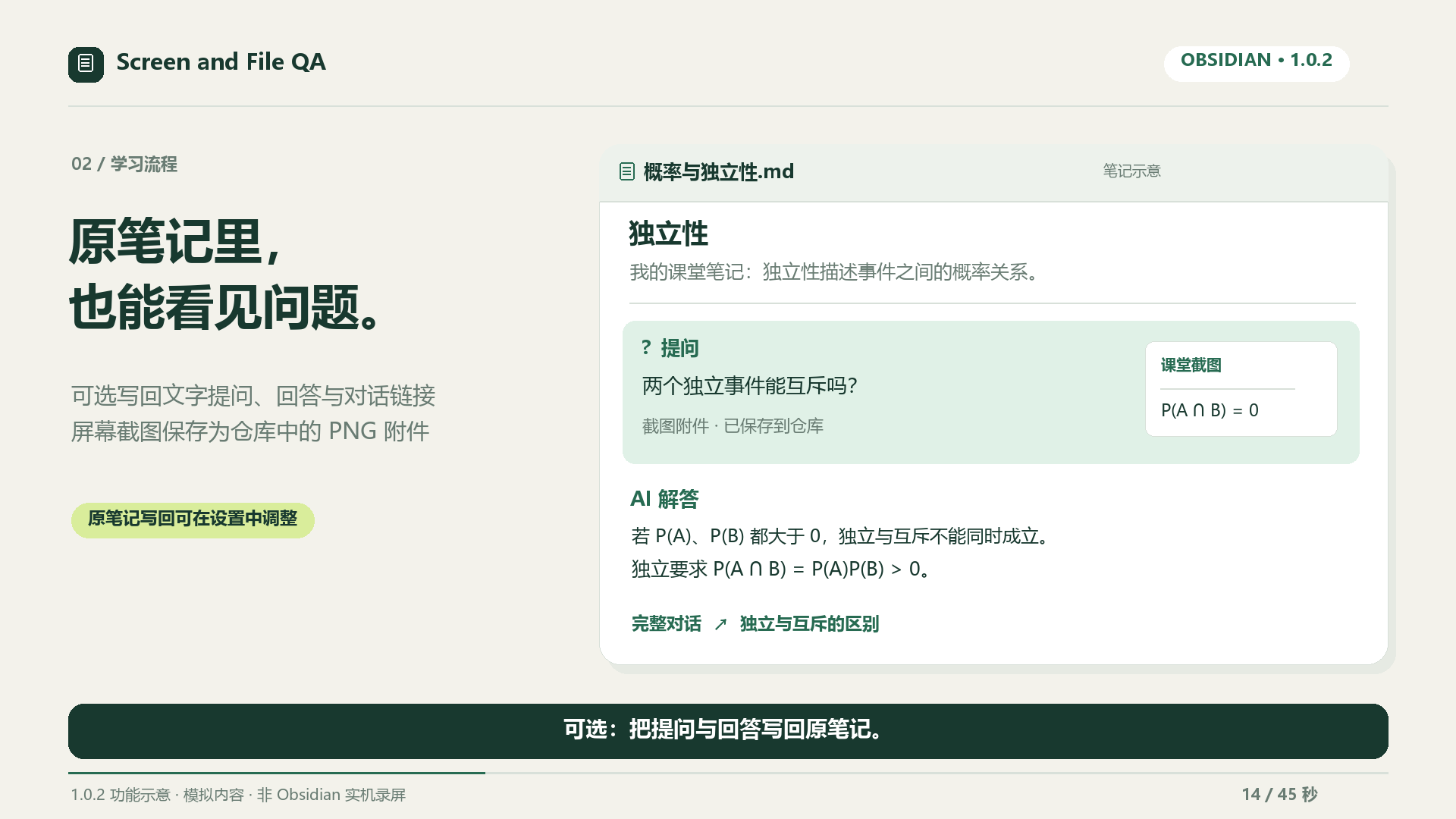
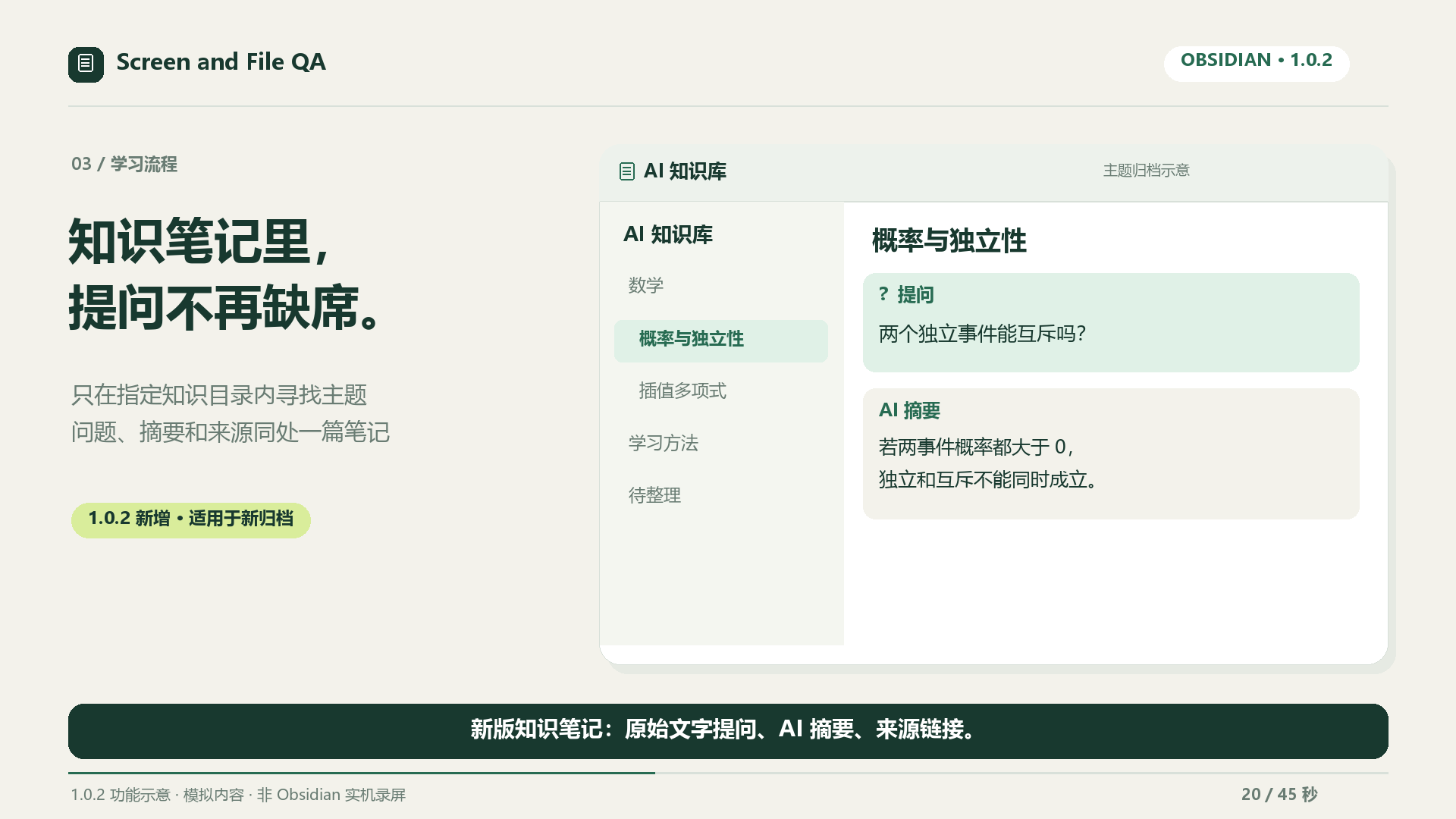
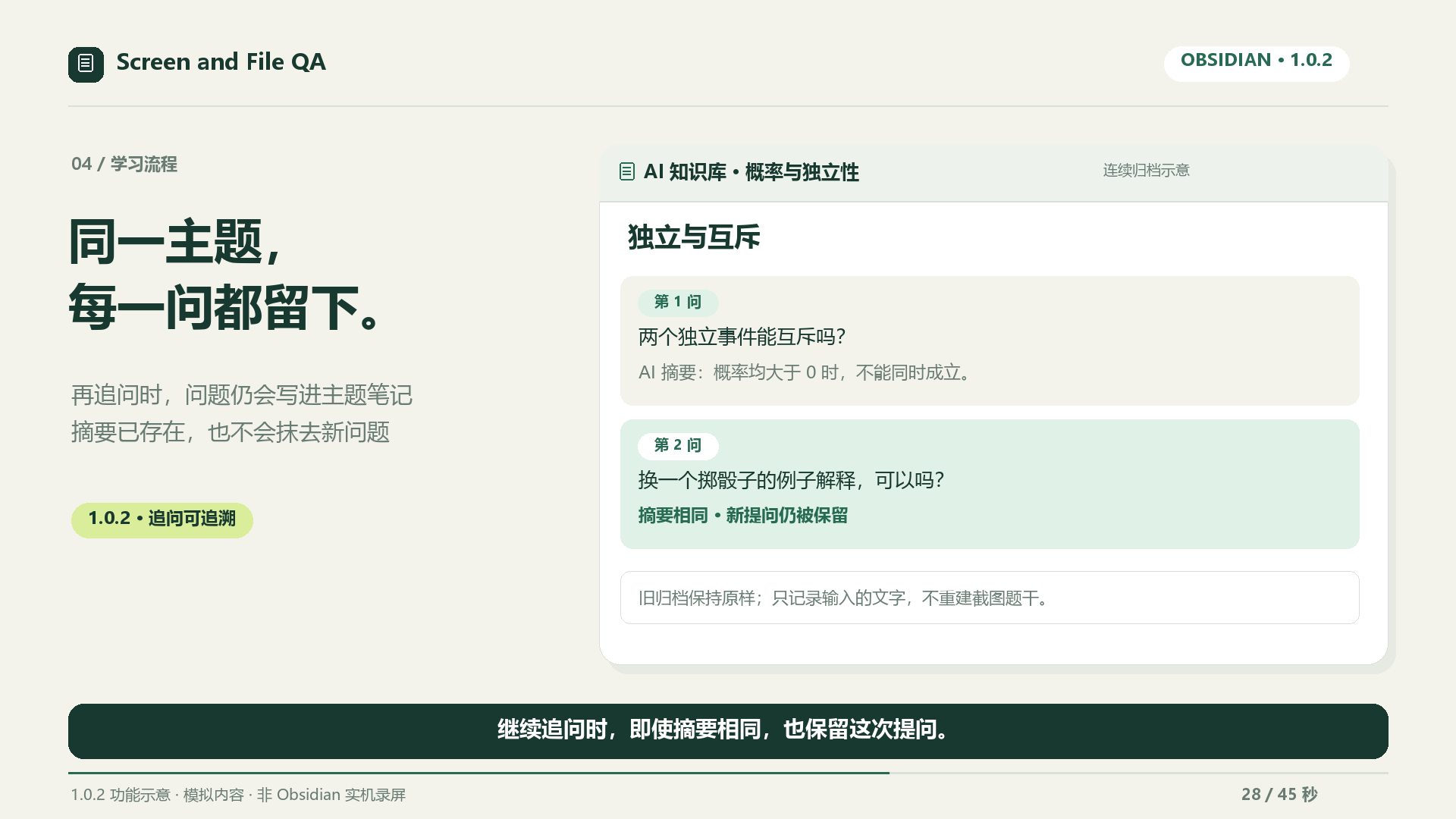
Earlier archives are preserved. Screen questions retain the text you typed; the plugin does not reconstruct the full problem statement from a screenshot. Watch the illustrated 1.0.2 video or see all six frames and production notes.
Illustrated walkthrough
Step-by-step quick start · Eight feature illustrations · 中文图文指南
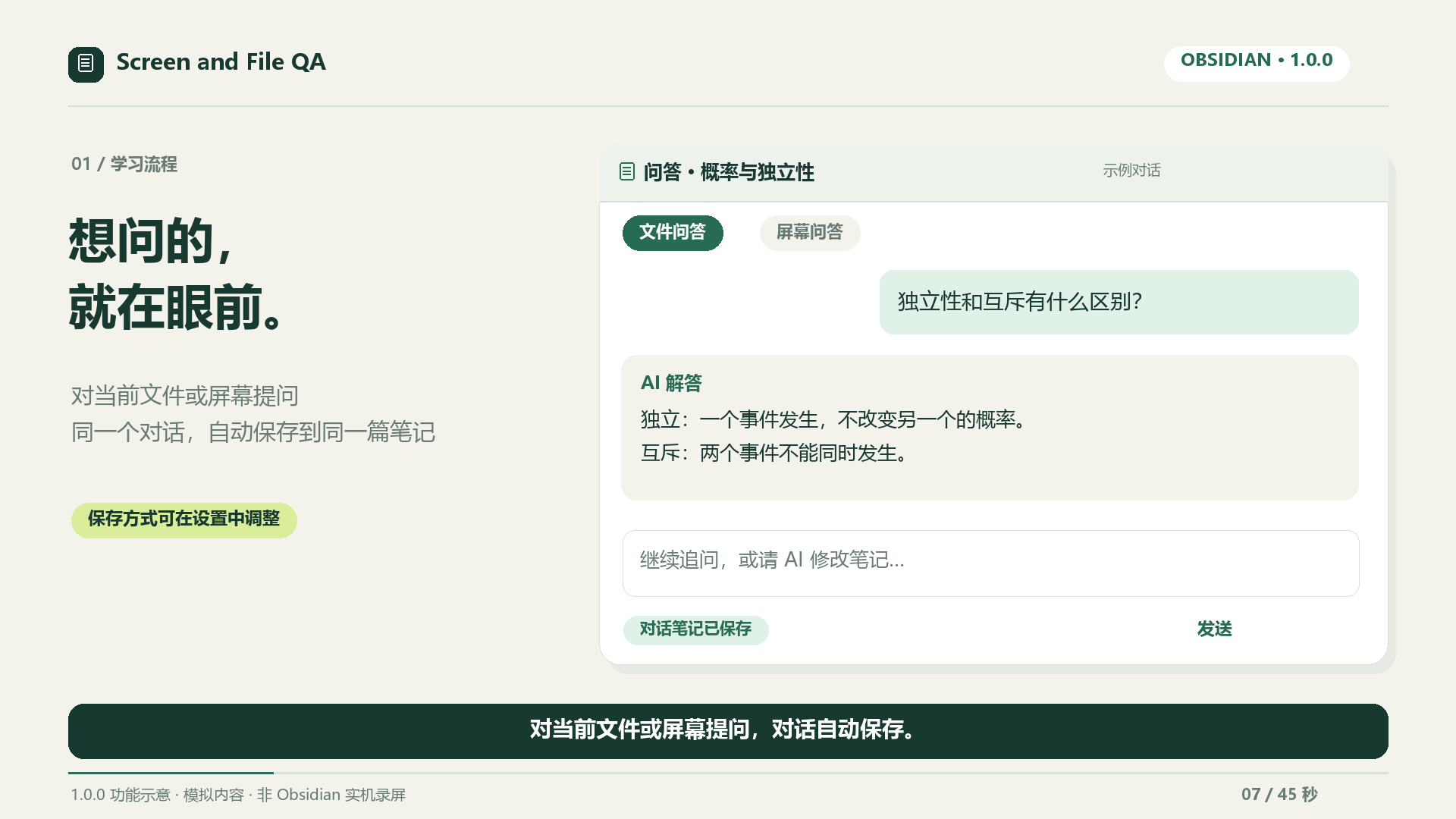
These are 1.0.0 feature illustrations with simulated content, not native Obsidian screenshots. The actual panel follows your theme. Click an image to view it at full size.
1. Ask about a file or screen
Open your material, choose a source and ask a concrete question. Screen captures are previewed before sending by default; each conversation updates one note.
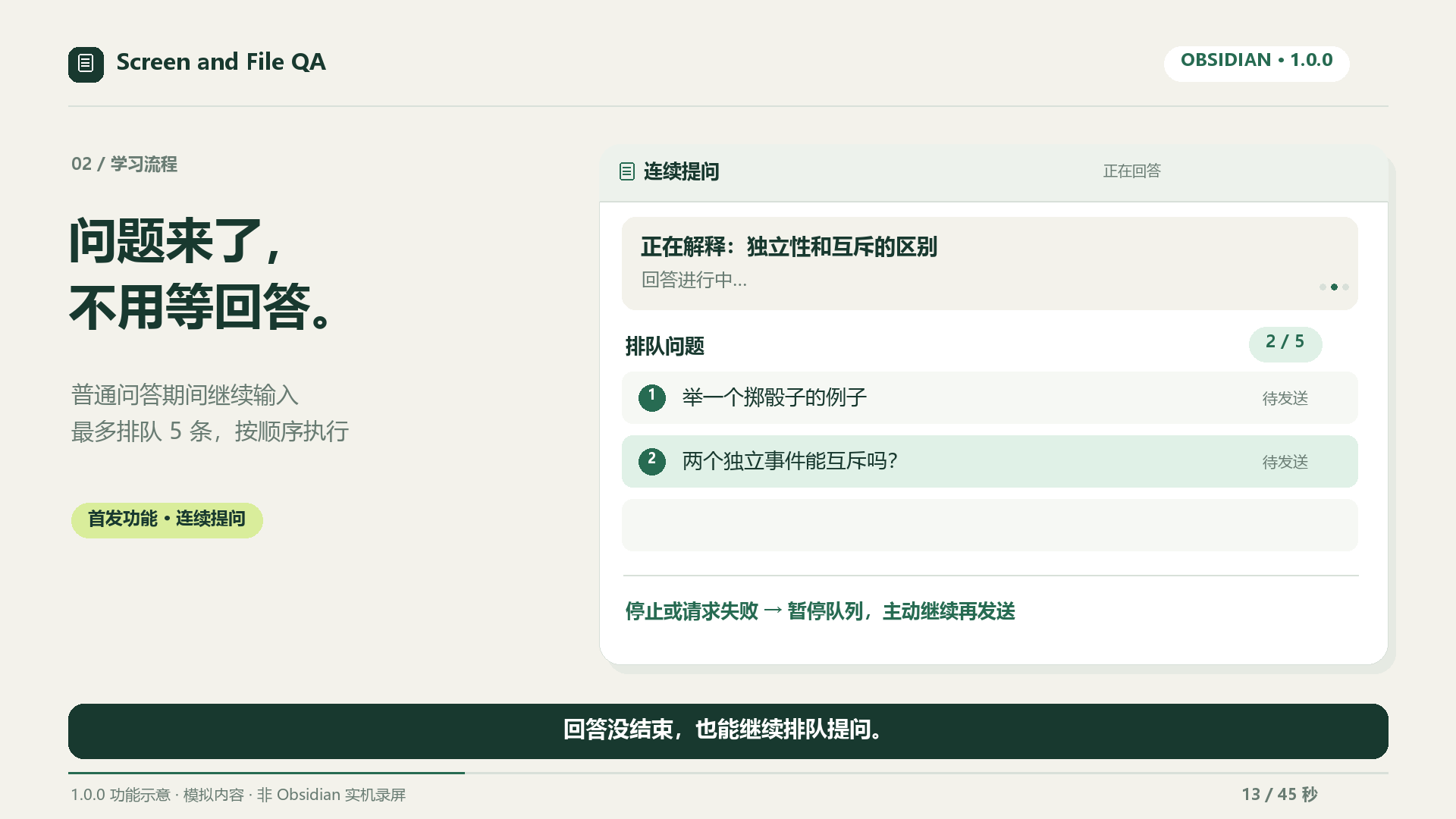
2. Keep asking while an answer streams
Type another question and press Enter to queue it, up to five pending items. Stop or provider errors pause remaining sends until explicit resume.
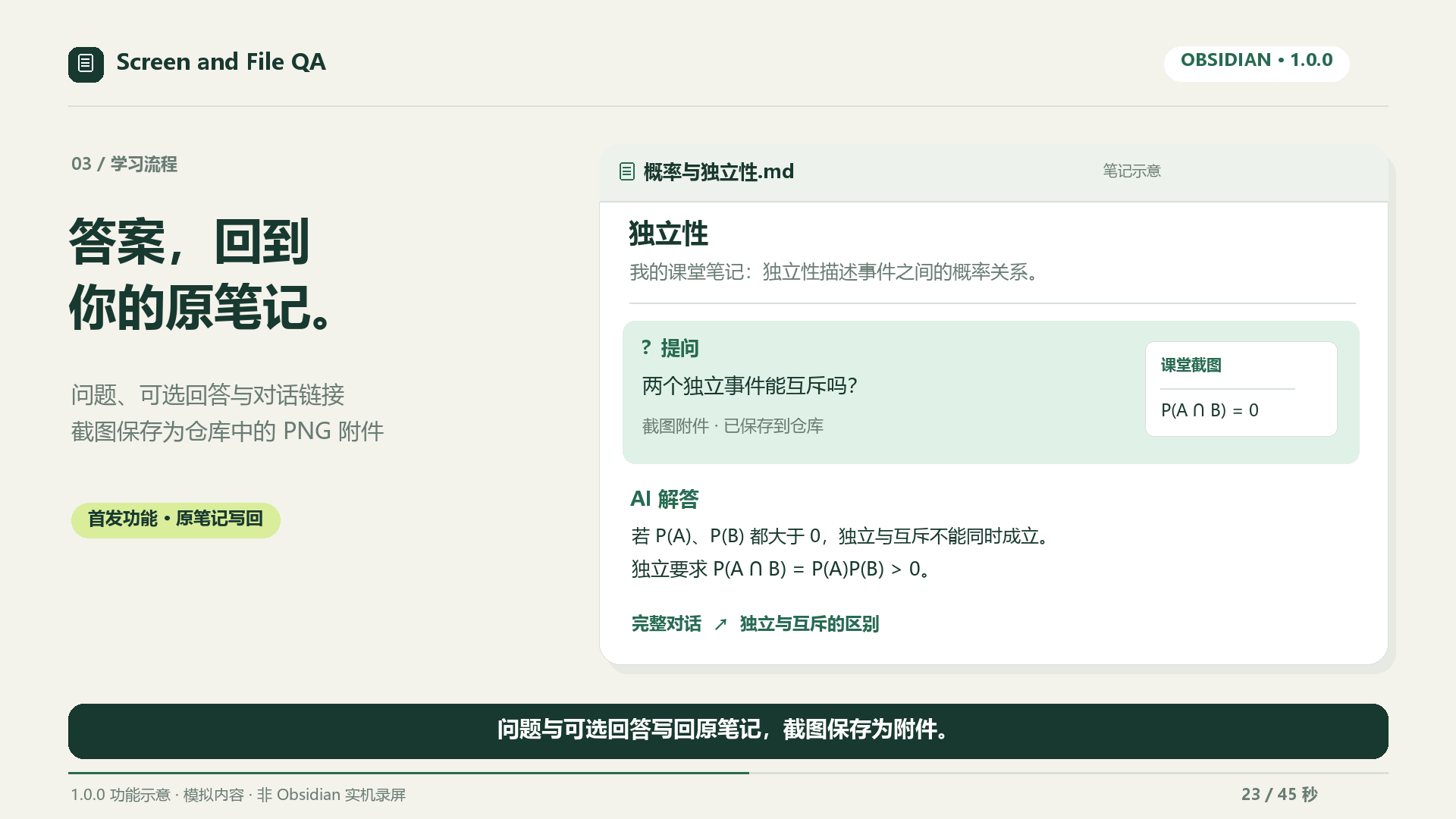
3. Keep questions beside the original note
Append questions, optional answers and transcript links to the asked Markdown note. Screenshots become vault PNG attachments. Source writes and conversation saving have independent settings.
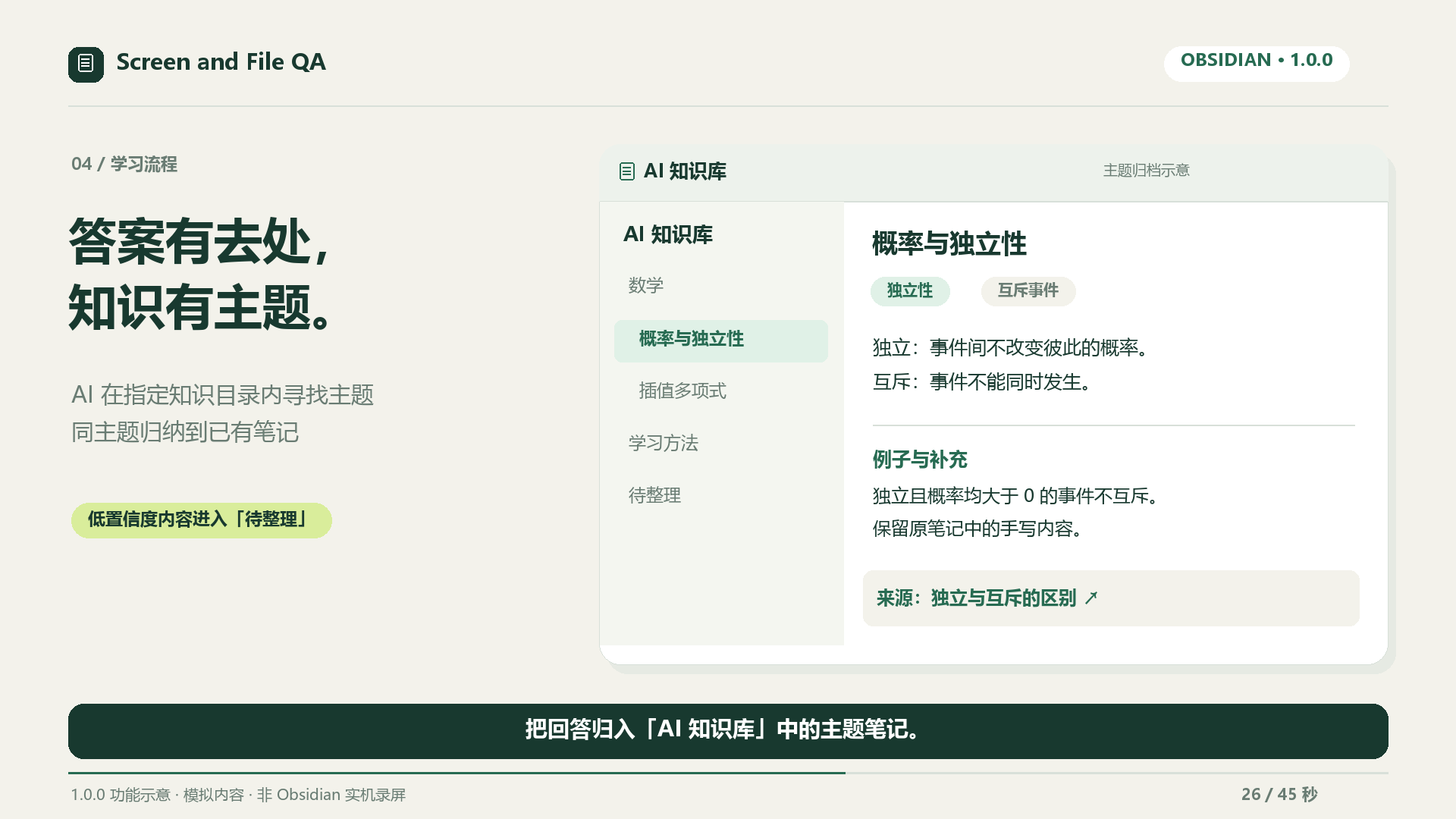
4. Organize answers by topic
Find topics only within the configured knowledge directory, preserve handwritten content and provenance, and put uncertain matches in Inbox. New archives since 1.0.2 also include the original typed question. Classification may add AI usage.
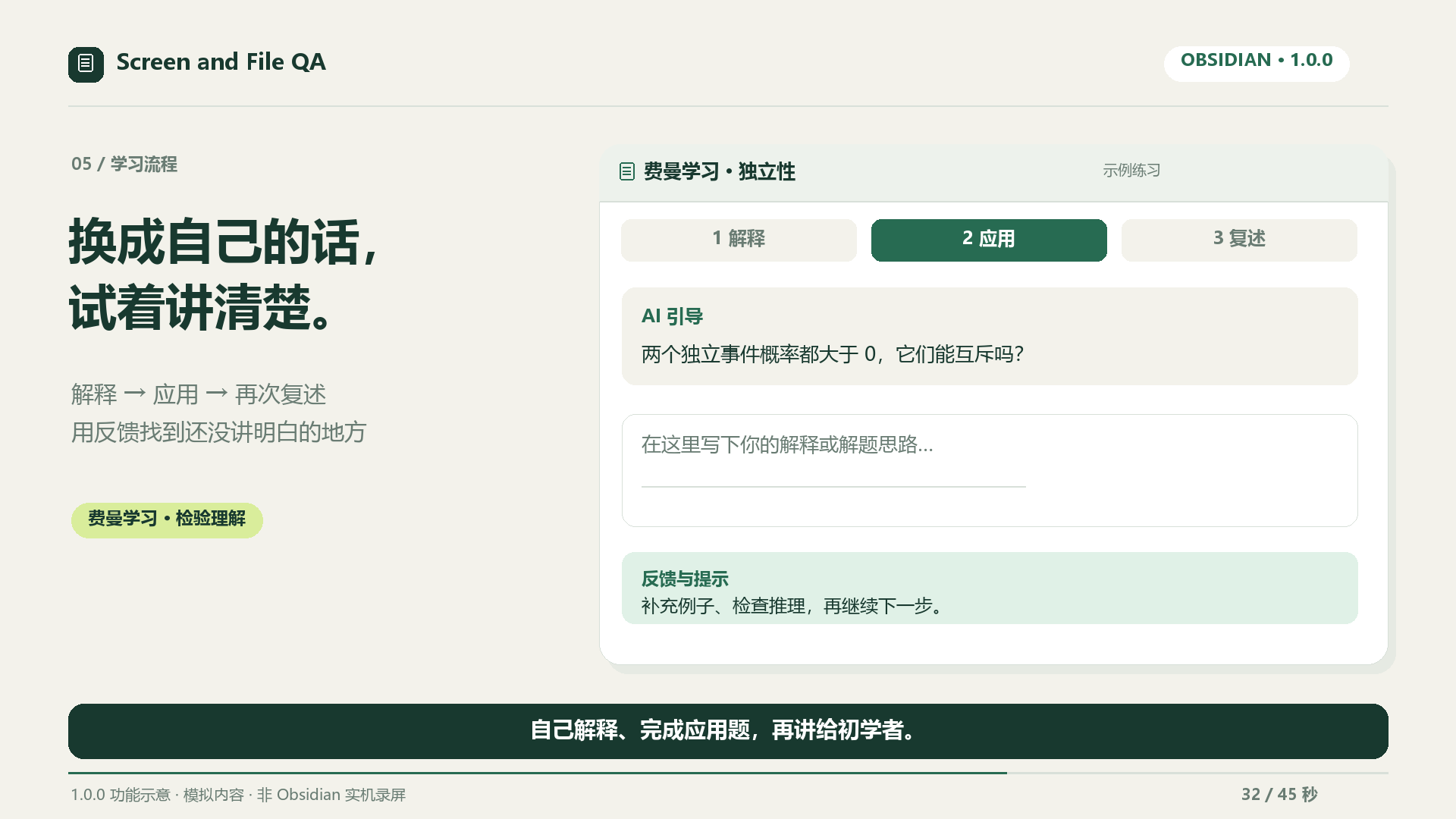
5. Check understanding with Feynman practice
Explain in your own words, solve an application and teach it back. Feedback identifies gaps; hints do not pass stages. Check the AI assessment.
6. Review later and retain learning feedback
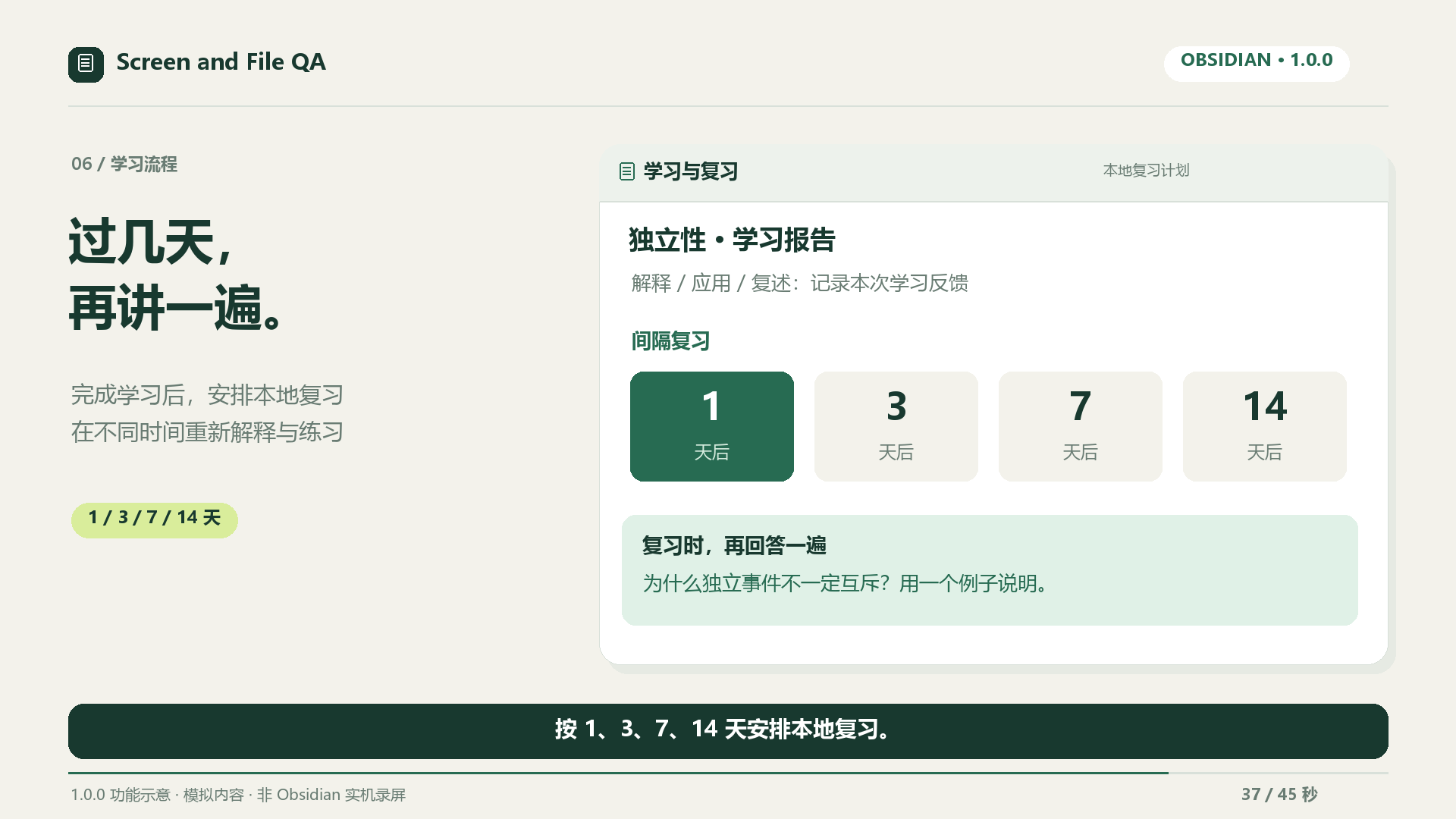
After learning, track local 1/3/7/14-day reviews and choose a topic to practise. The plan never automatically requests AI when due.
See note destinations, settings and the complete learning flow →
Privacy: Screen Q&A captures the selected display, including other application windows. A preview is shown before sending by default. The question, recent conversation, screenshot or selected file excerpts, optional learner settings, and up to three recalled memory snippets are sent to your configured provider. Recall searches the knowledge folder and answered conversation history locally; the current question and unfinished answers are excluded. API keys use Obsidian SecretStorage. Chat histories and saved notes are local vault data that may be copied by vault sync. See SECURITY.md for storage, cancellation and Codex details.
Community review may flag filesystem access and child processes used by the optional Codex CLI backend, clipboard writes performed by the Copy answer button, and Function constructors inside the bundled PDF.js dependency. PDF parsing sets isEvalSupported: false to disable PDF-generated function compilation. The plugin's own code does not evaluate AI answers as JavaScript or shell commands. See Review notices for the capabilities and release-asset checks.
Features
- Screen Q&A: capture the Obsidian display or the display under the cursor; review the screenshot before sending. A missing display match produces an error instead of capturing a different monitor.
- File Q&A: read Markdown, PDF, DOC/DOCX and text files including CSV, JSON, HTML, XML and YAML. Long documents use relevant excerpts; PDF excerpts retain page labels.
- Cross-conversation memory: before each ordinary question, recall up to three related snippets from knowledge notes (aliases included) and earlier answered questions. The active question is excluded; successful answers reinforce text-matching entries only (local hit counts, no extra requests). Recalled text is untrusted background data. Toggle in settings.
- Learner profile: a 30-second first-run wizard asks for your level, answer style and optional background. Ordinary Q&A can explain principles step by step after the direct answer and end with 2-3 worked examples for transfer. Each option also works independently in settings; leaving all options unset keeps the original concise behavior.
- Feynman learning: choose one concept, explain it in plain language, solve a transfer problem and teach it back. Identify gaps, request small hints, restore progress, export a report and start a review round.
- Revise note: generate a revision of the active Markdown note or selected text, edit it in a side-by-side preview, then apply. Changes made after the preview block applying it. Editor changes support undo.
- Stop and retry: stop pending work and retry the specific failed question. Recent in-memory snapshots reuse the original context or screenshot; older retries explicitly read fresh context.
- Streaming: stream answers where supported. Authentication and ambiguous network failures never trigger automatic resending. A setting enables non-streaming Obsidian requests when browser streaming is blocked.
- Persistent history: retain up to 80 messages per conversation and 40 recent conversations in memory and on disk.
- Automatic conversation notes: each conversation updates one Markdown note by default, including questions, responses and learning progress. Choose separate notes per answer or disable automatic saving in settings.
- Write back to the asked note: after an answer completes, the question is appended to the end of the asked Markdown note (screen questions go to the Markdown note open when submitted or queued). Screenshots are saved as vault attachments using Obsidian's attachment settings and embedded before the question. Toggle whether the AI answer is included; notes inside AI Q&A and knowledge folders are never modified.
- Question queue: the composer stays editable while an answer streams. Enter queues up to five pending questions as visible tasks that run automatically in order afterwards; a queued screenshot question is captured when it runs, not when it was typed.
- AI knowledge archiving: summarize complete answers into topic notes within AI Knowledge, reuse an existing topic when its title clearly matches, and send uncertain classifications to Inbox.
- Providers: Codex CLI, DeepSeek, OpenAI and OpenAI-compatible Chat Completions endpoints. Text-only and image capabilities are checked separately.
- Bilingual interface: English and Simplified Chinese, following the Obsidian locale.
Installation
Requires Obsidian 1.13.0 or newer on desktop. Mobile is not supported.
Open Settings → Community plugins → Browse, search for Screen and File QA, install it and enable it. Alternatively, select Add to Obsidian on the official plugin page. The latest GitHub release provides manual installation assets. The community directory may synchronize later; check its displayed version before installation.
For manual installation, extract the plugin ZIP from a release into your vault's configuration directory under plugins/current-note-chat/. The default configuration directory is .obsidian; it can be customized.
Alternatively, copy these three release assets into that directory:
main.js
manifest.json
styles.css
Enable Screen and File QA in Settings → Community plugins; search for Screen and File QA to find it among installed plugins. The controls follow the Obsidian interface language. The PDF worker and complete bundled license notices are embedded in main.js; no separate worker or node_modules is needed. The source ZIP is for development, not installation.
Configure a provider
| Backend | Setup | Screen Q&A |
|---|---|---|
| Codex CLI | Install and sign in separately. Supply the executable path if auto-detection fails. | Depends on the CLI model's image support. |
| DeepSeek | Select an API secret and enter a currently supported model ID. | Requires a model and endpoint supporting image input. |
| OpenAI | Select an API secret and enter a currently supported model ID. | Requires a vision-capable model. |
| Custom API | Enter the full Chat Completions URL, model ID and optional API secret. | Requires compatible image_url input. |
Remote endpoints require HTTPS. HTTP is allowed only for localhost, 127.0.0.1 and [::1]. Do not put credentials in the URL.
Codex runs an ephemeral read-only session in a temporary directory. It locates an executable outside the vault, reads the installed CLI's version/help output and uses its existing external authentication/configuration. It writes a temporary screenshot outside the vault when an image is needed and removes it when the process exits. Codex's sandbox restricts writes but does not isolate reads to the supplied excerpts; the CLI may read files outside the vault according to its permissions. By default Ignore Codex user configuration adds --ignore-user-config while retaining the local login. Your CLI must support this flag; update it or deliberately turn off configuration isolation if it does not. Configuration isolation was checked against local CLI 0.158.0-alpha.2.1; compatibility with other CLI releases must be verified with codex exec --help. Codex is not an offline model simply because the executable runs locally.
Use the plugin
- Open the floating chat icon, ribbon icon or command palette command.
- Select Screen or File under Source, enter a question and press Send. Enter sends; Shift+Enter inserts a new line.
- In Screen Q&A, inspect the preview and choose Send this screenshot or Cancel.
- Use Stop to stop waiting, or Retry this question on a failed response. Retried screenshots are previewed again when previews are enabled.
- While an answer is streaming, the composer stays editable. Enter queues the next question (up to five) instead of discarding it; queued questions appear above the composer, can be removed individually and run automatically in order when the current answer finishes. Returning to the file of a queued question also starts it. Stop or request failure pauses the queue until Resume or another explicit submission. Queues are held in memory and cleared on unload; Feynman submissions remain locked during assessment.
- For editing, open a Markdown note, optionally select text, enter an instruction and choose the pencil icon (Revise note). Inspect the original/revised text before applying.
- Conversations automatically update a note in AI Q&A. The header's file icon (View note) opens it. The plus icon (New chat) retains the existing note and starts a new note for the next conversation. When Append questions to the asked note is on, each finished question is also appended to the asked Markdown note (screen questions to the note open when submitted or queued), with screenshots saved as attachments and embedded. Icon tooltips explain each action; the settings icon opens this plugin's settings.
Settings provide Check connection, Check File Q&A and Check Screen Q&A. The file check sends synthetic text; the screen check sends a generated letter image and verifies that it was identified correctly. Checks can incur small provider charges and never capture the real screen.
Learn with the Feynman method
- Open the relevant file or display the source on screen. Select the source mode, then Feynman learning, or use the Open Feynman learning command.
- Enter one concept and select Start learning. This first step asks for your own explanation without making a provider request.
- Explain what it means, why it works and an example. The tutor identifies gaps against the source; unresolved gaps keep you in this stage.
- After the explanation passes, solve a new application problem with reasoning. Then teach a beginner again, adding a new example and limitations.
- Use Give me a hint when stuck. Hints never count as a pass and preserve your draft answer.
- After all three stages have answer evidence, the UI says This round passed. The conversation note automatically updates its learning record; use View note to read it. Start review tests the same topic in this conversation. New topic keeps the old note and starts a new learning conversation and note.
A pass is an AI assessment of this round, not a guarantee of lasting mastery. Review the next day without looking at the source. Insufficient material, invalid feedback and cancelled requests never advance the stage. Learning feedback uses a complete, non-streaming JSON response; ordinary Q&A streaming remains available.
Learning is separate from Q&A history. File excerpts are frozen for the round and stored locally with progress; use New topic to update changed material. Screen rounds reuse the first approved screenshot, sending it to the configured provider with each assessment or hint. Images exist only in the bounded ten-minute memory cache; expiration, eviction or restart requires a new topic and capture. Disabling previews also applies to learning captures.
Automatic note saving offers One note per conversation (default), One note per answer, and Off. The default starts recording with the first message and updates the same note through questions, hints and reviews. Per-answer mode saves each successful provider response separately and includes a learning report on the final Feynman response. Manual Export remains available in per-answer and off modes. Previously disabled auto-save settings remain disabled on upgrade.
Choose a vault folder in Conversation notes folder, defaulting to AI Q&A. Folder changes apply to new conversations; existing ones keep updating their original note. Renaming or moving a conversation note preserves its binding. Deleted or repurposed notes are replaced with a new note without overwriting unrelated content.
Automatically organize knowledge
AI classification and archiving is enabled by default when automatic note saving is enabled. After a complete Q&A answer is saved, a background request to the configured provider summarizes it and chooses a knowledge note. Feynman rounds archive their report only after completion; hints and unfinished assessments remain in the conversation.
The default knowledge folder is AI Knowledge (AI 知识库 in a Chinese interface). Retrieval traverses only this folder and its subfolders, using question/answer keywords, bilingual synonyms and local aliases. Only candidate titles and paths are sent for classification; aliases and candidate contents stay local. The current source, transcript and Inbox are excluded. A clearly matching concept receives an appended section; otherwise the plugin creates a topic note inside one to three category folders. Handwritten content stays intact. Starting with 1.0.2, each new archived entry shows the original typed question before its summary and links to the full conversation and source when available. A screen question records what was typed; a prompt such as “solve question 14” cannot reconstruct the problem statement from the screenshot. Existing archived sections are not rewritten automatically.
For example, a probability answer may go to AI Knowledge/Mathematics/Probability/Independence.md. This is an illustration: category names and classification depend on the model. Classification is a suggestion, not a verified fact. Low-confidence results go to Inbox. If classification fails or returns an unsafe destination, Inbox retains the original answer for review. Stopped and failed Q&A answers are not classified.
The extra request can incur provider charges. It sends up to 8,000 question characters, 24,000 answer characters and 120 candidate names/paths; long answers may therefore produce a partial summary, while the full conversation remains available. There is no full-vault content indexing. Change Knowledge notes folder, disable AI classification and archiving, or use the command Archive current answer to a knowledge note to archive a completed answer manually. Turning off automatic note saving also stops automatic classification. Cancelled jobs stay cancelled even if settings are quickly re-enabled. Previously saved answers are not retroactively classified.
Data and limits
Recovery, consolidation and review plans
Conversation saving must succeed before automatic classification. Failed saving retains a recovery task. The local journal stores classification results and prepared writes, allowing completed classifications to resume without another provider request. Uncertain in-flight requests pause for an explicit retry. Up to 20 jobs retain answers of up to 64,000 characters; disabling archiving/automatic saving or changing the knowledge folder cancels old jobs. Source renames and automatic/manual Feynman archiving share stable identities within the 400-record archive history.
Use View archive tasks and usage to inspect failures, retry, dismiss tasks or undo recent unchanged additions. Edited or shifted sections cannot be safely undone. Classification model can select a text model from the same API provider; Codex keeps its own configuration. Daily classification request limit counts reservations, failed and interrupted attempts, not monetary billing, and does not limit ordinary Q&A. Recent identical content reuses archived results. Status updates affect only the archive row instead of rerendering the entire conversation.
Automatic appends skip identical summary text and retain new source links. For semantic consolidation, open a knowledge note and use Consolidate current knowledge note (preview). This explicitly sends the current note or selection to the Q&A model and requires applying a preview; handwritten notes are never automatically rewritten. Select a passage for notes longer than 12,000 characters.
Feynman completion records local 1, 3, 7 and 14 day review plans, retaining up to 100 topics. Early practice does not advance the interval or count as delayed retention evidence. Plans send no background requests or system notifications. Select Review plan or View knowledge review plan, put the material aside and start a new round. Three application difficulty levels request direct use, transfer or counterexamples. A limited source-grounded numerical check can veto inconsistent independence conclusions for fully specified probability exercises; it is not a general mathematical verifier. Provider classification quality and lasting learning outcomes still require separate evaluation.
See the 1.0.0 flow audit and the Chinese implementation report for validation and remaining work.
- Learner profile answers (level, style, optional background of up to 200 characters) are stored in plugin data and sent to the selected AI provider as part of each question prompt. Deeper answers and examples increase token usage.
- Recalled memory snippets (knowledge notes and earlier questions, bounded to three entries and 1,200 characters) are selected locally and sent to the selected AI provider as part of each question prompt; hit counts (max 400 keys) stay in plugin data. Disable via the settings toggle.
- New history is stored in plugin
data.jsonvia ObsidianloadData/saveData, alongside settings. Secret names are stored, not API secret values. - Appending to the asked note modifies that note with a question callout (optionally followed by the answer) and stores screenshot attachments using Obsidian's attachment settings. Appended question IDs are kept in plugin data so a retried answer never appends twice. Notes inside AI Q&A and knowledge folders are never modified, and non-Markdown targets are skipped.
- Learning progress retains up to twenty recent sources, including topics, gaps, accepted answers and frozen file excerpts, but no images. Learning transcripts share the overall forty-conversation/eighty-message limits.
- Saved conversation notes retain earlier turns beyond the in-memory eighty-message limit. Handwritten additions and edits to unchanged turns remain intact; a retry updates its original response. Streaming fragments are excluded, while stopped or failed responses are labeled incomplete. Note bindings persist after restart.
- Existing
sessions.jsonis read once when no migrated history exists. The original file is retained; newly saved history goes intodata.json. - Screenshot retry snapshots remain in memory for up to ten minutes, subject to a bounded cache, and are cleared on unload. They are not persisted in chat history.
- Files over 25 MB are rejected. Extracted PDF/Word text has a two-million-character limit. File context is normally limited to 6,000 characters; revisions to 12,000 characters; questions to 8,000 characters.
- DOCX archives are limited to 1,000 entries, 32 MB per decompressed entry and 64 MB total; ZIP64 DOCX archives are rejected.
- Scanned PDFs need OCR. Use Screen Q&A for visible scanned pages; the plugin does not provide OCR or claim to summarize an entire document from excerpts.
- Non-streaming Obsidian requests do not expose native transport cancellation. Late responses are ignored, but a provider may still process a stopped request and charge for it.
- OS or application crashes can leave a Codex temporary screenshot file. Generated Markdown can reference remote content that Obsidian loads while rendering.
Compatibility and troubleshooting
| Environment | Considerations |
|---|---|
| Windows desktop | A matching display ID is required; mixed-DPI and multi-monitor capture should be tested. |
| macOS desktop | Grant screen-recording permission to Obsidian and restart it if required. |
| Linux desktop | X11/Wayland support depends on Electron and the desktop portal. Missing display identification fails safely. |
| Mobile | Unsupported. |
- Browser request/CORS error: turn off Stream answers and retry explicitly. The plugin does not automatically resend ambiguous network failures.
- 401/403: select the correct SecretStorage entry and check provider permissions.
- Screen check fails but file check succeeds: use File Q&A or select a model with image input.
- No PDF text: the PDF may be scanned, encrypted or malformed. Try a selectable-text PDF or Screen Q&A.
- Revision blocked: the file, editor, mode or contents changed. Regenerate from the latest note.
- History/save error: check output paths, disk space and permissions. Keep backups when troubleshooting migration.
Automated tests cover parser, provider, cancellation and migration behavior. They do not establish that OS screen capture works on every platform. See the manual release checklist.
Development and releases
Use Node.js 22.13+:
npm ci --ignore-scripts
npm run check
npm run package
npm run dev watches the modular JavaScript source. src/types.d.ts documents message and request contracts. Production builds embed the matching worker and complete license notices. The lockfile records exact dependencies.
npm run package creates clean installation and source ZIPs in dist/, plus SHA256SUMS.txt. Explicit file allowlists exclude settings, history, local backups, npm caches and dependencies. Extract the source ZIP to use it as a standalone repository.
Before releasing, update package.json, manifest.json, versions.json, the changelog and docs/RELEASE_NOTES.md. A version change on main, an exact version tag or a manual Release workflow run starts the three-platform checks. After they pass, GitHub Actions builds the assets and publishes the corresponding release. The tag must exactly equal the manifest version, for example 1.0.0. Follow the official submission guide for community-directory listing.
License
MIT. See LICENSE and the generated third-party notices.