CSS Settings Panel
 theluckystrike14 downloads
Adjust theme and snippet settings from their settings blocks, in the Style Settings format you already use.
- Overview
- Scorecard
- Updates1
Adjust theme and snippet settings from their settings blocks, in the Style Settings format you already use.
Your theme settings keep working. Many themes and snippets carry a /* @settings */ block in their CSS. CSS Settings Panel reads those blocks as they are and shows a settings panel for each one. Your old values come with you, and the plugin never writes to a CSS file.
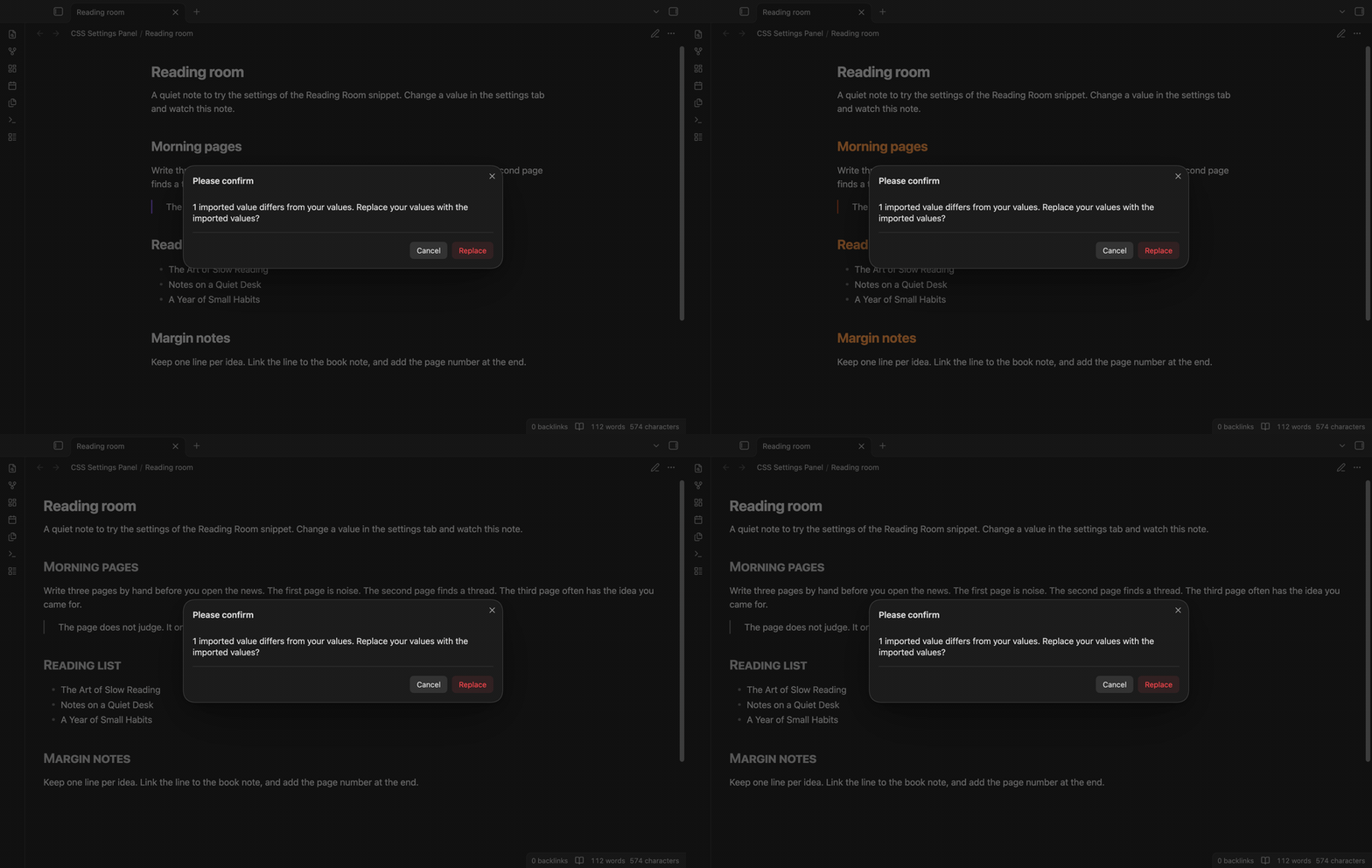
Features
One panel for every settings block
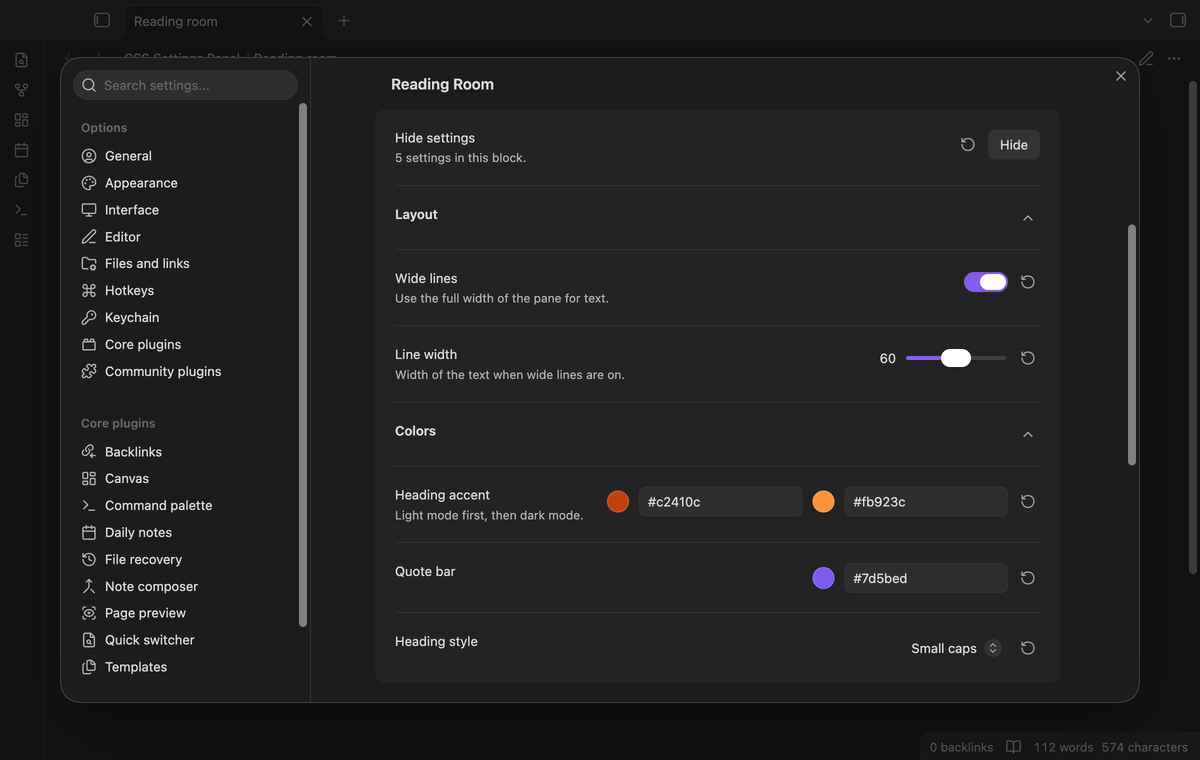
The plugin reads your theme, your CSS snippets and the styles of other plugins. Each @settings block becomes one section in the settings tab. Headings nest by their level, and each section and heading opens and closes. The open state stays the same after a restart.
All setting types of the format work. They are heading, info-text, class-toggle, class-select, variable-text, variable-number, variable-number-slider, variable-select, variable-color and variable-themed-color. Colors support the 8 formats hex, rgb, rgb-values, rgb-split, hsl, hsl-values, hsl-split and hsl-split-decimal, with opacity and alt-format. Titles and descriptions use the language of the app when the block has a title.xx key.
Your values come with you
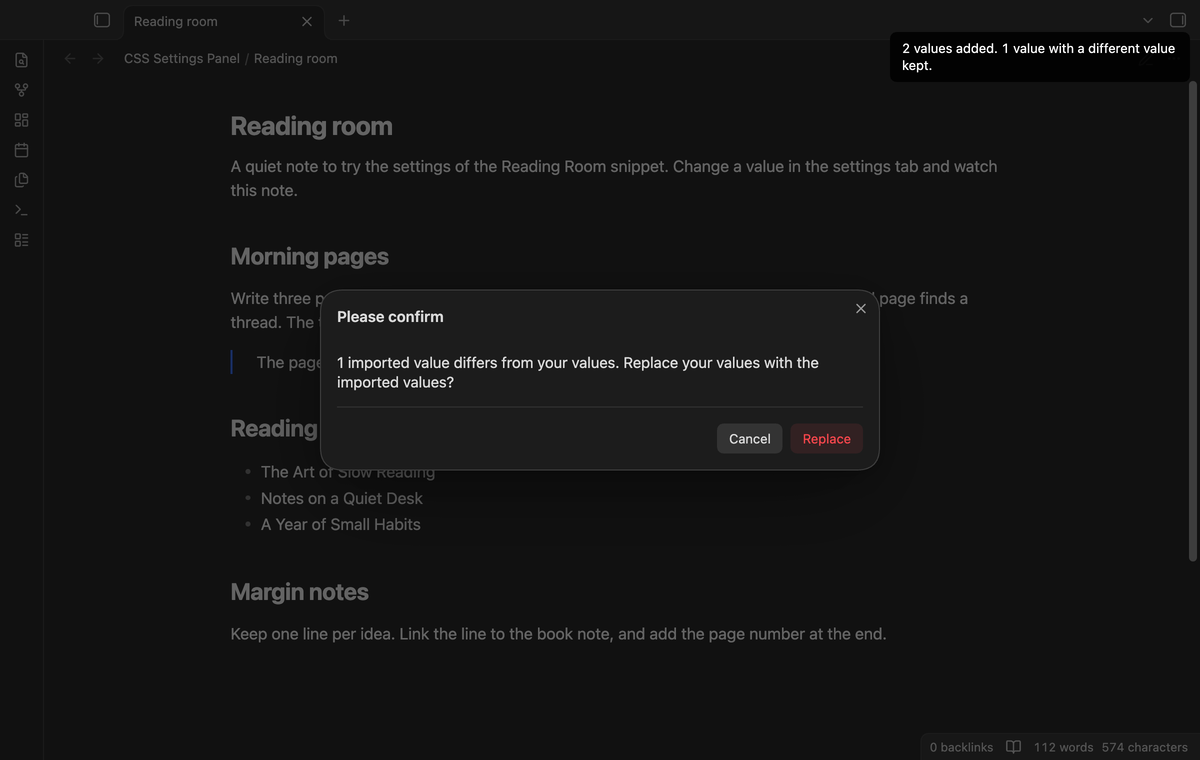
The saved data has the same layout as the data of Style Settings. Each key is the section id and the setting id. Select "Import values from style settings" in the settings tab, or run the command with the same name. The plugin reads the old data file and adds each value that you did not set here.
When an imported value differs from one of your values, a confirm asks first. Your values stay unless you select Replace. The import only reads the file of the old plugin. It never changes or deletes that file.
Safe with broken CSS
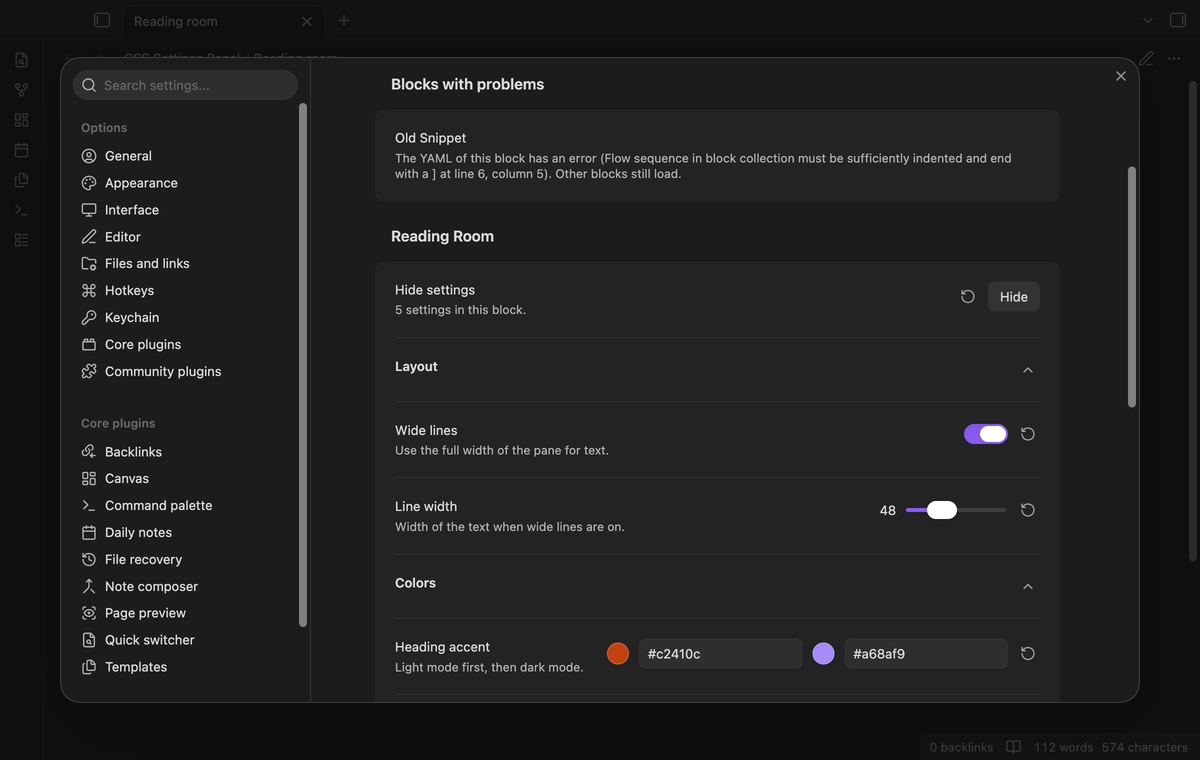
One block with bad YAML gives one error row. The other blocks of the same file still load, and so do all other files. A setting with an unknown type is skipped, and the rest of its block works. Files with Windows line ends and blocks that start with /*! load too.
A saved value that the plugin cannot read skips only its own setting. One bad color never turns off the other settings of a theme. A notice tells you how many values were skipped.
Each setting and each section has a reset button. A reset removes only the values of that setting or that section. A color default can be a variable such as var(--text-accent).
Pro features
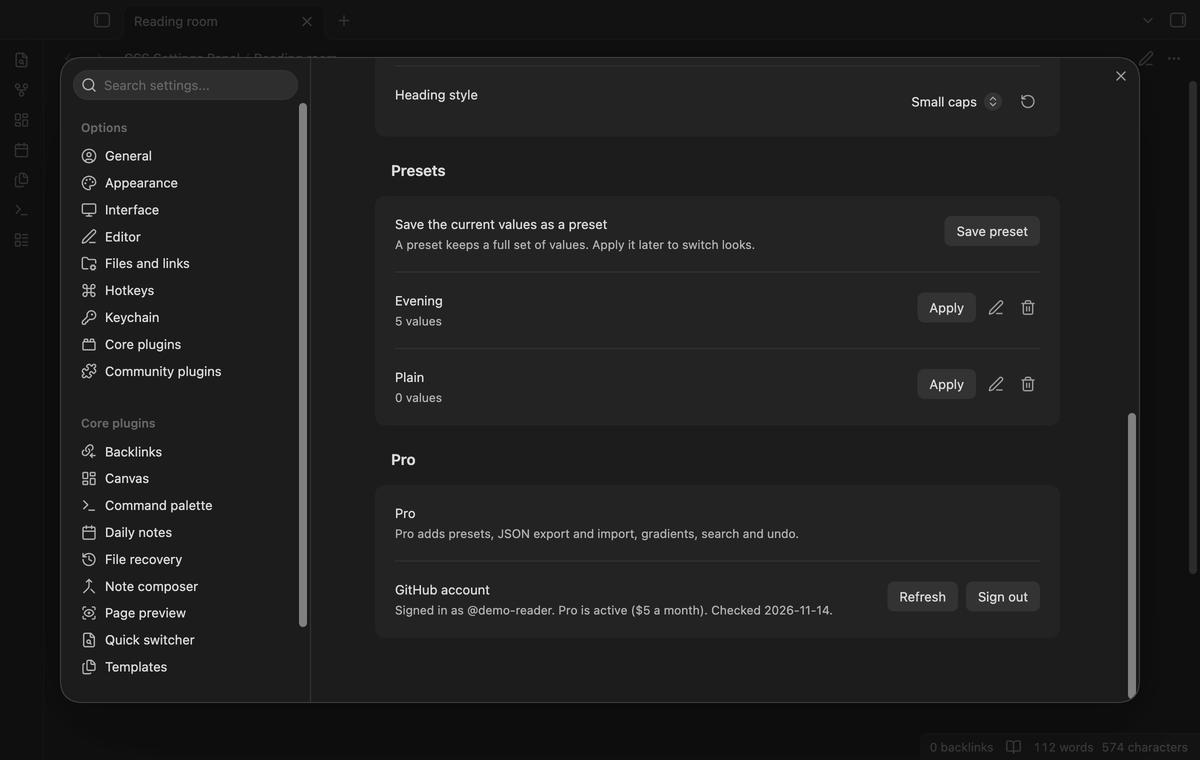
Pro adds presets, JSON export and import, gradients, search and undo. The section "Payment, account and network" gives the price and the sign in.
- Presets. Save the current values with a name. Apply, rename or delete a preset later.
- JSON export and import. Copy all values as JSON, or save them to a file in your vault. Paste JSON to import it. The import adds missing values and asks before a replace.
- Color gradients. The color-gradient type makes a row of colors between two color settings.
- Search. Find a setting by its name across all sections, or show only the settings that you changed.
- Undo. The command "Undo the last value change" goes back up to 10 changes.
Install
When CSS Settings Panel is listed in the community directory, open Settings, then Community plugins, then Browse. Search for "CSS Settings Panel". Select Install, then Enable.
To install by hand, download main.js, manifest.json and styles.css from the latest release. Put the three files in <vault>/.obsidian/plugins/css-settings-panel/. Then reload Obsidian and turn on CSS Settings Panel.
The plugin works on desktop and on mobile.
Usage
Quick start
- Turn on a theme or a snippet that has a settings block.
- Open Settings, then CSS Settings Panel.
- Select Show next to a section. Change a toggle, a color or a number.
- The change shows at once. The value is saved for the next start.
Switch from Style Settings
- Turn on CSS Settings Panel.
- Select "Import values from style settings". A notice tells you how many values were added.
- Turn off Style Settings. While both plugins are on, CSS Settings Panel applies nothing and shows why.
The data layout is the same, so you can also go back. Copy the values from data.json of this plugin to the data file of the old plugin. The old plugin skips the key @@panel, which holds the open sections and the presets.
Toggle commands
A class-toggle with addCommand: true gets a command in the command palette. Its name is "Toggle" and the title of the setting. Bind a hotkey to it in the hotkey settings.
Light and dark mode
A themed color has one value for each mode. The plugin applies the value of the current mode.
Settings
Values
The import row and the search row sit at the top of the tab. Search and the changed filter are Pro features. The settings search of Obsidian also finds each setting by its title.
Blocks with problems
This group shows one row for each block or setting that could not load. Each row names the block and the reason. Fix the CSS and the row goes away.
Sections
Each block of a theme or snippet has its own group. The first row shows the number of settings and the file. It has a reset button and a button that shows or hides the settings.
Pro
Sponsor on GitHub and sign in to turn on Pro. The section "Payment, account and network" tells you what the plugin sends.
FAQ
Do I have to change my theme or snippets?
No. The plugin reads the blocks as they are. It never writes to a CSS file.
Can I run it next to Style Settings?
You can install both, but turn on only one. Two plugins that apply the same values fight. When Style Settings, Style Manager or Style Tuner is on, CSS Settings Panel applies nothing.
Why does a variable not change when I see no saved value?
Like Style Settings, the plugin sets a variable only when you saved a value. Until then, the theme keeps its own default.
What happens to values of a snippet that I turned off?
They stay in the data file. When you turn the snippet on again, its values come back.
What happens after an Obsidian update?
The plugin reads the sheets again on each CSS change. The conflict check uses a part of Obsidian that it does not document. If an update changes that part, the check is off, and everything else works.
Payment, account and network
The core features are free. Pro features need a GitHub Sponsors sponsorship of theluckystrike: $5 a month or more, or $15 once. A total payment of $15 meets the payment requirement for Pro without further payment. Sign-in and the checks below still apply. Your notes stay readable and editable with or without Pro.
One payment turns on Pro in every NoteMods plugin.
GitHub handles the payment. Sponsor at https://github.com/sponsors/theluckystrike?frequency=one-time&metadata_source=css-settings-panel. You need no account for the free features. Pro needs the GitHub account that sponsors.
Until you select "Sign in with GitHub" in the settings, CSS Settings Panel makes no network requests. Sign in uses the GitHub device flow. CSS Settings Panel sends its public client ID and the scope read:user to https://github.com/login/device/code and shows you a code. While you enter the code at https://github.com/login/device, it asks https://github.com/login/oauth/access_token every few seconds to check the sign-in status. The scope permits profile reads only. GitHub needs this access to show the sponsorship tier. It grants no repository scope and no write access.
After sign in, CSS Settings Panel sends one query to https://api.github.com/graphql. It checks if the signed-in account sponsors theluckystrike. It asks for the tier and the total payment to theluckystrike. The plugin reuses a successful check for 7 days. Failed checks can retry after 6 hours. Select Refresh to request an earlier check. It sends no note content, file names or other vault data, and it has no telemetry.
After a successful check, Pro can work offline for up to 14 days. Sign out or a negative sponsorship answer turns Pro off. The plugin stores the GitHub token through the secret storage API of Obsidian. It does not put the token in its saved settings or its local sponsorship data. The local storage of this device keeps your GitHub login, the tier and the time of the last check. Sign out clears the token. You can also revoke the access in your GitHub settings, under Applications.
Support
The plugin page is css-settings-panel.
Report bugs and ask for features in the GitHub issues of this repository. Add your Obsidian version, your device and the settings block that shows the problem.
Community
Questions, bugs or plugin ideas? Talk to me and other Obsidian users in Zovo Chat on Telegram. It has a topic for these plugins. You can also open an issue here.
License
MIT