Cornell Marginalia
 Latazadehomero37k downloads
Renders Cornell-style marginal notes using the %%> ... %% syntax. Keeps your notes clean for flashcards and export.
- Overview
- Scorecard
- Updates81

Cornell Marginalia for Obsidian
A powerful study companion for Obsidian designed for students (Med, Law, Engineering) who use the Cornell Note-taking System.
It renders side-notes (cues) in the margin that are fully customizable, color-coded, and interactive for Active Recall sessions.
✨ Features
1. 📝 The Core Syntax
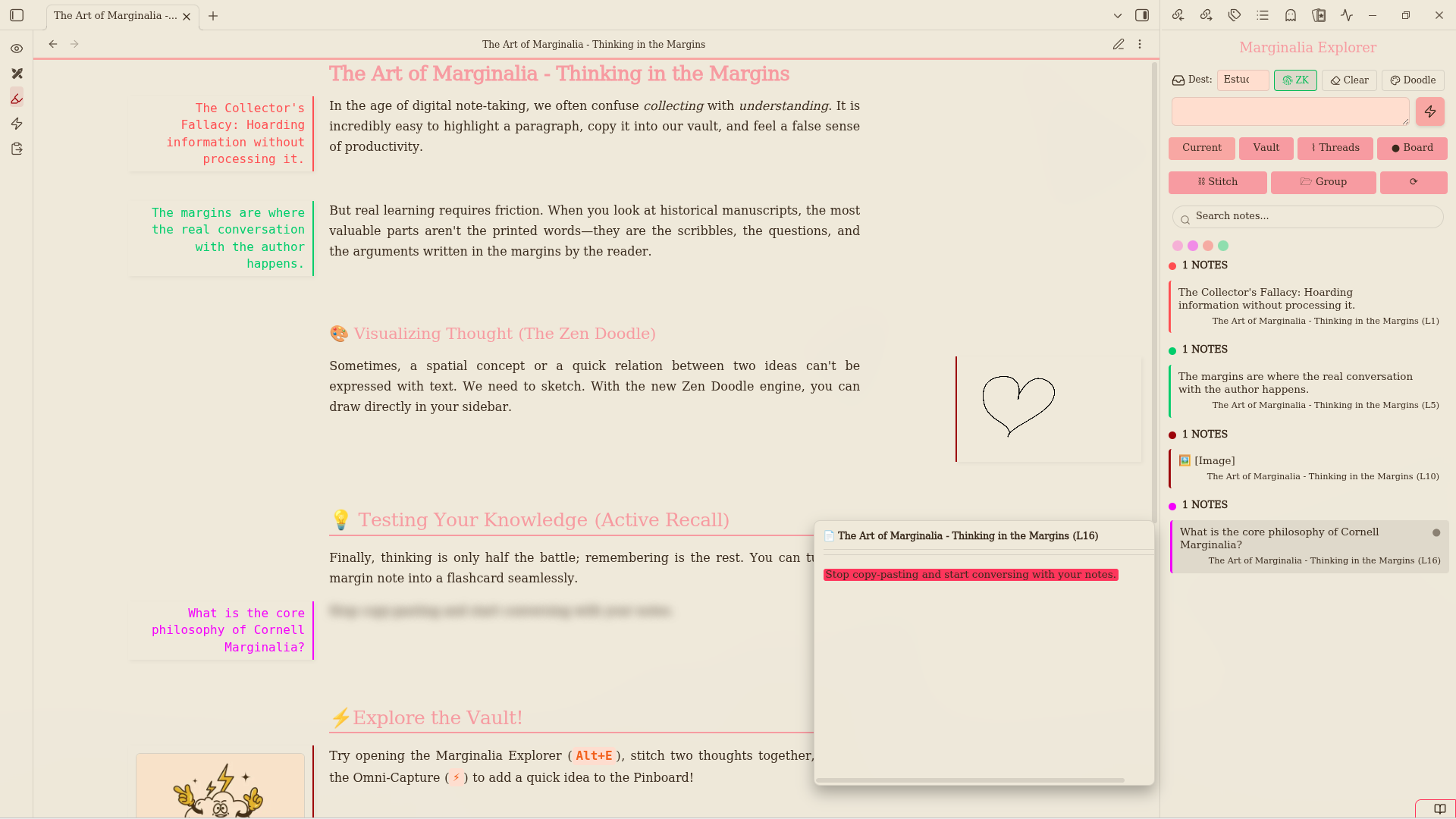
Write anywhere in your note using %%> Text %%. The plugin renders it in the margin, keeping your main text clean.
Mitochondria are membrane-bound cell organelles that
generate most of the chemical energy. %%> "Powerhouse" of the cell (ATP) %%
Bidirectional Margins: You can now use the %%< syntax to force a specific note to render on the opposite margin (only Reading View). Perfect for dual-margin workflows!
2. 🎨 Semantic Highlighting (New in v2.0)
Start your note with a specific symbol to automatically color-code it. Perfect for categorizing information at a glance.
| Prefix | Meaning | Color (Default) | Example |
|---|---|---|---|
? |
Question | 🟠 Orange | %%> ? What is the powerhouse? %% |
! |
Important | 🟡 Yellow | %%> ! Exam topic! %% |
X- |
Correction | 🔴 Red | %%> X- Wrong definition %% |
V- |
Verified | 🟢 Green | %%> V- Checked with textbook %% |
Note: You can fully customize these prefixes and colors in the settings!
3. 📦 Grouping Multiple Blocks & Perfect Alignment
⚠️ Note on Visibility: While standard inline marginalia are fully visible in Live Preview (Editing Mode), the advanced grouping methods below rely on Obsidian's markdown rendering engine. Therefore, Callout and Block marginalia will only render and be visible in Reading View.
By default, Obsidian treats paragraphs, lists, and images as completely separate blocks. If you add a margin note to a paragraph that is immediately followed by a list, Obsidian might push the list down in Reading View to avoid overlapping.
To fix this and force Obsidian to treat them as a single group, we offer two solutions depending on your needs:
Method A: The Invisible Callout (Lightweight & Organic)
For quick grouping without leaving standard Markdown formatting, wrap your text in our official invisible callout > [!cornell]: Markdown
> [!cornell]
> %%> Your margin note here %%
> This is my introductory paragraph:
> - List item 1
> - List item 2
The plugin will automatically hide the callout background, borders, and title. It looks exactly like normal text, but your margin note will sit alongside the entire group.
Method B: The Editorial Block (Strict Precision & PDF Safe) ✨ NEW
If you have a highly complex composition (nested lists, images, multiple paragraphs) and need millimeter-perfect alignment, or if you want absolute structural stability when exporting to PDF, use the new cornell fenced block: Markdown
```cornell
%%> Your perfectly aligned note here %%
The main text that requires strict alignment goes here.
- It can contain lists
- Images, and more!
Under the hood, this creates an isolated "Stretch Flexbox" environment that guarantees your main text and marginalia are perfectly locked together, no matter how much content you put inside. It also survives the PDF Print process flawlessly.
⚡ Frictionless Workflow (No typing required!) Knowing that manually typing code blocks breaks your writing flow, we built an automation for this:
Select any text (or just place your cursor on an empty line).

Right-click and select "Insert Cornell Block" (or use the Command Palette).

The plugin will wrap your text, auto-inject the %%>  %% syntax, and place your cursor magically in the center—ready for you to start typing your margin note instantly.
4. 🖼️ Adding Images (Multimedia Support) [NEW]
You can easily embed images directly into your margins to create highly visual notes. To prevent conflicts with Obsidian's core Markdown engine, this plugin uses a special img: prefix.
- Syntax:
%%> img:[[your_image.png]] %% - Autocomplete: As soon as you type
[[, Obsidian's native file autocomplete will still pop up, meaning you don't have to memorize filenames! - Hover Zoom: Images automatically scale to fit your custom margin width. Simply hover your mouse over any margin image to trigger a magnifying zoom effect, allowing you to see fine details without taking up space in your main text.
5. 🧭 Marginalia Explorer (Sidebar) [NEW]
Keep track of all your margin notes with a dedicated sidebar view.
Current Note vs. All Vault: Choose to scan just the active file or your entire vault.

Smart Grouping: Notes are automatically grouped by their color tags.

Click-to-Scroll: Click on any note in the sidebar, and Obsidian will instantly open the file and scroll smoothly to the exact line (works natively in both Edit and Reading modes!).
6. 📖 Reading View Support [NEW]
Marginalia now renders beautifully in Reading View!
Perfect for when you want to review a finished document or prepare for exporting.

Distraction-Free: Prefer a clean view while reading? You can easily toggle Reading View rendering ON/OFF from the settings or right from the Command Palette.
7. 🙈 Unified Active Recall Mode (Blur)
Toggle the "Eye" Icon 👁️ in the ribbon to enter Study Mode.
Any note ending in ;; will blur the paragraph it belongs to.

Hover over the blurred text to reveal the answer.

Seamless: Works instantly and flawlessly across both Live Preview and Reading View simultaneously!
Example:
The mitochondria produces energy. %%> What does it produce? ;; %%
8. 🃏 Flashcard Generator
Turn your margin notes into Anki/Spaced Repetition cards instantly.
Write a note ending in ;;.

Run the command "Flashcards Generation".

A ### Flashcards section will be generated at the bottom of your note automatically!
9. ⚙️ Full Customization
Alignment: Choose between Left (Classic Cornell) or Right (Modern Textbook).

Width: Adjust the margin width with a slider (15% - 60%).

Typography: Change font size and font family to match your style.
10. 🖨️ PDF Export & Printing Support
Obsidian's native PDF export engine notoriously struggles with floating margin notes. To solve this, Cornell Marginalia includes a dedicated "Print Engine" to guarantee your summaries look perfect and professional on paper or tablets.
How to export your notes to PDF:
- Prepare: Open the Command Palette (
Ctrl/Cmd + P) and run "Prepare Marginalia for PDF Print". Your%%>notes will temporarily transform into safe HTML tags. - Export: Use Obsidian's native "Export to PDF" feature. Your marginalia will automatically align in a clean, classic left-column Cornell layout, and the main text will wrap perfectly around them.
- Restore: Once your PDF is saved, run "Restore Marginalia after PDF Print" to instantly return your text to its original, clean Markdown state.
⚠️ Important: Always remember to run the Restore command after exporting to keep your Markdown files clean and future-proof!
11. 🚀 Drag & Drop Integration (Excalidraw & Canvas)
Marginalia is no longer just for reading; it's a tool for connecting ideas!
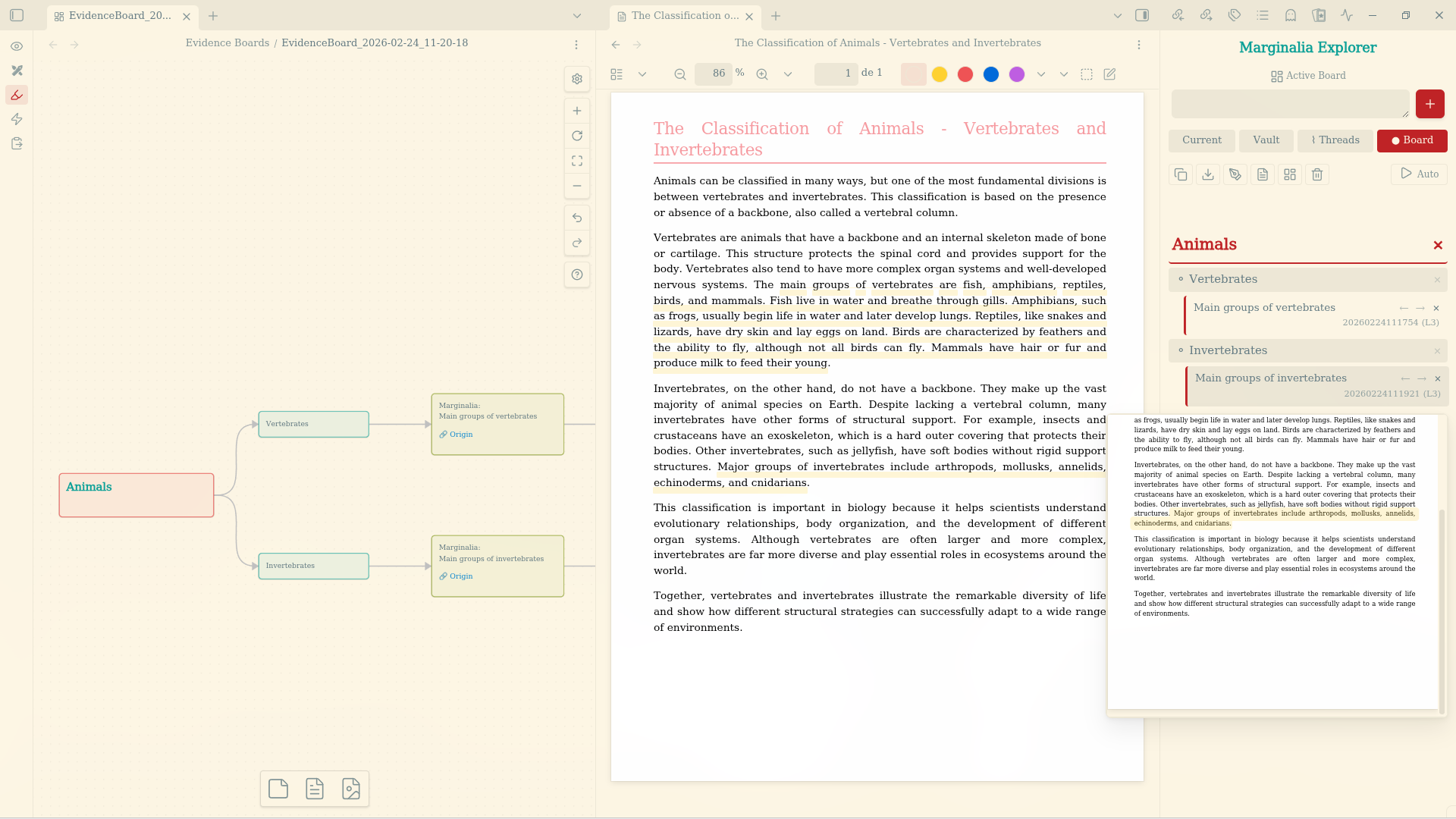
You can now click and drag any note directly from the Marginalia Explorer sidebar and drop it into an Obsidian Canvas or an Excalidraw drawing.
- The plugin instantly creates a native, indestructible Block ID link behind the scenes.
- Clicking the dropped node in your canvas will open the source file and scroll you down to the exact paragraph where the note belongs. Perfect for building mind maps from your summaries!
12. 🧵 Margin Threads (Zettelkasten in the Margins)
Why limit your connections to main text? You can now stitch your marginalia notes together across your entire vault to create independent, multi-level thought threads.
- The Stitch Button: Easily connect a note from one file to a note in another using the Sidebar.
- Drag & Drop Stitching: To connect two thoughts, simply click and drag one note, then drop it on top of another note. The plugin will automatically write the code to link them.
- Recursive Tree View: The "Threads" tab automatically renders infinite-level hierarchical trees of your connected notes. Follow a concept down the rabbit hole!
- Smart Focus & Filters: Click on a color pill (e.g., Yellow for 'Questions') to instantly filter your threads. The plugin is smart enough to show you the exact parent note your filtered concept came from, preserving your context.
- Native & Future-Proof: Threads use hidden, native Obsidian Block IDs (
[[Note#^id]]). Your connections will survive file renames and will even show up in your native Obsidian Graph View! - Hover Peeks: Whenever a note is part of a thread, a
🔗button appears inside the marginalia. Hover your mouse over this button to instantly preview the connected note in a native popup, without ever leaving your current reading flow.
13. ✏️ The Doodle Engine (True Marginalia):
- Native Drawing Canvas: Trigger the new
Draw a Doodlecommand to open a distraction-free floating canvas. Supports both mouse and stylus/drawing tablets. - Auto-Injection: Clicking "Save to Margin" automatically saves your sketch as a PNG in your vault and injects the image syntax into your active note.
14. ⚡ The Omni-Capture Engine:
- Global Quick Capture: Trigger the new
Omni-Capturecommand (Alt+Crecommended) from anywhere in Obsidian. A sleek, distraction-free modal will appear to capture your thoughts instantly. - Smart Clipboard & Image Support: The modal automatically reads your clipboard text to use as context. You can also paste (
Ctrl+V) screenshots or images directly into the modal, which will generate a live preview and save the image securely to your vault. - Integrated Doodle Canvas: Need to sketch your idea? The Omni-Capture modal includes a hidden drawing canvas. Click "Add Doodle" to sketch with your mouse or tablet and attach it to your thought.
- Vault Autocomplete & Memory: The destination input now auto-suggests
.mdfiles from your vault and remembers your last used destination (e.g.,Marginalia Inbox.md), ensuring a blazing-fast GTD (Getting Things Done) workflow.
⚡ Shortcuts & Commands
You don't need to type %%> manually every time or dig through settings! The plugin includes smart commands to speed up your workflow. Insert Margin Note
This command intelligently handles the syntax based on your cursor position:
No selection: Inserts %%>  %% and places your cursor inside, ready to type.

Text selected: Wraps your selection automatically (e.g., %%> Important Concept %%).
Toggle & Navigation Commands
Open Marginalia Explorer: Opens the sidebar to view all your notes.

Toggle Marginalia in Reading View: Quickly show or hide marginalia when you are in reading mode.
How to set them up:
Command Palette: Press Ctrl/Cmd + P and search for Cornell Marginalia.

Hotkey (Recommended): Go to Settings > Hotkeys, search for "Cornell", and assign your favorite shortcuts (e.g., Ctrl + M to insert a note).
⌨️ Keyboard Shortcuts & Flow State
Cornell Marginalia is designed to keep your hands on the keyboard. Master these shortcuts to build mindmaps and navigate your notes at lightning speed.
🌍 Global Commands
These hotkeys can be customized in Obsidian's Settings > Hotkeys.
| Shortcut | Action | Description |
|---|---|---|
Alt + E |
Toggle Explorer | Opens and focuses the Marginalia Explorer. Press it again to instantly return focus to your active note or PDF. |
Alt + A |
Add to Board | Instantly jumps focus to the "Add text" input in the Pinboard from anywhere. |
Alt + F |
Search Notes | Focuses the search bar in the Marginalia Explorer. |
Alt + S |
Mass Stitch | Executes a mass connection (Stitch) between nodes previously selected with Spacebar. |
Alt + R |
Refresh | Manually rescans your vault for new marginalias or highlights. |
Alt + 1 to 4 |
Switch Tabs | Quickly switch between Current (1), Vault (2), Threads (3), and Board (4) tabs. |
Alt + Arrows |
Move Nodes | Move the currently focused Pinboard node Up, Down, Left (Outdent), or Right (Indent). |
🧭 Explorer Navigation (Current & Vault Tabs)
When navigating the list of marginalias in the sidebar:
| Shortcut | Action |
|---|---|
↓ / ↑ |
Navigate up and down the list of notes. (Tip: Press ↓ from the Search Bar to instantly jump into the list). |
Shift + ↓/↑ |
Mass Pinning: Rapidly pin multiple items to your Board as you scroll through them. |
Enter or P |
Pin Item: Sends the currently focused marginalia/highlight to the Pinboard. |
Ctrl + Enter |
Source Jump: Opens the original file and jumps directly to the line of the focused marginalia. |
Spacebar |
Select for Stitching: Marks/unmarks the focused item for a Mass Stitch connection. |
H |
Hover/X-Ray Vision: Opens the contextual popup to read the surrounding text without opening the file. |
Esc |
Closes the hover popup. |
📌 Pinboard Mastery (Board Tab)
When organizing your mindmap or outline in the Board:
| Shortcut | Action |
|---|---|
Enter |
Contextual Insert: (On a node) Jumps to the text bar to create a new sibling node right below it. |
Alt + Enter |
Quick Child Node: (On a node) Jumps to the text bar to create a new child node (indented) right below it. |
Enter |
Rapid-Fire Entry: (Inside the text bar) Saves your text and keeps the cursor in the bar so you can type continuous lists seamlessly. |
Type - |
Smart Indentation: (Inside the text bar) Start your text with hyphens (-, --, ---) to automatically define the indentation level of the new child node. |
↓ / ↑ |
Navigate up and down your Board's nodes. |
⚡ Omni-Capture Modal
| Shortcut | Action |
|---|---|
Ctrl + Enter |
Quick Save: Instantly saves your Omni-Capture (Idea + Context + Doodle) without needing to click the save button. |
🎨 Custom Templates
Cornell Marginalia allows you to fully customize how your notes, boards, and captures are exported using your own Markdown templates. You can configure these in the plugin settings under File & Output Management.
To use this feature, simply create a standard .md file in your vault (e.g., in your Templates folder), write your desired layout, and use our dynamic variables. The plugin will automatically replace these variables with the correct context.
🧩 Available Variables
Depending on the context (Zettelkasten, Pinboards, or Canvas), you can use the following variables in your templates:
{{title}}: The generated title for the note or board.{{date}}: Current date (format: YYYY-MM-DD).{{time}}: Current time (format: HH:mm).{{source_note}}: Intelligent Source Link.- In OmniCapture, (only when ZK Mode is enabled) it links to the file you are currently reading.
- In Pinboards, it calculates the most referenced file in your board.
- In Items/Cards, it creates a direct block-link (
^id) to the exact line of the original text.
{{text}}: The actual text or doodle of your marginalia.{{citation}}: Smart Context. Automatically captures the text you were reading or the blockquote (e.g., from a PDF) located immediately below your marginalia.
📝 Template Types & Examples
Here are the four types of templates you can configure, along with copy-pasteable examples for your vault.
1. Zettelkasten Template (zkTemplatePath)
Used when you create a new atomic note using the OmniCapture ZK mode.
Example Template:
# 🗃️ {{title}}

> **Date:** {{date}} | **Time:** {{time}}
> **Inspired by:** [[{{source_note}}]]

---
2. Pinboard Main Template (pinboardTemplatePath)
Defines the header and global structure of your exported Markdown Pinboard.
Example Template:
# 📌 {{title}}

**🗓️ Compiled on:** {{date}} at {{time}}
**📚 Dominant Source:** [[{{source_note}}]]

> *This board is a collection of connected marginal notes.*

---
3. Pinboard Item Template (pinboardItemTemplatePath)
Defines the structure of each individual marginalia inside the exported Markdown Pinboard. If you leave this blank, the plugin will use a clean default list format.
Example Template:
> [!quote] My idea
> {{text}}
>
> **Original quote:**
> {{citation}}
>
> 🏷️ Source: {{source_note}}
4. Canvas Item Template (canvasItemTemplatePath)
Controls how the main text card looks in your exported Evidence Boards (Canvas). (Note: The Canvas automatically draws a connected branch for the {{citation}}, so you don't need to include it in this template).
Example Template:
- My idea:
{{text}}

---
**Source:** {{source_note}}
📦 Installation
Method 1: Via BRAT (Recommended)
This is the easiest way to get automatic updates.
- Install the BRAT plugin from the Obsidian Community Plugins (search for "BRAT").
- Open the command palette (
Ctrl/Cmd + P) and search forBRAT: Add a beta plugin for testing. - Paste this repository URL:
https://github.com/latazadehomero/cornell-marginalia - Click "Add Plugin".
- Enable "Cornell Marginalia" in your Community Plugins list.
Method 2: Manual Installation
- Download
main.js,manifest.json, andstyles.cssfrom the Latest Release. - Go to your vault's plugin folder:
.obsidian/plugins/. - Create a folder named
cornell-marginalia. - Paste the downloaded files into that folder.
- Reload Obsidian and enable the plugin.
🤝 Support
If you find this plugin useful for your studies, consider buying me a coffee! It helps me keep coding new features 🩺☕
Examples