Always Color Text
 Kazi Aidah Haque14k downloads
Automatically colors and highlights texts across the vault.
- Overview
- Scorecard
- Updates46
Color & highlight keywords, status words, dates, names, anything! Once assigned, colors appear automatically throughout your vault in both Live Preview and Reading view.
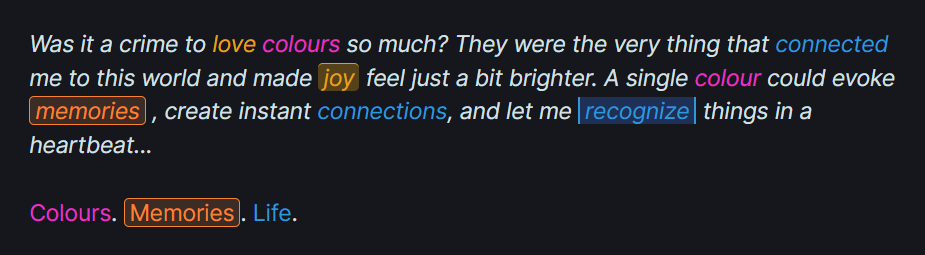
Just select a word → pick a color → watch it appear everywhere. Lightning-fast performance.
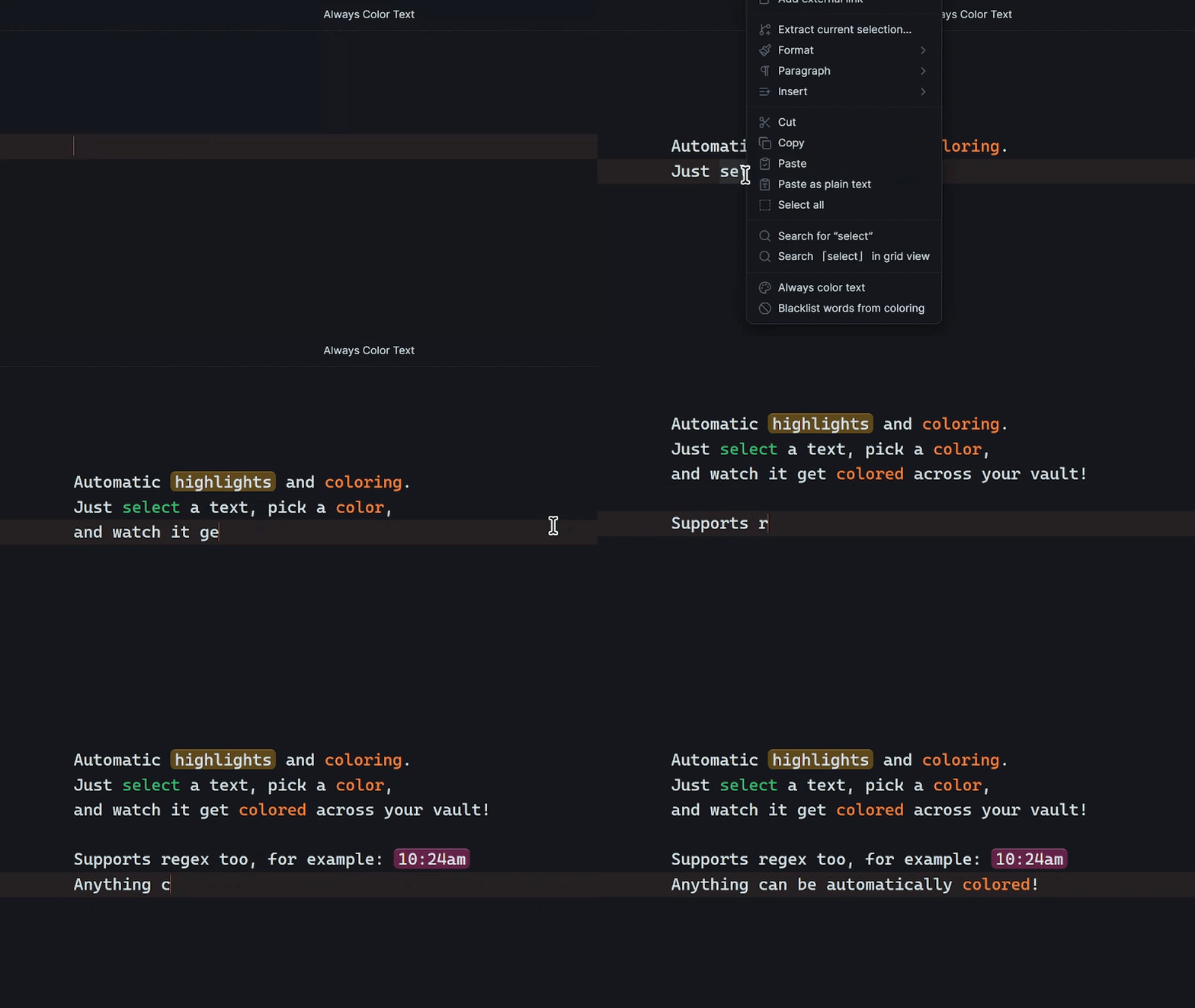
Whether you're a writer tracking characters, a student highlighting key terms, or someone who wants to recognize important words at a glance, this plugin adapts to your workflow.
Color Anything, Exactly How You Want
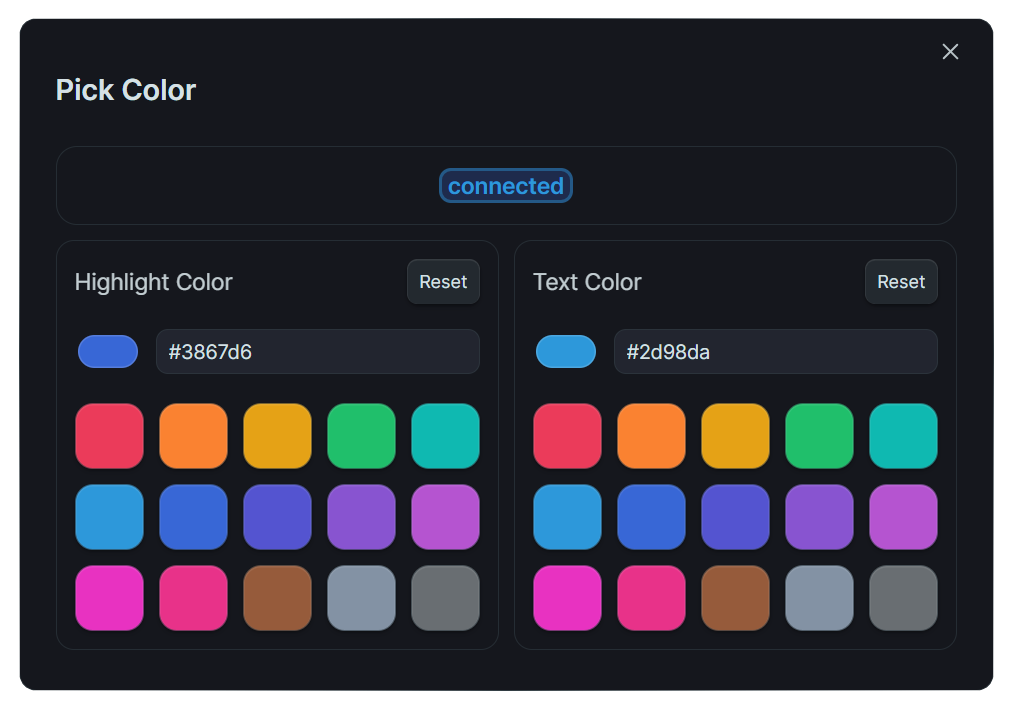
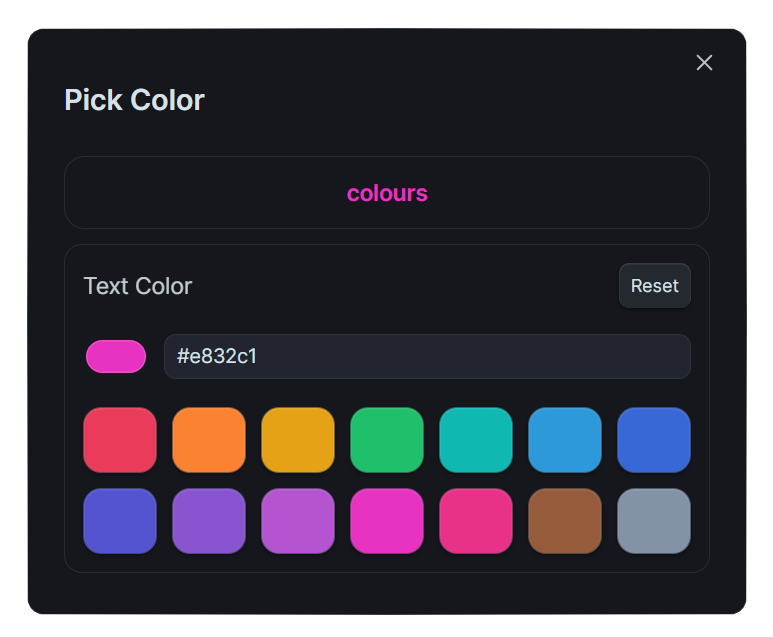
Unified Color Picker
Color text, add highlights, or both, right from a simple modal.
Customize your interface by hiding panels you don't need.
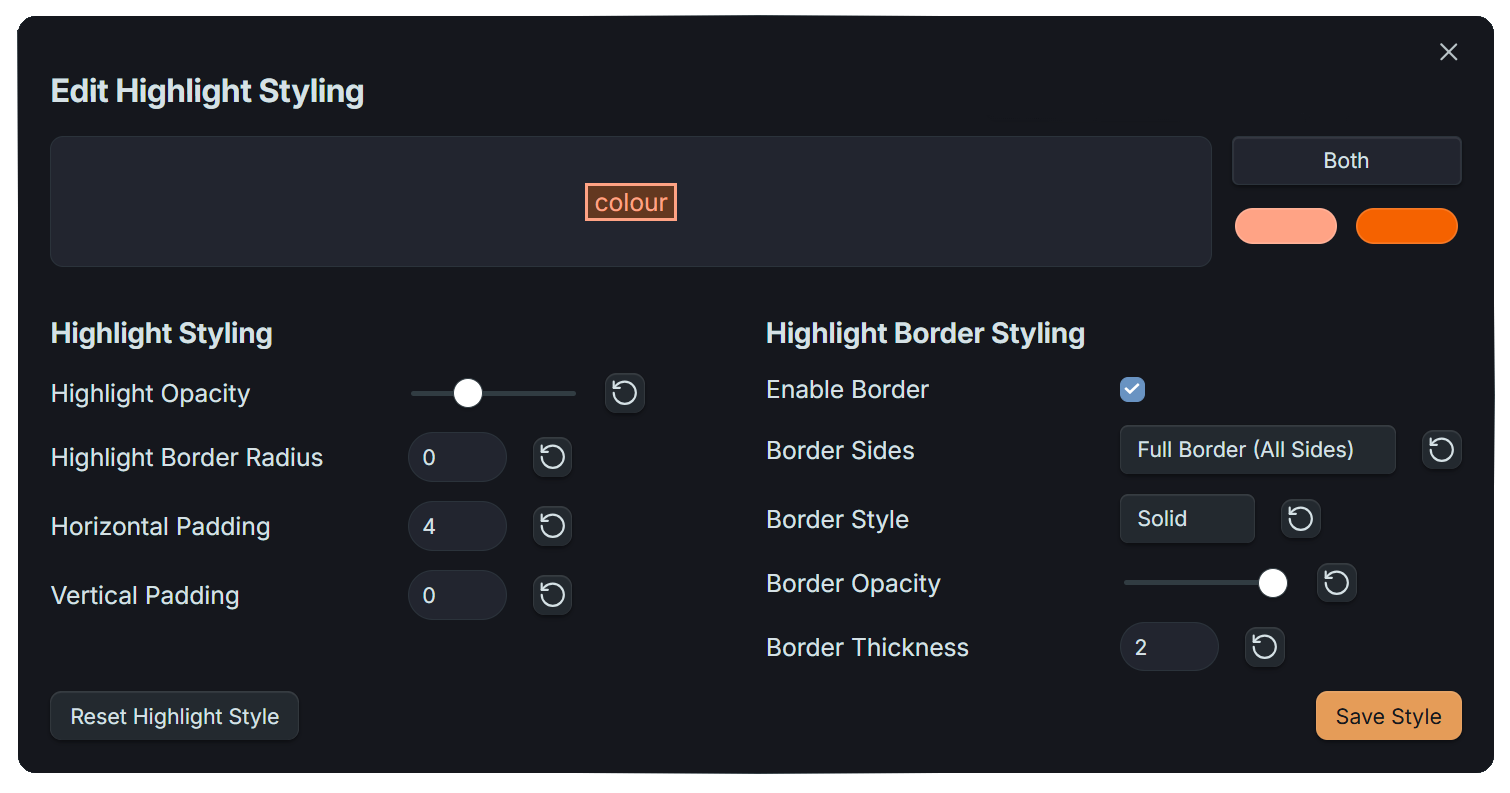
Customizable Highlights
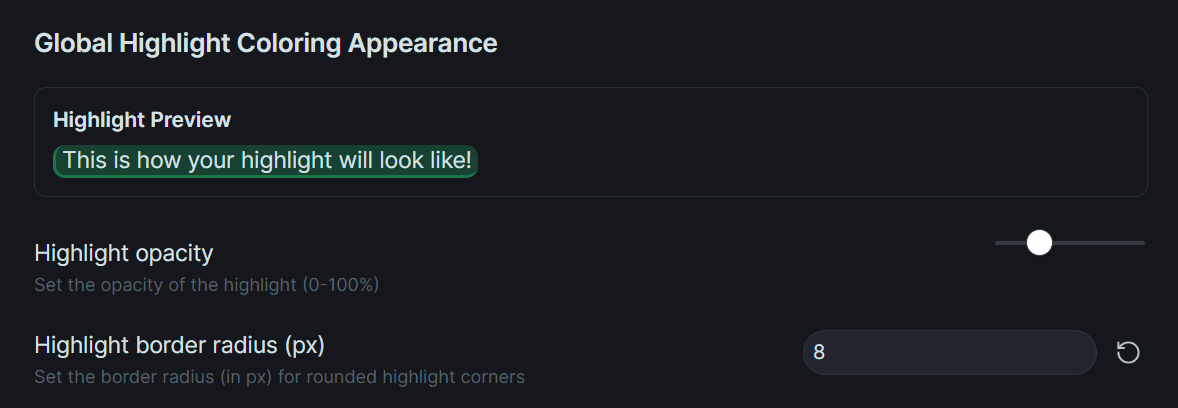
Make highlights look exactly how you imagine: adjust borders, rounded corners, transparency, and more.
Custom CSS Styling
Take styling to the next level with per-entry and per-group custom CSS. When enabled, you can add advanced CSS to individual entries or entire word groups, including font size adjustments, gradients, and more. Works in both Live Preview and Reading Mode.

Your Color Palette
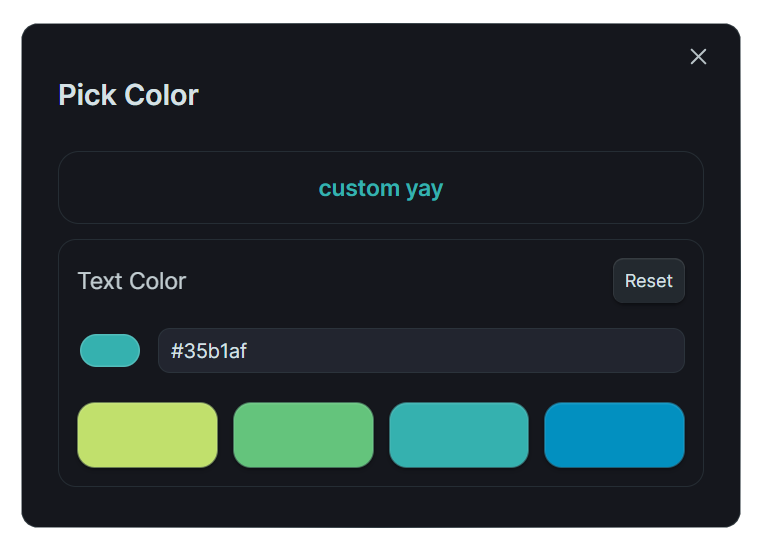
Replace default swatches with your favorite colors for instant access!
Quick Actions
Quick Colors: Choose a text color and background color group that appears directly in the right-click menu.
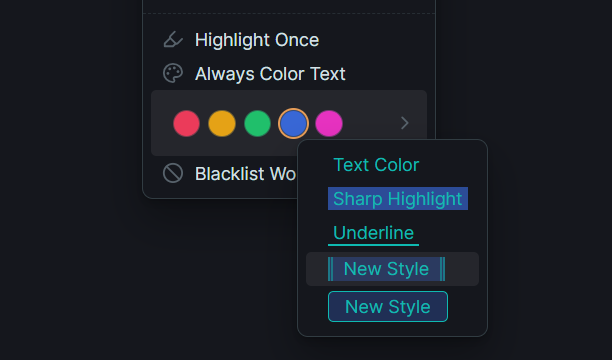
Quick Styles: Apply a highlight style to selected text. Each Quick Style can be set to apply as either Always Color Text or Inline HTML — name them differently to tell them apart.
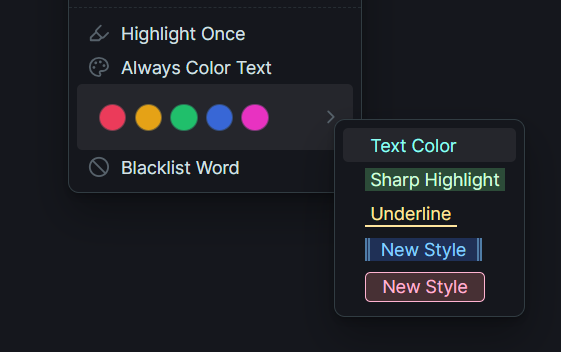
If Quick Colors are enabled, the style uses the selected Quick Color. If they are disabled, the style falls back to its own colors and inherits the styling from the first Quick Style entry. If no Quick Style exists, the default styling is applied.
Word Groups and Match Types can also be assigned to a Quick Style!
Smart Text Matching
Match Types
Control how text is matched with flexible, per-entry options:
- Contains – matches anywhere in the word or text
- Exact – matches the full word only
- Starts with – matches text that begins with the entry
- Ends with – matches text that ends with the entry
Color Targeting Modes
Choose exactly how your colors are applied with three targeting modes:
- Color Text – Colors only the matched text (default)
- Color Line – Colors the entire line containing the matched text
- Color Next Line – Colors the line directly after the matched text
These modes give you precise control over how colors are applied, especially useful for complex documents with nested structures.
Per-Entry Configuration
Customize the styling and rules for each colored entry via "Edit Entry Details":
Case Sensitivity When enabled, matches respect letter casing.
"art"matches"art"but not"Art"or"ART".Highlight Styling Adjust borders, rounded corners, transparency, and more per entry.
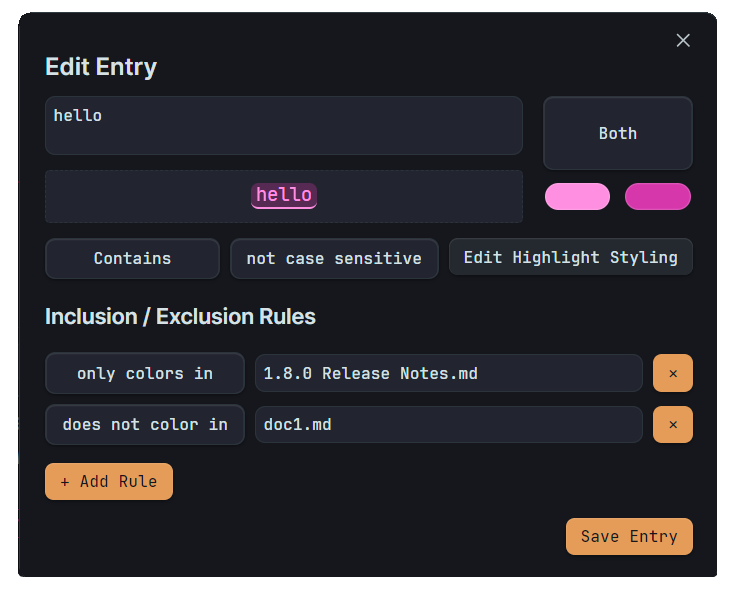
Inclusion / Exclusion Rules Exclude specific folders, files, or files with specific tags from coloring, or limit coloring to specific folders.
Advanced Pattern Matching with Regex
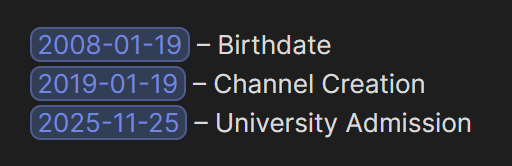
Color complex patterns like dates, currencies, or specific text structures automatically:

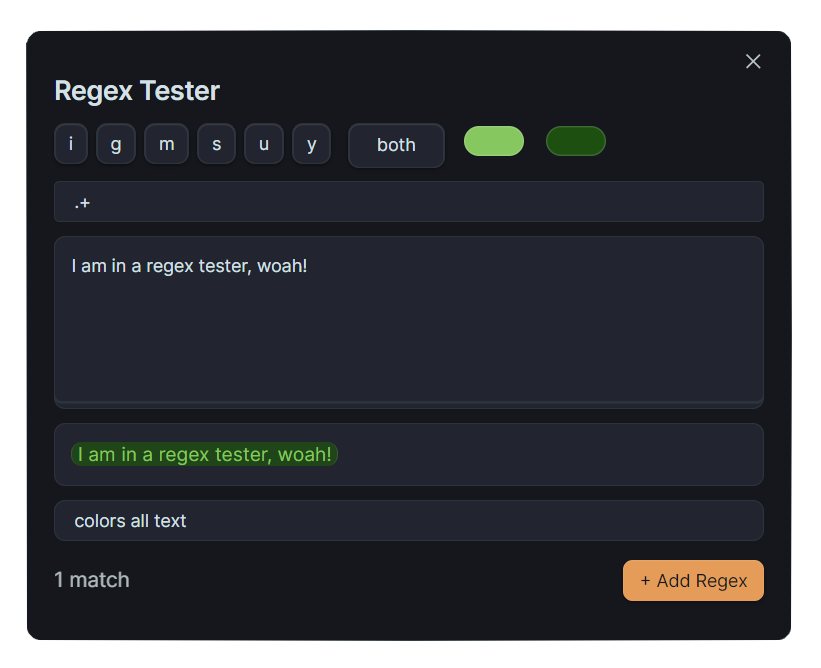
Built-in Regex Tester
Test patterns instantly before applying them! The Regex Tester lets you preview matches and fine-tune expressions right in Obsidian.
Ready-to-Use Presets Jumpstart your coloring with curated pattern collections:
- Markdown Formatting – Headings, lists, tasks, comments, and links
- Brackets – Color content inside [square], {curly}, (round), <angle>, and "double quote" brackets
- Other Patterns – Dates, times, emails, @mentions, currencies, and measurements
Common patterns:
\b\d{4}-\d{2}-\d{2}\b→ Dates like 2024-01-19\bTODO|DONE|WIP\b→ Status words\$\d+\.\d{2}→ Currency amounts
Organize Your Colors
Centralized Word Management
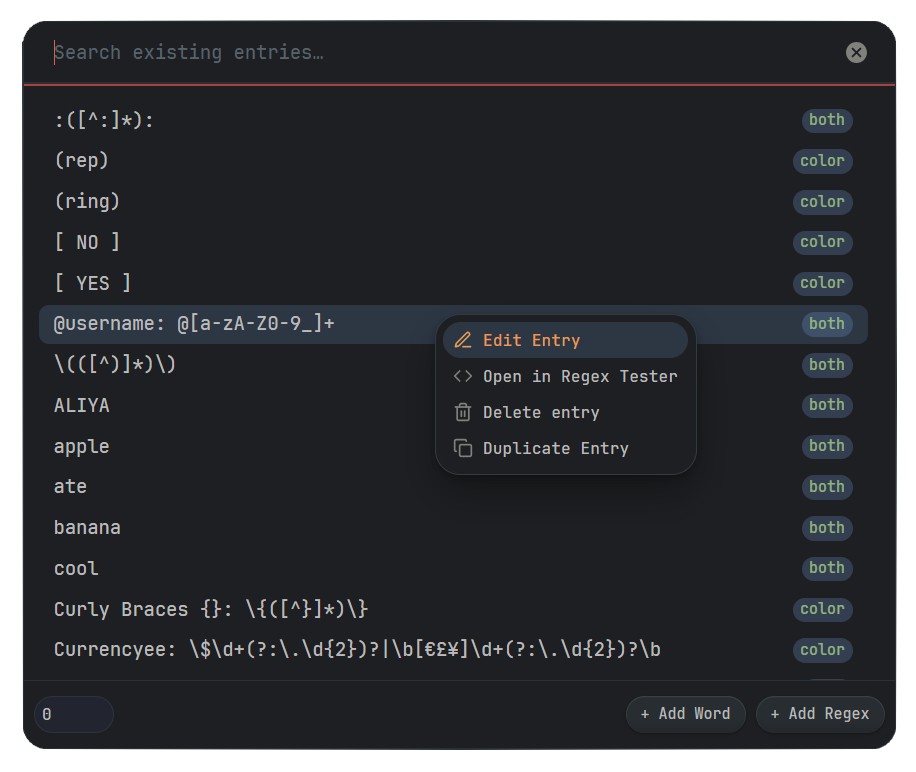
All colored texts appear in settings with search and multiple sort options.
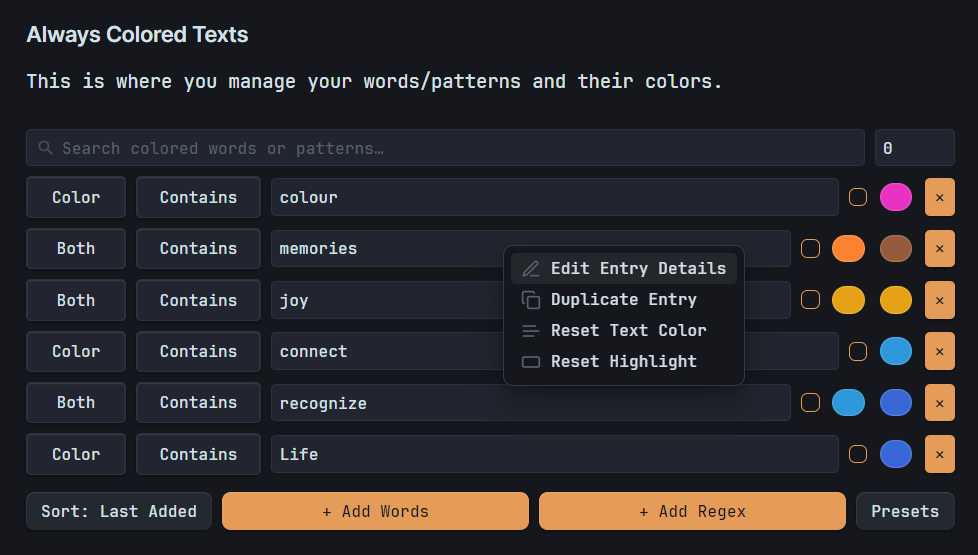 Tip: Right-click on any color picker to bring up the Color Picker Modal.
Switch styles seamlessly — changing from "Both" to "Highlight" and back retains your original colors. Right-click any entry to edit it, duplicate it, or open in Regex Tester for quick adjustments.
Word Groups
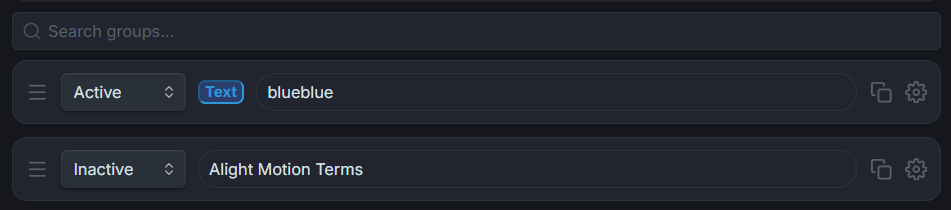
Entries can be added to a word group right from the Pick Color modal, and the word group can be set as active when you need it, otherwise kept inactive.
You can also set a match type and case sensitivity for all entries in a word group, and enable or disable entire word groups for specific folders or files with specific tags.

Note: Use / to target the root folder (whole vault) for Enable in/Disable in.
Word Group Styling
Style the word group itself — this styling applies to all entries within that group, including Custom CSS.
Entry Filtering (Limit Input)
Use the limit input beside the search bar to instantly filter entries by type, match type, color target, or count.
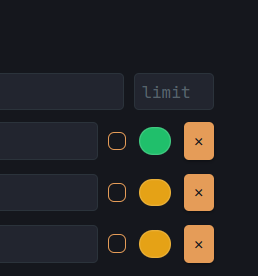
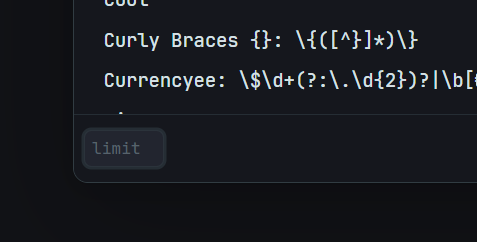
Available limit filters:
Count & Display:
0→ show all entriesN(number) → show only the last N entries
Filter by Type:
r→ regex entries onlyw→ word entries onlyc→ colored text entriesh→ highlighted entriesb→ both text + highlight entries
Filter by Match Type:
e→ exact match-type entriessw→ starts-with match-type entriesew→ ends-with match-type entries
Filter by Color Target:
ct→ color text targeting entriescl→ color line targeting entriescc→ color next line targeting entries
Add to Existing Entry
Right-click any entry and choose "Add to Existing Entry" to add the selected text to that entry:
File & Folder Control
Use "Include" to color specific documents or "Exclude" to disable coloring in entire folders.
Create rules based on tags — include or exclude files that contain specific tags (e.g., #private, #draft).
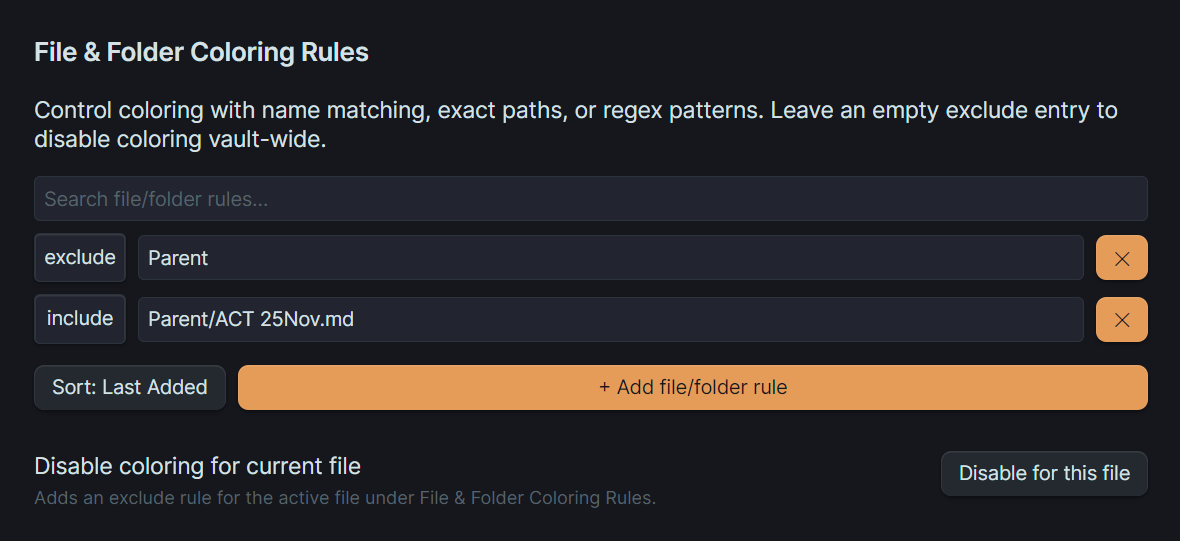
Note: File-level rules override folder-level rules.
Automatic Backups
Never lose your color settings! The plugin can automatically back up all your configuration to a folder inside your vault.
- Scheduled Backups: Hourly, daily, or weekly
- One-Click Backup: Manually trigger a backup anytime
- Overwrite Option: Replace the previous backup or keep multiple versions
Backups include all plugin data: colored texts, blacklists, file/folder rules, word groups, and settings. Restore via the "Import Data" button in settings.
Theme Compatibility
Light & Dark Mode Text Fixers
Ensure your colors look great in any theme!
- Dark Mode Text Fixer: If you usually set colors in Light Mode, turn this on to automatically adjust dark text for readability in Dark Mode.
- Light Mode Text Fixer: If you set colors in Dark Mode, turn this on to adjust light text for visibility in Light Mode.
Performance & Safety
Built-in Protection
- Pattern validation automatically blocks problematic regex
- Progressive loading colors visible content first
- Memory monitoring prevents slowdowns
- Active file only coloring for optimal performance
Optimization Settings
- Lightweight Mode: Skips partial match expansion and uses a stricter match limit for maximum performance.
- Smart Updates: Only updates active lines of the document to keep the editor responsive.
- Word Completion Color: Renders text colors only after a space is typed, helps significantly with typing performance.
Real-World Uses
- Status tracking: Color
TODO,INPROGRESS,DONEin different colors - Writing projects: Highlight character names, locations, and key plot points
- Learning & study: Make key terms and vocabulary stand out
- Technical documentation: Color code warnings, notes, and important sections
- Project management: Highlight priorities like
!!!URGENT!!!orLow-Effort
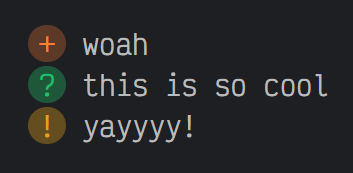 Note: Coloring symbols affect word coloring, not just the symbol itself.
Using symbols like
Note: Coloring symbols affect word coloring, not just the symbol itself.
Using symbols like + may trigger bullets so color \+ instead.
Installation
Available in Obsidian Community Plugins. Check Release Notes for updates and new features.
Questions or Suggestions?
Create a new issue here to report bugs or request new features! I love seeing new issues for me to fix \(≧ᗜ≦)/ and this plugin wouldn't have advanced so far without the feedback from users!!
Contributing Translations
Want to add your language to Always Color Text?
- Go to
src/i18n/and copyen.js. - Rename it to your language code (like
es.js,fr.js). - Translate the values only, like this:
{
    "notice_import_completed": "ইম্পোর্ট সম্পন্ন",
    "key": "translation"
}
- Go to
src/i18n.jsand add your language code to the list of supported languages. - Submit a pull request with your translation file in
src/i18n/.
That's it! Your language will be available to all users.
Contributors
- @wanghong322 – Simplified Chinese Translation
- @Frumkin13 – Russian Translation
Thanks a lot to them for taking the time to translate Always Color Text!