Copy for Email and Chat
 HWY1dot01k downloads
Copy selections or whole notes as email-ready rich text plus chat-ready plain text. Tables, callouts and Mermaid diagrams survive Gmail, Outlook, Apple Mail; WeChat and Slack get structured text.
- Overview
- Scorecard
- Updates5
English | 简体中文
Copy for Email and Chat
Copy a selection or a whole note as email-ready rich text. Paste it into Gmail, Outlook, Apple Mail, Word or a WeChat official-account editor and the formatting survives — headings, tables, callouts, highlighted code, task lists, and even Mermaid diagrams and math (converted to images). The same copy also carries a chat-ready plain-text flavor, so pasting into WeChat, Slack or iMessage gives clean structured text instead of raw markdown.
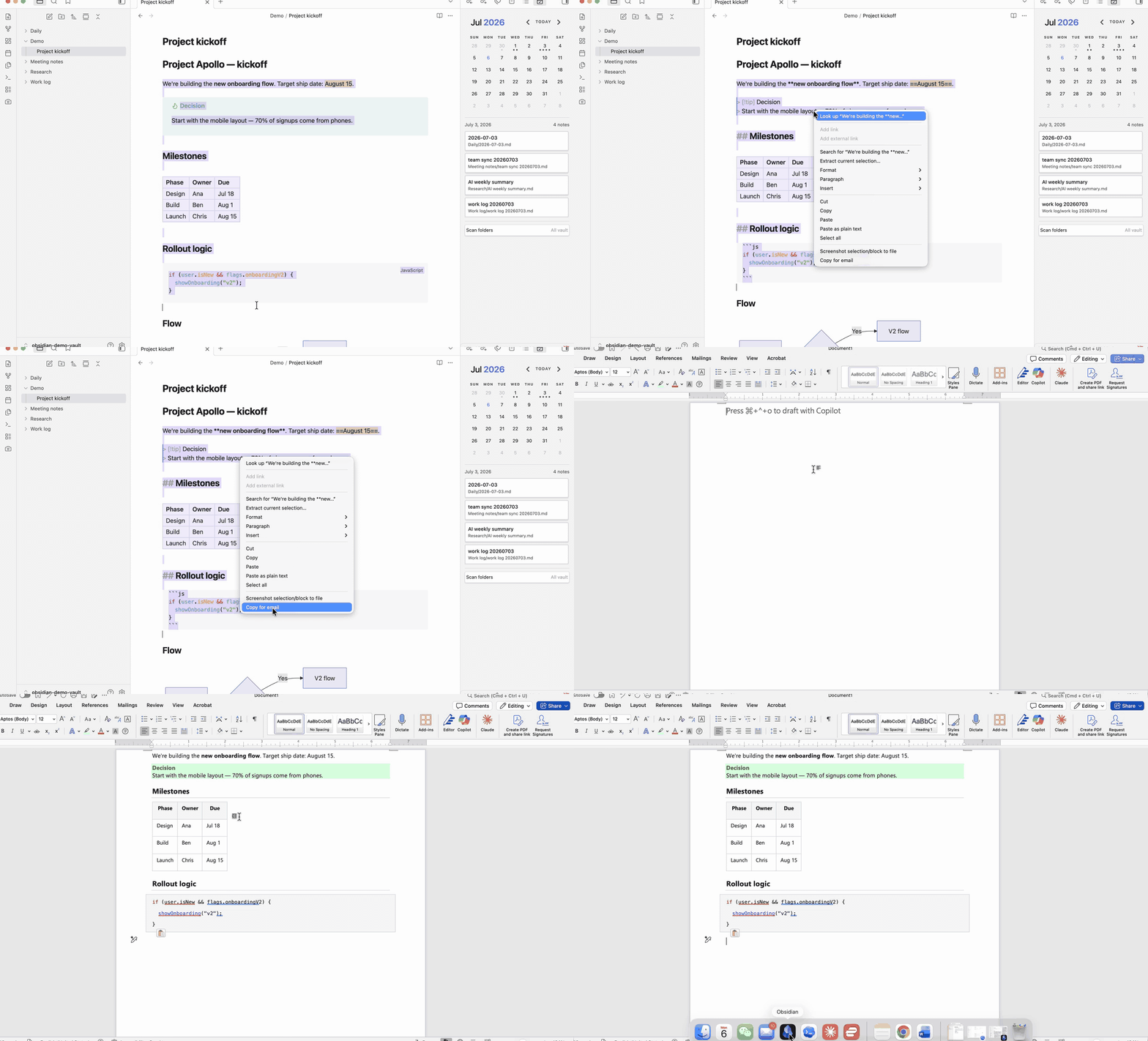
Plain markdown copied out of Obsidian pastes as raw syntax (**bold**, # heading, | tables |). Existing "copy as HTML" approaches rely on classes and <style> blocks, which mail clients strip on paste. This plugin instead:
- Inlines every style on every element — the only formatting mail clients reliably keep.
- Rasterizes what mail can't render: Mermaid diagrams, charts, MathJax formulas and SVGs become embedded PNG images.
- Embeds vault images as data URIs so they paste along with the text.
- Uses a fixed light palette so text stays readable in a white email body even if you run a dark Obsidian theme.
- Writes a chat-styled plain-text flavor too: chat apps (WeChat, Slack, iMessage) that ignore rich text get clean text whose structure survives in glyphs —
【Heading】,「emphasis」,① ② ③lists,▏quote bars — with every marker customizable in settings.
Usage
- Copy selection — command palette, or right-click a selection → Copy for email and chat (editing view). Works in reading view too: select rendered text, then run the command.
- Copy note — copies the active note (frontmatter excluded; optionally prepends the title).
- Ribbon button — the mail icon in the left ribbon copies the current selection, or the whole note when nothing is selected.
Then paste into your mail compose window.
[!note] A plain
Cmd/Ctrl+Cis still Obsidian's native copy (markdown text, or theme-styled HTML from reading view, which mail clients render poorly). Use the plugin command or menu item to get the email-ready version.
What maps to what
| In Obsidian | In the email |
|---|---|
| Headings, bold/italic, highlight | Styled text (GitHub-light palette) |
| Tables (with column alignment) | Bordered tables |
| Callouts | Tinted boxes with colored left border |
| Code blocks | Boxed monospace with syntax colors |
| Task lists | ☑ / ☐ |
| Mermaid / charts / math / SVG | PNG images |
| Vault image embeds | Embedded images (data URIs) |
| Internal links & tags | Plain text |
| External links | Real links |
Chat plain text
Chat apps ignore the rich-text flavor entirely — WeChat, for example, supports no formatting in messages at all. So the same copy also writes a plain-text version where structure is redrawn with glyphs chat apps render fine:
【Note title】

■ Section

「Key point」 survives as visible emphasis.

▍Subsection

① First
② Second
 • nested item

▏ Quoted line

※ Callout title
▏ Callout body
Every marker is configurable under Settings → Copy for Email and Chat → Plain text: swap any glyph, or switch the style to Minimal for undecorated plain text. Tables stay as a | b rows — proportional chat fonts can't align columns, so for tables a screenshot is still the honest answer.
Notes & limitations
- Pasted data-URI images work in Gmail, Apple Mail, Outlook for Mac and new Outlook. Classic Outlook for Windows may not display them while composing; recipients are unaffected when sending from the supported clients.
- Diagrams are rasterized against your current Obsidian background, so they always stay readable; for light-styled diagrams in email, use a light theme.
- On mobile, diagrams/math degrade to a
[diagram]placeholder (iOS cannot reliably rasterize off-screen renders); text, tables and images copy fine.
Install
Copy for Email and Chat is available in the Obsidian Community Plugins directory:
- Open Settings → Community plugins → Browse.
- Search for Copy for Email and Chat and install it.
- Enable it — the commands and the right-click menu item appear immediately.
Manual install
Download main.js, manifest.json, styles.css from the latest release into <vault>/.obsidian/plugins/copy-for-email/, then enable it in Settings → Community plugins.
More plugins by HWY1dot0
- Calendar Hub — one calendar that surfaces every note from a given day, in any folder.
- Screenshot Selection — capture selected note content as a theme-faithful PNG.
If this plugin helps your workflow, you can buy me a coffee.
License
MIT