coo
 Wenyi333 downloads
Discuss, translate, and rewrite your notes with AI — grounded in the paragraph you are editing. Answers become foldable callouts and follow-up questions chain.
- Overview
- Scorecard
- Updates9
coo introduces a new solution for Obsidian to live with AI symbiotically. Instead of treating chatbots as a separate place you “go to”, coo works inside the exact paragraph you’re reading or writing. When a line trips you up, you can simply select, ask, and get it untangled in place.
Features
Discuss
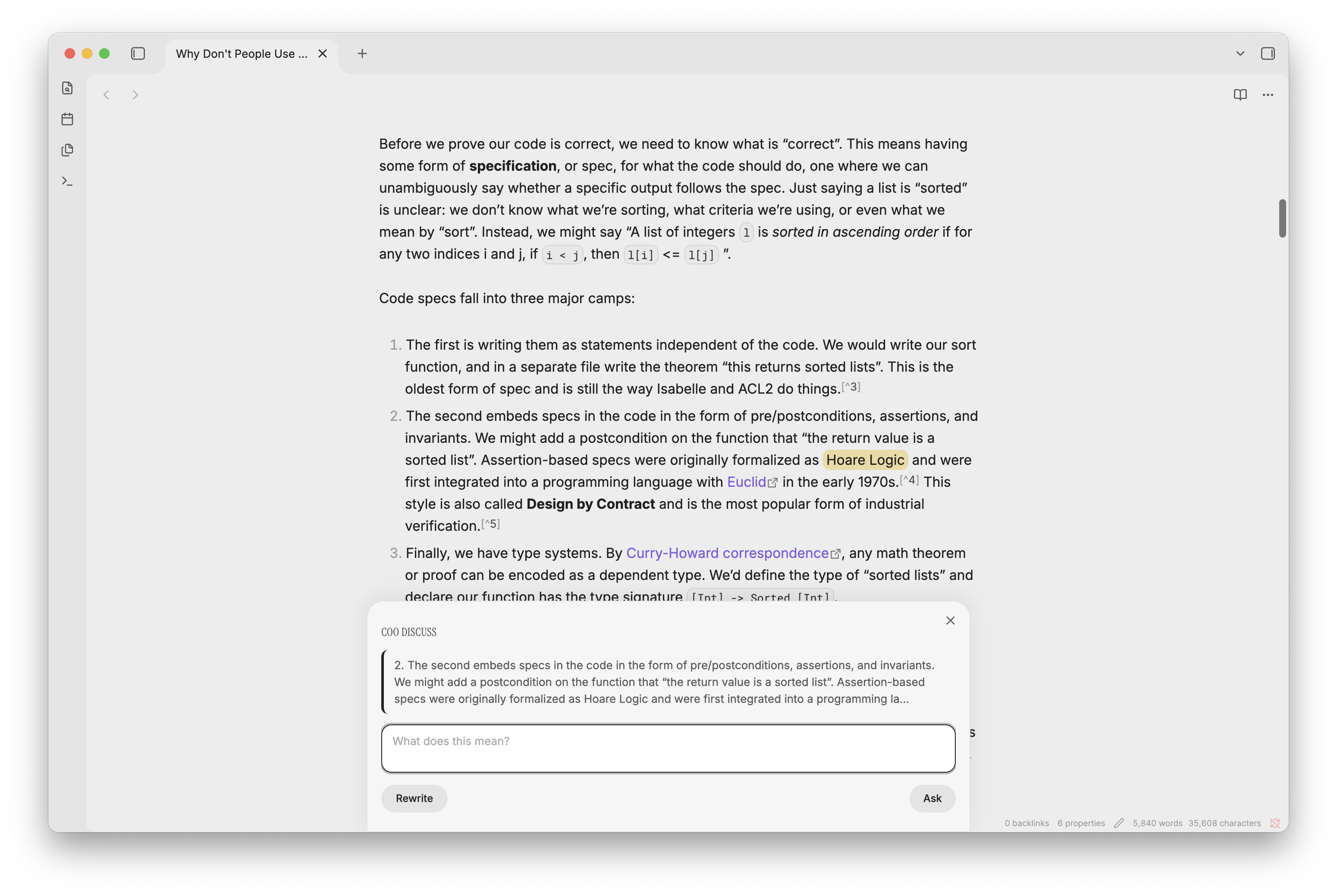
Select text in a paragraph and open the Discuss composer (command palette or right-click → coo discuss). A small composer opens over your note with the paragraph as context. The question box comes pre-filled with a sensible default (localized to your response language — for example "What does this mean?"). Press Ask (or Enter) to ask it as-is, or type your own.
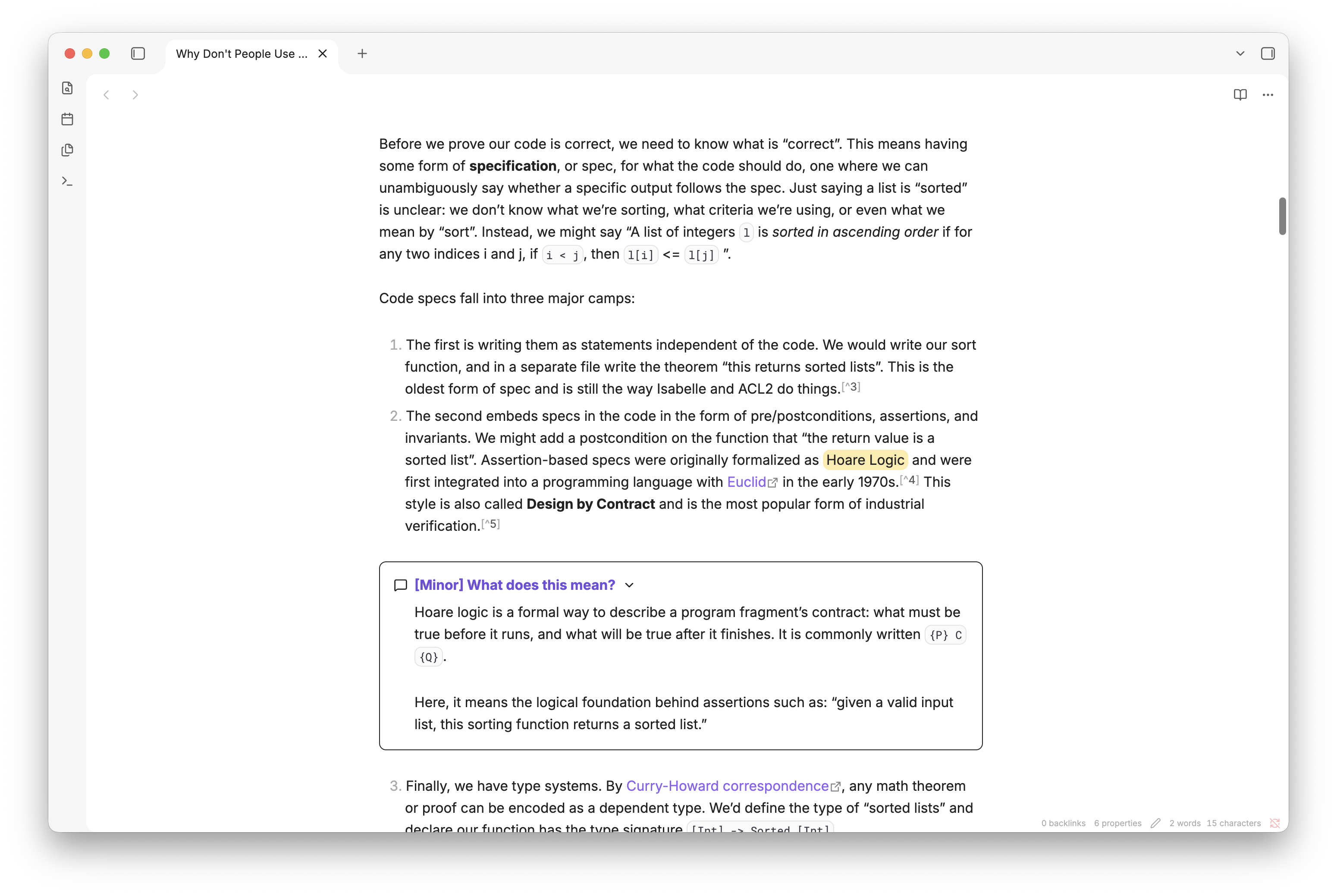
- Ask — ask a question about the passage (your highlighted phrase is the focal point). The answer is saved as a collapsed callout below the paragraph — the question becomes the title, the answer (with its markdown) becomes the body. Follow-up questions chain: coo remembers the whole Q&A for the note, so each question builds on the last.
- Rewrite — fold the gathered notes back into the paragraph. coo rewrites the paragraph incorporating the notes, then removes them. Fully undoable with Ctrl/Cmd+Z.
A few things worth knowing:
- Drill down — select a phrase inside an existing answer and Ask again. That answer becomes the context, and the follow-up stacks as a fresh callout right beneath the one it's about.
- Ask with nothing selected — coo treats the whole document as the context. Answers append as callouts at the bottom of the note, and Rewrite is hidden (a full-document rewrite would be destructive).
- Skippable concepts — when coo judges a concept minor, it tags that answer with a
[Minor]prefix in the title, visible right in the collapsed callout. - Selection highlight — the word you're asking about is wrapped in a
==highlight==in the note, so you can always tell what you focused on (the callout title shows your question, not the word). The highlight stays in the note.
Answers and rewrites write straight into your note — the composer is just the command bar. Notes are [!coo] callouts: collapsed by default (only the question shows), expand to read the formatted answer.
Translate
Select a word or phrase and run coo: Translate (command palette or right-click → coo translate). The translation is inserted inline, in parentheses, right after the original — so you keep the original text and see its translation next to it.
The phenomenon of entanglement (量子もつれ) is counterintuitive.
One editor operation — Ctrl/Cmd+Z reverts it.
Re-register note
Because coo chains questions against a snapshot of your note, heavily editing a note can leave that snapshot stale. Run coo: Re-register note to refresh the snapshot and start a fresh chain.
Installation
From release
- Go to the latest release
- Download
main.js,manifest.json, andstyles.css - Create a folder at
<Your Vault>/.obsidian/plugins/coo/ - Move the three downloaded files into that folder
- Reload Obsidian (Cmd+R or Ctrl+R) → Settings → Community Plugins → enable coo
From source
git clone https://github.com/jwy600/obsidian-coo.git
cd obsidian-coo
npm install
npm run build
Copy the output files into your vault's plugin folder:
cp main.js manifest.json styles.css "<Your Vault>/.obsidian/plugins/coo/"
Reload Obsidian (Cmd+R or Ctrl+R) → Settings → Community Plugins → enable coo.
Requirements
- Obsidian 1.13.1 or later
- An OpenAI API key
Setup
- Enable the plugin in Settings → Community Plugins
- Go to Settings → coo and enter your OpenAI API key
- Configure your preferred model, language, and other options
Settings
| Setting | Options | Default | Description |
|---|---|---|---|
| OpenAI API key | — | (empty) | Required. Your API key, stored locally and never shared |
| Model | gpt-5.6-sol, gpt-5.6-terra, gpt-5.6-luna |
gpt-5.6-terra |
Which OpenAI model to use |
| Reasoning effort | none, low, medium, high |
low |
Depth of reasoning. Higher is slower but more thorough. Applies to Ask only — Rewrite and Translate run without it |
| Web search | on / off | on | Let the model search the web during Ask for up-to-date information |
| Response language | English, Español, Français, 中文, 日本語 | Auto-detected from Obsidian locale (on first use) | Language for AI responses, applied as a runtime directive to all prompts |
| Translation language | English, Español, Français, 中文, 日本語 | Chinese | Target language for the Translate action. Cannot match the response language (auto-adjusted on conflict) |
How chaining works
When you first Ask about a note, coo registers the whole note with OpenAI (store: true) as the conversation root, and stores the returned response id for that note. Each subsequent Ask chains from the previous one, so the model remembers your full Q&A history for the note. Only Ask chains — Translate and Rewrite are standalone. If OpenAI evicts the stored conversation (after some weeks), coo automatically re-registers and continues.
Web app deployment
The design also has a web app deployment. Visit here to learn more.