Convert to Markdown
 notenerd2k downloads
Convert PDF, Word (.docx), PowerPoint (.pptx), Excel (.xlsx) and images to Markdown — headings, tables, lists and embedded images intact. Parsed natively: no Python, no pip, no cloud service, nothing uploaded. Local OCR reads text in images.
- Overview
- Scorecard
- Updates8
Converts PDFs, Office and OpenDocument files, ebooks, saved web pages, email, notebooks, subtitle tracks, spreadsheets and images in your vault into Markdown notes, images and all.
No LLM, no API key, no cloud service, no external binary. Nothing you convert is uploaded anywhere — every byte is processed on your machine.
Documents are parsed directly from their own structure, which makes them fully deterministic and fully offline: the same file always produces byte-identical Markdown.
Pixels are the one exception. An image file has no structure to read, and neither does a page of a scanned PDF, so reading either means OCR — statistical rather than structural, and occasionally wrong, which is why it reports its confidence and says which pages it was used on. Tesseract is a local neural recogniser, not a language model and not a service. It also downloads its engine the first time you use it. Details under OCR.
Installing
Settings → Community plugins → Browse → search Convert to Markdown → Install, then Enable.
Nothing else. No runtime to install, no binary to put on PATH, no account.
Desktop only — it uses Node's zlib, which Obsidian mobile doesn't have.
The first time you convert an image or a scanned PDF, there's a one-off engine download (see OCR); the notice shows its progress. Everything else works immediately and offline.
Supported: .pdf · .docx .pptx .xlsx (and .docm .pptm .xlsm) ·
.odt .ods .odp · .epub · .html .htm .mhtml .mht · .eml ·
.ipynb · .vtt .srt · .csv .tsv · .png .jpg .jpeg .webp
.gif .bmp .tif .tiff
Pairs well with Doc Preview,
also by this author: it renders .pptx/.docx/.xlsx files in an Obsidian
tab exactly as formatted, via a local LibreOffice install, so you can open the
original beside the converted note — useful for checking a conversion, or for
deciding whether one's even worth doing.
Usage
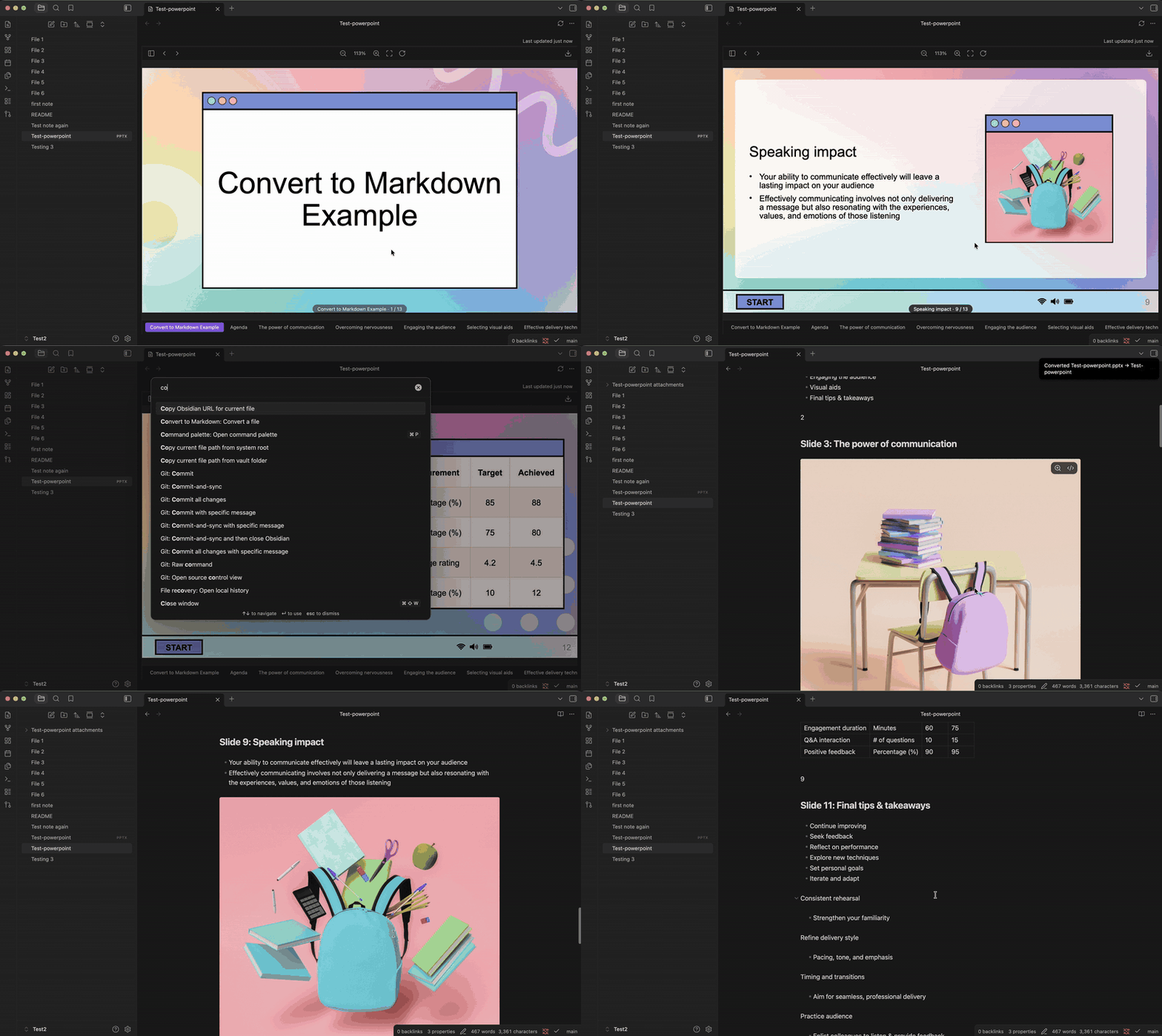
- Right-click a supported file in the file explorer → Convert to Markdown
- Or run Convert to Markdown: Convert a file from the command palette
The note is written next to the original (configurable), never overwriting an existing note. Anything the converter dropped — images it couldn't render, sheets you asked it to leave out, a page's navigation, an email attachment — is named in a collapsed callout at the end. Not counted: named, because "3 items skipped" tells you nothing you can act on.
The frontmatter's source field links back to the original as a bare-filename
wikilink ([[report.docx]]) rather than its full path, for the same reason
the images are: Obsidian resolves it by searching the vault each time, so the
source file can be moved anywhere afterward without the link breaking. That
only holds while the filename is unique — if another file elsewhere in the
vault happens to share it, the full path is used instead, since a bare link
would otherwise point at whichever one Obsidian happened to pick.
Coverage goes in the frontmatter, where it's read before the content rather than after two thousand lines of it:
sheets_converted: 23/23     # .xlsx, .ods
pages_converted: 40/40      # .pdf
chapters_converted: 31/31   # .epub
cues_converted: 812/812     # .vtt, .srt
cells_converted: 41/41      # .ipynb
Compared to markitdown
The Obsidian plugins in this space wrap Microsoft's markitdown, which is one
abstraction over every format: it makes one-size-fits-all decisions about what
structure means, and those decisions are where the mess comes from.
Nothing to install. A markitdown-based plugin needs Python on the machine
and pip install markitdown, and fails with "Python is not installed or not
found at the configured path" until it has both. This one is plain JavaScript
inside Obsidian — which also means it works on a locked-down machine where
installing Python is the step that's blocked.
Structure survives. Headings keep their levels, lists stay lists, tables
stay tables, and images are written into the vault and embedded at the point
they appeared. Running the same PDF through both, markitdown returns the text
hard-wrapped exactly where the PDF's column broke, hyphens included —
medica- / tions, occlu- / sion — because a PDF line break is a
typesetting artifact it preserves rather than undoes. This one rejoins the
paragraph and repairs the hyphenation.
Multi-column PDFs read in order. Columns are detected per page and each is read top to bottom before the next, so a two-column paper doesn't come out interleaved. Full-width titles and headings are recognised as spanning the columns and stay where they belong, and running headers are stripped before the columns are worked out — otherwise a footer spread along the page bottom lands in the middle of the text.
Per format, what's read and what it buys:
| Format | What it reads | What that buys |
|---|---|---|
.docx |
word/document.xml paragraphs and numbering.xml |
Real heading levels from Word's own styles; ordered vs. unordered lists; tables; hyperlinks; bold/italic |
.pptx |
Slide parts in p:sldIdLst order |
One section per slide in presentation order, title placeholders as headings, speaker notes, slide tables |
.xlsx |
Every worksheet, sharedStrings.xml, styles.xml, pivot caches |
Dates instead of serial numbers, 27.38 instead of 27.383982300884924, hidden sheets converted rather than dropped, coverage in the frontmatter |
.pdf |
The text layer, via pdf.js; OCR for pages that have none | Columns read in order, headings from font size, paragraphs rejoined across line breaks, de-hyphenation, running headers/footers dropped, scanned pages read rather than refused |
.odt .ods .odp |
content.xml, styles.xml, meta.xml |
Heading levels stated outright rather than inferred; the displayed value of a spreadsheet cell; footnotes collected at the end; speaker notes |
.epub |
container.xml → the OPF spine and the contents document |
Chapters in reading order rather than alphabetical, chapter titles from the contents page, cover art, book metadata in the frontmatter |
.html .htm |
The page's own structural markers | The article rather than the whole page — navigation, cookie banners and site-map footers named and left out |
.mhtml .mht |
The MIME archive Chrome and Word save pages as | The page and its images, since a single-file save has them both |
.eml |
Headers, the multipart body, transport encodings | Correspondents and subject in the frontmatter, quoting preserved, inline images placed, attachments named |
.ipynb |
Cells, and the richest usable form of each output | Prose as prose, code fenced with its language, plots embedded, DataFrames as real tables rather than padded digits |
.vtt .srt |
Cue timings, <v> voices, >> and dialogue dashes |
A readable transcript instead of 800 numbered stanzas — see Transcripts |
.csv .tsv |
RFC 4180, with the delimiter worked out from the file | Quoted fields containing commas and line breaks survive; a semicolon-separated European export isn't read as one column |
.png .jpg .webp .gif .bmp .tiff |
Local OCR (Tesseract) | Text off a screenshot or photo, laid out as paragraphs rather than one line per pixel row |
Macro-enabled variants (.docm, .pptm, .xlsm) are the same parts plus a
VBA blob, and convert identically.
Three of these share one reader, and share it because they are the same format
in different envelopes rather than merely similar: an epub chapter, a saved web
page and an email's HTML body are all HTML. .mhtml and .eml likewise share
a MIME parser — a saved web page in MHTML is an email whose attachments
happen to be the page's images.
Transcripts
A caption file's structure is timing, not prose. It is cut into two-second cues sized for the bottom of a screen, and every cue is hard-wrapped to the display width. Written out cue by cue you get hundreds of numbered stanzas nobody can read, where the timings — the least interesting thing in the file — are the only structure the layout expresses.
So the cues are put back together: lines rejoined, consecutive cues from the same speaker merged into paragraphs, and a timestamp kept at the head of each paragraph as an anchor back into the recording.
**00:01 Roger Bingham:** We are in New York City. We're actually at the
Lucern Hotel, just down the street from the American Museum of Natural History.

**00:15 Neil deGrasse Tyson:** Didn't we talk about enough in that conversation?
Speakers are read from every convention a real transcript turns up with:
WebVTT's <v Name>, broadcast captioning's >> and >> NAME:, the
subtitling convention of a dash at the start of each speaker's line, Webex's
own export, which names the speaker on the cue's own identifier line —
2 "Alex Kim (They/Them)" (100000001) — quoted name and participant id,
ahead of the timing line rather than inside the cue text, and the bare
Name: text several other transcription tools write straight into the cue
itself. Webex's identifier line is read whether or not the cue number sits
in front of the quoted name on that same line — real exports do both — and
the name itself may hold its own parentheses (Webex appends a participant's
pronouns to their display name), so the trailing (id) is matched at the
end of the line rather than as the first parenthesised group found. The dash
and the chevrons have to be understood anyway — > and - at the start of
a line are a blockquote and a list item in Markdown, so leaving them in
would corrupt the note even if you
didn't want the speaker names.
The bare form is the one case with no markup at all to go on — John Doe: thanks for joining and Note: this call is recorded are typed identically,
and only one of them is a speaker. So it's read conservatively: the whole
file is scanned first for the shape, and a name is only trusted once it's
shown up more than once. A transcript's actual speakers keep coming back;
a stray aside essentially never repeats itself word for word.
Auto-generated captions get one extra repair. YouTube's scroll rather than cut: each cue restates the previous cue's last line and adds one new one, so the same words arrive two or three times and naive concatenation triples the transcript. Repeated text is matched at word boundaries and written once.
Cue count and duration go in the frontmatter (cues_converted: 812/812), and a
Kind: chapters track becomes headings rather than paragraphs.
Images
Images are pulled out of the source file, written to <note name> attachments/ beside the note, and embedded where they actually sat — a figure
inside a Word table cell comes out inside that table cell. Identical images are
written once no matter how many times they're used, so a logo on forty slides
is one file.
Each one is named with a short hash of its own bytes (image-1-a3f9c2b7.png),
and embedded by that bare filename rather than its full path. That's what lets
the attachments folder be moved anywhere else in the vault — by Obsidian's
file explorer, a sync tool, or dragged around in Finder — without breaking the
embed: Obsidian finds a bare-filename embed by searching the vault each time
it renders the note, rather than trusting a path stored at conversion time.
The hash is what makes that safe to do at all — a plain image-1.png would
collide the moment two different notes had a first image, and Obsidian would
have no way to know which one a bare link meant.
Word, PowerPoint and Excel store images in their original encoding, so those
come out untouched (.jpeg stays .jpeg). A PDF doesn't store files at all —
it stores decoded pixels — so images from a PDF are re-encoded as PNG. Images
under 64px on a side are treated as rules, bullets and icons and skipped.
Turn the whole thing off with Extract images in settings for text-only notes.
Spreadsheets
Every sheet is converted, hidden ones included. Hiding a sheet is a
presentation choice, not a statement about the data — the hidden sheets in a
workbook are as often the raw table a visible pivot summarises as they are
scratch space — so leaving them out silently guts the note. The frontmatter
carries the count (sheets_converted: 23/23), so how much of the workbook
made it across is the first thing you see rather than a footnote after two
thousand lines.
.ods behaves identically, and gets there with much less work: LibreOffice
stores each cell's displayed text next to its raw value, so the number-format
machinery .xlsx needs — parsing format codes to recover 27.38 from
27.383982300884924, scaling percentages — is simply unnecessary. The answer
is already written down.
Convert hidden sheets in settings turns that off. When it's off, the
skipped sheets are listed by name in the conversion notes — Skipped (hidden): raw data (monthly), Region, Agebracket — because a count alone
tells you nothing you can act on. A hidden sheet that a visible sheet's
formulas, a pivot cache or a chart series reads from is converted regardless
of the setting: that dependency is a far stronger signal than the hidden flag,
and it's reported too.
OCR
An image file has no structure to read, so converting one runs Tesseract — a classical OCR engine (line segmentation plus an LSTM character recogniser) compiled to WASM. It is not an LLM, takes no API key, and the image never leaves your machine.
Scanned PDFs go the same way, page by page and only where they have to. A page with a text layer is parsed exactly, as always; a page that is nothing but an image is handed to the recogniser instead. A document can contain both, and the note says which pages were which:
pages_converted: 40/40
pages_read_by_ocr: 12
[!info]- Conversion notes
- 12 pages had no text layer and were read by OCR instead (pages 3, 4, 5, …). That part of the note is a recognition rather than an extraction and can be wrong — lowest confidence was 71%.
The page image itself isn't also embedded — for a 200-page scan that would be 200 full-page PNGs burying the text they duplicate. Expect roughly a second or two per scanned page; the notice counts them off as it goes.
The engine and its English model are not shipped in the plugin — an Obsidian
release can only contain main.js, manifest.json and styles.css — so they
download from jsdelivr the first time you convert an image:
| What | Size | Cached in |
|---|---|---|
tesseract-core-simd-lstm.wasm.js, the recogniser |
~3.7 MB | Electron's HTTP cache |
eng.traineddata, the English model |
5.0 MB | IndexedDB, by tesseract.js |
That traffic is one-way: it fetches the engine, it never sends the image. After the first run OCR works with the network off, and nothing else in the plugin touches the network at all.
The download happens inside the first conversion, so that one takes noticeably
longer than the rest. The notice reports what it's doing while it waits
(loading language traineddata — 61%) rather than sitting on "Converting…".
Regions Tesseract is unsure of — lettering picked out of a photograph, logo marks, JPEG artefacts — are dropped rather than written into the note as gibberish, and counted in the conversion notes. Large display type reversed out of a coloured background is the common thing OCR misses; check the note against the image when the confidence warning appears.
Two systematic artefacts are repaired afterwards, both of them the same kind of thing as the PDF extractor's de-hyphenation — undoing a known, predictable distortion rather than guessing at content.
Paragraphs are rebuilt from where the lines sit, not from Tesseract's own paragraph division. That division assumes scanned prose, and a screenshot isn't scanned prose: on a three-line paragraph of a web page it put the last line in a separate block, and on a chat transcript it split one message across two while merging a timestamp and an unrelated name into one. The geometry settles it — a line whose following word wouldn't have fitted was wrapped, so what comes next at the same left margin continues it; a line that stopped with room to spare ended its paragraph. Lines further apart than about one line's leading are never joined, which is what keeps separate chat bubbles separate.
A lone | is read back as I. In a sans-serif face a capital I has no
serifs and no crossbar — it is a plain vertical stroke, pixel-identical to a
pipe — so "I put together our plans" comes back as "| put together our plans".
The repair is narrow on purpose: only a bar standing alone as a word with a
lowercase word after it, which is the shape of the English pronoun, and never
on a line holding two or more free-standing bars, where they are far more
likely to be a table rule.
What isn't repaired is an image recognised as a letter — an avatar or an icon
next to a line of text can come through as a stray Q or O, and there is no
way to tell that from a real character without understanding the picture.
Locked-down machines
If that CDN is blocked — common on corporate networks — put the two files in a vault folder and name it in OCR engine folder in settings. OCR then reads them straight from disk and makes no network request at all, on the first run or any other.
Download them once somewhere with access:
https://cdn.jsdelivr.net/npm/tesseract.js-core@7/tesseract-core-simd-lstm.wasm.jshttps://cdn.jsdelivr.net/npm/@tesseract.js-data/eng/4.0.0_best_int/eng.traineddata.gz
Both go in the same folder, keeping their filenames (the .gz may be
unzipped, either works). If the folder is set but a file is missing, the
conversion says which one.
Known limits
- Column detection is geometric, not semantic. It reads the horizontal distribution of ink per page, so a layout no gutter runs through — text wrapped around a figure, a magazine-style collage — can still come out in the wrong order.
- A scanned page is read through its page image, which is what a scan actually is. A page with no text layer whose lettering is drawn as vector outlines instead has no image to hand the recogniser, and is reported as producing nothing.
- OCR is English only. The one language model that gets downloaded is
eng; a scan in another language will come out as approximately-English nonsense, and the confidence warning is the signal. - Windows metafiles (EMF/WMF) can't be embedded — nothing in Obsidian renders them — so they're skipped and counted.
- Excel formulas export as their last-calculated value — the value Excel itself stored in the file.
- Charts and embedded objects in decks are skipped and counted; a chart is a data structure, not a picture, so there's nothing to embed.
- Letter-spaced PDF headings can pick up stray spaces (
THI S BOOK); the gap between tracked glyphs is genuinely wider than an unspaced word break. - A plain
.htmlfile's images stay where they are. They sit beside the file on disk rather than inside it, and the converter only ever sees the file you picked. Remote images are kept as links; a single-file.mhtmlsave has the bytes and embeds them. - Main-content detection on a web page is a heuristic. It uses the page's
own markers (
main,article, ARIA roles, the usual container ids), and what it set aside is named in the conversion notes — so a page that hides its article in an unlabelleddivis a visible omission rather than a mysteriously short note. - HTML tables can't express merged cells. A
colspanorrowspanis laid out on Markdown's fixed grid with the covered cells left empty, which keeps every other column in the right place. - Legacy binary Office files (
.doc,.xls,.ppt) and iWork files (.pages,.key,.numbers) aren't supported. Both are undocumented binary container formats rather than zipped XML, and getting them subtly wrong is easier than getting them right. Re-save as the modern equivalent.
Development
npm install
npm run dev     # watch build into main.js
npm run build   # type-check + production bundle
tools/convert.mjs runs the extractors outside Obsidian, so output can be
checked against real files without reloading a vault:
OUT_DIR=/tmp/out node tools/convert.mjs ~/Downloads/deck.pptx ~/Downloads/report.pdf
OUT_DIR must already exist. The harness shims the DOM globals Obsidian gets
from Electron and otherwise runs the real extractor code. OCR_PROGRESS=1
prints the OCR stage reporting that the plugin puts in its notice;
SKIP_HIDDEN_SHEETS=1 is the harness's stand-in for turning Convert hidden
sheets off.
Obsidian's DOMParser handles XML and HTML; Node has neither, and no one
package does both well. The harness uses @xmldom/xmldom for OOXML,
OpenDocument and XHTML parts, and linkedom for text/html, which is the only
one that parses tag soup — unclosed <p>, bare <img> — the way a browser
does. Both are dev dependencies and neither is bundled.
Note on dependencies
The zip reader is hand-rolled (src/zip.ts) rather than JSZip. JSZip's
transitive dependencies create <script> elements as a legacy task-scheduling
trick, which gets plugins flagged by Obsidian's community-plugin review as
"code obfuscation" — a false positive that is simpler to avoid than to argue.
PNG encoding for PDF images is hand-rolled too (src/png.ts), on top of the
zlib the zip reader already uses, so it works identically in Obsidian and in
the Node harness.
The runtime dependencies are pdfjs-dist and tesseract.js. Both normally
load their worker script from a separate file or a CDN at runtime; a plugin
release can only ship main.js, manifest.json and styles.css, so both
workers are inlined at build time and handed to the library as a Blob URL.
Tesseract's WASM engine and language data still come from a CDN on first use —
they're too large to inline, and the language data has to be fetched somehow.
License
MIT
Third-party licenses
The released main.js is a bundle, so it carries these with it:
| Bundled | License |
|---|---|
| pdfjs-dist — PDF text and image extraction | Apache-2.0 |
| tesseract.js — OCR API and worker | Apache-2.0 |
| idb-keyval — via tesseract.js, caches the OCR model | Apache-2.0 |
| wasm-feature-detect — via tesseract.js, picks the SIMD build | Apache-2.0 |
Fetched on the first image conversion rather than redistributed here:
| Downloaded at runtime | License |
|---|---|
| tesseract.js-core — the WASM recogniser | Apache-2.0 |
tessdata eng.traineddata — the English model |
Apache-2.0 |
Apache-2.0 is compatible with this plugin's MIT license, and none of these ship
a NOTICE file that would require further attribution. Nothing else is bundled:
the zip reader and the PNG encoder are hand-rolled (src/zip.ts, src/png.ts)
precisely so there is nothing more to carry.