Search...Search plugins and themes...
⌘K
Sign in
  • Get started
  • Download
  • Pricing
  • Enterprise
  • Account
  • Obsidian
  • Overview
  • Sync
  • Publish
  • Canvas
  • Mobile
  • Web Clipper
  • CLI
  • Learn
  • Help
  • Developers
  • Changelog
  • About
  • Roadmap
  • Blog
  • Resources
  • System status
  • License overview
  • Terms of service
  • Privacy policy
  • Security
  • Community
  • Plugins
  • Themes
  • Discord
  • Forum / 中文论坛
  • Merch store
  • Brand guidelines
Follow us
DiscordTwitterBlueskyThreadsMastodonYouTubeGitHub
© 2026 Obsidian

Connections

evancleveevancleve1k downloads

Define and view named connections between your notes.

Add to Obsidian
  • Overview
  • Scorecard
  • Updates7

This plugin allows you to define and view named connections between your notes.

To add a connection, use the "Connections: Add a connection to another note" command.

In the resulting modal, select or enter in the connection type you want to define between the notes and select the target note. Once added, all connections will be displayed in the Connections pane in the right sidebar.

If you want to delete a connection, click on the trash icon beside the connection you want to remove.

You can also define mapped connection types, which allow you to use pre-existing properties to create connections. For example, you could define connection text of "is married to" for the spouse property.

After defining the connection type above, to create a connection of "Fred Flintstone is married to Wilma Flintstone" you'd add the following frontmatter to "Fred Flintstone.md".

---
spouse: "[[Wilma Flintstone]]"
---

Mapped connections' grammatical subject defaults to their source (the file containing the frontmatter property). For LTR-SVO languages like English, this means the source display text will be on the left, followed by the connection text, followed by the target display text.

However, you can also create mapped connections with subjects as their targets. For instance, you could create a mapped connection type with connection text of "is the father of" for the father property, and select "Target" as the subject.

Then, inside Pebbles Flintstone.md, you'd add the following frontmatter:

---
father: "[[Fred Flintstone]]"
---

This would cause "Fred Flintstone is the father of Pebbles Flintstone" to appear in the Connections pane.

This plugin plays nicely with the Folder Notes plugin.

Demo
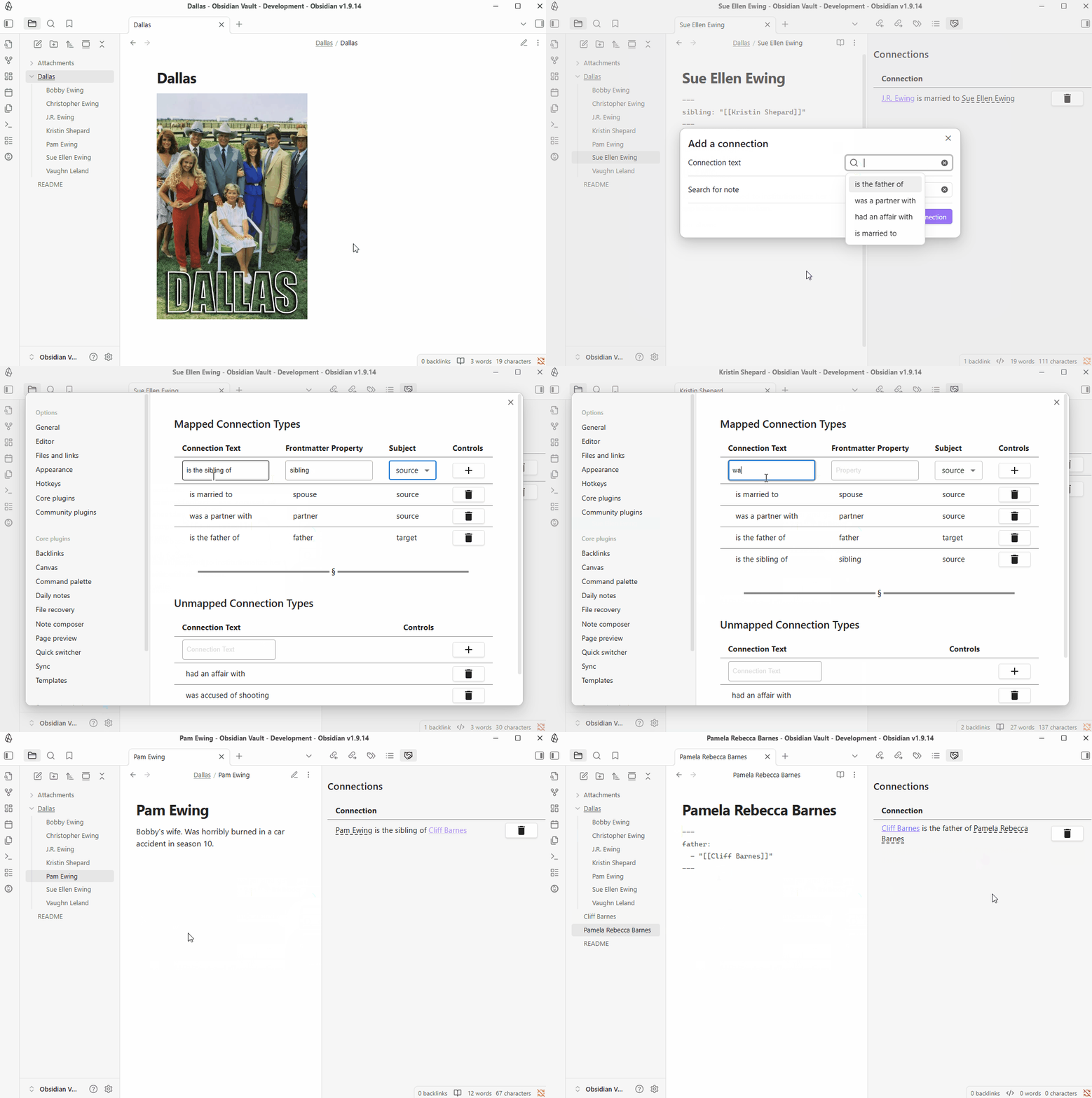
Demo of Connections

Support

If you have any suggestions on features I could, add please let me know via my GitHub! If you feel like donating some spare change, feel free to do that here: https://buymeacoffee.com/envancleve.

77%
HealthGood
ReviewCaution
About
Define and view named connections between notes. Display all connections in the Connections pane and delete ones you no longer need. Map frontmatter properties to connection types to auto-generate readable statements and choose which side serves as the subject.
LinksPropertiesSidebar
Details
Current version
1.1.5
Last updated
3 months ago
Created
7 months ago
Updates
7 releases
Downloads
1k
Compatible with
Obsidian 0.15.0+
Platforms
Desktop, Mobile
License
MIT
Report bugRequest featureReport plugin
Sponsor
Buy Me a Coffee
Author
evancleveevancleve
github.com/evancleve
GitHubevancleve
  1. Community
  2. Plugins
  3. Links
  4. Connections

Related plugins

Wikilink Types

Type @ inside wikilink aliases to add relationship types, auto-synced to YAML frontmatter.

Notebook Navigator

A better file browser and calendar inspired by Apple Notes, Bear, Evernote and Day One.

Advanced Canvas

Supercharge your canvas experience. Create presentations, flowcharts and more.

Recent Files

Display a list of recently opened files.

Smart Connections

AI link discovery copilot. See related notes as you write. Lookup using semantic (vector) search across your vault. Zero-setup local model for embeddings, no API keys, private.

Excalidraw

Visual PKM powerhouse. Create and edit Excalidraw drawings.

Meta Bind

Make your notes interactive with inline input fields, metadata displays, and buttons.

Longform

Helps you write and edit novels, screenplays, and other long projects.

Flexplorer

Enhance the file explorer with custom sorting, pinning, and hiding.

Link Favicons

See the favicon for a linked website.