Composer
 Mario Miletta305 downloads
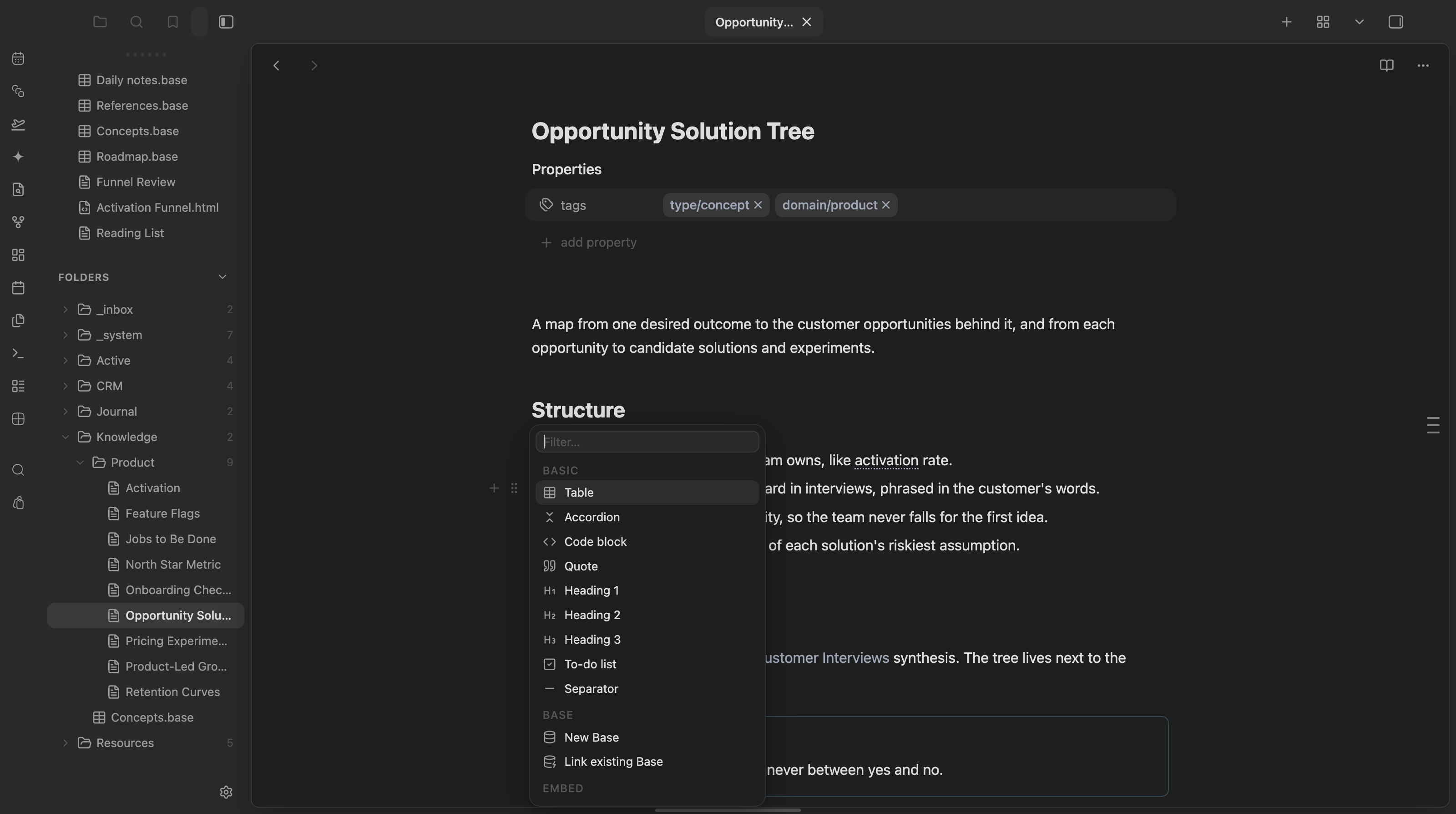
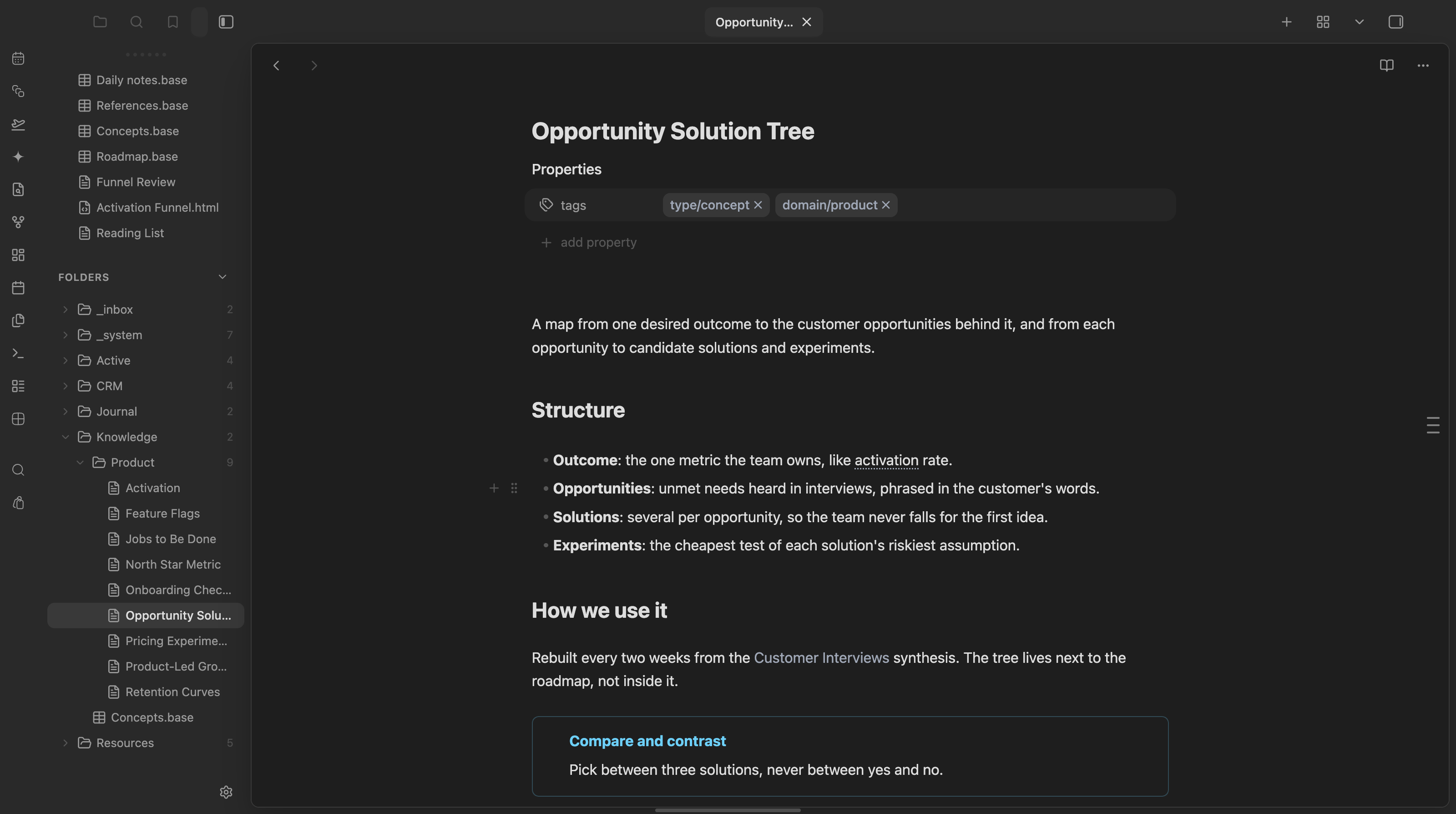
Notion-style block handle (+ insert menu, block actions) and a right-edge document outline.
- Overview
- Scorecard
- Updates11
A Notion-style block handle for Obsidian: hover any block in Live Preview to reveal a gutter handle with a + insert menu and a ⠿ block actions menu.
It also docks a document outline to the right edge of every note: one tick per heading, expanding into a titled panel with live tracking of the heading you are reading. The outline was the standalone Notion Outline plugin, now merged into Composer.
How it works
Hover over a block (paragraph, heading, list item, callout, table, code fence, quote…) and a small handle appears in the left gutter. It has two buttons:
- + Insert — opens a searchable menu to insert a new block below (⌥-click flips the default direction) the hovered block.
- ⠿ Actions — opens a menu of transforms and operations on the hovered block itself: turn into another block type, move up/down, duplicate, copy a block link, or delete.
Empty lines get the handle too (+ only): inserting there replaces the line in place, so a brand-new note is one hover away from its first block.
Both menus support fuzzy filtering, arrow-key navigation, Enter to confirm, Esc to close, and close on outside click. All insertions are a single undo step.
The handle only appears in Live Preview on desktop. It's inert in Reading view and does nothing over blank lines or frontmatter.
Outline
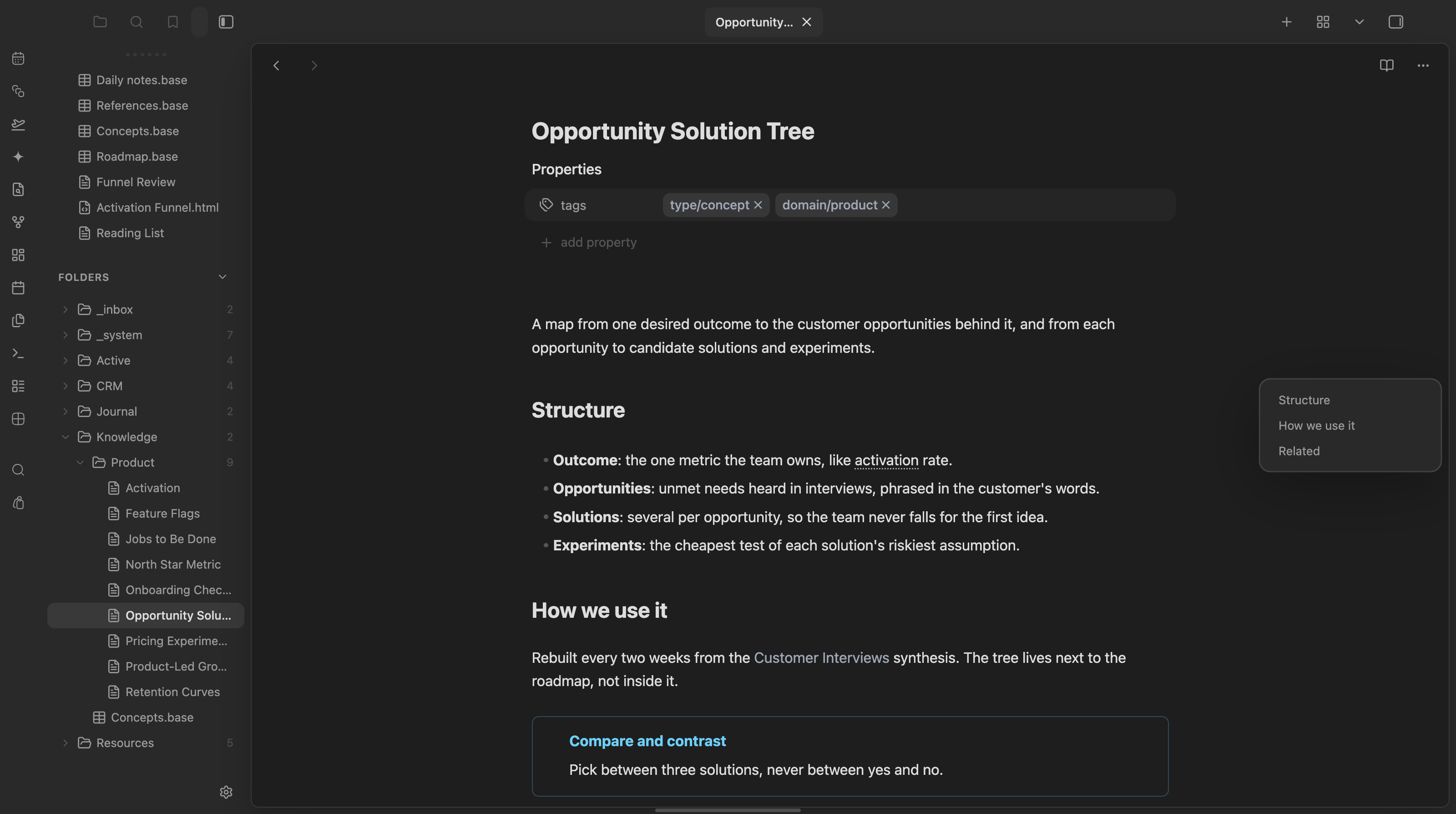
- Resting tick strip: thin ticks pinned to the right edge, one per heading. Tick length and opacity scale with heading level.
- Titled panel: hover the strip (or tap it on touch) to expand a panel listing the headings, indented by level. Click a title to scroll there.
- Live tracking: the heading you are reading is highlighted in the accent color as you scroll.
- Editing and reading view: works in Live Preview, Source mode, and Reading view.
- Keyboard and touch: the strip is a real button,
Esccloses the panel, a tap outside dismisses it on touch.
Insert menu sections
| Section | Items |
|---|---|
| Basic | Table, Accordion (foldable callout), Code block, Quote, Heading 1–3, To-do list, Separator |
| Base | New Base (creates a .base file next to the note and embeds it), Link existing Base |
| Embed | Note, Image, Canvas / Excalidraw, HTML artifact |
| Template | Insert any note from your template folder |
| AI | Ask Exo — hands off to the Exo plugin's inline-edit command, if installed |
Block actions (⠿)
Turn into: Paragraph, Heading 1–3, Bullet list, To-do list, Quote, Callout. Actions: Move up, Move down, Duplicate, Copy block link, Delete.
Settings
| Setting | Default | Description |
|---|---|---|
| Hover delay | 150 ms |
Delay before the handle appears on hover |
| Default insert position | below |
Where + inserts relative to the hovered block (⌥-click flips it) |
| New base folder | (same folder as note) | Folder for bases created from the menu |
| Template folder | Resources/Templates |
Source folder for the Template section |
| Artifact folder | Resources/_artifacts |
Source folder for the HTML artifact embed section |
| AI section | on |
Show "Ask Exo" in the insert menu (requires the Exo plugin) |
| Exo command id | exo-agent:inline-edit |
Command id Composer hands off to for "Ask Exo" |
Outline
| Setting | Default | Description |
|---|---|---|
| Show outline | on |
Turn the right-edge outline on or off |
| Minimum headings | 2 |
Hide the outline when a note has fewer headings than this |
| Show in reading view | on |
Also show the outline in Reading view |
| Disable on mobile | off |
Hide the outline on phone and tablet |
Coming from Notion Outline? On first load Composer imports its settings from .obsidian/plugins/notion-outline/data.json. Disable the old plugin afterwards, or you get two outlines.
Install (manual dev build)
Composer is not on the community plugin store. To build and install it locally:
pnpm install
pnpm build
The build writes main.js, manifest.json, and styles.css into the plugin folder referenced by .obsidian-plugin-dir (your vault's .obsidian/plugins/composer/). Enable it from Obsidian's Community Plugins settings.
Mobile
Supported. Composer runs on phone and tablet: the outline works there (tap the strip to open the panel, tap a title to jump). The block handle is a hover interface, so it only loads on desktop.
Design
Styling is geometry and hover/active states only — no permanent decorative surfaces. All colors, radii, and shadows come from Obsidian's own theme variables, so Composer adapts automatically to any theme, light or dark.
Part of the marioverse Obsidian plugin suite.
Try it
See it running in the Obsidianverse sample vault, a small, fictional vault with the whole plugin suite pre-configured.