Companion
 rizerphe34k downloads
Autocomplete with AI, including ChatGPT, through a copilot-like interface.
- Overview
- Scorecard
- Updates22
Companion is an Obsidian plugin that adds an AI-powered autocomplete feature to your note-taking and personal knowledge management platform. With Companion, you can write notes more quickly and easily by receiving suggestions for completing words, phrases, and even entire sentences based on the context of your writing. The autocomplete feature uses OpenAI's state-of-the-art GPT-3 and GPT-3.5, including ChatGPT, and locally hosted Ollama models, among others, to generate smart suggestions that are tailored to your specific writing style and preferences. Support for more models is planned, too.
Companion's autocomplete feature is designed to be unobtrusive, providing suggestions in ghost text that can be accepted or ignored by the you as you see fit, similar to what github copilot does. With Companion, you can write notes more efficiently and effectively, leveraging the power of AI to enhance your productivity and creativity. Whether you're a student, a researcher, or a knowledge worker, Companion can help you to take your note-taking and knowledge management to the next level.
Uses codemirror-companion-extension, my own fork of saminzadeh's awesome codemirror-extension-inline-suggestion
Demo
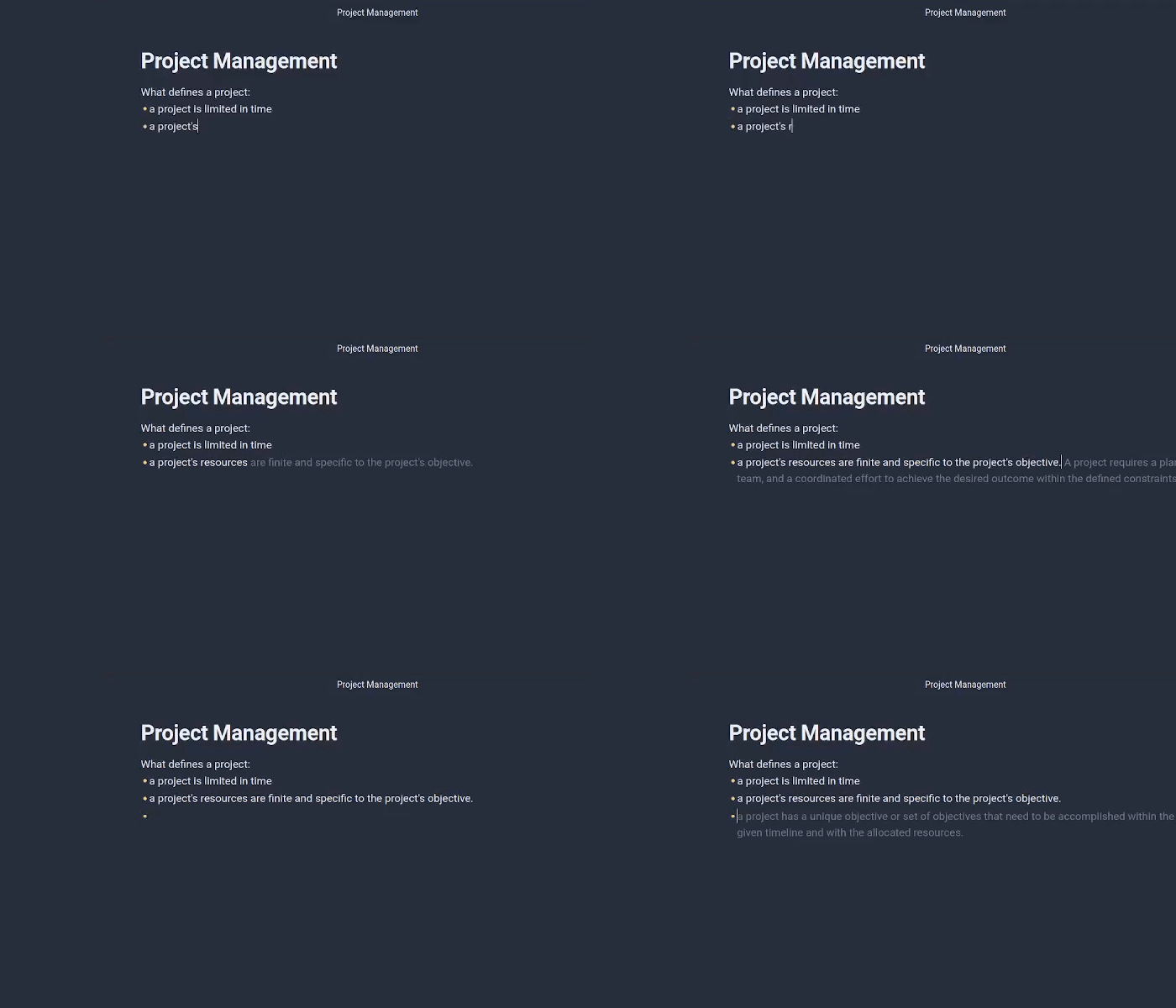
Installation
Companion is now available in the Obsidian Community Plugin Directory. Here's how to install it:
- Find Companion in the Community Plugins settings page in Obsidian.
- Click on the Install button next to the Companion plugin.
- Once the installation is complete, you will see a confirmation message in the top right corner of the Obsidian window.
- Finally, enable the Companion plugin by toggling the switch next to its name in the Community Plugins settings page.
How to Use
To use Companion with OpenAI's ChatGPT models, you'll need to generate an API key and configure the plugin settings. Here's how:
- Go to the OpenAI API Keys page and log in to your account (or create a new one if you don't have one already).
- Click the "Create new secret Key" button to create a new API key.
- Copy the API key to your clipboard.
- In Obsidian, open the Companion plugin settings by clicking on the gear icon in the bottom left corner of the app and looking for the "Companion" tab in the "Community plugins" section.
- Paste your OpenAI API key into the "API Key" field.
- Close the Companion settings.
- To activate the autocomplete feature, open the command palette by pressing
Ctrl/Cmd + Pand search for "Toggle Completion". Select the command and hit Enter. - Once a suggestion appears, use the
Tabkey to accept the next word.
Once you've completed these steps, the Companion plugin will be ready to suggest completions based on the context of your writing. You can accept or ignore these suggestions as you see fit, and continue writing notes more efficiently and effectively with the power of AI.
How to Use (Mobile)
To use Companion with OpenAI's ChatGPT models on your mobile device, follow these steps:
- Launch the Obsidian app on your mobile device.
- Access the settings menu by tapping on the three-dot icon in the top left corner of the app, and then the seettings gear.
- Select "Mobile" from the options.
- In the mobile settings, locate the "More toolbar options" section.
- Look for the "Companion: Accept completion" command in the list of available commands and add it to your toolbar.
- While writing a note, tap on the newly added button in the toolbar whenever you want to accept the suggested completion.
If you have any issues with installation or usage, feel free to submit an issue at the plugin's GitHub repository.
Groq
Groq is an ultrafast model provider, and for now (end of May 2024) is fully free - their paid plans are still "coming soon". Groq has very generous usage quotas. This is probably the best choice right now. Just switch the provider to groq, set your API key and you're good to go!
Ollama
Ollama is a tool for running models locally, and yet another solution to problems with latency and pricing. With ollama and a small model - such as phi-3 - you can freely lower the delay as much as you'd want, and the frequent requests will not cost you a fortune. To use ollama with this plugin, make sure the ollama service is running and switch the provider to ollama - that's it!
Presets
Companion's "Presets" feature allows you to save your current settings as a preset, enable a "command" switch for that preset, and then use the preset as a global editor command in the command palette. This can be useful if you have certain settings that you use frequently and want to access them quickly and easily. To use the Presets feature, follow these steps:
- Open the Companion plugin settings by clicking on the gear icon in the bottom left corner of the app and looking for the "Companion" tab in the "Community plugins" section.
- Configure the settings that you want to save as a preset.
- Enter a name for your preset and click the "Save Preset" button at the bottom of the settings page.
- Toggle the "Command" switch for your new preset to enable it as a global editor command.
- To use the preset, open the command palette by pressing
Ctrl/Cmd + Pand search for the name of your preset. Select the command and hit Enter.
You can create multiple presets with different settings and enable them as global editor commands, making it easy to switch between different configurations as you work. With the Presets feature, you can customize your Companion experience to suit your needs and work more efficiently with AI-powered autocomplete suggestions.
Completion providers
This plugin can use more than one source of completions, with more on the way. Currently it can:
- Ask ChatGPT to "Continue the following"
- Use the usual GPT-3 models
- Use AI21's Jurassic-2 models
- Use models hosted on goose.ai
If there are any sources you'd like to suggest, feel free to open an issue.
Say Thank You
Thanks to all those using my plugin! I made this project as a passion project, and I don't expect to receive any financial compensation for it. However, if you find my work useful and want to support me, feel free to
Your support will be greatly appreciated and will help me continue working on this project and others like it. But if you can't or don't want to contribute financially, don't worry, I'm just happy that my work is useful to you!