Cliplet
 namikaze-40p6k downloads
A clipboard and snippet manager — your own, separate from the OS clipboard.
- Overview
- Scorecard
- Updates28
An Obsidian plugin that serves as a clipboard and snippet manager — your own, separate from the OS clipboard.
Concept
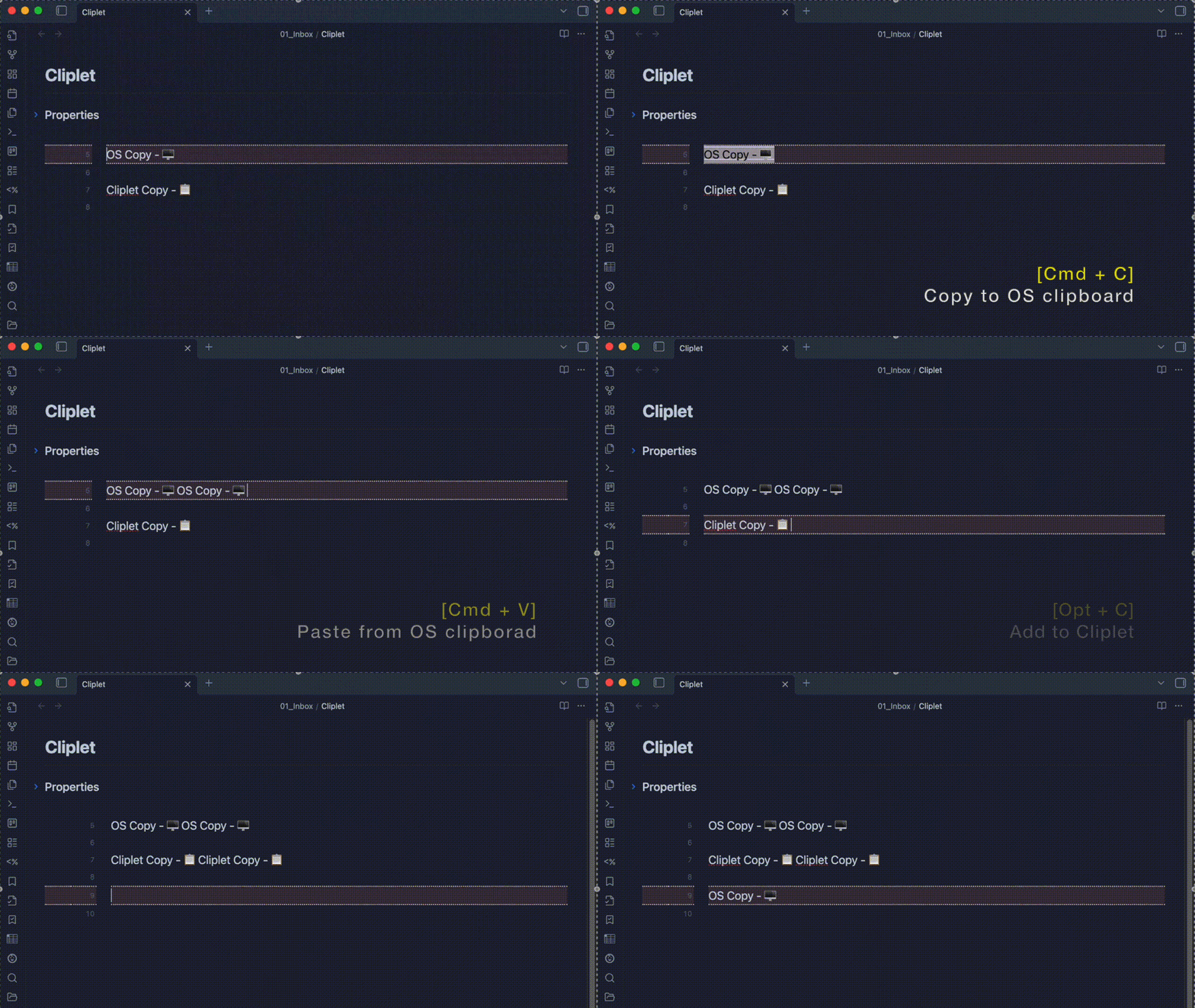
Cliplet is designed to keep your snippets always at hand inside Obsidian. With its separate clipboard, you can capture ideas, reuse text or code, and speed up your writing—without ever overwriting your system clipboard.
Cliplet also provides a Cliplet history inside Obsidian. With the data.json option, your snippets stay with your vault and sync across devices.
Why Cliplet?
- Keep multiple snippets without overwriting your system clipboard.
- Keep work and personal snippets separate from your OS clipboard.
- Mobile-friendly: browse and paste snippets where clipboard managers are limited.
Storage Options
Cliplet supports two storage methods. With a maximum of 200 items and encryption at rest, performance is comparable in most cases—choose based on portability and backup preferences.
- IndexedDB – Stored in Obsidian’s internal browser database per vault and per device. This allows you to keep different cliplet data on different devices or vaults, making it useful for separating work and personal content or desktop and mobile usage.
- data.json – Stored as a JSON file inside your vault. Easy to locate and manage, and included in your vault backups, sync, and version control.
Both options work entirely offline and never send your data to external servers (content is also encrypted at rest to prevent casual viewing).
| Storage type | Advantages | Disadvantages |
|---|---|---|
| IndexedDB | Per-device and per-vault isolation enables different data sets for different contexts. | Does not sync between devices; data is stored locally on each device. |
| data.json | Easy to locate and manage. Included in vault backups, sync solutions, and Git history. Portable between devices. | Storing many large cliplets can increase file size, which may slow loading or sync times. |
[!NOTE]
- Encryption: Cliplet encrypts stored content to prevent casual viewing (e.g., opening
data.jsonor browsing IndexedDB). The encryption key is derived from an ID stored in this plugin'sdata.json, so anyone who obtains yourdata.jsonand knows how Cliplet works can decrypt your cliplets. Do not rely on it to protect sensitive information such as passwords.- data.json storage notes:
- If your vault is stored on the internet (e.g., in a public GitHub repository or shared cloud folder), avoid making
data.jsonpublicly accessible. Because the encryption key is derived fromdata.jsonitself, publishing it effectively exposes your cliplets.- Using
data.jsonlets your cliplets sync across devices — but only if your sync service keeps that file up to date.
Some services, like iCloud, can be slow or unreliable at syncingdata.json, especially on iPhone or iPad.
If you frequently use Cliplet across multiple devices, please check how reliably your sync solution updatesdata.jsonbefore relying on it.- Device behavior: IndexedDB is per device and per vault;
data.jsontravels with your vault (Obsidian Sync/Dropbox/Git, etc.).- Switching: You can change the storage method in settings. A built-in migration moves all items to the selected storage and deletes them from the previous one.
- Automatic cleanup: Up to 200 items are kept. Named and pinned items are never deleted automatically, and the 10 most recent unnamed items are always kept, even if you have 200 or more named or pinned items. Unnamed items that have not been used for 60 days are deleted.
How to use
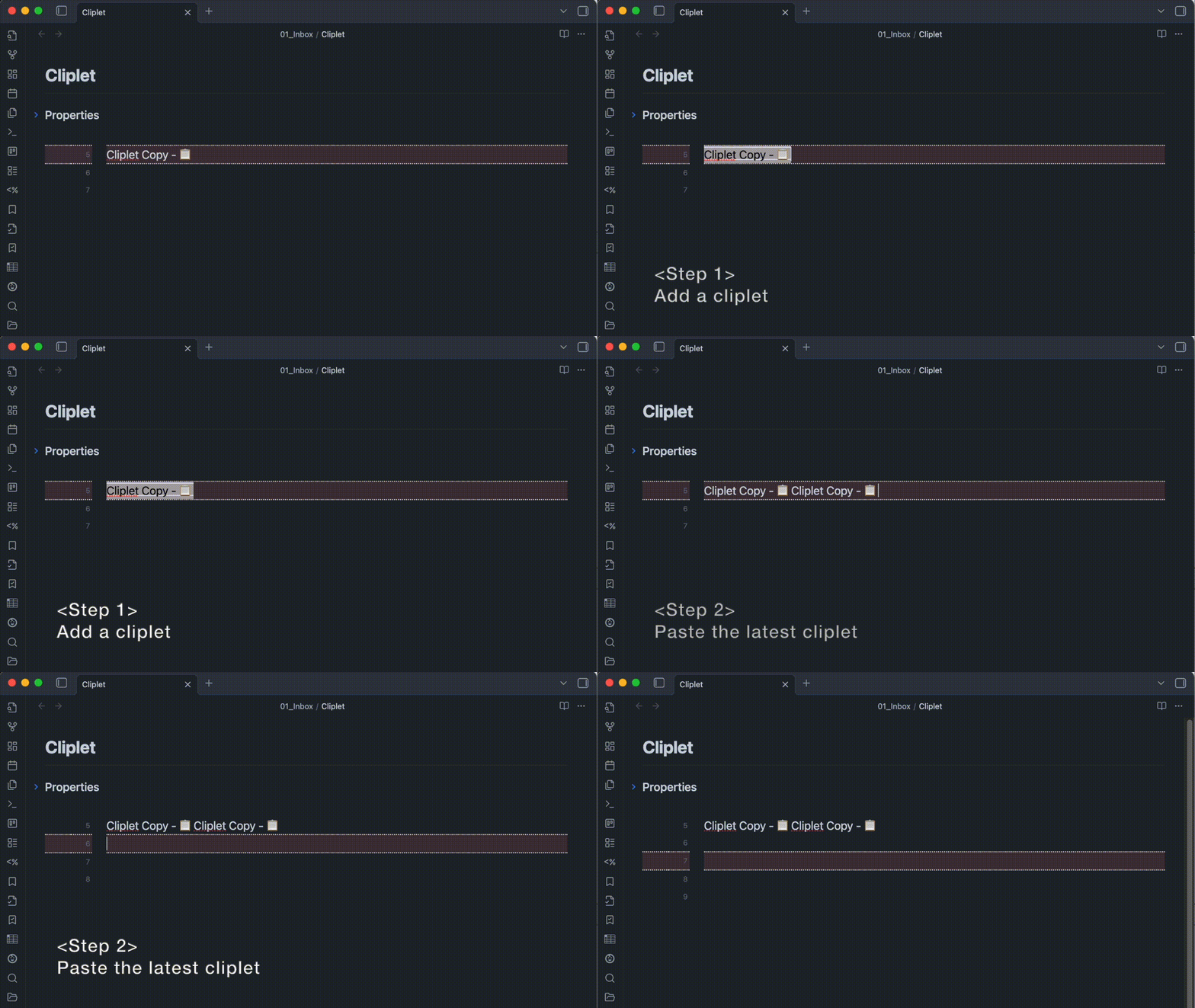
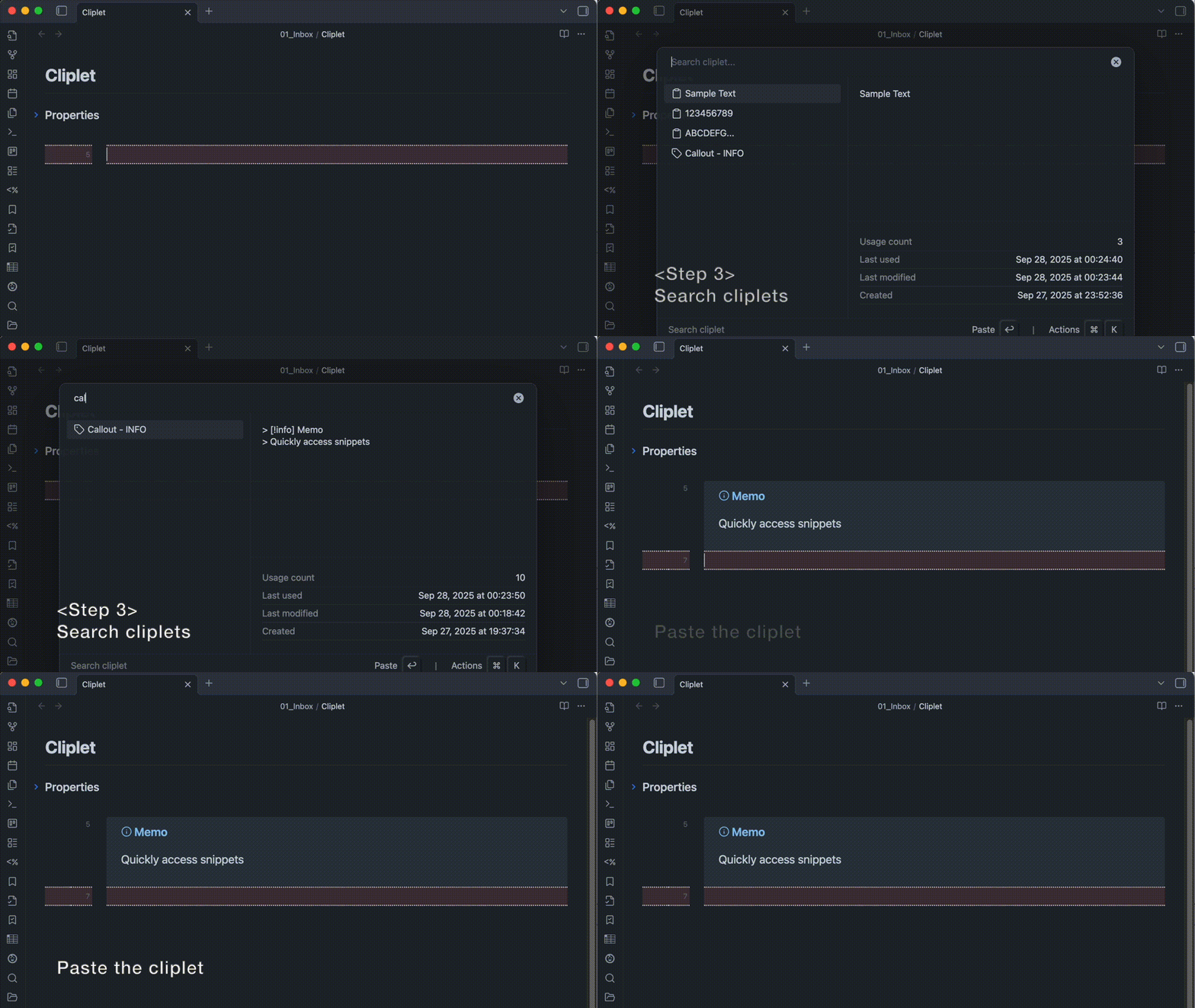
For the best experience, assign hotkeys to Cliplet commands in Obsidian’s settings.
This allows you to add, paste, and search cliplets quickly without leaving the keyboard.
- Add a cliplet: Run the “Add” command after selecting text.
- Paste the latest cliplet: Run the “Paste latest” command.
- Search cliplets: Run the “Search” command to find, then paste or edit the desired cliplet.
About placeholders
Cliplet lets you insert dynamic values inside cliplet content.
Use the following placeholders when writing cliplets:
| Placeholder | Description | Input example | Output example |
|---|---|---|---|
{cursor} |
Moves the cursor to the first {cursor} found in the text. Any additional {cursor}s are ignored. |
Hello {cursor}world |
Hello │world |
{clipboard} |
Inserts the current OS clipboard text at this point. | Text: {clipboard} |
Text: apple(If clipboard = apple) |
Installation
You can find and install this plugin through Obsidian’s Community Plugins Browser.
For detailed steps or alternative installation methods, click here.