Canvas CSS class
 Mara32k downloads
Add a CSS class to the canvas, but also other attributes.
- Overview
- Scorecard
- Updates26
This plugin do two things :
- Add the class
.canvas-fileto the DOM of each canvas file, and adding the attribute[data-canvas-path="filepath"] - Allow you to add custom css class to canvas, using a modal input. Obviously, you can also remove the css-class using the plugin, with the settings or the commands modal.
Yeah, that's it.
[!NOTE]
Actually, the plugin doesn't load any CSS in your canvas. You need to write your own CSS, and add it into your.obsidian/snippetsfolder.
Get more information about snippets here.
The plugin will automatically follow file moved, renamed or deleted, so you don't need to change the path in the settings!
Usage
The plugin will add two commands to the command modal :
Add CSS class: Add a css class to the current canvas fileRemove CSS class: Remove a css class to the current canvas fileChange the append mode between body & workspace: Allow to choose the behavior of the plugin. By default, the plugin will add the css class toworkspace-leaf-contentof the canvas file. See below for more information.
There is 3 commands to allow changing this behavior :quickswitch between body & view-content: Invert the behavior of the actual canvas.Switch to view-content mode: Convert the actual canvas to the workspace-leaf-content behavior.Switch to body mode: Convert the actual canvas to the body behavior.
You can also use the settings to add or remove a css class to the current canvas file.
Moreover, the settings allow you to add a css class for a not-opened canvas file, using the filepath of the file. It allows you to add a css class to a canvas file, even if you don't have it opened.
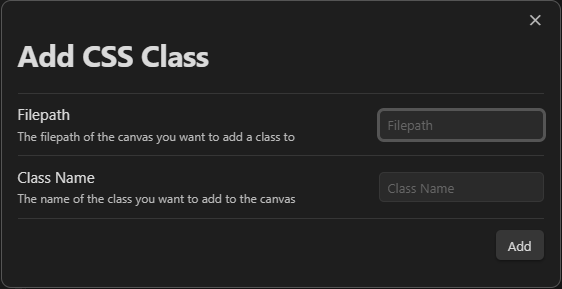
In the settings, you can also :
- Remove all the css class
- Remove specific css class
- Edit a css class (renaming it)
- Change the adding behavior between body & workspace
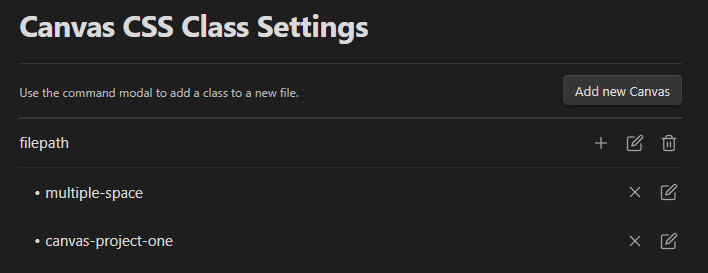
[!NOTE]
- You don't need to add the
.canvasto the filepath. The plugin will do it for you- Same for class, the
.will be added automatically when the CSS class is added.- And, in the same idea, space will be converted to
-in the class name, and converted to lowercase.
Append behavior
The plugin will add, by default, the css class to .workspace-leaf-content of the canvas file, but it can be changed using the settings of the plugin.
This allows a better compatibility when you switch of focused file, because the css class will be conserved. The problem is that the css class is not conserved and exported when you export as an image.
Changing the behavior to the body of Obsidian allow you to export the image conserving the css-class, but if you switch of focused file, the css class will be removed.
My advice :
- Use a macro to switch into
bodybehavior when you use the command for export as an image (you can use Quick Add for that). Note : you need to add a delay, min of 30s, to allowing this to work. - Create a button with commander to quick switch between the two behaviors.
[!NOTE]
If you add the same class to two different file, opened in the same time, but one on the body and the other on the view-content, the class will be applied « globally », so the focusing-removing won't happen here.
Installation
- Install the plugin throught the Obsidian Community Plugin browser
- Using BRAT using this link :
https://github.com/mara-li/obsidian-canvas-css-class - Manually, with unzipping the last release in your
.obsidian/pluginsfolder.
:robot: Developing
You can help me to develop the plugin using npm !
- First clone the project on your computer with git clone
[email protected]:mara-li/canvas-css-class.git - cd
canvas-css-class npm installnpm run devto start the developing "in live" with your Obsidian (you need to have the plugin installed in your.obsidian/plugins) to see the changes in live. As it can break your Obsidian Sync, I recommend you to use a test vault.)npm run buildto build the plugin.
Some notes:
- I use Conventional Commit to generate the commit message, so please respect the format!
- Don't forget to documents your function!
🗺️ Translation
I use i18n to adding translation to the plugin. If you want to help me to translate the plugin, you can do it with :
Clone the new fork on your computer or open it with Github Dev (replace the
.comwith.devin the URL)Create a new branch, called
translationClone the file
en.tsin the folderplugin/i18n/locales/and rename it with the language code (for examplefr.tsfor french)Translate the file
In the index:
- Add the import using
import <language> from "./locales/<language>"; - Before editing the localeMap, you need to know the exact name used by Obsidian for your language. You can find it using
<% tp.obsidian.moment.locale() %>if you have templater, or opening the developer console (using CTRL+MAJ+I) and typingmoment.locale(). - Edit the
LocaleMapwith the language code and the name of the language. You need to haveobsidian-code-language : language(for examplefr : french, or for chinese"zh-cn":cn).
- Add the import using
Commit your changes and push it to your fork
Create a new pull request to the main project
If you find this plugin you can give me some coffee money :