Search...Search plugins and themes...
⌘K
Sign in
  • Get started
  • Download
  • Pricing
  • Enterprise
  • Account
  • Obsidian
  • Overview
  • Sync
  • Publish
  • Canvas
  • Mobile
  • Web Clipper
  • CLI
  • Learn
  • Help
  • Developers
  • Changelog
  • About
  • Roadmap
  • Blog
  • Resources
  • System status
  • License overview
  • Terms of service
  • Privacy policy
  • Security
  • Community
  • Plugins
  • Themes
  • Discord
  • Forum / 中文论坛
  • Merch store
  • Brand guidelines
Follow us
DiscordTwitterBlueskyThreadsMastodonYouTubeGitHub
© 2026 Obsidian

Callouts Plus

Gustavo Gomes RibeiroGustavo Gomes Ribeiro178 downloads

Pick callout colors and types from a visual menu, with 20 extra colors and custom callouts.

Add to Obsidian
  • Overview
  • Scorecard
  • Updates2

Pick callout colors and types from a visual menu instead of typing the identifier by hand.

Obsidian's default [!type] syntax requires remembering the exact keyword for each callout. Callouts Plus adds a visual picker with a live preview of every callout, plus 20 extra colors and support for fully custom callouts.
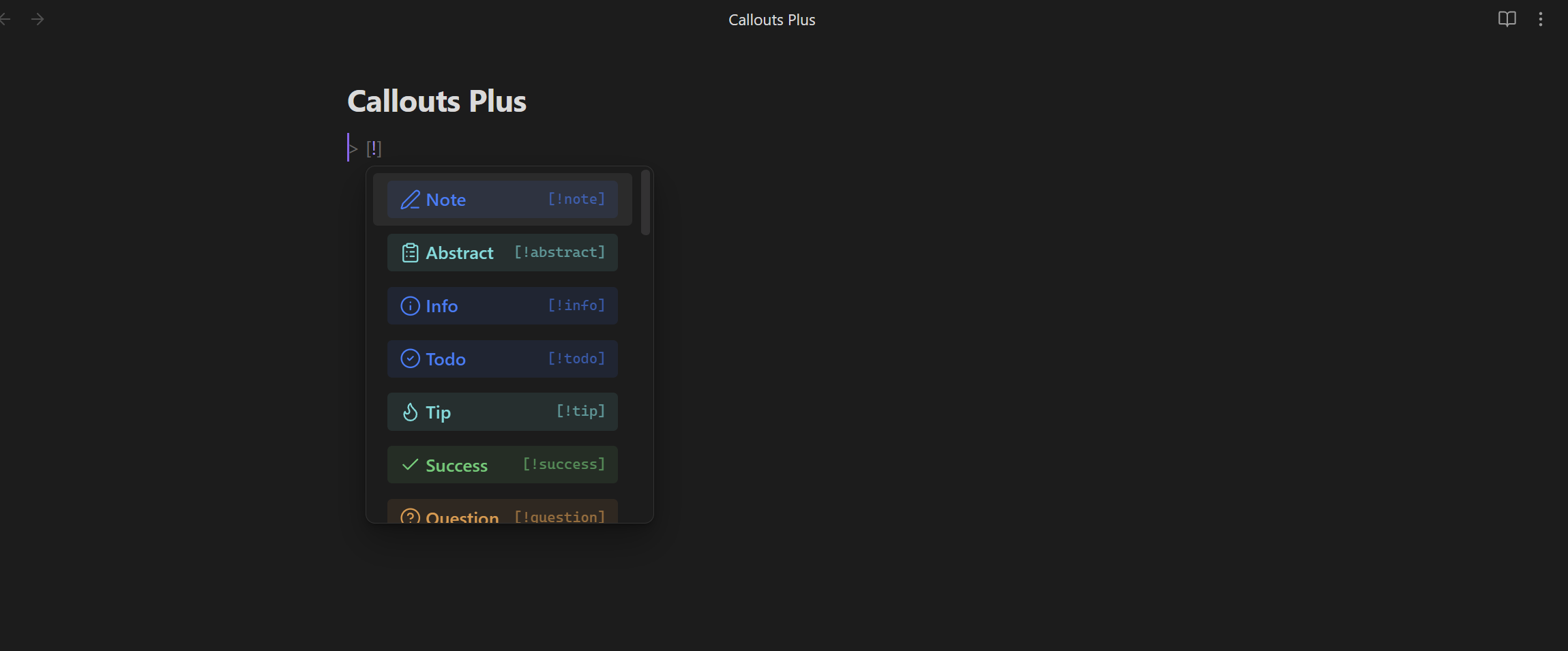
Insert callout picker

Features

  • Suggestions while typing: type > [! in a note and a colored, searchable list of callout types appears.
  • Insert callout command: opens a picker with a title field and a fold option (none, expanded, collapsed). Wraps the current selection if there is one.
  • Change callout type command: place the cursor inside an existing callout and swap its type from the same picker.
  • 20 extra colors: red, orange, amber, yellow, lime, green, emerald, teal, cyan, sky, blue, indigo, violet, purple, fuchsia, pink, rose, brown, gray, and slate — each with its own icon, on top of the 13 native callout types.
  • Custom callouts: define your own id, label, color, and icon (any Lucide icon name) from the settings tab, no CSS required.

Usage

  1. In a note, type > [! and pick a color or type from the list that appears — or run Insert callout… from the command palette (or the ribbon icon) for more control over the title and folding.
  2. To change an existing callout's type, place the cursor inside it and run Change type of current callout….
  3. Open Settings → Callouts Plus to toggle the native types, the extra color palette, and to add your own custom callouts.

Installation

Callouts Plus is available in the Obsidian Community Plugins directory:

Open Settings → Community plugins → Browse. Search for Callouts Plus and install it. Enable it — the commands and the right-click menu item appear immediately.

Manual install Download main.js, manifest.json, styles.css from the latest release into /.obsidian/plugins/callouts-plus/, then enable it in Settings → Community plugins.

Disclosures

This plugin works entirely offline: it makes no network requests, collects no telemetry, and doesn't require any account. All data (your custom callouts) is stored locally in the plugin's settings file.

License

MIT

HealthExcellent
ReviewPassed
About
Pick callout types and colors from a visual, searchable menu with live preview instead of typing [!type] identifiers. Insert or wrap selections with a titled, foldable callout and swap types in-place. Add 20 extra colors and define fully custom callouts with icons.
EditingFormattingIcons
Details
Current version
1.0.2
Last updated
2 weeks ago
Created
2 weeks ago
Updates
2 releases
Downloads
178
Compatible with
Obsidian 1.13.6+
Platforms
Desktop, Mobile
License
MIT
Report bugRequest featureReport plugin
Author
Gustavo Gomes RibeiroGustavo Gomes Ribeiroguguinhass
GitHubguguinhass
  1. Community
  2. Plugins
  3. Editing
  4. Callouts Plus

Related plugins

List Callouts

Create simple callouts in lists.

Editing Toolbar

The Editing Toolbar is modified from cMenu, which provides more powerful customization settings and has many built-in editing commands to be a MS Word-like toolbar editing experience.

Sort and Permute lines

Sort and Permute lines in whole file or selection.

Symbols Prettifier

Prettify the symbols with actual symbols you commonly type, like arrows.

Trim Whitespace

Trim unnecessary whitespace.

Admonition

Admonition block-styled content.

Linter

Format and style your notes. Linter can be used to format YAML tags, aliases, arrays, and metadata; footnotes; headings; spacing; math blocks; regular Markdown contents like list, italics, and bold styles; and more with the use of custom rule options.

LanguageTool Integration

Advanced grammar and spell checking, powered by LanguageTool.

Meta Bind

Make your notes interactive with inline input fields, metadata displays, and buttons.

Thino

Quickly capture memos and display them in the sidebar with a heatmap. (Closed source)