Button Blocks
 theluckystrike13 downloads
Run commands, open links and insert text from button code blocks, with the Buttons syntax you already use.
- Overview
- Scorecard
- Updates1
Run commands, open links and insert text from button code blocks, with the Buttons syntax you already use.
Your ```button blocks keep working, because Button Blocks reads the Buttons syntax as it is. Each button that changes a note finds its own block again before it writes. The rest of the note stays the same.
Features
Buttons from your notes
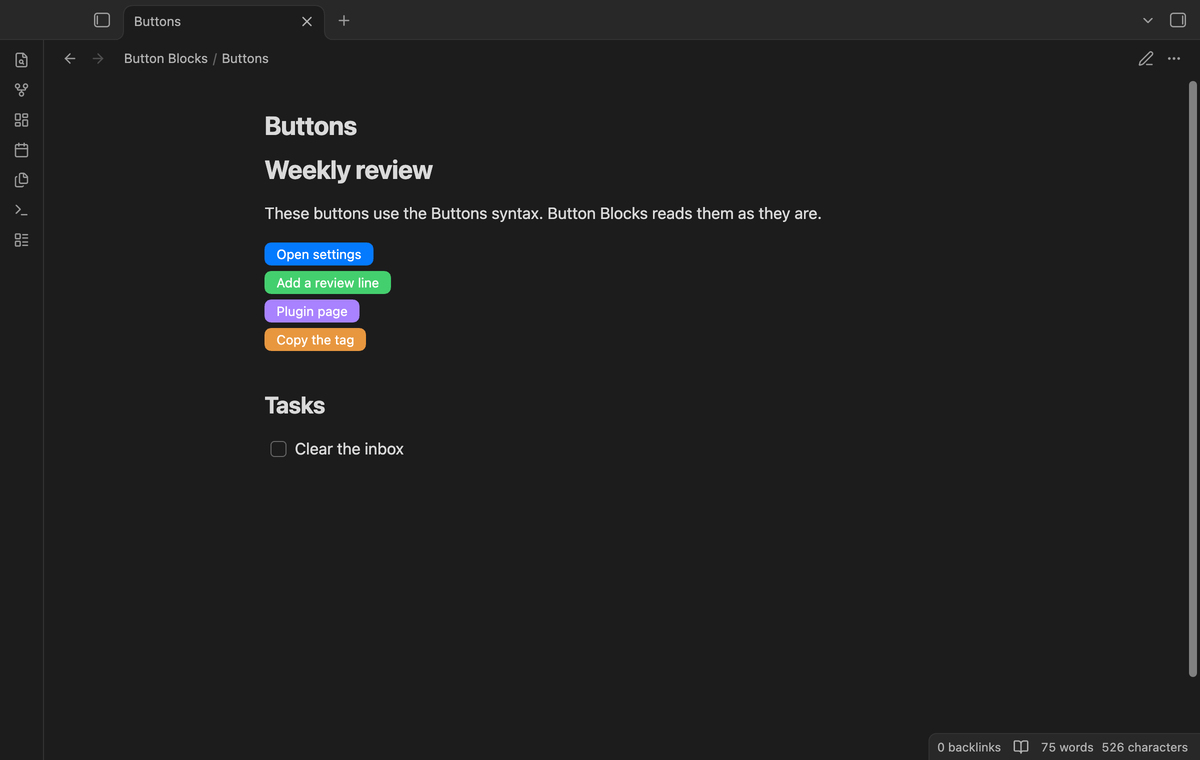
A code block with the language button becomes a button in Reading view and in Live Preview. The block uses the same args as Buttons. These are name, type, action, color, class, width, height and align.
There are six free types. A command button runs a command by its name. A link button opens a web page, an email or an Obsidian link. A text button adds text to the note or to a new note. A copy button copies text. A chain button runs several of these in sequence. The colours blue, red, green, yellow, purple, orange and gray use the colours of your theme.
Text where you want it
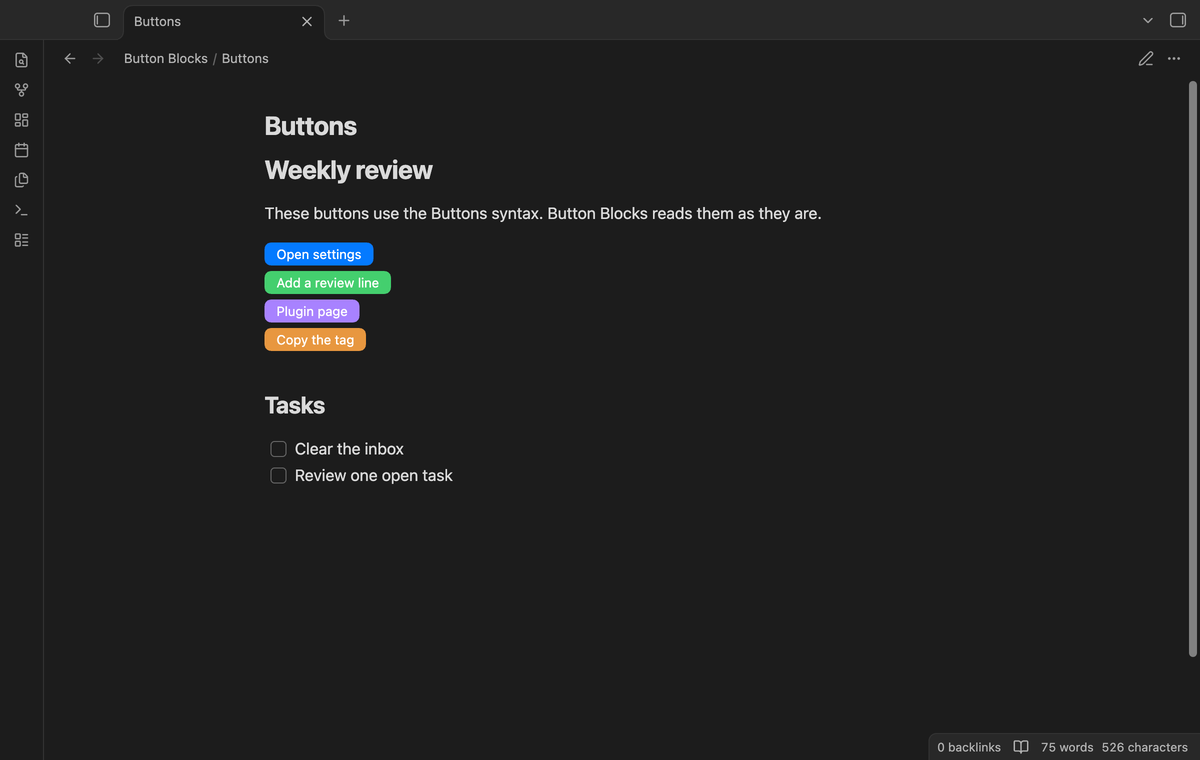
A text button adds its action text at the end of the note, at the start after the frontmatter, at a line number or at a line under the button. The type note(Title) text makes a new note next to the current note. The type note(Folder/Title) text makes the note in that folder from the vault root, like Buttons. A missing folder is made. Add tab or split to open it in a new tab or a split. When the note is already there, it opens and nothing is written to it.
Add remove true to delete the button after a click. Add replace [5, 7] to replace lines 5 to 7 with the text. A plus sign counts lines from the button, so replace [+1, +2] changes the two lines below it.
Inline buttons
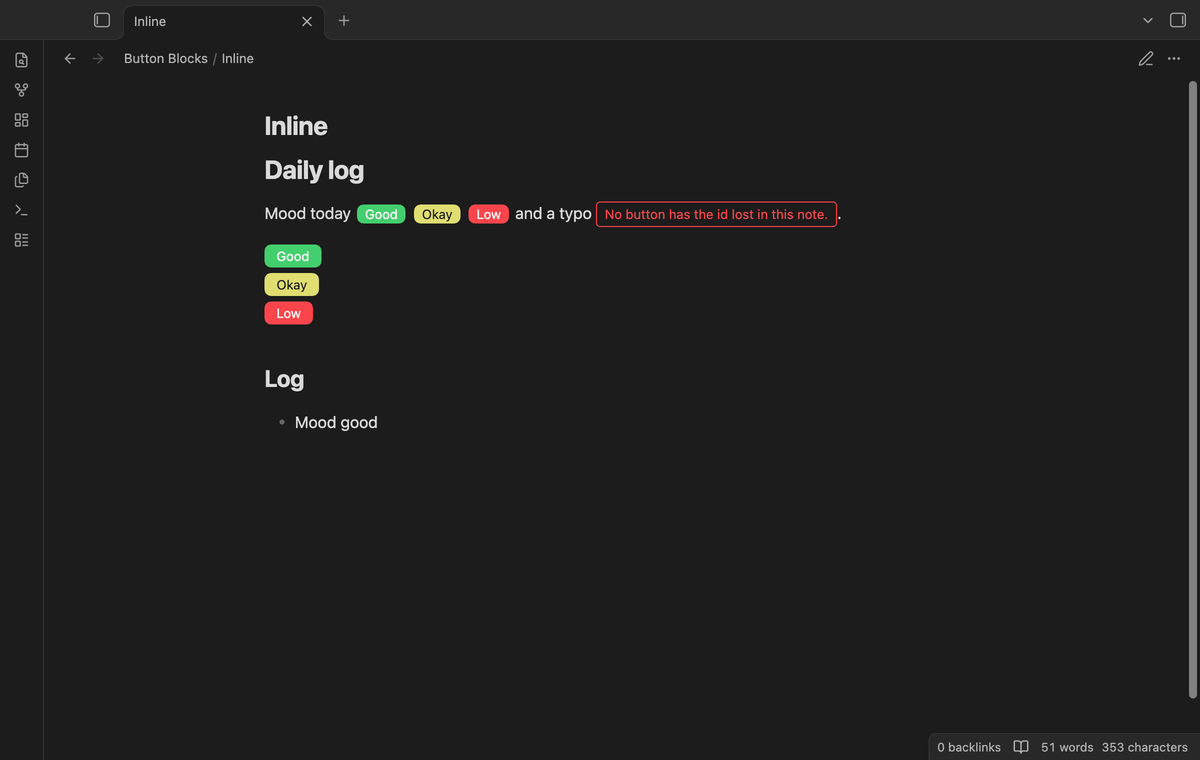
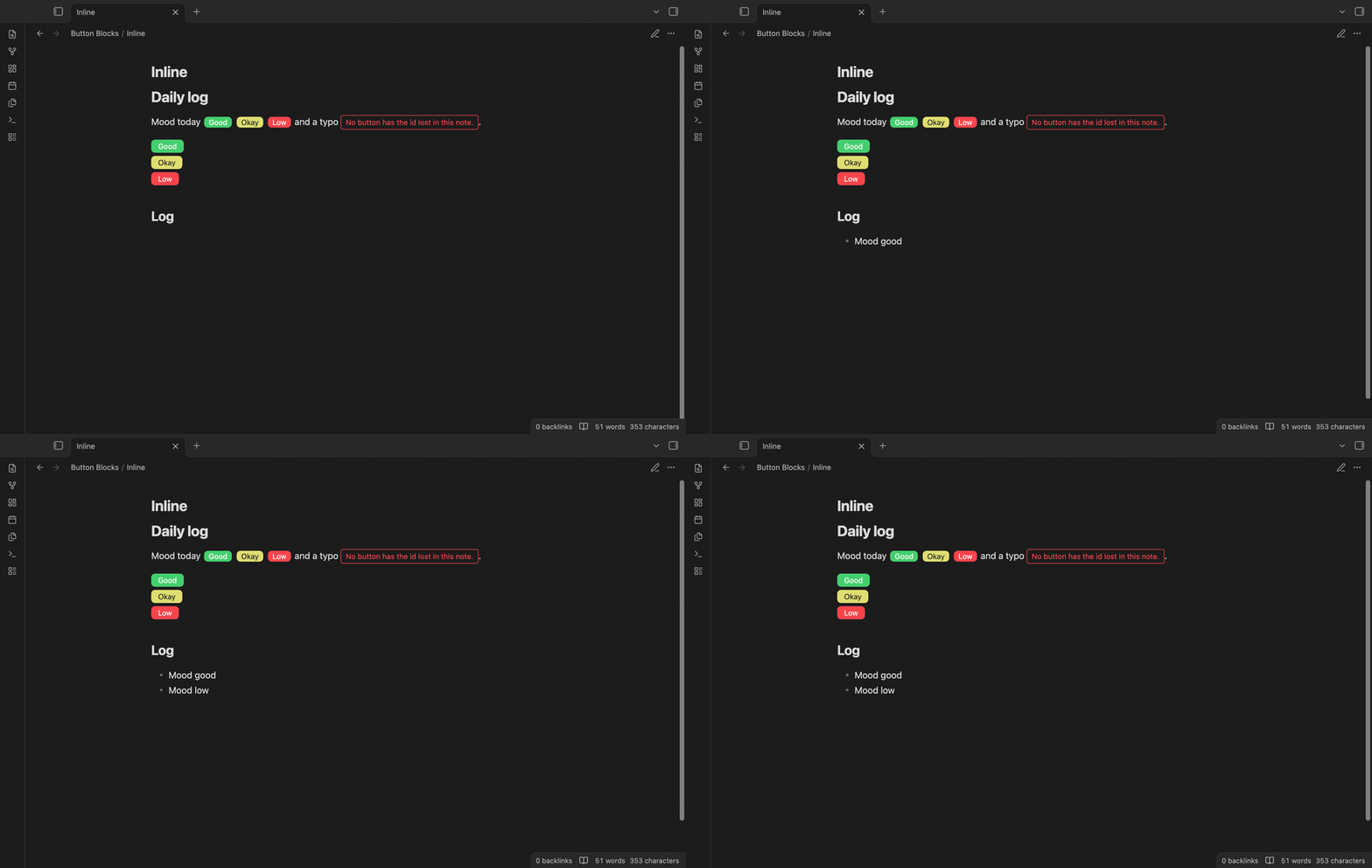
Write button-id as inline code to show the block that has ^button-id in the same note. Several inline buttons can share one line. An id with no block shows a red chip, so a typo is easy to find. Inline buttons show in Reading view.
Safe by default
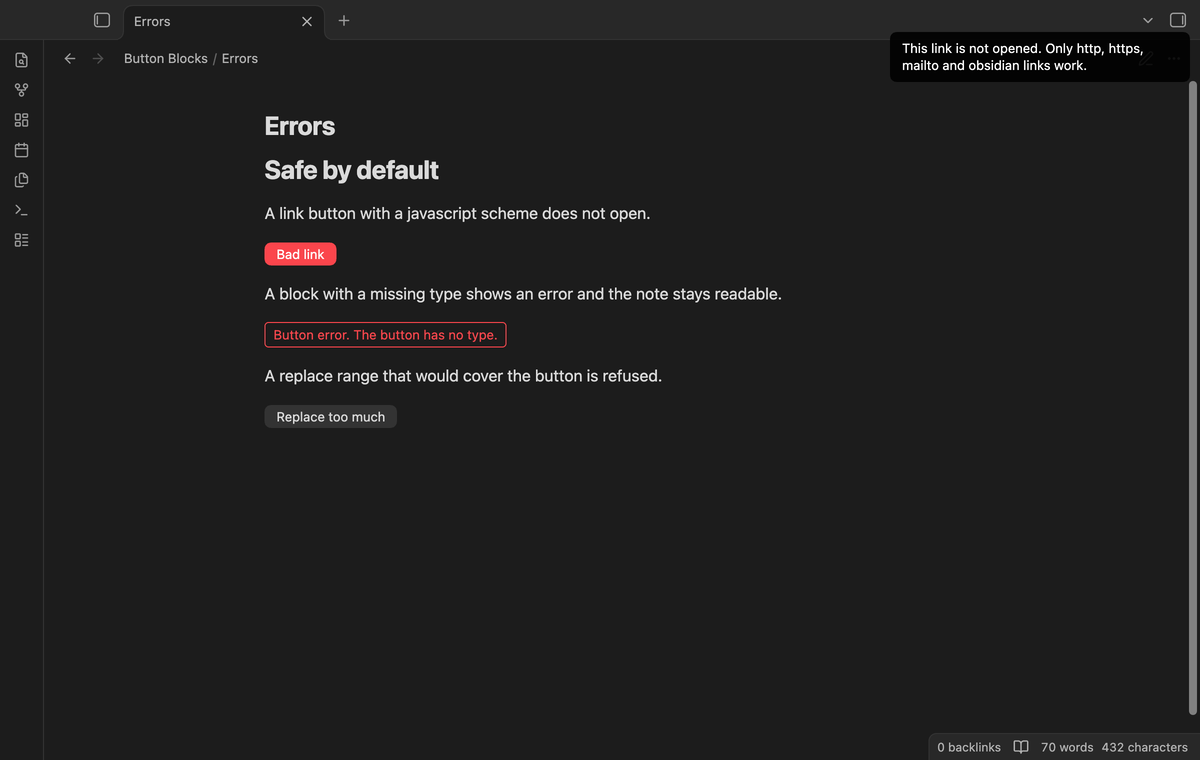
Button Blocks writes to a note in one step that reads and writes together. An edit that you make while a button runs is never lost. A second click on a busy button does nothing.
A link with a scheme other than http, https, mailto or obsidian does not open. A note path with .., a backslash, a colon, a leading slash or a hidden folder is refused. A replace range that would cover the button, or that ends past the last line, changes nothing. A broken block shows an error chip, and the rest of the note still renders. The plugin has no eval, no shell and no network calls for buttons.
Pro features
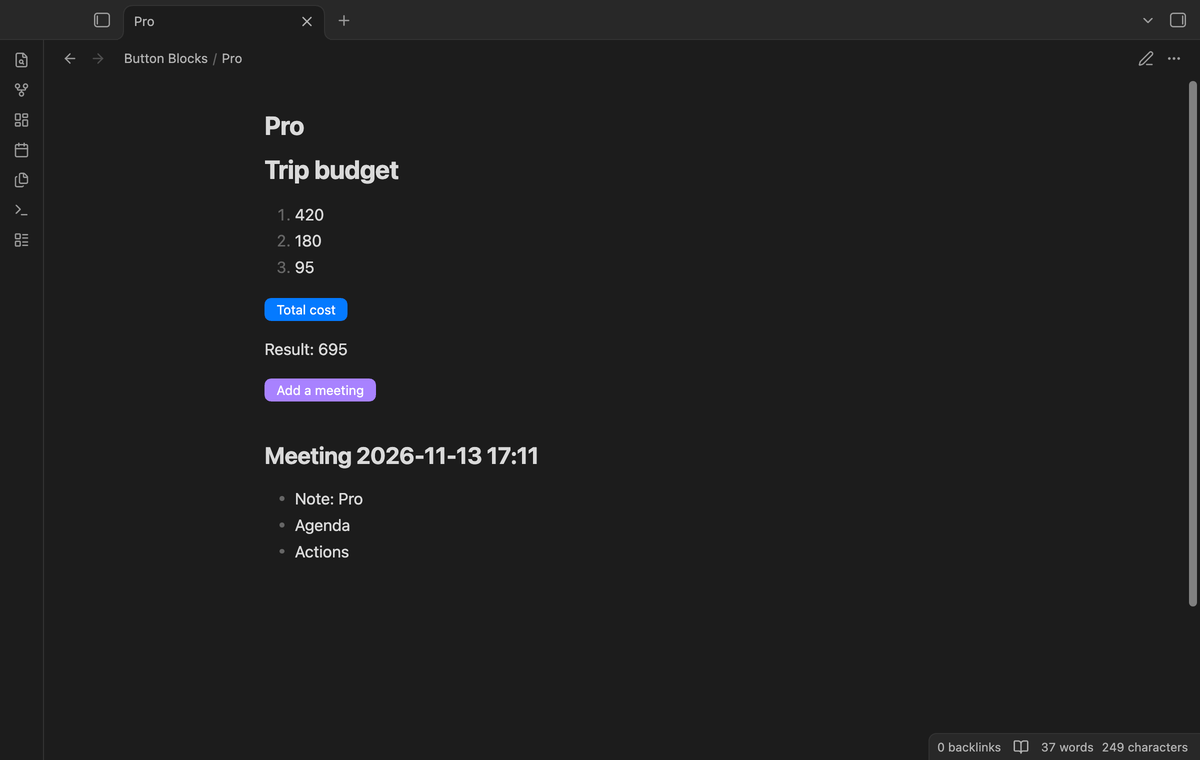
Pro adds template buttons, calculate buttons and a check of all buttons in the vault. The section "Payment, account and network" gives the price and the sign in.
- Template buttons. The types
append template,prepend template,line(n) templateandnote(Title) templateread a template note. They look in the folder of the core Templates plugin and of Templater, like Buttons. They fill {{title}}, {{date}} and {{time}} like the core Templates plugin. - Calculate buttons. The action is a sum such as
$3 + $4 * 2. A dollar sign and a number read the number on that line of the note. A safe parser does the maths, with no eval. - Check buttons in vault. This command lists blocks with an error, unknown command names, missing templates and inline ids with no block.
Install
When Button Blocks is listed in the community directory, open Settings, then Community plugins, then Browse. Search for "Button Blocks". Select Install, then Enable.
To install by hand, download main.js, manifest.json and styles.css from the latest release. Put the three files in <vault>/.obsidian/plugins/button-blocks/. Then reload Obsidian and turn on Button Blocks.
Turn off the Buttons plugin first, or each block shows two buttons.
The plugin works on desktop and on mobile.
Usage
Quick start
- Turn on Button Blocks.
- Open a note that has a ```button block, or add the block below.
- Switch to Reading view or Live Preview and select the button.
```button
name Add a task
type append text
action - [ ] New task
color green
```
^button-task
Types
command. The action is the name of a command as the command palette shows it. The name without the plugin part also works.link. The action is a URL.append text,prepend text,line(5) text,line(+1) textandnote(Title, tab) text.copy. The action text goes to the clipboard.calculateand the template types need Pro.
A chain button has an actions arg, a JSON list of steps with a type and an action. The first step that fails stops the chain. The steps before it stay in the note.
The id line
The line ^button-id directly under a block gives the button an id. Inline buttons and remove [id1, id2] use it. When you remove a button, its id line goes too.
Templater
Button Blocks does not run Templater commands. A block with templater true shows a notice and changes nothing. Raw Templater text never goes into your note.
Settings
Buttons
- Show a notice after a change. Off by default.
Template buttons
- Date format. YYYY-MM-DD by default. It takes the tokens YYYY, YY, MM, M, DD, D, HH, H, hh, h, mm, ss and A, as in Moment.js.
- Time format. HH:mm by default.
Calculate buttons
- Decimal places. 4 by default.
- Result text. "Result: " by default. It goes before the result in the note.
Pro
The Pro group shows if Pro is on. The Pro sign in is below it.
FAQ
Do I have to change my notes?
No. Button Blocks reads the Buttons syntax. Keep your blocks and your ^button-id lines as they are.
What happens when a command name is wrong?
The button shows a notice with the name, and nothing runs. The command "Check buttons in vault" in Pro lists each wrong name.
What are the known limits?
Inline buttons show in Reading view only. Swap buttons, a chain in a chain and the folder arg of Buttons are not in this version. Templater commands do not run. A button in a callout works, and its new lines keep the > marks. A callout in a nested list is not found. Buttons on a canvas do not work.
What happens after an Obsidian update?
Command buttons use a part of Obsidian with no documentation. If an update changes it, a command button shows a notice and changes nothing. All other types use the public API.
Payment, account and network
The core features are free. Pro features need a GitHub Sponsors sponsorship of theluckystrike: $5 a month or more, or $15 once. A total payment of $15 meets the payment requirement for Pro without further payment. Sign-in and the checks below still apply. Your notes stay readable and editable with or without Pro.
One payment turns on Pro in every NoteMods plugin.
GitHub handles the payment. Sponsor at https://github.com/sponsors/theluckystrike?frequency=one-time&metadata_source=button-blocks. You need no account for the free features. Pro needs the GitHub account that sponsors.
Until you select "Sign in with GitHub" in the settings, Button Blocks makes no network requests. Sign in uses the GitHub device flow. Button Blocks sends its public client ID and the scope read:user to https://github.com/login/device/code and shows you a code. While you enter the code at https://github.com/login/device, it asks https://github.com/login/oauth/access_token every few seconds to check the sign-in status. The scope permits profile reads only. GitHub needs this access to show the sponsorship tier. It grants no repository scope and no write access.
After sign in, Button Blocks sends one query to https://api.github.com/graphql. It checks if the signed-in account sponsors theluckystrike. It asks for the tier and the total payment to theluckystrike. The plugin reuses a successful check for 7 days. Failed checks can retry after 6 hours. Select Refresh to request an earlier check. It sends no note content, file names or other vault data, and it has no telemetry.
After a successful check, Pro can work offline for up to 14 days. Sign out or a negative sponsorship answer turns Pro off. The plugin stores the GitHub token through the secret storage API of Obsidian. It does not put the token in its saved settings or its local sponsorship data. The local storage of this device keeps your GitHub login, the tier and the time of the last check. Sign out clears the token. You can also revoke the access in your GitHub settings, under Applications.
Support
The plugin page is button-blocks.
Report bugs and ask for features in the GitHub issues of this repository. Add your Obsidian version, your device and the button block that shows the problem.
Community
Questions, bugs or plugin ideas? Talk to me and other Obsidian users in Zovo Chat on Telegram. It has a topic for these plugins. You can also open an issue here.
License
MIT